Disclosure: LabFin is reader-supported. If you sign up for a tool through links on this page, we may earn a commission at no extra cost to you. Commissions vary between providers and our ratings do not — here’s our full disclosure.
To set up local AI, you need four layers: a capable computer, a runner such as LM Studio or Ollama, an open model sized for your machine, and an interface or app that talks to it. Together they keep prompts on your own hardware.
This guide, moreover, walks through six steps, from checking hardware to securing the local server. It also says when a cloud assistant still makes sense.
How to Set Up Local AI: The Short Answer
First, install LM Studio for a desktop app, or Ollama for scripts and servers; both are free for local use. Then download a small open model and test it in chat.
Next, however, connect your editor or apps through the local API, and keep that API private. Our list of the best local AI tools ranks the options.
The Layers of a Local Stack
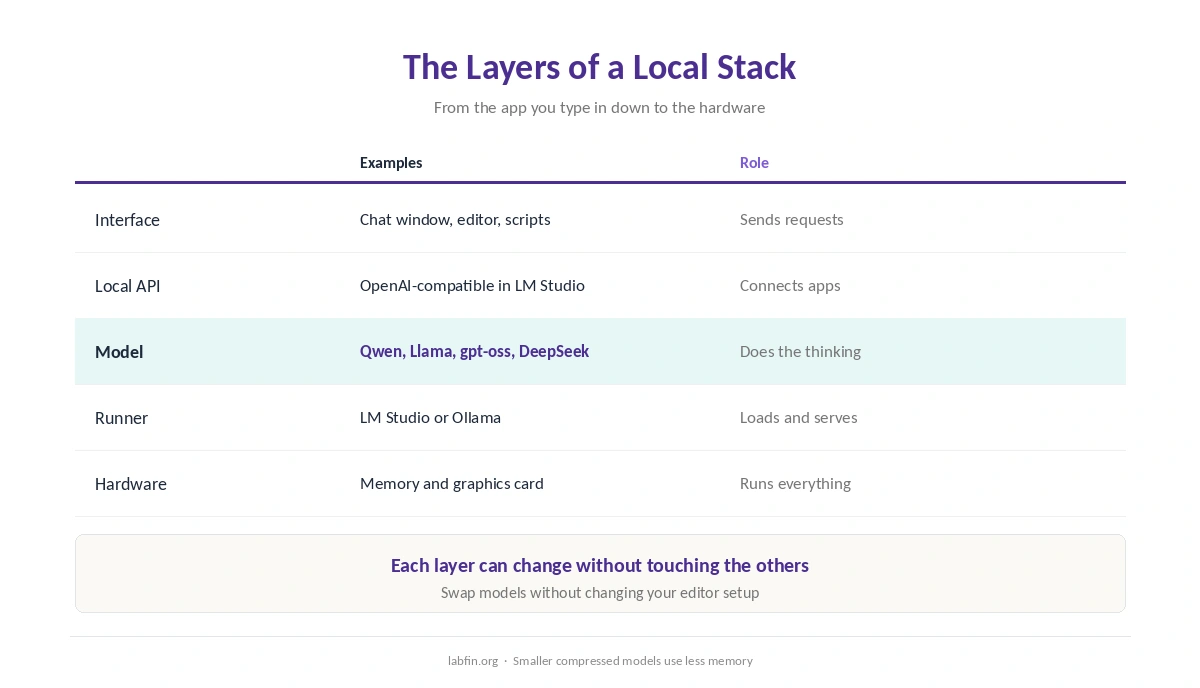
Your hardware runs everything, and a runner loads models and serves them. A model, meanwhile, does the thinking, and an interface, such as a chat window or your code editor, sends it requests.
Each layer can change independently. So you can, for example, swap models without changing your editor setup.
Step 1: Check Your Hardware
Local models need memory, and larger models need more. A recent Apple Silicon Mac or a computer with a strong graphics card runs larger models faster, while older machines suit only small models.
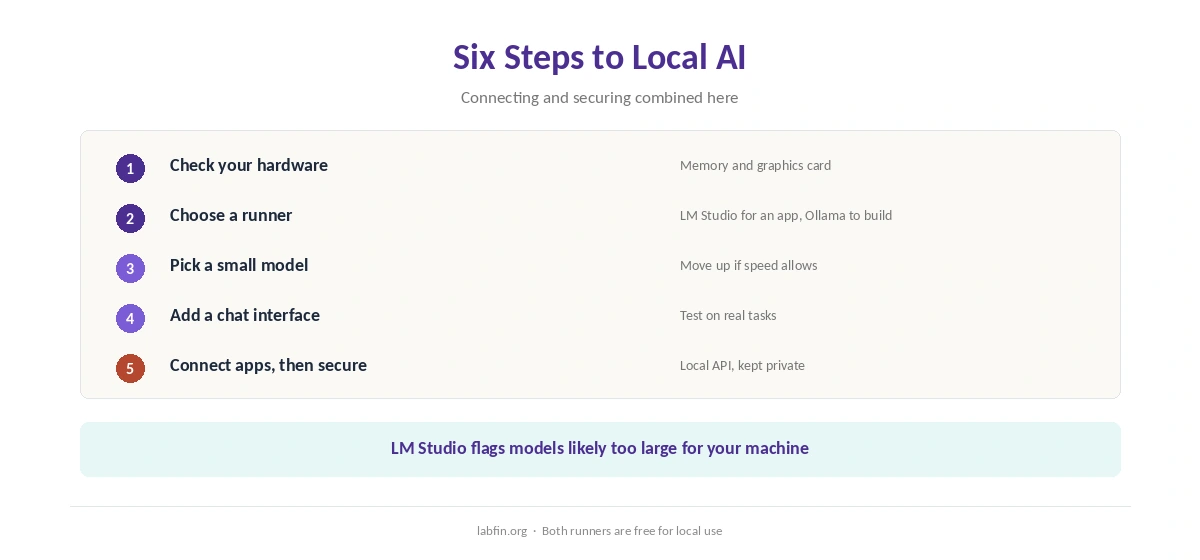
Start small, therefore, and move up only if speed allows. LM Studio, for example, flags models likely too large for your machine, as our LM Studio review notes.
Step 2: Choose a Runner
LM Studio suits people who want a point-and-click app with a model browser and chat. Ollama, by contrast, suits developers who script, self-host or want open-source code.
Our Ollama vs LM Studio comparison weighs both, and many people use both.
Step 3: Pick a Model
Choose an open-weight model that fits your hardware, for example a small Qwen, Llama, gpt-oss or DeepSeek version. Smaller, compressed versions use less memory but answer less well.
DeepSeek’s open weights, moreover, let you avoid its hosted service in China, as our DeepSeek review explains.
Step 4: Add a Chat Interface
LM Studio includes a chat window. With Ollama, by contrast, you can chat in the terminal or install a desktop app that uses Ollama as its engine.
When you set up local AI, test the model on your real tasks before going further. Our guide to writing better prompts helps smaller models give better answers.
Step 5: Connect Your Editor and Apps
Both runners serve a local API; LM Studio’s is compatible with OpenAI’s. As a result, editors, scripts and agents built for cloud models can often point at your machine instead. Our guide on how to train AI on your own content sets out the steps.
For coding, our guides to DeepSeek for coding and using AI for coding projects cover setups.
Local models also make mistakes, so review their code as our guide to reviewing AI-generated code explains.
Step 6: Secure the Server
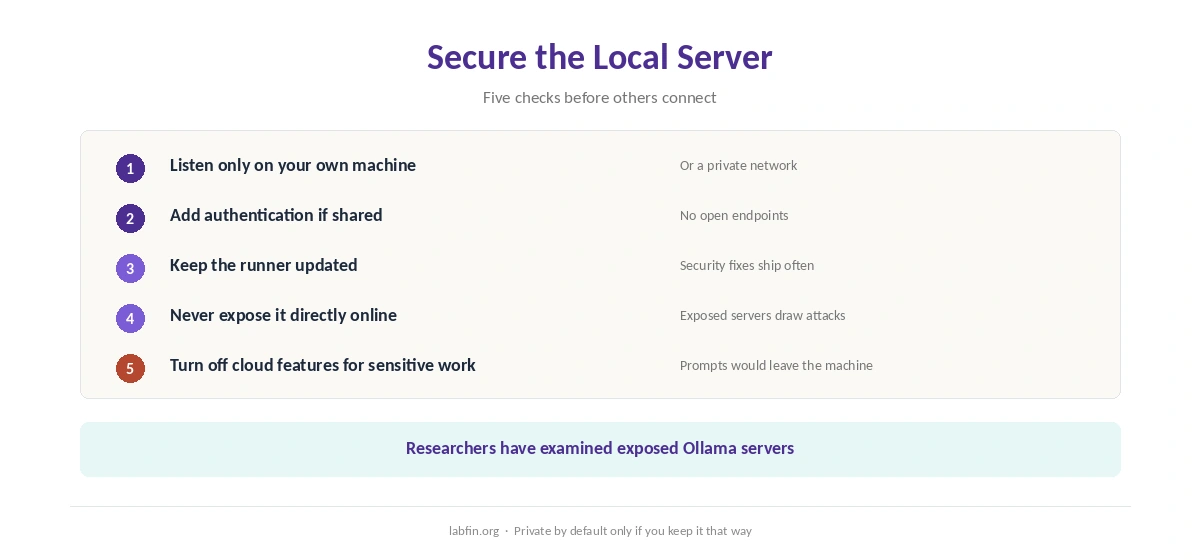
Keep the API listening only on your own machine or private network. Security researchers, moreover, have examined risks from Ollama servers left open to the internet by mistake.
If others need access, add authentication, keep the runner updated, and never expose it directly online. Our list of the best AI tools for privacy covers related options, and our list of the best AI tools with no account required covers sign-in-free tools.
When to Keep a Cloud Assistant
Local models trail the cloud leaders on hard reasoning, research and long documents. So keep a cloud assistant with training turned off for those tasks, as our local AI vs cloud AI comparison explains.
For company code under strict rules, Tabnine offers on-premises deployment with support, as our Tabnine review covers.
How We Research
This guide on how to set up local AI draws on our reviews of LM Studio and Ollama and on Ollama’s Wikipedia entry, read between September and October 2, 2026.
We run no hardware tests of our own. Our about page explains how we research, and our Ollama review covers its cloud option.
How to Set Up Local AI FAQ
A capable computer, a runner such as LM Studio or Ollama, and an open model sized for your machine.
LM Studio, with its desktop app and model browser. Ollama suits scripts and servers.
A small open model, such as a small Qwen, Llama, gpt-oss or DeepSeek version; move up if speed allows.
Often, yes: both runners serve a local API, and LM Studio’s is OpenAI-compatible.
Keep it local or on a private network, add authentication if shared, and keep it updated.
The Verdict
A local AI stack is simpler than it sounds: one runner, one model and an interface. It keeps prompts on your hardware and costs nothing beyond the computer.
So start small, connect your tools through the local API, and keep the server private. That is how to set up local AI that stays private.