
A volunteer handbook in Microsoft Loop has been edited by several team members. A new arrival time appears, an accessibility note is expanded, and someone proposes a different emergency contact procedure. When the next shift starts, readers need to know what changed and which changes are actually approved. Microsoft Loop provides a Recap pane for describing page changes, and eligible Copilot users may have AI-assisted recap options. This article focuses on the currently documented Recap workflow, not removed or unavailable legacy Copilot editing commands. The example handbook is fictional.
Separate edits from decisions
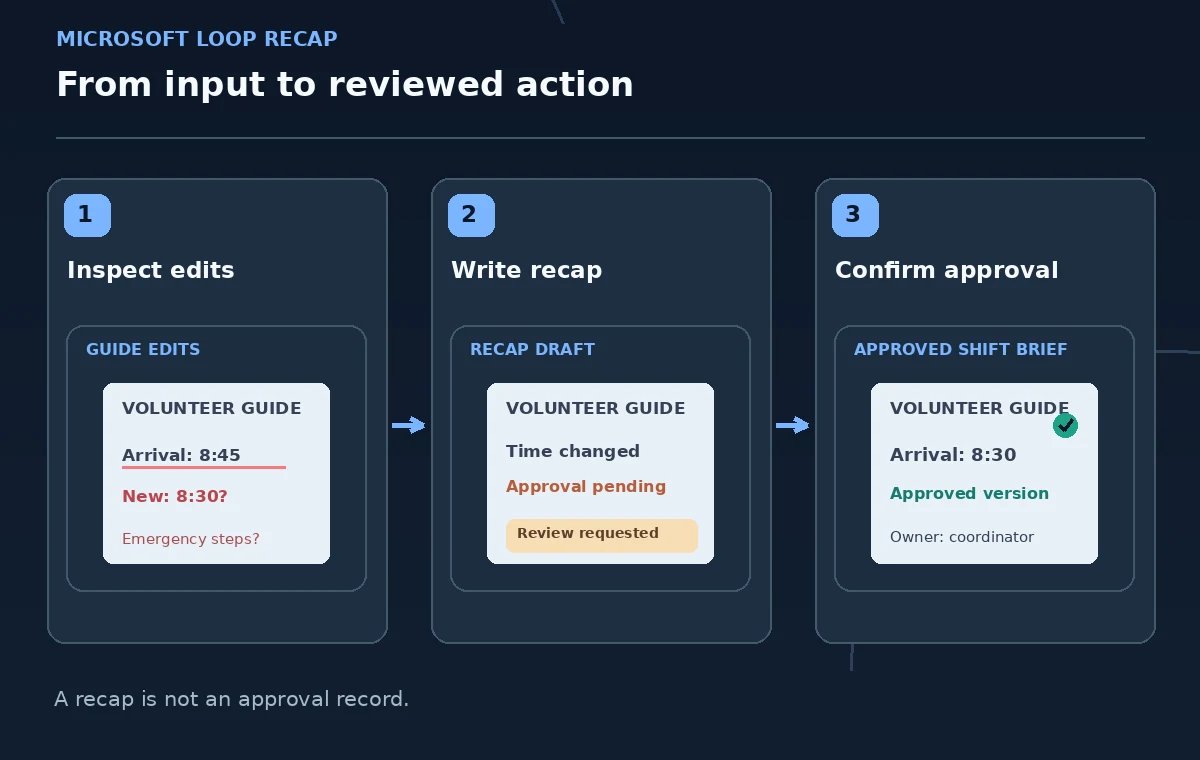
Before creating a recap, read the page from top to bottom and tag each substantive change as approved, proposed, or awaiting confirmation in your working notes. An updated paragraph is not necessarily a policy decision; someone may have edited the wording for clarity while an organizer is still considering the requirement. Keep the official staff policy and the accountable reviewer’s confirmation nearby. Use a distinct marker for the revised arrival time, because a changed number can affect whether volunteers attend the right briefing. A page change summary is a communication layer, not the authority that approves a new procedure.
Find the Recap panel in Loop
Microsoft’s instructions say to open More options, the three-dot menu near Share in the upper-right corner of a page, and choose Recap. It can also be reached through More page options from Recent in the workspace navigation. Select Create new recap and describe the updates, mentioning a teammate when a review is needed. The exact location may differ as Loop evolves; use the live support page if the interface changes. The important part is that a recap exists for people to inspect and edit rather than being an invisible background rewrite.
Check which Copilot capabilities actually exist
Microsoft’s November 2025 Copilot in Loop FAQ says some integrations were removed while the product moves toward consistency with Copilot Pages. It distinguishes ordinary manually written recaps from AI-assisted capture and summary of changes, which requires an eligible Copilot license. The FAQ also says current Copilot chat cannot directly update the open page or answer questions about the Loop workspace. Do not tell colleagues that a missing action must be hidden in a menu, and do not base the workflow on an old “ask Copilot to rewrite this page” demonstration. Manual Recap remains a valid and often clearer fallback.
Write a recap that quotes the change precisely
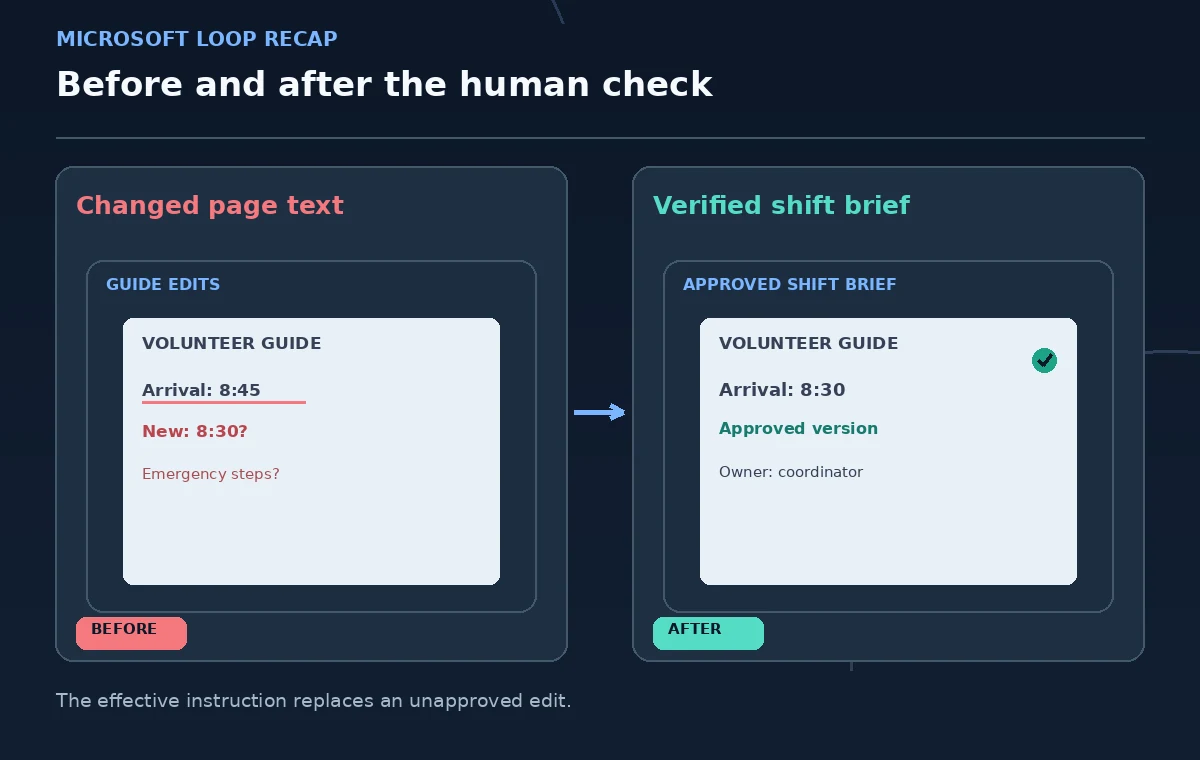
Create short entries for what was added, corrected, or removed, not a narrative that smooths away disputed decisions. For example, “Orientation arrival time changed from 8:45 to 8:30 in the page draft; coordinator confirmation pending” is better than “New check-in schedule approved.” Link or point readers to the exact section. Where text is sensitive, describe the change without copying confidential phone numbers into the recap. Include the date of the review and the name or role of the person who must approve each unresolved point. This gives the next shift a navigable update rather than a falsely definitive announcement.
Review the safety and accessibility language first
Prioritize changes affecting exits, incident reporting, accessible entrances, equipment use, and visitor interactions. If a new wording removes a required step or makes an instruction ambiguous, pause distribution and consult the responsible staff member. For example, replacing “notify the duty manager before moving furniture” with “move furniture as needed” might alter authority rather than just simplify style. Loop can help a team spot the text difference; neither the Recap pane nor an AI-generated explanation certifies compliance with the organization’s safety instructions.
Use @mentions as review requests, not proof of consent
Microsoft’s Recap documentation allows mentioning teammates in a recap. A mention can bring an edit to someone’s attention, but it does not prove the person read the page, agreed to the change, or accepted responsibility. Record an approval using your team’s established signoff system, with a clear approved version and effective date. If a colleague is on leave or cannot access the page, the review request is still pending. Avoid inferring approval from the lack of a reply, and use an alternative communication route when page access is restricted.
Compare the recap to the current page
After a recap is drafted, open the relevant section and verify that the summary accurately describes the text now on the page. Recheck whether anyone has edited the same section since the recap began. A sentence that was correct at the start of the meeting might be out of date by the time the shift brief is sent. Make the recap specific enough to catch conflicts between a previous instruction and a new proposal. Edit the recap from its More menu if needed; Microsoft explicitly supports revising posted recaps.
Deliver an approved shift brief separately
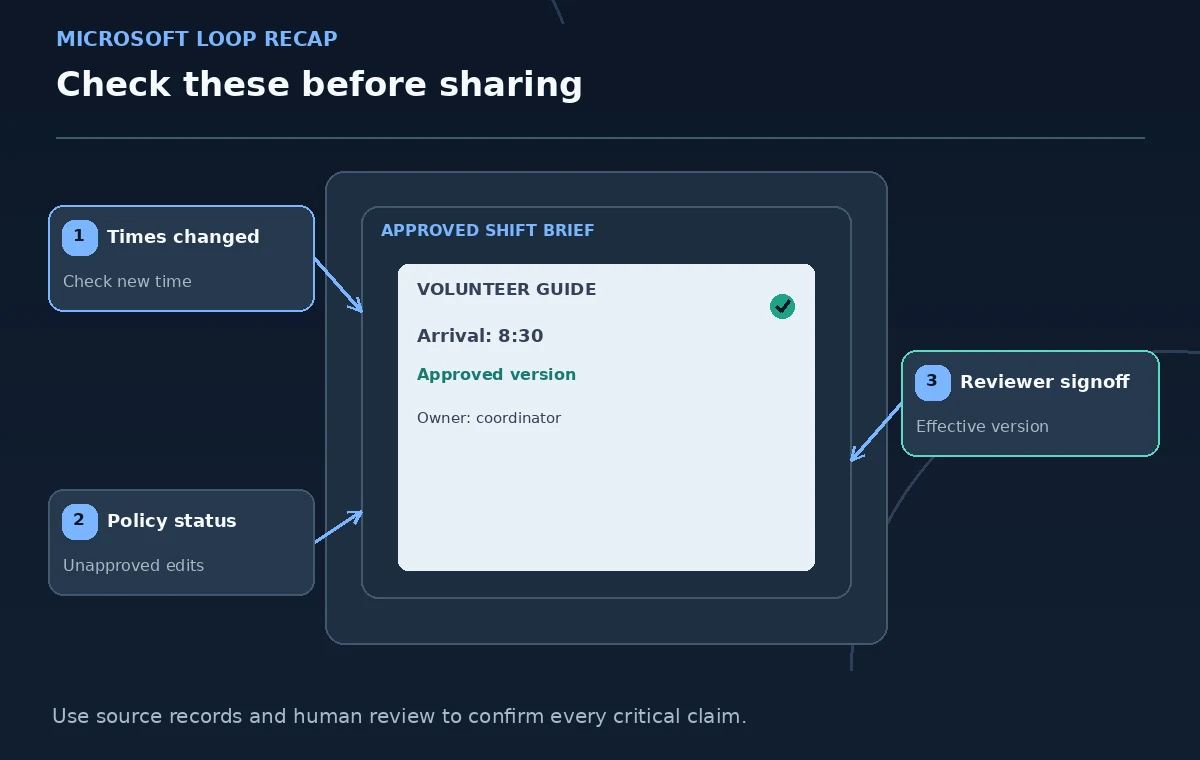
Once each material change is confirmed, prepare a brief with only the effective instructions: where to arrive, where to find accessible entry information, whom to contact, and which document revision controls the shift. Link to the Loop page for detail, but avoid presenting a draft recap as the final handbook. Check sharing permissions before forwarding a page link to external volunteers. Some collaborators may be able to view or edit without having the same Copilot features; the team should not require a Copilot license just to read a critical instruction.
Archive the decision trail for the next update
Keep a light revision log with the page link, revision date, change owner, approval outcome, and superseded version. If a recap mentions a pending emergency procedure, carry that item forward until it is explicitly resolved, even if someone later rephrases the page. Encourage reviewers to use Recap when the edits matter and the next team needs context; not every punctuation change requires a broadcast. This method makes collaboration faster without silently treating collaborative prose as the organization’s authoritative policy.
How We Research
This guide was prepared by reading the named official documentation—Microsoft Support, Recap changes in Loop and Microsoft Support, Frequently asked questions about Copilot in Loop—and cross-checking the described feature, its workflow, platform or plan restrictions, and the point at which a person must review the result. The scenario, illustrations, example inputs, approvals, and sample outputs are hypothetical editorial teaching aids; we did not access a customer account, run a live product test, measure model accuracy, or verify an actual organizational policy. Screens, plan rules, and labels can change after this documentation review. Always confirm the currently available feature and the authoritative source documents before acting on any AI-generated wording.
Frequently Asked Questions
No. Microsoft documents manually creating and editing recaps. AI-assisted recap of changes requires appropriate Copilot access.
Microsoft’s current FAQ says its reduced Copilot chat integration cannot make changes directly to the currently open Loop page.
No. A mention requests attention; approval must come from your normal accountable reviewer and agreed recordkeeping process.
Microsoft describes viewing Recap entries without a Copilot license, although sharing permissions and organizational settings still apply.
Include the effective instructions, a source page link, review date, decision owner, and any still-pending change prominently labeled as pending.