
A volunteer handbook in Microsoft Loop has changed overnight. A coordinator sees a recap that says the arrival procedure was updated and assumes the new instructions are approved. That leap is risky: a summary of edits describes page activity, not the authority behind it. Copilot in Loop can help collect a recap of changes, but Microsoft has also reduced some Copilot integrations while aligning Loop with Copilot Pages. This hypothetical workflow shows how to use the recap pane and a controlled change register without treating AI-generated wording as a policy decision. It separates edited text, proposed action items, and signed-off instructions so a busy team can catch up without inventing approval.
Establish the source of truth before summarizing
Start with the current handbook and identify the person who can authorize operational changes. Record the approved revision date, the page owner, and a stable copy of the earlier instructions. A Loop page is designed for collaborative editing, so a new paragraph may appear because a teammate is drafting, clarifying, or proposing a change. None of those activities automatically grants permission to tell every volunteer to follow it. For a hypothetical community cleanup day, write down which entry gate is currently authorized and which contact person owns a proposed replacement route. Keep this information outside the summary as an approval record.
Locate Recap and check which Copilot controls actually exist
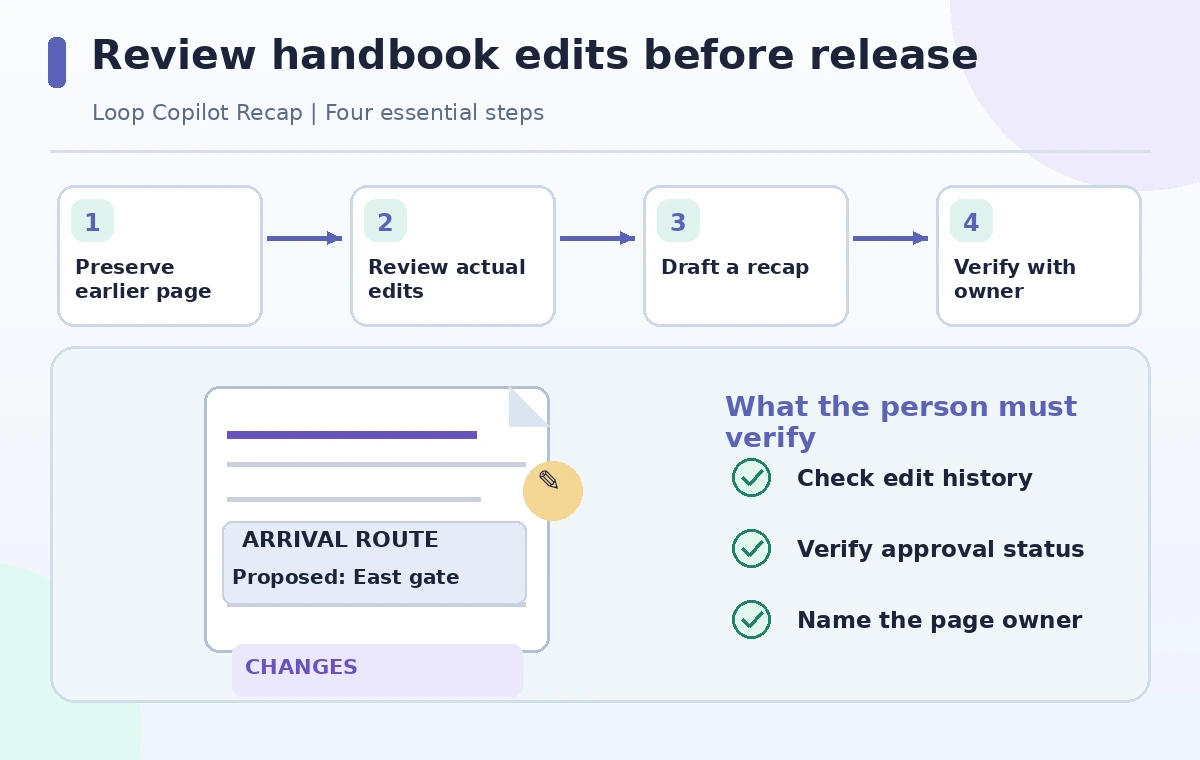
Microsoft describes opening a Loop page and choosing Recap from the page options or the left navigation. The pane supports manually authored recaps and mentioning teammates. With the required Copilot entitlement, users can also ask Copilot to capture and summarize edits. The interface should not be assumed uniform: Microsoft states that some Loop Copilot integrations were removed in late 2025 and that its reduced chat functionality differs from earlier demonstrations. Check the actual tenant, license, and page controls before following an older video. If the AI option is absent, make a human-authored change summary instead of routing sensitive policy material into a different unapproved service.
Compare a change summary with actual text differences
Read the page before and after the edit. In an imaginary example, an old line says volunteers must meet at the north gate, while a draft changes the location to the east entrance. A useful recap might say the arrival instructions changed, but it does not prove that parking, accessibility, or safety teams have approved the new route. Mark the exact changed sentences and any sections untouched by the edit. Check adjacent headings and tables because a summary can omit exceptions. Do not ask the model to settle which gate is safer when it lacks the site owner’s decision and current route map.
Avoid turning generated tasks into assigned work
A suggested action item such as ‘notify the transport lead’ is not evidence the notification happened. Keep three fields in the review log: proposed task, named owner, and independently confirmed completion. Ask whether any participant accepted the action, rather than relying on an AI-generated owner assignment. Loop recaps and collaborative notes can assist coordination, but publishing an instruction still requires the organization’s normal sign-off. If the instruction affects emergency access or accessibility, pause distribution until the designated reviewer confirms it. A task should remain pending visibly, even if the summary sounds confident and polished.
Compare a premature approval with a controlled release
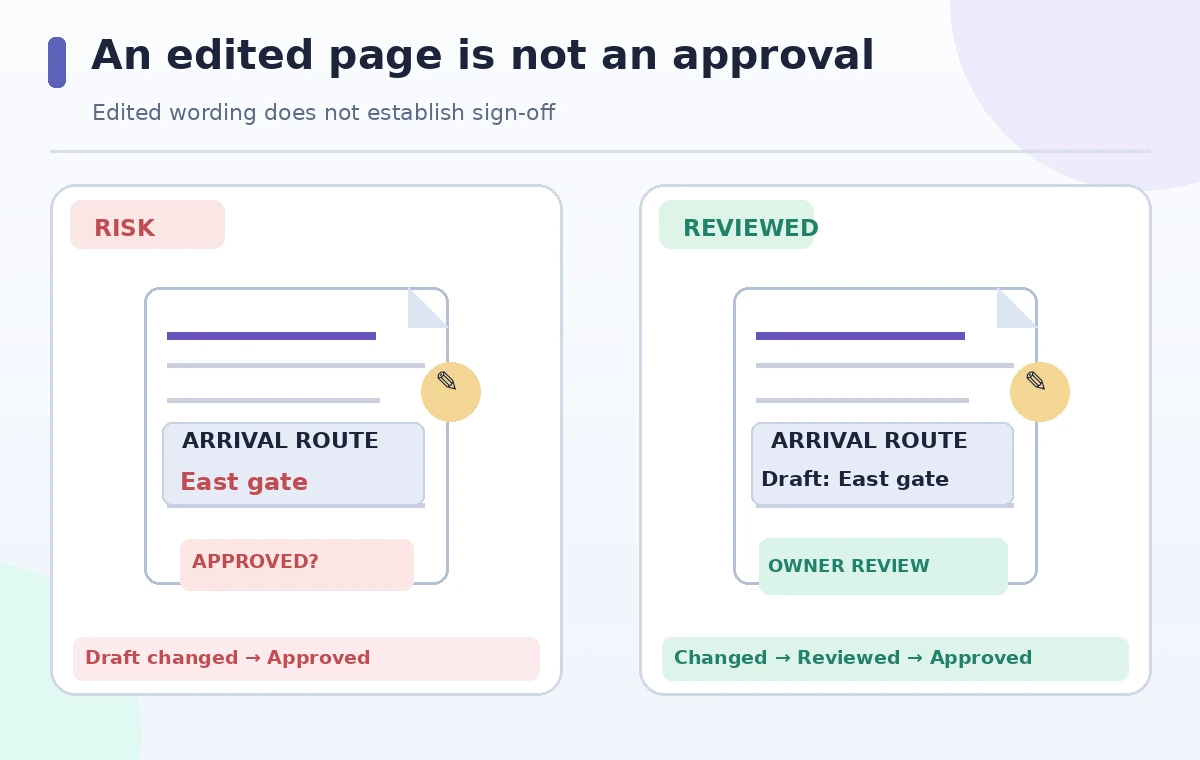
The comparison illustration contrasts a broken path, where an edit is labelled approved immediately, with a reviewed path that includes a source comparison and owner sign-off. These are teaching examples, not screenshots of a live Loop workspace. The distinction matters because volunteers may receive a shared link after the editor has changed text but before anyone has approved it. Preserve explicit labels such as Draft, In review, and Approved and avoid relying solely on color. When a critical detail changes, include the affected revision date and a clear transition instruction, not an ambiguous ‘use the latest version.’
Invite the right reviewer and preserve attribution
Use Loop’s collaboration features to request feedback from the actual handbook owner, not from everyone who can edit the page. A named reviewer can confirm the new location, change the note, or reject the edit. Recaps allow mentions and manual corrections; treat these as coordination aids. If a colleague identifies an error, correct both the page text and the recap so they do not disagree. For small teams, document approvals in the usual workflow, such as a verified email or internal change request, rather than assuming a comment emoji is a policy authorization. Preserve source and approval timestamps.
Check access rights and what readers will see
Before sharing a revised link, ask who can view and edit the page, whether volunteers have access to referenced source documents, and how the page appears on a phone. Do not paste personal schedules, participant contact details, or private incident records into an AI prompt merely to generate a more comprehensive recap. If the recap cites an internal file that volunteers cannot open, supply a permitted public instruction instead. Verify that a late-arriving volunteer can identify the approved entrance without reading a long history of draft edits. Keep accessible text alongside visual maps.
Publish only the approved instruction and archive context
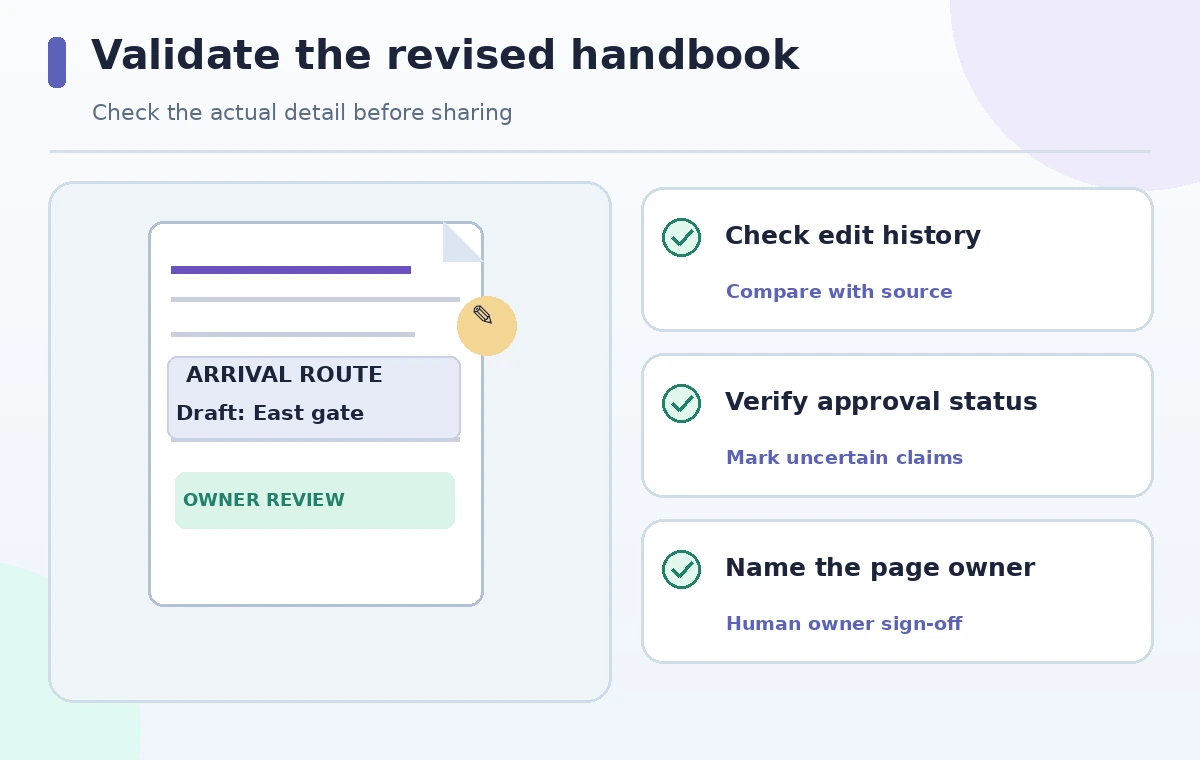
Once the correct owner signs off, update the published instruction, note the effective date, and archive the earlier version according to your organization’s policy. Reopen the final page as a reader and confirm that its short recap matches the actual approved text. If a later change is made, repeat the approval gate; previous sign-off does not extend to new edits. Save the change log separately so an audit can distinguish what Copilot summarized, what humans corrected, and who authorized the change. The goal is an accurate handoff, not the longest possible AI summary.
How We Research
We reviewed Microsoft’s Recap changes in Loop instructions and Copilot in Loop FAQ, including the late-2025 interface changes and license distinction. This handbook, route change, and diagrams are hypothetical teaching cases. No live Loop tenant, change history, or real organizational approvals were tested. UI availability and organization policies must be checked locally.
Frequently Asked Questions
The Recap pane supports manually written summaries and mentions; Copilot-generated change summaries require the appropriate license.
No. A generated recap describes activity; authorization must come from the named policy owner.
Microsoft says Loop removed some integrations in late 2025 as it aligned with Copilot Pages, so controls and entitlements may differ.
Only after its scope, owner, and status are verified against the actual decision or request.
Keep the original approved text, changed passages, reviewer decision, effective date, and final reader-facing instruction.