
A small nonprofit records a screen-share walkthrough showing how to submit a supply request. The recording is easier to follow when viewers can jump to “Open the form,” “Attach a receipt,” or “Check status.” Loom can generate chapters based on the transcript, but a model may place a boundary in the middle of an instruction or title a section after an incidental phrase. The screen itself may also reveal private client data even when the transcript looks safe. This hypothetical guide explains how to check both chapter navigation and recording privacy before sharing it.
Script the navigation landmarks before recording
Outline three or four genuine segments and say their names aloud at the beginning of each segment: introduction, create request, attach evidence, and confirm submission. A clear spoken transition helps transcription-driven chapters, although it does not guarantee accurate boundaries. Plan a demonstration environment with synthetic names and dummy receipts. If the walkthrough includes a live dashboard, check that no notification, browser tab, saved password, or unrelated client document is visible. Preventing an accidental disclosure before capture is easier than trying to repair it later with an editing tool.
Record the video and confirm eligibility
Loom documents auto titles on all plans while auto summaries and chapters generally require Business + AI or Enterprise. The feature relies on a usable transcript, so a silent video or one with unintelligible audio may not generate the expected chapters. Account and workspace AI settings may disable the feature. After recording, locate the video’s summary and chapter sections, and do not assume generation succeeded just because the file uploaded. Consult Loom’s current help documentation for requirements because duration, plan entitlements, and supported recording paths can differ.
Read the transcript before trusting chapter names
Open the transcript and scan for misheard product names, missing speech, and changes in language. A chapter title generated from an inaccurate transcript can describe a feature that was never shown. If the video language is wrong, Loom documents changing Language under the Transcript tab’s three-dot menu and choosing Regenerate; that requests a new transcript and AI features but does not guarantee a perfect result. Fix the original problem where possible rather than repeatedly regenerating until a plausible title appears. Compare what was spoken with what happened on screen.
Use chapter boundaries that match visible actions
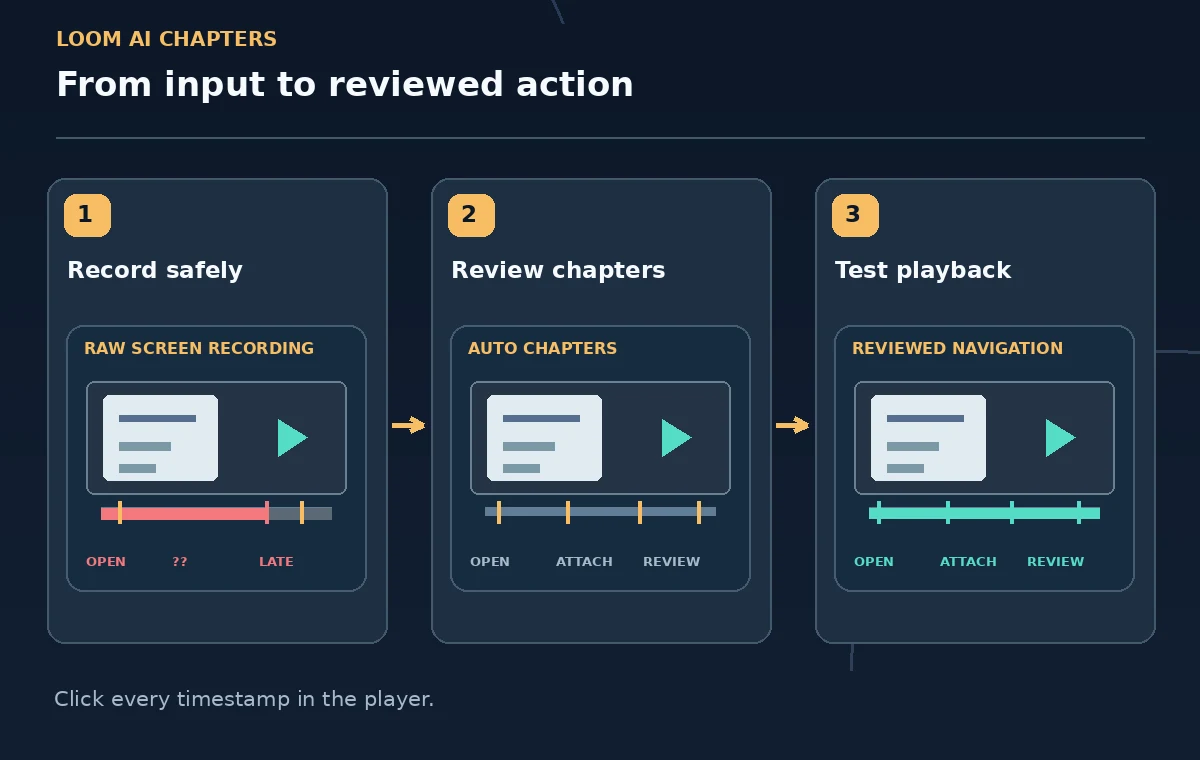
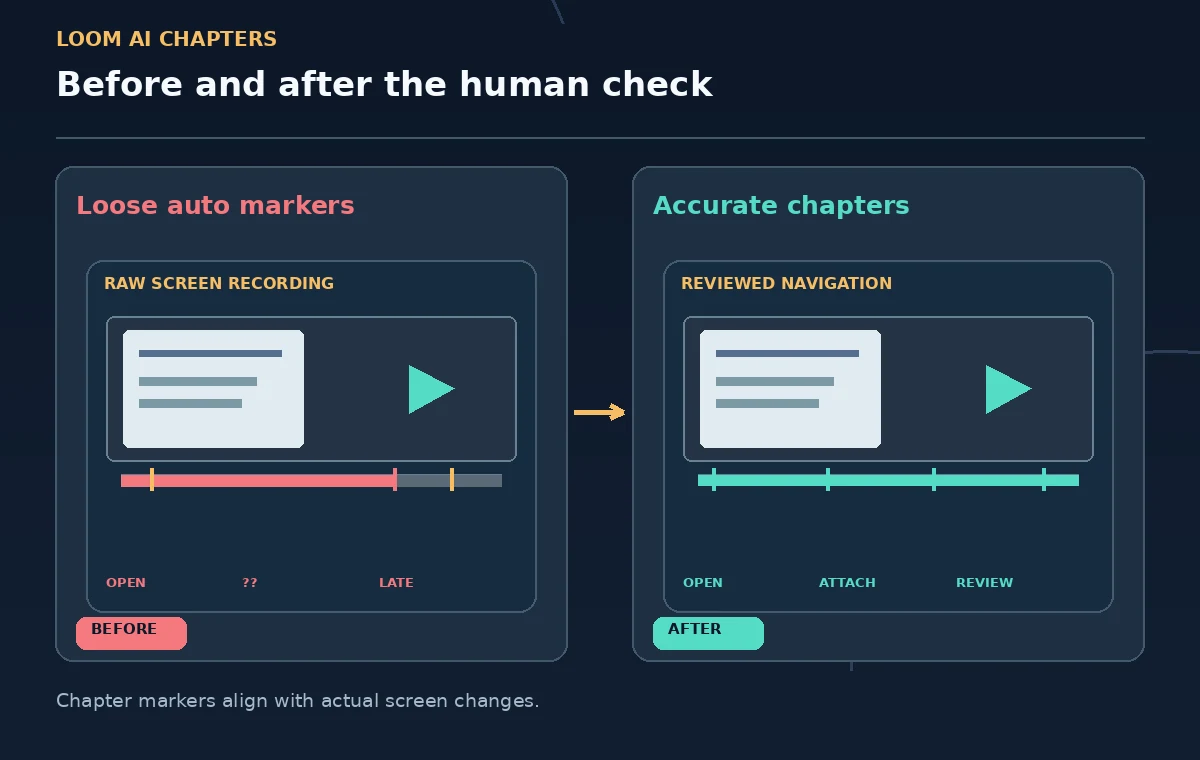
Play from each chapter start and confirm that viewers see the beginning of the task, not the last two seconds of the previous section. For a request walkthrough, a useful chapter should start before the menu selection, show the relevant form, and include the confirmation step. If a generated chapter begins after an essential safety or privacy note, move the marker earlier or adjust the description. Loom documents editing or deleting automatically generated chapters. Accuracy is more important than having a large number of headings, particularly for short training recordings.
Write compact, literal chapter names
Prefer “Select the project,” “Add a receipt,” and “Review submission” to titles such as “Master your productivity journey.” If a section discusses an exception, say so explicitly: “What to do when upload fails.” Avoid claiming that the recording shows successful payment, completed approval, or solved errors unless it does. Chapter titles function like navigation labels and may become the first thing viewers read. Choose words that support the user’s actual task without making an AI-created promise. Ensure adjacent titles are distinct and follow the chronology of the recorded screen actions.
Inspect the entire video for sensitive content
Review the video frame by frame around account changes, notifications, autofill, file picker windows, and the moment a participant shares a private tab. Transcripts do not reveal passwords or names that appeared only on screen. If sensitive data is exposed, use approved editing or recreate the segment from a safe demo environment before sharing. Check thumbnail frames and chapter previews too: a perfectly timed chapter can still take viewers directly to a confidential screen. Decide who is allowed to access the video, and avoid using a public link when internal permissions are required.
Create manual chapters if AI is unavailable
Loom’s help center documents manually adding chapters with timestamps and titles in ascending order. Chapters must start at 0:00 and be at least five seconds long. This fallback is useful on accounts without the AI chapters entitlement, for recordings whose transcript is poor, or when you want strict editorial control. Listen and mark actual screen transitions rather than estimating durations from a text summary. A concise manual chapter list may be more valuable than a long auto-generated list with repeated or vague labels.
Test the video as an ordinary viewer
Open the shared video link in a viewer context that resembles the intended audience. Select each chapter in order, verify playback starts in the right place, and follow the process without relying on internal commentary. Confirm that the viewer can find the fallback path for errors and that the final screen does not imply authorization the viewer lacks. Check captions for important buttons and specialized terms, especially if a misspelling could cause someone to choose the wrong option. Chapter navigation should reduce confusion, not mask a flawed demonstration.

Keep the content maintainable after interface changes
Record the app version or review date in the training description and identify the maintainer. When the underlying software changes a button name, decide whether to revise the video or flag the section as outdated. A chapter label is not a substitute for updating an obsolete procedure. Keep the approved written instructions linked nearby so viewers can verify consequential steps. Before redistributing the recording, review access scope, chapter starts, audio, and any new privacy risks. A trustworthy training video is one a new team member can navigate and follow safely.
How We Research
This guide was prepared by reading the named official documentation—Atlassian Support, Loom AI features and Atlassian Support, How auto titles, summaries and chapters work and Atlassian Support, Add a summary and chapters to your video and Atlassian Support, Manually regenerate transcripts or edit AI features—and cross-checking the described feature, its workflow, platform or plan restrictions, and the point at which a person must review the result. The scenario, illustrations, example inputs, approvals, and sample outputs are hypothetical editorial teaching aids; we did not access a customer account, run a live product test, measure model accuracy, or verify an actual organizational policy. Screens, plan rules, and labels can change after this documentation review. Always confirm the currently available feature and the authoritative source documents before acting on any AI-generated wording.
Frequently Asked Questions
Loom says auto titles are broadly available, but auto summaries and auto chapters are generally included with Business + AI and Enterprise plans.
Yes. Loom documents the ability to edit or delete generated chapters. Verify each timestamp against the visible start of the task.
Transcript-dependent AI chapter generation may not work. Add manual timestamps and titles or record clear narration when appropriate.
Do not rely on a text transcript or AI chaptering to find sensitive visible content. Review the actual video and its sharing permissions.
Yes. Loom supports manually entering ascending timestamps and titles, starting at 0:00, with chapters at least five seconds long.