
A neighborhood arts fair needs a second-language version of a poster showing its date, opening hours, venue entrance, and accessibility contact. A translated poster that reads naturally but drops a digit in the street address can send visitors to the wrong location. Canva Translate can generate translated text directly in a design, but it does not independently certify event facts or that the resulting layout fits. This hypothetical example focuses on a dependable handoff: freeze approved logistics, duplicate the design, translate the wording, check typography, and obtain a language review before distributing artwork.
Freeze the source facts in a separate checklist
Before selecting a language, write the verified event date, time zone, opening and closing times, complete venue address, entrance description, contact details, and registration deadline in a source-of-truth sheet. Decide which names remain unchanged, including the official venue name and ticket URL. If an event has two entrances, specify the accessible one with precise, approved wording. Do not rely on a translated graphic to establish these details; the poster is a presentation of verified facts, not the evidence. Keep the original approved file unmodified so the bilingual version can be compared field by field.
Locate the current Translate controls
Canva documents several routes: right-click a text box and choose Translate text, use the Translate app from Apps, or select Translate under Resize and Magic Switch where shown. Interface options differ for a selected text element, a whole page, and particular device views. Canva’s main Help Center currently describes choosing a target language, optional tone of voice, and which pages or text to translate. It also notes a 2,000-character limit in the described translation flow and that monthly AI usage limits may apply. If a button differs, consult the current help article rather than forcing a layout through an obsolete workflow.
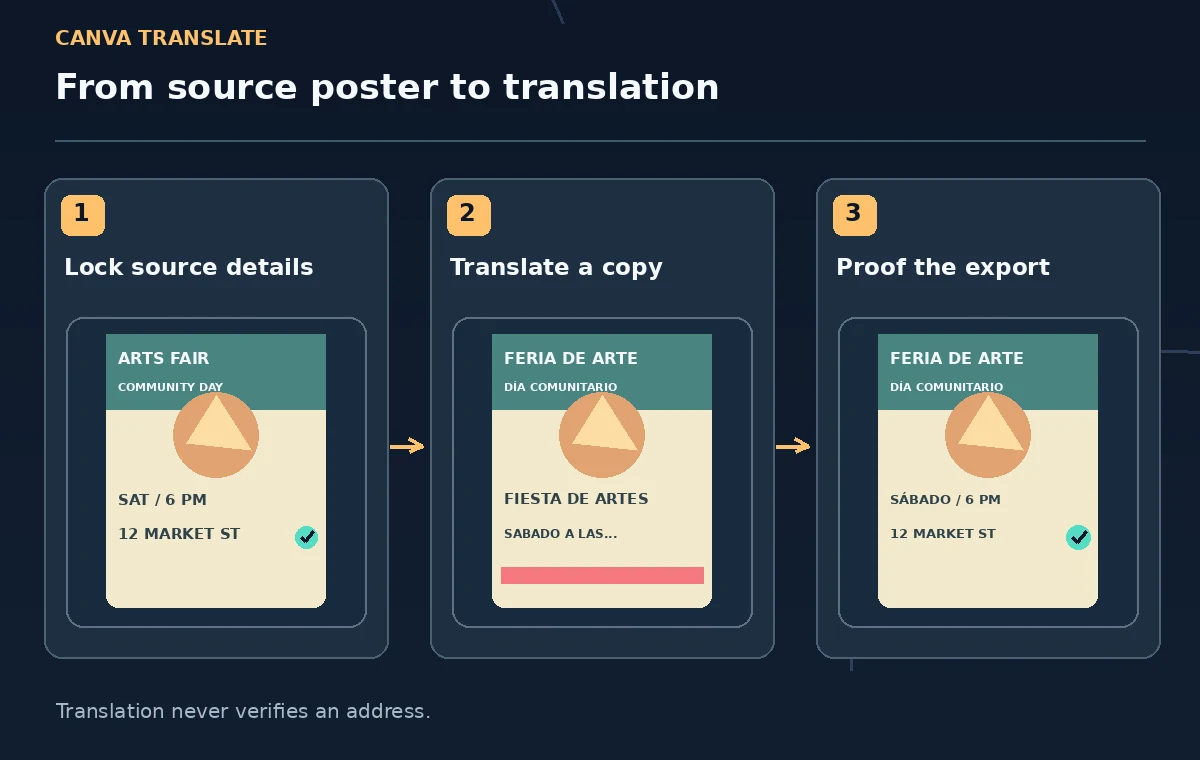
Make a working copy and choose one target language
Duplicate the approved poster page or enable the Translate setting to duplicate translated pages before changing text. Select one destination language and keep original and translated pages next to each other for review. A source-language page is important because automated edits can replace rather than copy content if the setting is disabled. Clearly label working versions outside the poster artwork for the team; do not put file-management codes inside the published design. Where a language requires right-to-left layout, check Canva’s available mirroring setting and then review whether the actual visual hierarchy still makes sense.
Translate meaning without rewriting the event promise
Translate the heading, invitation, access instructions, and short description in manageable pieces. Make sure terms like free admission, booking required, and first come, first served retain their intended meanings. A machine-produced friendly tone can accidentally soften a restriction. Compare each translated claim with the source checklist, not with another AI suggestion. If the output changes an official name or adds a promise of parking, replace it using approved wording. Some proper nouns need transliteration, while others should remain in the original language; decide these with the organizer and a qualified language reviewer.
Check numbers, punctuation, and map details manually
Compare each date, street number, phone number, price, time, and URL character by character. A convention such as 10/11 can mean different calendar dates across regions, so spelling out the month may be safer than guessing local interpretation. Verify whether the venue requires a door number or building name that could be mistranslated. Confirm that QR codes still lead to the same approved destination and that accessibility contact instructions remain visible. A well-translated headline cannot compensate for a wrong arrival time. Keep all corrections tracked in the event checklist.

Repair line wrapping and font support
Translated text may expand significantly, and some fonts do not contain the necessary characters. Canva explicitly warns that unsupported fonts can trigger a change request and provides settings to reduce font size to fit. Treat automatic shrinking as a warning, not the final design solution. Expand the text area, rewrite with an approved shorter phrase, or choose a font with full language support before making important text tiny. Inspect accent marks, diacritics, line endings, and the gap around a QR code. Use consistent typographic hierarchy so the date and venue remain readable from a reasonable viewing distance.
Keep visual cues consistent between language versions
Check arrows pointing to entrances, directional symbols, decorative badges, and color emphasis. An arrow that accompanied one phrase may point to the wrong object after the layout changes. In a right-to-left version, mirroring may help, but it does not automatically validate an actual map or directional instruction. Keep high-contrast information and do not rely only on color to convey what is free, limited, or mandatory. Read the poster at thumbnail size and then inspect the full-resolution page. Both versions should make the same attendance requirements clear without squeezing text over photos.
Get a human language and factual review
Ask a reviewer fluent in the target language to read the poster independently, with access to the source checklist and approved terminology. The reviewer should verify meaning, idiom, date formatting, street address, accessibility instructions, and whether the call to action sounds natural. Record suggested corrections and have the event owner approve any policy-sensitive changes. If no fluent reviewer is available, limit distribution until one can check the essential logistics rather than presenting machine translation as certified. Clearly separate translated wording from facts that were independently confirmed by the event team.

Export, test, and preserve both final versions
Export the artwork in the required print or digital format, then open the file outside the Canva editor. Inspect text around the safe area, check that icons and URLs survive export, and scan the QR code using an ordinary phone. Print a small proof if the poster will be used physically. Confirm that the two language editions use identical event facts and only the intended differences in wording and formatting. Keep the dated approved original, reviewed translation, and source checklist together so a last-minute time change can be applied consistently rather than leaving one audience with stale information.
How We Research
This guide was prepared by reading the named official documentation—Canva Help — Translate your Canva designs and Canva — Online translator and design translation workflow—and cross-checking the described feature, its workflow, platform or plan restrictions, and the point at which a person must review the result. The scenario, illustrations, example inputs, approvals, and sample outputs are hypothetical editorial teaching aids; we did not access a customer account, run a live product test, measure model accuracy, or verify an actual organizational policy. Screens, plan rules, and labels can change after this documentation review. Always confirm the currently available feature and the authoritative source documents before acting on any AI-generated wording.
Frequently Asked Questions
No. Compare dates, times, venue details, and URLs with an approved event source after translation.
Yes. Canva documents a duplicate-page option; verify it is enabled before translating instead of replacing the only source page.
Review font coverage, text-box width, line breaks, and optional shrink-to-fit settings. Do not shrink essential information until it is unreadable.
The Canva Help Center workflow describes translating pages to one selected language at a time. Check current limits in your account.
No. A fluent reviewer should check event terms, directions, and logistics before public distribution.