
A community center is restoring a courtyard with volunteer teams handling painting, supplies, and access ramps. The coordinator needs a concise Friday update: what was finished, what remains blocked, and who will confirm the next delivery. ClickUp Brain can draft a StandUp from workspace activity, but a smooth summary may overlook private tasks or confuse a recent comment with completed work. In this hypothetical example, AI handles the initial narrative while the coordinator checks task evidence and makes unresolved issues visible before reporting to volunteers and sponsors.
Create trustworthy task data before asking for a report
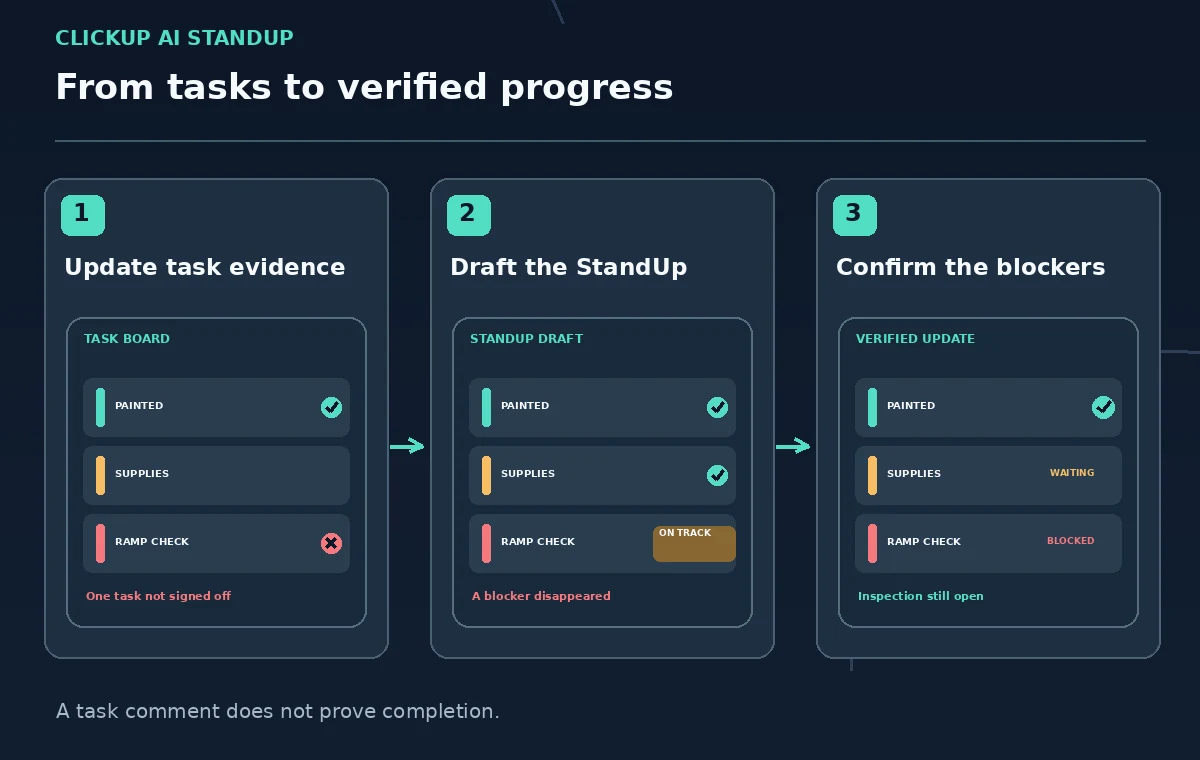
Set each work item up with a clear title, owner, due date, status, and a definition of done. For the ramp inspection, completion should mean a qualified reviewer has signed the approved checklist, not that someone posted Looks good. For a paint delivery, specify the confirmed order number and a responsible person rather than an optimistic chat message. Link approved project records in the right place and make sensitive volunteer information private when appropriate. An AI StandUp cannot repair a workspace where blocked tasks and completed tasks are indistinguishable.
Understand where AI StandUp gets information
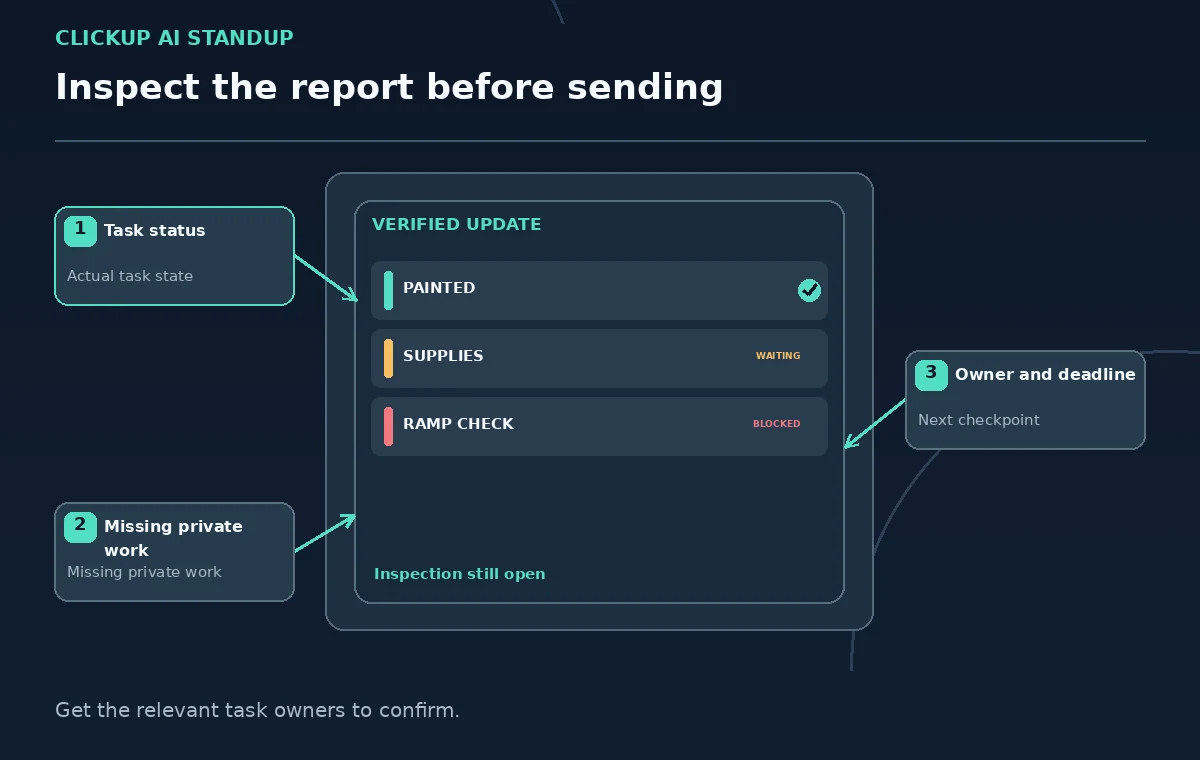
ClickUp says AI StandUp works from public task data and does not include private tasks. That matters when a confidential accessibility issue or safety report is tracked privately: an apparently complete AI update may still be incomplete. Use the appropriate permissions without moving sensitive information into public tasks just to make a summary longer. Instead, the responsible manager can add a suitably sanitized, approved note to the final report. StandUp is a view of available task activity in a period, not an independent inspection of work on the ground.
Open StandUp through a supported location
ClickUp documents several entry points, including the /ai command in supported editors with Write StandUp, a Get StandUp option on a profile, requests to Brain or a Super Agent, and an AI StandUp card in My Tasks. These options need not all appear in every plan, role, or layout. My Tasks is for a recurring summary of your own activity; it is not the same as creating a report on another person from that card. Use the feature available to your account and confirm its scope before assuming it covers the whole project.
Choose people and time period carefully
Select the intended volunteer team and the actual reporting window in the StandUp controls. ClickUp documents selecting people or teams, with a limit of up to 20 people in the described modal. A last-seven-days summary should not be described as this morning’s update, and a single-person card is not a report on everyone. Record the cutoff time and workspace scope beside the draft so readers know which changes could be missing. If different groups log progress in separate spaces, a manager may need to reconcile the outputs manually rather than collapsing them into an invented unified status.
Compare completion claims to task-level evidence
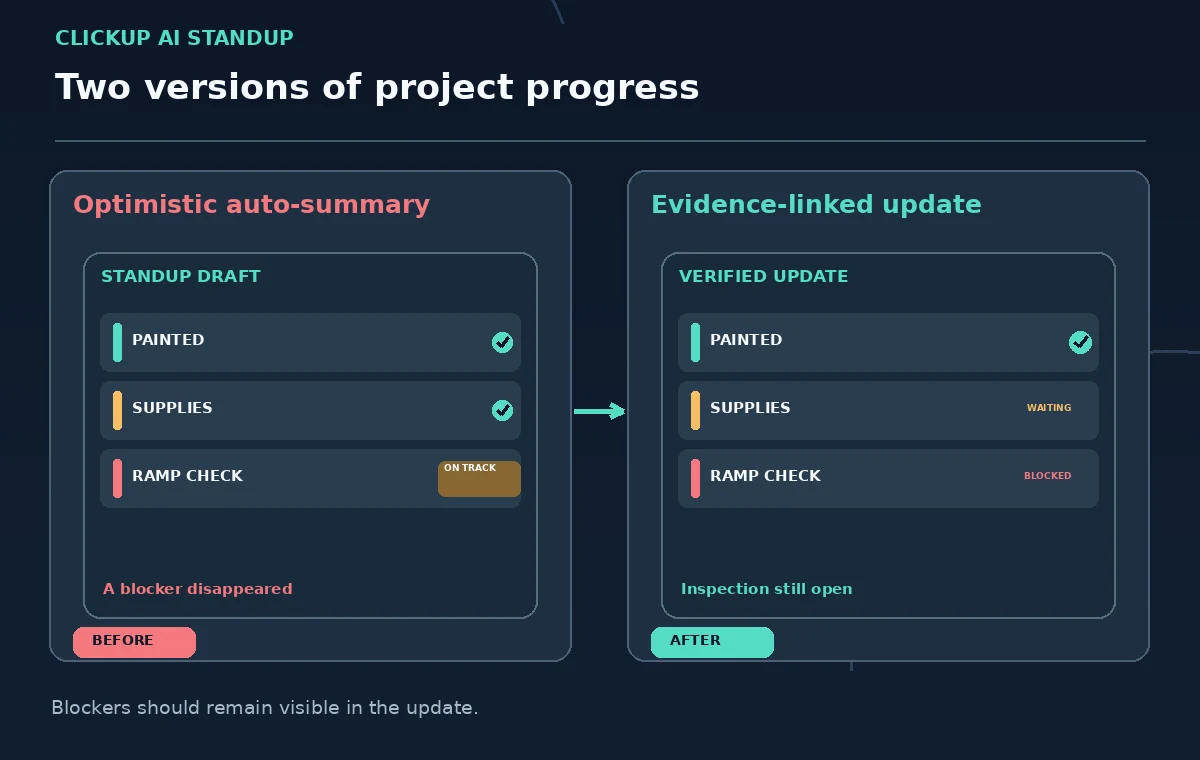
Open each task mentioned as complete and inspect its current status, checklist, attachments, comments, and actual approval requirement. A status that was changed briefly and then reopened should not be counted as finished. When a delivery is marked done but the contents have not been checked, say Delivered; intake pending instead of Supplies ready. Keep a short verification table outside the AI text with task link, evidence, date, and reviewer. The article’s example labels are teaching examples, not observed ClickUp output from a real organization.
Surface blockers instead of smoothing them away
Find overdue dependencies, items assigned to no one, and tasks whose next action requires external confirmation. For the courtyard, a missing inspection signoff may block ramp opening even if other tasks are complete. Present the blocker, the impact, and who will follow up without assigning blame to a volunteer. Distinguish a risk, such as possible rain, from an actual event, such as a documented materials delay. Do not allow an AI-generated sentence like on track to hide a red task simply because most items were recently updated.
Write a concise, accountable final StandUp
Use a three-part structure: verified progress, open blockers, and next decisions. Each completed item should have a source task or dated record; each blocker should identify an owner and a next checkpoint. If no one has accepted an action, label it Owner needed rather than assigning it to the last person who commented. Keep the tone supportive but precise: concrete verbs and status terms are more useful than praise that implies approvals. Put sensitive volunteer matters in the appropriate restricted channel and leave only a safe operational consequence in the broader update.
Handle regeneration and automation deliberately
The My Tasks AI StandUp card can be regenerated, copied, customized, or configured for auto refresh, subject to feature availability. Treat a refreshed summary as a new draft because it may reflect changed tasks or a different reporting period. Avoid pushing summaries automatically to external recipients before a coordinator has verified the claims. Store the final approved report with a date and link to the active task board, not a screenshot of a transient AI card. A reliable handoff requires people to know which version is authoritative.
Confirm the report with the actual team
Ask workstream owners to check statements about their tasks before the update is sent. Give them an easy way to correct the status of the inspection, supplies, or accessibility work. Compare the final report against the live board once more; if the board changed after the cutoff, state that explicitly instead of silently merging old and new snapshots. A useful StandUp reduces the effort of collecting a narrative while preserving the distinction between AI inference, task entries, and verified completion. The success criterion is a report that volunteers can act on safely.
How We Research
This guide was prepared by reading the named official documentation—ClickUp Help — Automate StandUps with Brain AI and ClickUp Help — Use the AI StandUp card in My Tasks and ClickUp Help — AI Cards—and cross-checking the described feature, its workflow, platform or plan restrictions, and the point at which a person must review the result. The scenario, illustrations, example inputs, approvals, and sample outputs are hypothetical editorial teaching aids; we did not access a customer account, run a live product test, measure model accuracy, or verify an actual organizational policy. Screens, plan rules, and labels can change after this documentation review. Always confirm the currently available feature and the authoritative source documents before acting on any AI-generated wording.
Frequently Asked Questions
No. ClickUp says AI StandUp uses public task data and private tasks are excluded. Account for that gap without exposing sensitive information.
The StandUp modal supports selecting people or teams, with documented limits. The My Tasks card itself summarizes your own work.
Availability and limits depend on your ClickUp plan, role, and Brain access. Check the current account controls.
No. Open the task and inspect the approval or acceptance evidence before reporting it as finished.
Only after a human-approved workflow defines the audience, cutoff, verification step, and handling of sensitive or incorrect claims.