
A neighborhood food drive has an approved colorful flyer showing donation hours, a delivery door and a hotline number. Volunteers now need a plain-language checklist they can print at the collection desk. Canva Transform into Doc can provide an editable starting point, but a condensed version might omit a cutoff time or turn a location note into a general instruction. This hypothetical walkthrough treats the original flyer as source evidence and the generated document as a draft, not an authoritative schedule.
Lock the approved dates, times and address first
Copy the approved flyer into a reference folder before editing. Record the event date, opening and closing hours, street address, entrance designation, accepted donation categories and organizer contact. If the flyer says Saturday, 9 a.m.–noon, the volunteer checklist must not quietly say all weekend. Use the organizer’s signed plan to decide whether a late delivery can be accepted; an AI conversion cannot make that policy.
Create a source-of-truth table with one row per critical fact and a person who can approve corrections. If the draft flyer has one entrance number and the final sign has another, stop conversion until the team resolves the conflict. Separate the audience: a donor-facing poster may omit loading procedures that volunteers actually need. Those procedures must come from the organizer, not be improvised by a document-generation feature.
Check whether Resize and Transform into Doc are available
Canva’s official Help Centre describes Transform into Doc under Resize, including document formats such as summary, detailed project plan and all text. It states Resize is included with Canva Pro, Teams, Education and Nonprofits, subject to team access and supported context. Do not assume every free account or embedded Canva Button editor offers the option. The menu label may vary by language and rollout.
Open the approved design in the standard editor and locate Resize, then Transform into Doc. Canva says it creates a separate transformed copy in a new tab and retains the original design. Choose a format that fits the volunteer job; a marketing summary may make a good public announcement but a poor shift checklist. If the required option is unavailable, copy factual text manually into a document rather than inventing a workaround that overwrites the source.

Give the conversion a practical document purpose
Ask for a detailed operational checklist with sections for before opening, receiving bags, recording exceptions, handoff and closeout. Keep each action concise, beginning with a verb. A good instruction might be “Check the approved donation list before accepting an item,” while “Ensure all donations are appropriate” leaves a volunteer guessing. Treat any generated quantities as placeholders unless the source specifies them.
Keep the public event flyer intact. Put the newly generated checklist beside the reference, not in place of it. The process figure shows a source flyer, an editable document and an approval step as separate objects. It does not claim that Canva automatically checks event policy. Ask a staff member who has worked a collection shift whether the proposed sequence is physically possible at the actual entrance.
Audit every time and location in the converted version
Use a two-column check: original flyer and converted document. Highlight every time expression, including setup, donor drop-off, volunteer shift change and final pickup. A 12:00 p.m. cutoff is not the same as 12:00 a.m. or “afternoon.” Confirm the weekday against the calendar date independently and retain the timezone if remote coordinators are involved. Resolve any mismatch with the event owner before printing.
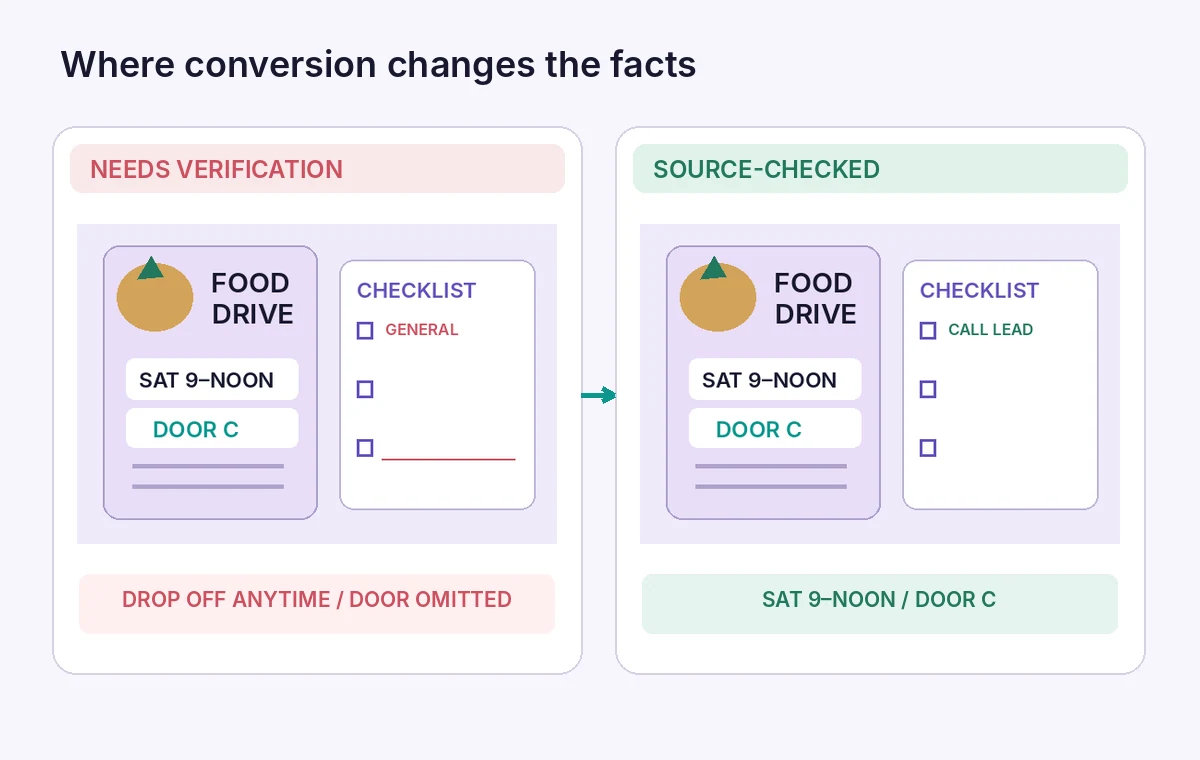
Do the same for the collection door and parking instructions. An example comparison illustrates a flawed checklist saying “drop off anytime” beside a corrected one stating “Saturday, 9 a.m.–noon; Door C.” Those are fictional values chosen to show why comparison matters. Do not copy them into an actual event. Record corrections in a review log with the original source location and reviewer initials.
Restore steps omitted by a compressed summary
Summaries favor headlines, but the desk volunteer needs exceptions: where to place damaged packaging, who handles oversized items and when to call the supervisor. List all operational exceptions provided by the organizer and check whether the generated Doc contains them. If an exception is absent, add the approved wording from the operations plan. Do not fill gaps with plausible-sounding food-safety rules or transportation promises.
Give each instruction a clear owner and a trigger. “Call the shift lead for unlisted items” is a review rule; “discard all unfamiliar items” could be an unauthorized decision with real consequences. Maintain a section for unresolved questions and an escalation contact. This separation prevents an AI-created checklist from appearing complete merely because it has a neat numbered layout.
Make the checklist readable at a busy desk
Print a draft on regular letter-size paper. Use large headings, a visible date, adequate contrast and checkboxes that remain legible in black and white. Keep phone numbers as selectable text where possible. A poster may use decorative icons instead of labels; the checklist should spell out what volunteers must do. If the converted document contains image-only text, recreate the essential instructions as real text for accessibility.
Try the document with a volunteer who has not seen the original flyer. Ask them to identify where donations go, when intake ends and whom to call about an exception. Observe which answers require an inference. Correct the checklist, not the participant. A short practical dry run is more revealing than approving its appearance on a large monitor.
Separate review permissions from public sharing
Keep draft and approved documents in distinct folders. Limit editing rights while the facts are being checked and do not publish a general-access link to a working checklist containing private volunteer phone numbers. When sharing a final version, confirm that recipients can open it without entering another person’s account. The team may need a public-facing pickup notice and a more detailed internal operations sheet.
Canva’s transform workflow preserves the source design, which supports a non-destructive approach, but it does not guarantee a validated handoff. Rename the output with a revision and date. Tell shift leads which version governs operations and how to report new changes. Avoid rewriting the flyer after the checklist is printed unless both versions can be corrected together.
Perform the final source-to-checklist sign-off
Before release, compare date, opening hours, cutoff time, door letter, accepted items, contact number, emergency escalation and document version. The final diagram marks those fields on a flyer and checklist so a reviewer knows precisely where to look. Verify the exported PDF and a physical print as well as the editable file. A line that fits onscreen can be cut off by a printer margin.
Sign-off belongs to the food-drive coordinator, not the AI function. Preserve the original flyer, the approved checklist and a short record of corrected facts. If a pickup time changes after approval, update both public and volunteer materials and notify every shift lead. The purpose is a reliable handoff, not a demonstration that a transformation feature writes perfect instructions.

How We Research
We reviewed the following official documentation for feature behavior, terminology, access and stated limitations: Canva Help Centre, Transform your designs into a doc; Canva Help Center, Change access to Magic and AI features. We compared the described menu paths and product constraints against the publisher guidance rather than inferring capabilities from generic AI marketing. The project scenario and the labeled comparison states are hypothetical educational examples; no real user account was accessed and no controlled performance or accuracy tests were performed. We did not obtain actual participant consent or verify real-world event, grant, budget or portrait records. The reader must check their current plan, the live publisher documentation and the authoritative operational source before using any generated output. This is an editorial process guide, not a measured product review.
Frequently Asked Questions
Canva says it opens a transformed copy in a new tab and keeps the original design; still preserve a separate approved source file.
The official guidance lists Resize access for Pro, Teams, Education and Nonprofits. Check current workspace and administrator permissions.
No. Add only rules supplied and approved by the responsible organizer or applicable authority.
Start with the date, opening and cutoff times, collection entrance, contact number and any exceptions.
A dated, approved checklist with a clear escalation contact, not a draft copied directly from an AI summary.