
A community plant-swap flyer can read perfectly in US English and still fail after automatic Spanish translation. A longer phrase pushes a headline over the illustration, a font lacks the accent in “Sábado,” or an event rule changes meaning. Canva Translate can generate a translated design; it cannot promise that the result fits, that every local expression is appropriate or that the published event details are correct. This tutorial uses a fictional event poster and a bilingual approval checklist to keep information, typography and layout aligned.
Make a source-language content sheet before touching the design
Start with four confirmed facts: “Plant Swap,” “Saturday,” “Bring one plant,” and “Free entry.” In a real event, also verify venue, start time, accessibility instructions, contact and whether plants must be labeled. Store the original English copy in an editable text sheet so the translator knows which phrases are descriptive and which are official names. Do not translate a venue’s proper name without approval. Keep all wording in real Canva text layers rather than flattening it into an image, because the translation tool needs actual editable text. Choose a font with the characters necessary for Spanish punctuation and accents. This prevents an attractive but unreadable poster from emerging after the main body is translated.
Find Translate and decide whether to duplicate the source
Canva’s official Translate help describes Translate from Apps and a path under Resize/Magic Switch, with menu details that can depend on the editor. Canva’s Translate product guide also describes selecting the target language, pages and options such as font resizing or creating copied pages. Keep the English original as an untouched approved version whenever the workflow permits. Choose Spanish deliberately, and translate selected pages rather than assuming one click produces every output size or regional variant. Access and usage allowances can change by plan; do not promise unlimited translations. If an option is not visible in the workspace, consult the current Help Center instead of guessing from a screenshot of another account.

Review semantics before adjusting type size
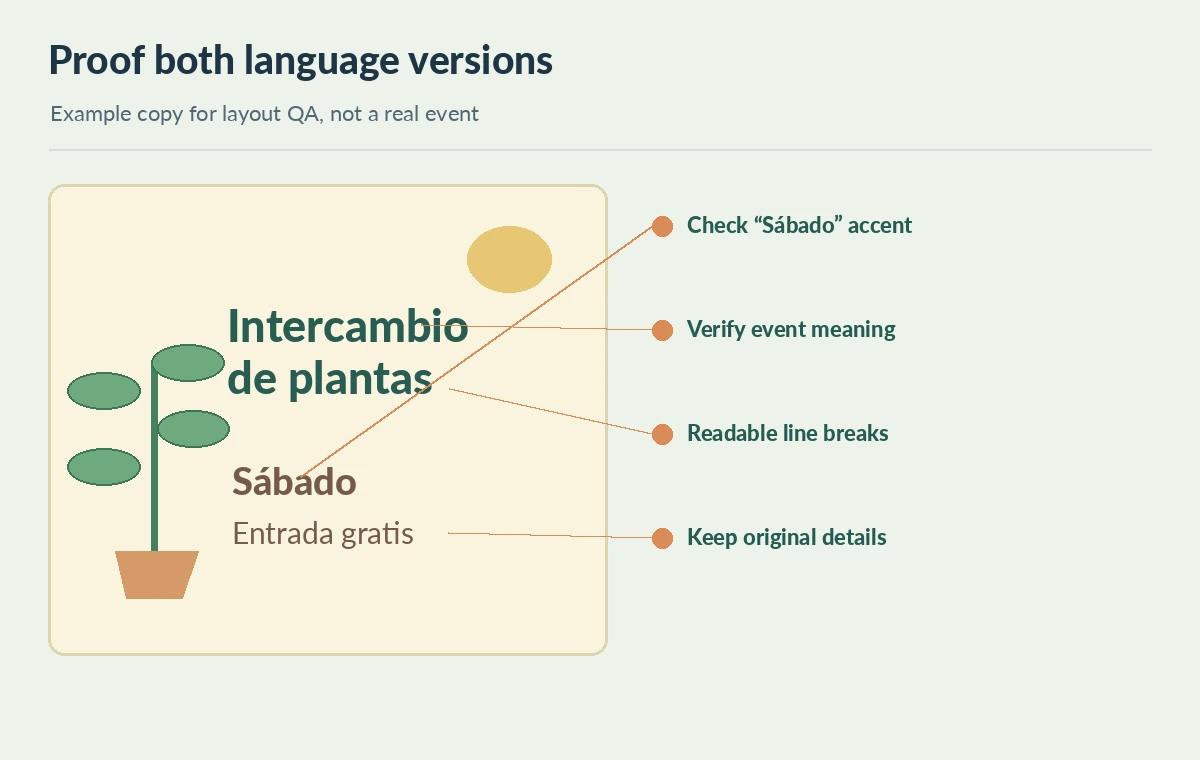
A machine-translated line might be grammatical but wrong for the event. “Swap” could mean an exchange, not a store sale; the intended Spanish title might be “Intercambio de plantas.” Check the call to action and entry conditions with a fluent reviewer. Preserve the time format and contact details exactly if they are already verified, while adapting conventions where appropriate to the audience. Ask the reviewer to mark factual errors, awkward tone and terms requiring organizer approval. Don’t copy the translated design directly into paid advertising until that review is complete. A design checker can identify overflow, but cannot determine if the flyer promises something the organizer never offered. Treat semantic approval and layout approval as separate steps.
Build a real text-expansion proof for English and Spanish
The English title “Plant Swap” occupies far less space than “Intercambio de plantas.” Put both texts in similar frames and compare occupied width, line breaks and distance from the leaf illustration. Make the headline container flexible before shrinking the font below a comfortable size. Check that “Sábado” displays the accented character and that longer instructions do not collide with a QR code or important contact line. For a narrow social post, consider a two-line heading rather than a cropped one. This is not a claim about an exact percentage of Spanish text expansion; measure the actual phrases in the selected font. Inspect desktop artwork and phone preview independently.

Inspect reading order, contrast and images
A translated flyer needs more than a text-fit check. Read the title, time, place, entry rules and action in the intended order. Ensure the poster can be interpreted without relying on color alone; for example, green and orange should not be the only way to distinguish event logistics. Confirm that stock or generated plants are decorative and do not falsely imply a particular plant will be provided. Keep contact text live where possible and provide appropriate alt text if the flyer is posted as an image. For public event information, offer a plain-text version that users can copy or translate with assistive technology. Verify links or QR destinations separately from the visual design.
Export two approved versions with a localization record
Deliver the approved English source, reviewed Spanish version, original bilingual content sheet and a one-page check noting translator, reviewer and final export. Export to the actual channel dimensions only after the text is approved; check PDF or PNG in a normal viewer and at phone scale. Label source and target language in your internal asset records, not as mysterious production marks on the poster. If event details change, update the source sheet and both designs rather than treating the translated version as independent copy. The result is a repeatable localization process with a traceable approval decision—not a claim that machine translation alone constitutes professional multilingual review.
How We Research
On October 28, 2026 we checked Canva’s Translate Help Center instructions and Canva’s Translate product documentation. They support app/menu entry points, language and page selection, duplication and resizing options, and the need for editing after translation. The English/Spanish plant-swap poster and font-size examples are conceptual designs; no Canva translation was run and no professional linguist approved a real event.
Frequently Asked Questions
The described workflow translates editable design text; rasterized lettering may require rebuilding as text first.
Prefer making a copy so the approved source remains available.
Not reliably. Review actual phrase lengths, font glyph support and line breaks.
No. Human review should confirm event meaning, tone and all logistics.
The approved source, translated design, bilingual copy sheet and a reviewer/export checklist.