
A community garden has a botanical drawing and an approved flyer for a seed-saving workshop. The organizer wants a warmer illustrated look without changing the workshop date, address, or registration instruction. Microsoft Designer offers an AI-powered option to restyle images, but an attractive transformed picture is not a reliable place to store operational text. This hypothetical workflow treats the AI result as artwork, preserves the original source, and assembles the actual invitation from independently verified facts.
Separate the picture from the information
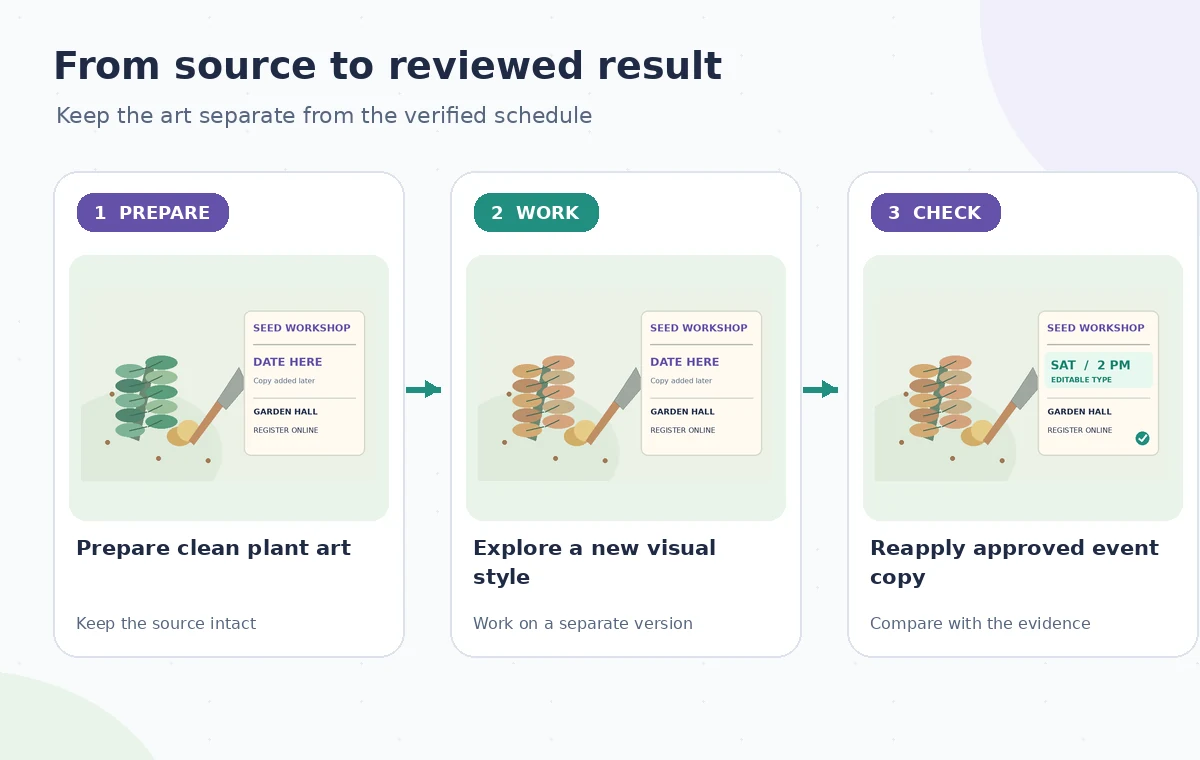
Start with an image that the garden created or has permission to edit: a drawing of seed heads, leaves, and a small trowel. Save an untouched version before uploading anything. Build a separate one-page fact sheet with the event’s exact title, venue, date, start time, accessibility contact, and registration URL. Those details come from the organizer, not from a style prompt. If the source picture already contains printed words, remove that text from the material being stylized when practical.
A useful preparation file contains two distinct layers of evidence: artwork you may creatively reinterpret and copy that must remain literal. For example, a fictional workshop can use the placeholder ‘Saturday, 2 PM’ while the real organizer checks its schedule. The illustration here deliberately shows a conceptual flyer, not an actual Microsoft Designer screenshot or an image produced by the service. This distinction matters because a model can reproduce typography that looks plausible but is not accurate.
Locate Restyle in the actual Designer workflow
Microsoft’s Designer guide describes the Edit with AI tab, where you can upload an image or choose an image from the gallery and use AI-powered controls including restyling. Work on the image asset rather than treating Designer as a calendar authority. Experiment with a restrained description such as ‘hand-cut paper collage with soft forest green and warm cream’ while requesting the same subject arrangement. Interface labels and available choices may differ by account and change over time.
Keep the restyle pass short: compare a few candidate images against the original illustration rather than repeatedly asking the model to repair lettering. Check that the new leaves, trowel, seeds, and margin space still suit the lesson. If the distinctive plant has to remain botanically identifiable, consider keeping the original drawing instead of stylizing it. A visual style change should not accidentally turn an educational specimen into a false identification guide.
Use a constrained creative brief
Write a brief that specifies the permissible changes: paper texture, shading, warm color treatment, and modest contrast adjustments. Specify what is not to be inferred: species names, event hours, sponsoring institutions, certification marks, or contact information. Even if a prompt says ‘keep all text unchanged,’ use a final text overlay from the approved source. Generated imagery is a visual suggestion; it is not a controlled typesetting or factual verification workflow.
In the model example, the original botanical image has a clear empty strip on the right. Preserve that space for a normal headline, date, and registration line in a layout editor. This avoids squeezing essential information around the restyled leaves. Choose a background with enough contrast for readable typography, and reject images that create false badges, logos, handwriting, or additional seeds that would confuse a species demonstration.
Use the AI tool selection checklist
Compare the image before applying any text
Place the original and restyled illustrations side by side at matching sizes. Look for changed outlines, floating tools, leaf stems that fail to connect, and plant labels that unexpectedly appeared. Make a crop that matches the actual poster ratio and inspect it at social-card size and at the intended print dimensions. It is easy for decoration that looks harmless at full size to block a date when reduced on a phone.
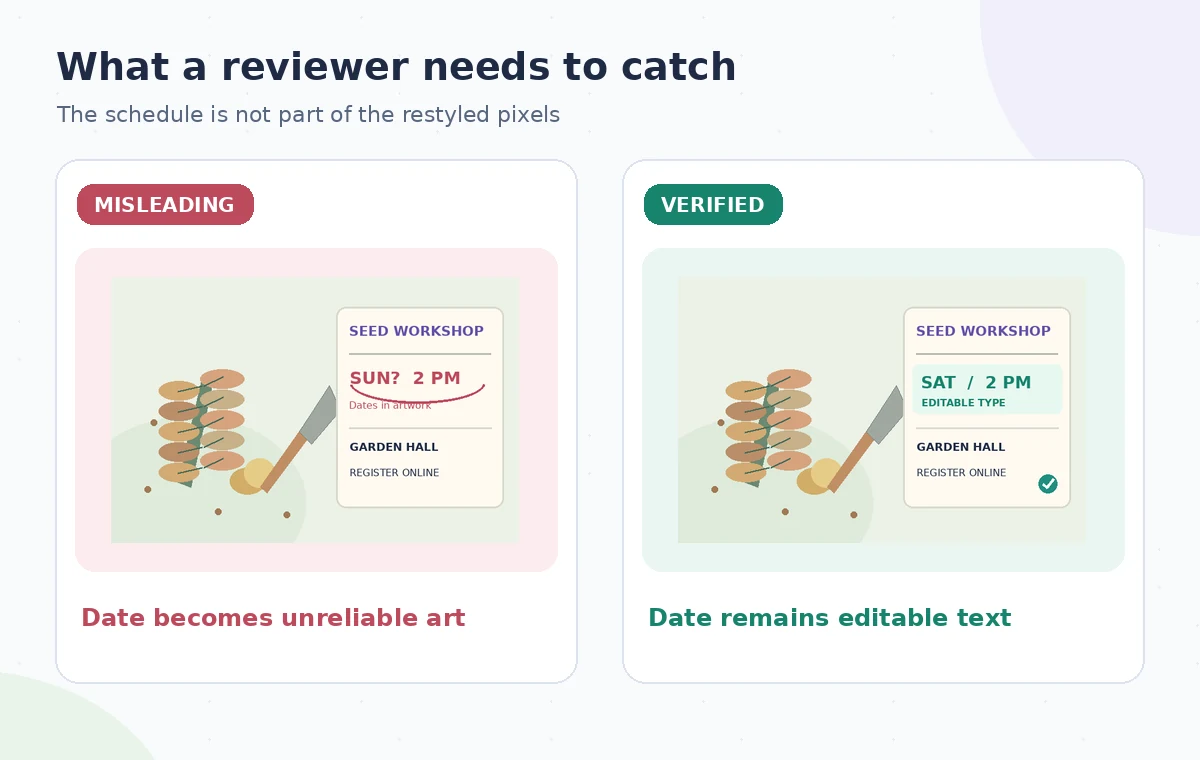
The risk-and-review diagram shows an intentionally wrong design that treats a generated calendar number as part of the picture. The corrected version makes the schedule a separate editable element. Neither image is claimed to be an output from Designer. The principle is simple: approve the artistic look on its own merits, then rebuild the factual reading order using a reliable document or graphics editor.
Create the final layout with real text objects
Add the verified heading, time, venue, registration line, and contact details as independently editable text, not as pixels created in the restyle. For a print piece, use sufficient bleed and a safe area around all typography; for a square social tile, reflow the lines rather than merely shrinking everything. Keep at least one high-contrast text treatment that does not rely on color alone to distinguish event details from decoration.
Review the reading order: what is the workshop, when does it happen, where is it, and how does someone participate? Use a short registration URL when a QR code might be difficult to scan or inaccessible. If you need a QR code, generate it from the authorized destination with an appropriate tool and test the destination manually. Restyle should never be asked to invent a scan-ready code.
Plan a safer multi-tool workflow
Run a factual and visual preflight
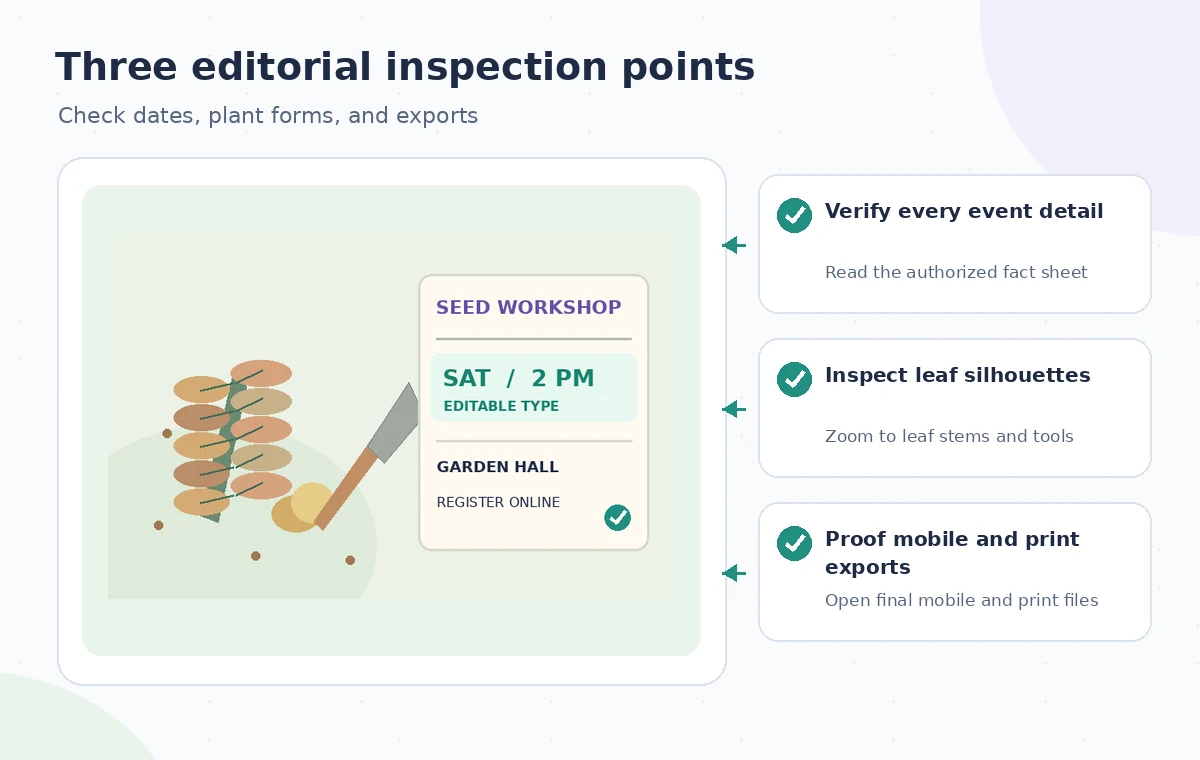
Ask a reviewer who did not make the poster to compare each final line against the approved source sheet. Check the day-of-week pairing, time zone when relevant, street address, accessibility wording, organizer identity, and current registration URL. Next, inspect the art: no phantom sponsor badge, no unlicensed logo, and no botanical change that contradicts the event description. Save review notes with the original artwork and the final edit file.
Export both the intended mobile image and print proof and open those files, not only the editor preview. Watch for clipped registration details, softened type, incorrect color contrast, and altered aspect ratios. The checklist illustration focuses on three separate checks—facts, plant shapes, and real exported files—because a successful restyle is only one part of a usable and trustworthy invitation.
Choose a simpler method when fidelity matters
If the drawing is an identification plate, a historic poster, or a donor-controlled illustration, restyling may be the wrong operation. Change the surrounding background, border, or typography while leaving the art itself unchanged. For a basic event flyer, a conventional template may be faster to review and easier for future volunteers to update. Use AI only when it adds a meaningful visual option that survives ordinary production checks.
This walkthrough does not claim a tested Designer result or guaranteed rights for any hypothetical image. The service’s interface and terms should be checked before uploading actual files. What is reproducible is the editorial workflow: keep source art, obtain a reviewed alternative, rebuild copy as text, and independently verify both visual changes and facts before distribution.
How We Research
We checked the named vendor documentation: Microsoft Support: Welcome to Microsoft Designer. We compared its stated user controls, availability warnings, workflow stages and limitations against the concrete scenario described here. We then developed original educational diagrams and a separate human-review procedure for the materials that need independent evidence. The scenario is hypothetical: we did not sign into a paid account, upload a real customer asset, operate the feature on the example, or measure output quality. The figures are schematic, not actual interface captures or recorded processing results. Product menus, permissions and plans can change; verify the current installed edition and applicable policies before relying on this method.
Frequently Asked Questions
Microsoft describes restyling under its Edit with AI tools for an uploaded photo or selected gallery image. Availability and the exact interface can vary.
Do not assume that. Keep verified dates and venue details as separate editable text in the finished design.
Only with careful subject-matter review. A style transformation may change identifying features, so retaining the original drawing is often safer.
Use a dedicated QR-code generator linked to the verified registration URL, and scan-test the result rather than relying on generated pixels.
Review an actual exported mobile image or print PDF against the fact sheet, checking copy, contrast, crop, licensing, and botanical shapes.