
A neighborhood compost coordinator records a short lesson: fruit peels and dry leaves belong in the demonstration bin, while dairy is excluded under the group’s own collection rules. The talking-head recording could use close-ups, but automatically chosen footage might show a different local system. VEED’s Magic B-Roll can place suggested visuals along a spoken timeline. This hypothetical tutorial explains how to treat those inserts as editorial candidates rather than evidence of the group’s real setup.
Write down the rules that footage must not contradict
Before opening the video editor, create a three-column note: spoken instruction, acceptable visual examples, and unacceptable visual examples. For this imaginary collection program, fruit peels and dried leaves are accepted, while dairy is excluded. Compost rules vary by community and facility, so consult the program’s actual written policy rather than general internet advice. Include camera timestamps for any warning, exception, or instruction to contact the coordinator.
Save the uncut lesson with its original speech and source images. The goal of B-roll is to clarify the teacher’s explanation, not to replace evidence of how the facility operates. If the clip has volunteers or visitors, check their consent and filming permissions. For a public how-to video, separate real footage of the local bins from generic or AI-generated visual examples so the audience does not infer a false site condition.
Generate Magic B-Roll from speech
VEED’s August 2026 help article explains that Magic B-Roll works from a video containing speech. In the editor, choose Magic B-Roll in the Video section or Create B-Roll images above the timeline. The tool transcribes the narration and puts suggested supporting visuals on a separate timeline track at relevant moments. If speech is absent, this workflow cannot generate its narration-based suggestions.
Plan and account access matter: the VEED documentation describes a one-time try for Free and Lite users and unlimited Magic B-Roll use on Pro, with product limits subject to change. Generation does not mean approval. First review the original video transcript so you understand where the program’s exception is spoken; then inspect each newly placed B-roll item at the corresponding timestamp rather than assessing only how attractive the sequence looks.

Review what the insert actually depicts
A generated close-up of a compost bin may look realistic while including material that the program specifically rejects. Compare each image with the rule list and the surrounding voiceover. Reject visuals with dairy, mislabeled bins, imaginary protective equipment, or an unfamiliar facility shown as though it were the organization’s own. Even a harmless generic kitchen shot can mislead if a caption implies it documents the real collection process.
Pay special attention to the second before and after an insert. The teacher might say ‘not dairy’ while a visually appealing dairy close-up occupies the screen; that combination can confuse the viewer. Use real source footage for any local signage, bin color, or municipal regulation that must be exact. The before-and-after illustration presents an intentionally schematic wrong insert and a policy-matched substitute, not measured outputs of VEED’s model.
Use the AI tool selection checklist
Replace or regenerate individual B-roll items
VEED says an individual item can be selected on the B-roll track and adjusted in the Edit B-Roll panel. The Replace action lets an editor upload media or choose footage from the stock library. Regenerate offers a fresh automatically selected visual, and regeneration of the full B-roll track is also available. For this scenario, a real clip of the group’s labeled dry-leaf bucket would be a stronger substitute than another generic image.
When using stock or generated visuals, record their provenance in a small asset sheet and check licensing requirements. Do not assume regeneration can fix a factual mismatch: it may simply provide another plausible image. Use an explicit fallback rule—if two proposals fail an instruction check, replace with the approved real shot or show clear on-screen text instead. This keeps review effort bounded and makes the final video easier to justify.

Edit the voice-and-visual relationship
Use the timeline to ensure the accepted-material shot begins when the coordinator mentions it and leaves before the exclusion warning changes the subject. Keep captions readable over busy inserts and avoid covering the educator’s hand movements when those gestures demonstrate sorting. If the scene contains an ‘illustration’ or ‘stock footage’ overlay, keep that label visible long enough to read at ordinary playback speed.
Watch transitions for inferred meaning. A jump from an excluded item to a smiling volunteer depositing scraps can imply permission even when the voiceover did not say that. Adjust cut points, remove the clip, or insert a neutral shot of the empty bin. The visual explanation is successful only when a new viewer can identify the acceptable and unacceptable examples without knowing what the editor intended.
Plan a safer multi-tool workflow
Inspect the exported training video
Review the whole final export on a phone and a desktop screen. Turn captions on and off, listen with the volume low, and check that the relevant rules remain comprehensible. Use a timestamped sign-off table listing every AI or stock insert, its source, the exact narration segment, and the approving coordinator. Ask someone unfamiliar with the workflow to explain which items are accepted based only on the video.
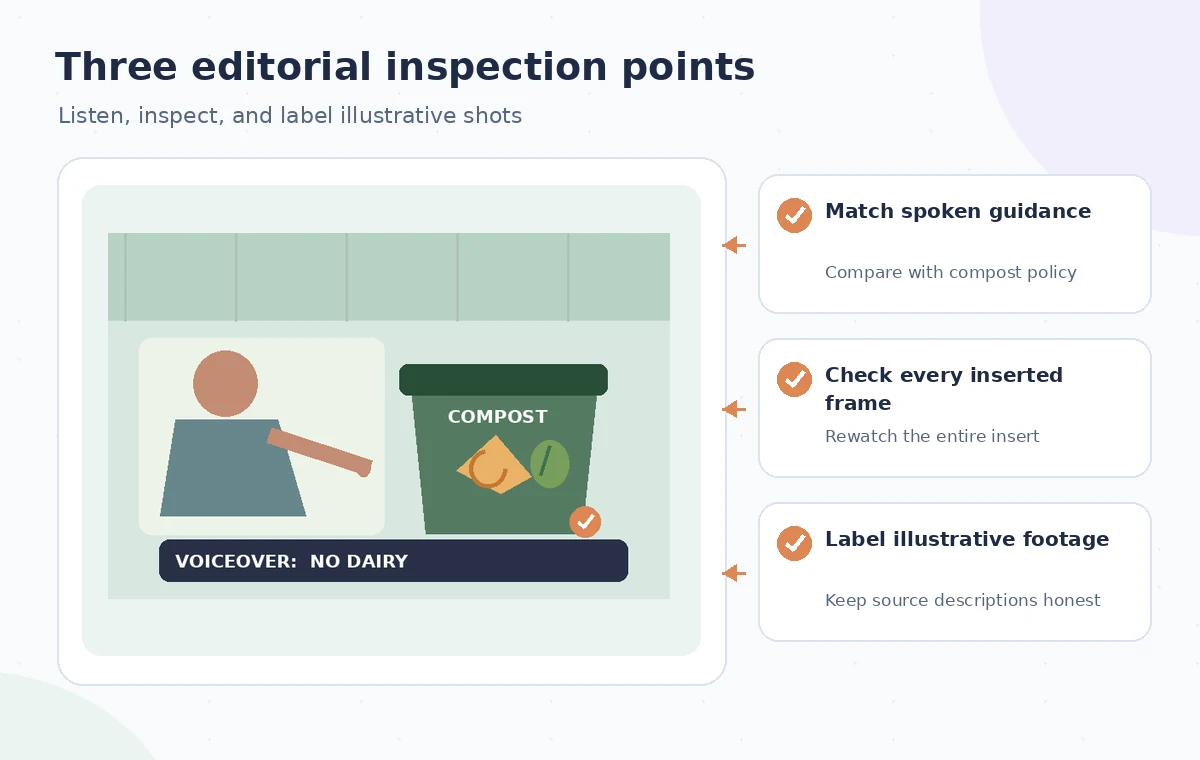
If that viewer puts dairy into the accepted column, the cut failed irrespective of whether the image itself looks polished. Resolve the mismatch and export again. Keep the reviewed version separate from the source recording, because staff may need to revise policy details later. The final-audit drawing shows the three controls that matter most: spoken rule, visual track, and an explicit distinction between illustrative and real footage.
Know when not to use an automatic insert
Magic B-Roll is most helpful where a visual example makes speech clearer and its accuracy is easy to check. It is less suitable for medical instructions, official waste classification, emergency procedures, or demonstrations of a facility the editor cannot verify. In those cases, licensed factual footage or a simple original diagram may serve audiences better than an inferred image. Maintain source-video continuity rather than adding effects just to fill every pause.
VEED’s documentation supports the existence of its speech-synced B-roll and replacement controls; it does not verify any imaginary compost demonstration or its local rules. No VEED account was used to generate footage for this article. The graphics show editorial principles only, and actual availability, output rights, and limitations should be rechecked before a real project starts.
How We Research
We checked the named vendor documentation: VEED Help Center: How to use AI B-roll and VEED Help Center: How to upload media. We compared its stated user controls, availability warnings, workflow stages and limitations against the concrete scenario described here. We then developed original educational diagrams and a separate human-review procedure for the materials that need independent evidence. The scenario is hypothetical: we did not sign into a paid account, upload a real customer asset, operate the feature on the example, or measure output quality. The figures are schematic, not actual interface captures or recorded processing results. Product menus, permissions and plans can change; verify the current installed edition and applicable policies before relying on this method.
Frequently Asked Questions
Yes. VEED describes generating B-roll suggestions based on transcribed speech and says it cannot generate them if no speech is detected.
VEED documents Replace and Regenerate actions for individual B-roll items in its editing panel.
VEED currently describes a one-time trial for Free and Lite and unlimited use on Pro. Confirm present limits inside your account.
No. Use actual dated footage for factual site claims, and label synthetic or stock visuals as illustrative where confusion is possible.
For each item, compare the displayed action to the exact spoken sentence and the organization’s approved written guidance.