
A neighborhood library wants to explore a simple shelf finder that helps visitors locate common subject areas. The staff has a small approved table of shelf codes but does not want to put patron borrowing history, internal notes, or personal contact information into a prototype. Google AI Studio Build mode can generate and iteratively modify a web app from a prompt, but generated code still needs functional tests and a security review. The guide below describes an illustrative proof of concept using invented shelf labels, not a live deployment or a measured evaluation of Google AI Studio.
Decide what the demo should and should not know
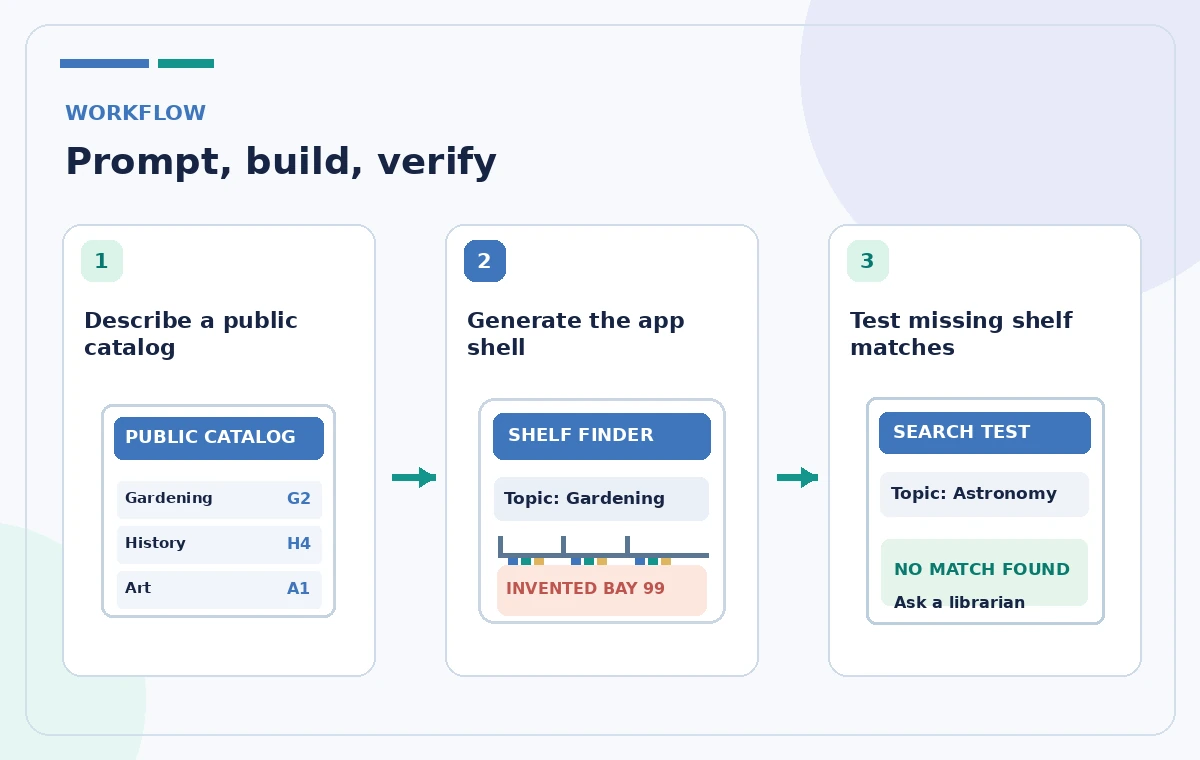
Keep the first milestone modest: a visitor selects or types a general topic and receives a shelf label from a public test catalog. Make a small approved data table with fictional categories such as Local History, Gardening, and Children’s Fiction, each mapped to a clearly invented shelf code. State that the demo must return ‘not found’ for any unknown category. Never include circulation records, hold requests, borrowed-title history, children’s accounts, employee passwords, or locations that are intentionally restricted. This boundary belongs in the project requirements, not as an afterthought when the interface already exists.
Understand what Build mode generates
Google documents AI Studio’s Build mode as a prompt-driven environment for creating and iterating on full-stack apps, with preview, code editing, and export or deployment paths. A successful-looking preview is not proof that the data flow is safe or that a service is production-ready. Check account eligibility and any usage or hosting costs that could apply when sharing or deploying. Review the generated application architecture before adding integrations; a pure local fixture lookup requires less access than a system that contacts live library servers. Decide who is allowed to change the underlying shelf table and where the authoritative data lives.
Write a prompt with precise acceptance rules
Describe the audience, public demo data, controls, and failure states. Ask for a heading, one search input with an associated label, a Find shelf button, a result card, and a visible message when no matching topic exists. Require case-insensitive matching only against the supplied fixture table; prohibit inventing shelf codes. State that empty searches should show a gentle instruction, not a random answer. Ask for accessible focus order, readable contrast, and a way to use the page without a mouse. Include a conspicuous demo-only explanation so visitors do not mistake synthetic shelf locations for current library directions.
Generate the shell, then inspect the code
Start a Build mode project, enter the controlled specification, and examine the generated preview. In the code area, search for the sample dataset and verify that the app does not silently call an outside service to guess shelf locations. Check network access, dependency behavior, and any UI links that were not part of the request. If the generator added ‘recommendations’ based on unspecified reader interests, remove them. Use the chat or annotation iteration features to change one thing at a time, explaining the exact behavior you expect. Save a baseline version before further edits so regressions can be compared.
Test found, unknown, and ambiguous searches
Create a test matrix instead of only trying one successful query. Check an exact subject, capitalization differences, leading spaces, an empty input, a nonsense phrase, and two subjects with similar names. Record the expected outcome for each case using the approved fixture table. If ‘Art’ and ‘Art History’ map to different shelves, ensure the app does not collapse them into one location. An unknown result must show uncertainty or a help-desk suggestion, not a confident fabricated aisle number. Test with keyboard-only interaction and narrow screens; a shelf card hidden below an overlapping button is still a functional failure.

Keep keys server-side and secrets out of the prompt
Google’s current documentation explains that Build mode stores Gemini API keys as server-side secrets for supported web apps and warns about deployment considerations. Do not paste real API keys, passwords, tokens, or patron data into prompts, source files, screenshots, or bug reports. Inspect generated front-end bundles for accidental embedded secrets and avoid exposing sensitive environment values in console logs. If the demo does not need a model at request time, prefer deterministic lookup behavior instead of adding a network call. Only introduce server features after an informed review of who can invoke them, what they cost, and how abuse would be limited.
Review accessibility and public messaging
Read the result using assistive technology where available and navigate the whole form by Tab and Enter. Verify that the search input has a visible label, errors are understandable, and the result is not communicated by color alone. If the catalog is multilingual, do not invent translations of local subject names without a qualified review. A screenshot may look attractive while the underlying semantic structure remains difficult to use. Add clear fallback text directing visitors to staff for inaccessible shelves, temporary closures, or materials that do not appear in the public fixture. Visual polish should follow functional and accessibility correctness.
Separate prototype sharing from production rollout
Build mode supports sharing, code export, GitHub sync, and deployment routes such as Cloud Run. These are distinct decisions with different permissions, costs, and maintenance responsibilities. For an internal review, share the smallest possible demo audience and explicitly label all records as fictional. Before real deployment, require an owner, change process, data source integration plan, security review, accessibility check, and logging policy. Importing a real catalog is a separate project that must handle updates and stale shelf locations. Publishing a prototype link should not automatically become a promise that visitors can rely on its directions in the building.

Use tests rather than generated confidence
This example is not a live benchmark of Gemini or a validation of an actual library map. AI Studio may generate code that appears correct while failing on unmatched values, edge cases, or privacy requirements. Feature availability, hosted runtime behavior, model access, and pricing can change; read Google’s current Build mode documentation before sharing. The practical success criterion is a small, auditable app whose outputs are constrained to a known public fixture, whose missing results fail clearly, and whose next step toward production is documented rather than assumed. A person still owns the shelf map and any visitor-facing claims.
How We Research
We checked the following official product documentation for this tutorial: Google AI for Developers — Build apps in Google AI Studio. We compared feature names, workflow steps, potential plan and permission restrictions, and points where generated suggestions must be verified. We designed a hypothetical editorial scenario based on those supported capabilities; we did not run an account-specific product test, analyze real visitor or member data, obtain real third-party permissions, or measure model accuracy. All four images are original educational illustrations, not product screenshots or actual AI-generated results. Since interfaces and terms change, check the latest controls and prices in your own account. Any public directions, privacy decisions, operational authorization, or safety requirements need confirmation from their responsible human owner.
Frequently Asked Questions
It can generate and share applications and offers deployment paths; production use still needs code, data, and security review.
Yes, if the workflow allows unconstrained generation. Use an approved lookup table and explicit unknown results.
Use the server-side secrets mechanism described in Google documentation; never embed keys in browser code.
No. The shelf finder demo should work with public or synthetic catalog data only.
Exact matches, ambiguous and missing terms, empty input, keyboard access, narrow screens, and error states.