
A volunteer seed library receives three donated seed packets: one verified bag of 24 packets, one uncounted bag, and a returned envelope with six packets. A coordinator wants a simple tracker with receipt date, variety, counted quantity, verification status and notes. The essential distinction is that “not counted” is not “zero.” Any AI-created table must preserve that unknown instead of pretending the inventory is complete.
Google documents a Build experience in Gemini in Sheets that can create new spreadsheets or complete end-to-end work on an existing spreadsheet, with plan eligibility and a reviewable plan. The example below uses fictional donations and proposed manual checks. We did not connect to a live Drive, edit a real spreadsheet or test Gemini formula outputs.
Collect the underlying receipts before building a sheet
Write a small source ledger with a unique receipt ID and the exact status on each paper note. For the second donation, the original note should say “quantity not yet counted,” not a blank that a helper might treat as a request for estimation. Photograph receipts only with appropriate permission and avoid including donor addresses or phone numbers in a prompt unless they are truly necessary.
Use an example with intentionally different states: confirmed number, count pending and returned stock confirmed. This exposes whether a generated template respects missing data. Store the ledger apart from the proposed tracker so a reviewer has a fixed authority when a column has been autofilled or a formula has been rewritten.
Ask Build for a schema, not an imaginary inventory
In an eligible Google Sheets account, the Build panel accepts requests for creating or editing spreadsheets. Prompt it to build an inventory tracker with fields for receipt ID, variety, receipt date, quantity, count status and verifier. Specify that unknown quantities must remain blank and visibly flagged “Count pending.” Ask for an optional summary that excludes unverified quantities.
Google describes a review step for the plan and outline and an option to add sources. Read the proposed structure before it changes the workbook. A sensible template may contain validation rules and a formula, but a plan preview cannot confirm that the figures in an old receipt were understood correctly.
Design quantity and status as separate fields
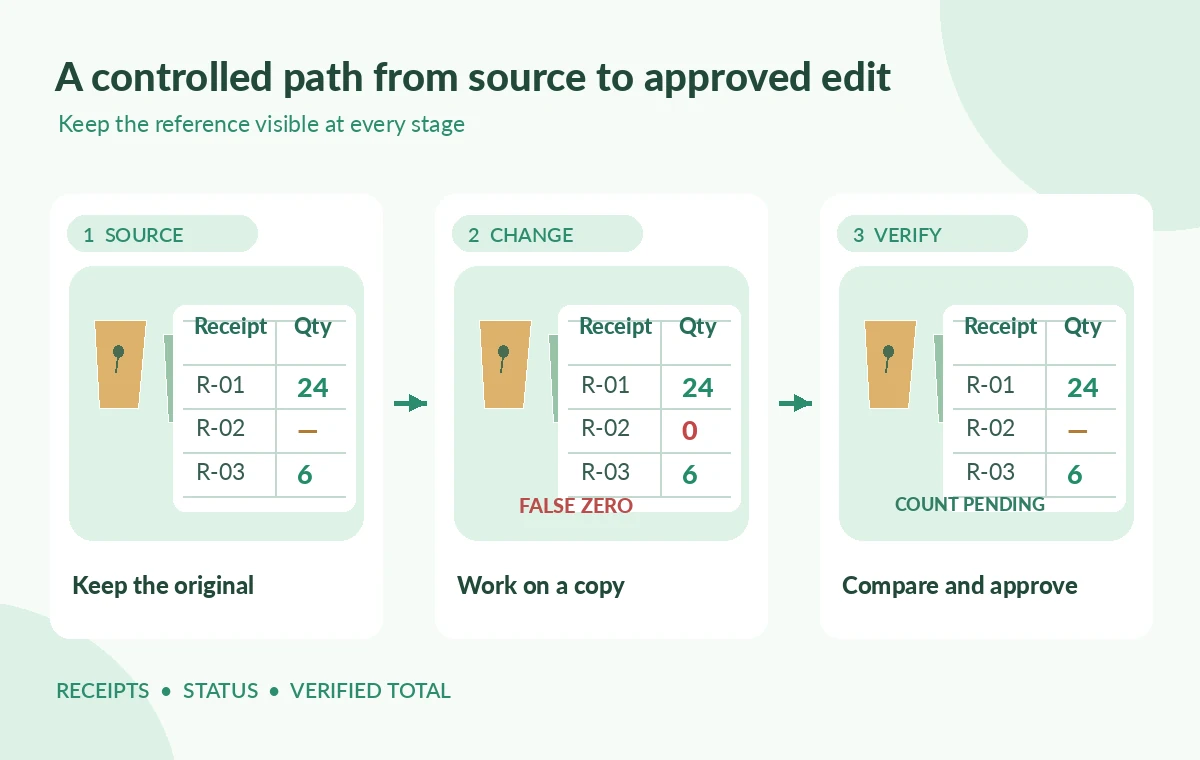
Keep Quantity numeric only when counted. Add a separate status with values such as Verified, Pending count and Correction needed. A zero quantity is legitimate only when a volunteer actually verified that no packets are present. Do not mix text “unknown” into a numeric total column if the downstream formula expects numbers; use a blank quantity plus explicit status instead.
Add a receipt ID to guard against duplicated intake. The diagram shows three illustrative rows: 24, blank and 6. A hypothetical bad build inserts zero for the blank row, then labels the total complete. The corrected representation includes only verified counts and visibly marks one outstanding donation. Neither outcome is a measured Gemini run.
Inspect formulas with a tiny known-answer test
Calculate the verified subtotal outside the generated workbook: 24 plus 6 equals 30, while the uncounted bag remains unresolved. Review every formula reference to make sure it does not include an estimate or a hidden default. If the dashboard displays “30 packets in total,” change the label to “30 verified packets; one receipt pending” so users do not overread the figure.
Test a new row with a Pending count status and an empty quantity. The verified subtotal should remain stable. Test a genuine verified zero separately to ensure it does not become “missing data.” These two cases are especially revealing because a plausible-looking dashboard can hide the wrong business rule.

Review dates, units and duplicate receipts
Dates should reflect the receipt ledger, not the time the spreadsheet was generated. Select a consistent display format and keep the source receipt as the authority for any imported timestamp. If the library sometimes counts envelopes and sometimes individual packets, add a Unit field rather than silently combining dissimilar quantities.
Inspect receipt IDs for accidental duplication and make sure a corrected entry does not create a second donation in the summary. Gemini can propose a table or action, but staff still need to decide how a correction is documented. Preserve a correction note with date and initials when a volunteer updates a count.
Limit access and retain the original ledger
Grant edit access only to volunteers who enter or verify donations. Donor identity rarely belongs in an inventory worksheet used at the distribution desk. Google notes account and plan eligibility for Gemini features; check administrator settings before assuming all colleagues can use the same Build interface. Keep sensitive or confidential notes out of feedback submissions.
Export a snapshot of the verified data at the end of a counting shift and keep paper receipts or other authoritative records. A new spreadsheet layout should not be treated as a migration of validated historical quantities. Make a deliberate change log for formula edits that affect totals.
Validate exception rows before sharing a dashboard
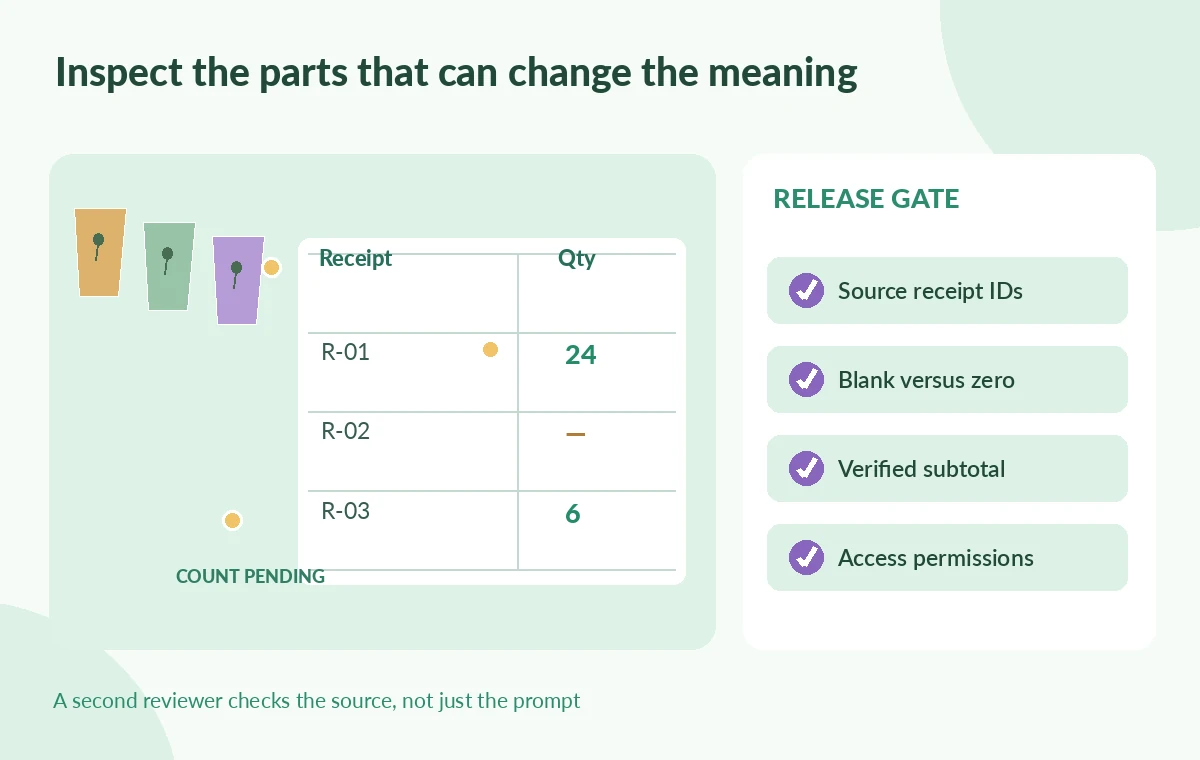
The approval diagram separates three questions: Is the receipt authentic? Is its quantity actually counted? Does the displayed subtotal describe only verified entries? Have a second volunteer check the unresolved bag and the returned envelope. It is more useful to report “pending count” clearly than to fill a beautiful dashboard with unearned completeness.
Try a filter that shows only Pending count receipts, then verify that the count pending row has not disappeared through sorting. If a chart treats blank as zero, caption it carefully or change the chart. A visual indicator can help with intake, but it cannot transform a missing number into evidence.
Publish a narrow, auditable working tracker
Before using the generated sheet, compare the receipt IDs and all known quantities line by line with the original ledger. Save a version with reviewed formulas and a clearly labeled subtotal. Record which rows are unresolved and who will count them. Do not make the workbook public if it contains contributor details.
The final artifact should help volunteers answer two different questions: what stock is verified, and what has arrived but remains uncounted. If the AI-produced plan makes that distinction hard to maintain, switch to a small manually designed table. A dependable inventory rule is more valuable than a sophisticated autogenerated dashboard.
How We Research
This article was prepared on November 4, 2026 from the following named official vendor references: Google Docs Editors Help: Build or edit entire spreadsheets with Gemini in Sheets; Google Docs Editors Help: Collaborate with Gemini in Google Sheets. We reviewed documented controls, availability caveats and stated workflow boundaries, and designed an independent hypothetical editorial check for the particular task described. We did not access a vendor account, upload live media or private records, generate candidate results, measure output quality, or claim that any illustrated failure occurred in a real tool. The WebP graphics are original teaching diagrams, not product screenshots. Plan restrictions, labels and capabilities can change. A responsible editor must still verify the underlying source, permissions, source data, accessibility, final exported artifact and sign-offs before public release.
Frequently Asked Questions
Yes. Google documents creating new sheets and editing existing ones in eligible accounts, subject to availability.
No. Use an empty quantity with an explicit pending status; zero is a verified numeric result.
No. Check formulas and displayed labels against the original ledger, including missing and duplicated entries.
Only 30 verified packets from the two counted example receipts; one additional receipt is still pending.
No. The values and example outcomes are illustrative, and no account or real donor data was accessed.