
A community garden needs a cheerful ten-second introduction for its beginner seed-starting page. Staff choose a completely fictional illustrated robot, rather than animating the photo or voice of an actual volunteer. HeyGen Avatar IV supports talking-photo and character workflows, including animated non-human faces, but natural-looking expressions are not a substitute for permission, accurate speech, or a reviewed script. This hypothetical guide develops the smallest useful clip, with attention to correct gardening terms, credit consumption, and an accessible text alternative. No avatar was generated or tested for this article.
Make the identity unquestionably fictional
Start with original robot artwork made for the garden project, with a simple mouth shape, distinct color scheme, and no resemblance to an actual volunteer or recognizable commercial mascot. Record who created the illustration and what rights the project has to animate it. Avoid scraping a visitor’s social media image or borrowing an employee’s voice recording without appropriate authorization. The video’s purpose is to welcome first-time gardeners, not to claim a real expert personally delivered the message. Use a clearly fictional character name such as Sprout-Bot and keep that identity consistent in the title, subtitles, and accompanying description.
Check the available Avatar IV path and credits
HeyGen documents Avatar IV within photo-to-video and avatar workflows, with script or audio inputs and credit-based generation. The feature is described as suitable for non-human and cartoonish characters, while limits and credit rates depend on the current account and look type. Review your available credits and the length of the planned clip before generating. A ten-second introduction is a better first experiment than a long safety lecture. Interface entry points can shift between the Tools area, Home page, Avatars, and Studio; use the current official help text for your account instead of assuming an old screenshot is exact.

Write the script from a verified garden handout
Choose one short, low-risk statement such as ‘Welcome to the garden. Find the seed-starting guide below and ask a volunteer before using shared tools.’ Check every fact against the approved page. Avoid specific claims about fertilizer ratios, pesticide handling, plant toxicity, or seasonal watering that would require separate expert review. Read the sentence aloud to detect awkward acronyms and names. Include an on-screen note that the robot is a fictional guide if the presentation could otherwise be mistaken for a real spokesperson. The animated character should orient the viewer to the actual instructions, not replace them.
Prepare the artwork and clean voice input
Upload the authorized character image through the Photo-to-Video flow. Use a centered subject with visible facial features, enough surrounding space, and a background that does not conceal the mouth. If writing a text script, choose an appropriately licensed voice option and preview the pronunciation. If providing recorded audio, make sure you have permission to use it and that the recording contains no private conversation or distracting music. Avoid uploading another person’s voice as an ‘example’ unless rights and consent are clear. A still image cannot tell you how a model will interpret timing, so keep motion expectations modest.
Control expression without inventing a performance
Avatar IV maps speech into expression and head motion; HeyGen documents optional custom motion guidance. If controls are available, specify gentle eye contact, minimal head turns, and no sudden gesture at the end of the line. Do not write a long cinematic prompt that conflicts with the ten-second narration. For cartoon artwork, more movement can make the character look less coherent or cover words. Keep the shot stable enough for captions and for people sensitive to rapid animation. Generated expressions are synthetic, so do not imply the animation is a recording of an actual staff member.
Review pronunciation and lip synchronization
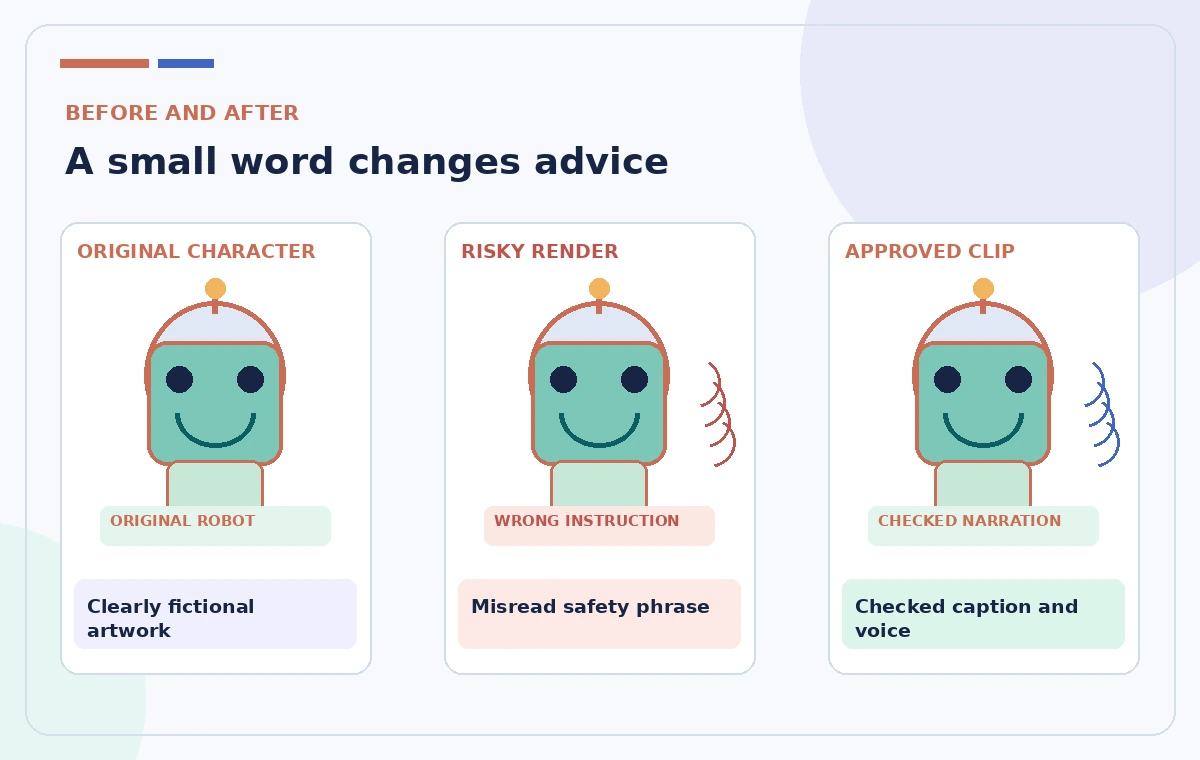
Play the draft at normal speed and listen specifically to ‘seed-starting,’ the garden name, and the instruction to ask a volunteer. A generated voice can drop a small word such as ‘before,’ changing the meaning of a sentence about equipment. Check the first and last syllables for clipping, and watch whether mouth movement follows speech rather than lagging noticeably behind. Inspect eye and face movement for distracting warping of the illustrated robot. If the voice sounds rushed, revise the wording or audio first. Rendering again can consume credits, so identify the cause before repeatedly generating near-identical outputs.
Add captions and a no-animation alternative
Prepare captions from the final approved audio, not merely from the original intended script. Compare every word and punctuation mark with the actual speech. Ensure the captions stay outside the character’s mouth and visible on a phone. Provide the same message in plain HTML text near the video, with a link to the full garden guide. If the page serves people who prefer reduced motion, offer a static poster or a non-animated introduction as an alternative. The result should remain understandable if the video cannot load, the audio is muted, or an assistive technology user never sees the robot move.
Approve the clip and track its usage rights
Before uploading to the organization’s site, ask the garden content owner to verify the script, character rights, voice license, and accessibility. Record a simple approval note identifying the approved file, script revision, and where it can be used. Avoid publishing a version with unapproved promises about scheduled classes or availability. Check the plan’s generation credits and any relevant commercial-use conditions rather than inferring rights from the ability to click Generate. A clean export should have a sensible filename and a separate text description. Store the original image and script so a later factual correction can be made deliberately.

Understand what a convincing avatar does not prove
Avatar IV can animate a supplied image, but it cannot verify a garden’s operating schedule, determine the safety of shared equipment, or give consent for the likeness of someone pictured. This guide does not claim that the illustrated robot was rendered successfully or that lip-sync quality was measured. Credit structures, available models, animation controls, and export limits change frequently; consult HeyGen’s current help and your billing view. The review goal is a brief, original fictional character that speaks only approved facts and has an accessible equivalent—not a synthetic presenter whose polish might be confused with authority.
How We Research
We checked the following official product documentation for this tutorial: HeyGen Help — Avatar IV Complete Guide; HeyGen Help — How to Get Started with Photo Avatars; HeyGen Help — Avatar & Voice FAQ. We compared feature names, workflow steps, potential plan and permission restrictions, and points where generated suggestions must be verified. We designed a hypothetical editorial scenario based on those supported capabilities; we did not run an account-specific product test, analyze real visitor or member data, obtain real third-party permissions, or measure model accuracy. All four images are original educational illustrations, not product screenshots or actual AI-generated results. Since interfaces and terms change, check the latest controls and prices in your own account. Any public directions, privacy decisions, operational authorization, or safety requirements need confirmation from their responsible human owner.
Frequently Asked Questions
HeyGen describes Avatar IV as particularly useful for animated and non-human characters.
Do not do that. Obtain appropriate permission and usage rights for any real person or voice.
Often a changed script or audio leads to a new render, which may consume credits; preview first.
No. A subject-matter reviewer must approve every instruction and safety condition.
Yes. Provide corrected captions and a plain-text equivalent for people who cannot use the video.