
A volunteer museum team built a touchscreen ticket-kiosk prototype with two visually similar flows: general admission and an accessibility-assistance request. The file contains dozens of default Frame and Rectangle layer names. Renaming them automatically might make handoff easier, but the team cannot afford a change that causes transitions to animate incorrectly or hides the difference between “Request help” and “Pay.” Clean organization is only useful if the interaction remains understandable and testable.
Figma documents Rename layers as an AI feature for eligible plans and editors. It derives contextual names from layer content, position and relationships; some layer types and pre-named objects are intentionally protected. The example below is a conceptual review process, not a record of an actual Figma file being renamed. It separates what the renaming action changes from the prototype behavior a designer must still test.
Inventory user flows and lock their meaningful names
Begin with a map of the prototype states: Welcome, Ticket Selection, Assistance Request, Payment and Confirmation. Mark which frames are shared between routes and which components have stable names used by designers or developers.
Any name carrying meaning for handoff, variable mapping, accessibility checks or component documentation should be protected by clear manual naming before starting AI. Duplicated default layers such as “Frame 68” are the candidates, not well-defined labels like “Help/AccessibleEntrance.” Avoid running an indiscriminate rename on the entire design library simply because the file looks untidy.
Check eligibility and the supported layer types
Figma’s official help names Professional, Education except K–12, Organization and Enterprise plans, and requires edit access for the feature. It can rename frames, groups, text layers, image-filled rectangles and default-named instances under documented conditions.
It does not rename locked or hidden layers, custom-named layers, instance sublayers, or arbitrary vector networks. Confirm the available command in the current file and plan rather than telling reviewers it will rename every object. Record a snapshot of the layer tree and, when appropriate, save a version checkpoint before the operation.
Run the rename command on a focused selection
Select an affected parent frame or a small group of layers, then use Rename layers from the context menu, toolbar Actions or quick actions. Figma bases names on context, which can be helpful for “Button / Confirm,” but it may not infer the role of visually similar controls.
Review each new label while the original screen is visible. If two buttons share a style but perform different tasks, a generic name is an editorial suggestion, not a semantic truth. Do not expect the feature to inspect external accessibility requirements or validate the business logic behind labels.
Inspect smart animation and matching names across states
Figma explains that matching unnamed layers across top-level frames can be renamed together to help preserve Smart Animate and scroll-position behavior. That is helpful but not a guarantee that every custom transition will still look right.
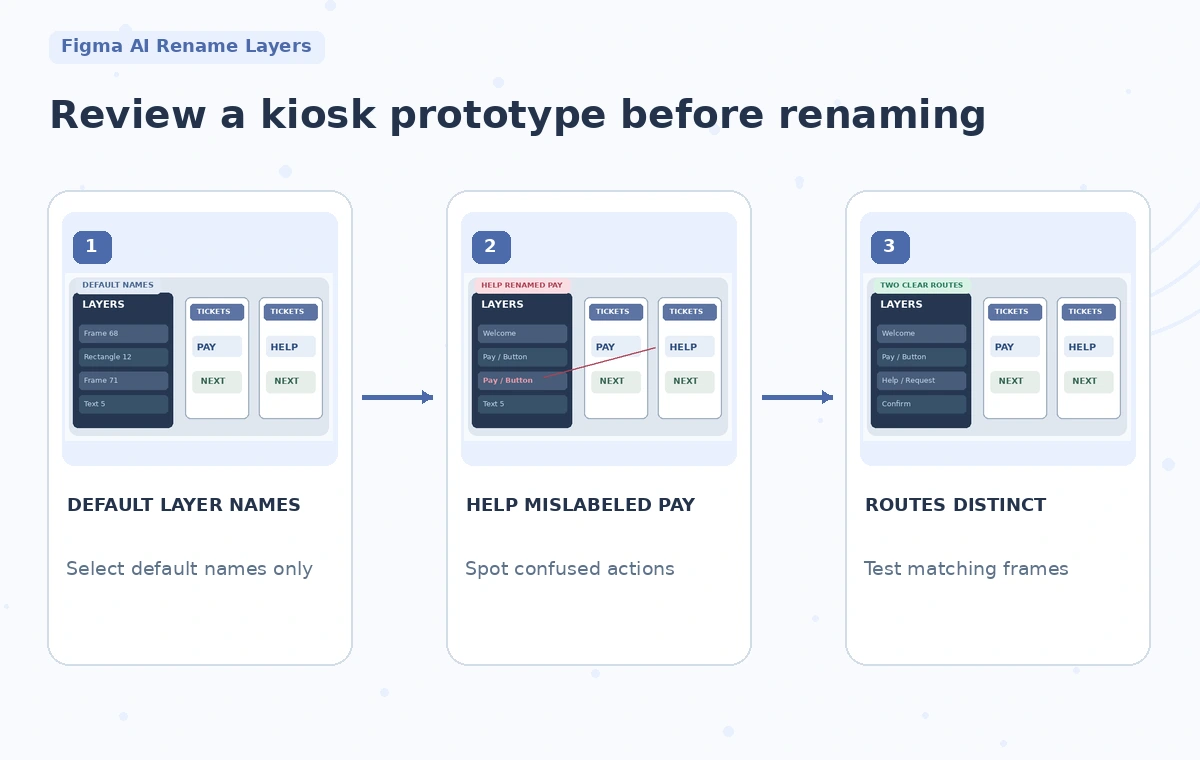
Open a prototype preview and test the transition from ticket selection to payment, then the alternative from ticket selection to assistance. Watch for a label that morphs into the wrong button because corresponding elements were assigned confusing names. The teaching comparison highlights a hypothetical bad layer map in which the help action inherits a pay-oriented label.

Protect component instances and design-system contracts
The rename tool intentionally avoids instance sublayers and most previously custom-named layers. A designer should not bypass this protection casually by forcing a sweeping rename. Component names and variant properties may be referenced in team documentation, handoff files and downstream tooling.
Review the Layers panel alongside the Assets panel and the actual component library. Ask the system owner before changing canonical names or paths. If the AI proposes a cleaner label that is incompatible with an established convention, keep the convention and document the reason; readability for one person is not the only goal.
Audit accessibility semantics independently
A layer called “Accessible button” does not prove that an interface can be used with a keyboard, has understandable focus order, or provides sufficient contrast. Test each route with the prototype’s available navigation and document any unsupported behaviors clearly.
Distinguish actionable buttons from decorative objects and ensure an assistance option is not hidden behind a generic icon name. Include explicit handoff notes for screen-reader labels and input error states because they may not be represented by canvas layer names alone. AI renaming improves housekeeping; it does not perform a compliance audit.
Compare before and after trees with a reviewer
Capture a small before-and-after map of the relevant layer hierarchy. Check that the number of functional controls, frame destinations and variant relationships has not silently drifted. The illustration compares default rectangles, an erroneous suggestion that confuses Help with Pay, and a reviewed tree with distinct labels.
Those differences are conceptual, not a measured Figma output. Ask someone who did not build the screen to find the assistance flow using the new layer names, and record where they hesitate. A clear naming system should help a teammate trace the user’s journey without guessing.

Ship the annotated prototype, not just the renamed file
Before handoff, test all major taps, keyboard focus expectations, blank and invalid states, and any animations connecting matching layers. Include a naming convention sheet explaining component paths, state names and the intentionally protected labels.
Preserve a version history point so developers can investigate unexpected changes later. The completion criterion is an understandable design file plus a functioning prototype and review notes, not the disappearance of generic layer names. If the AI labels are misleading, correct them manually and keep the verified navigation map as the source of truth.
How We Research
This guide was prepared on November 4, 2026 from official vendor documentation: Figma Learn: Rename layers with AI; Figma Learn: Refine components and variables for Figma agents. We reviewed documented controls, availability caveats, workflow boundaries and the ways the described task could mislead readers. We did not log into an account, test a real output, interview actual participants, or measure feature performance. Each diagram is purpose-made explanatory artwork; risky candidates are fictional teaching examples, not evidence of a particular vendor failure. Interface labels, quotas, subscriptions and permissions can change. Before acting, recheck the current documentation and seek approval from the people responsible for any factual content, rights or sensitive source material.
Frequently Asked Questions
No. Figma documents eligible paid and education plans and requires edit access to the design file.
Figma says it leaves previously renamed, hidden and locked layers alone under the normal workflow.
No. Keyboard behavior, semantic labels and user flows require a separate accessibility review.
Figma coordinates certain default layer names across top-level frames to help preserve Smart Animate and scroll-position behavior.
No. They are fictional examples showing the design risk of confusing help and payment actions.