
A neighborhood arts center wants a single-page signup for a free evening workshop. Visitors must choose a session, enter an optional contact address, and understand that a submitted request is not an approved reservation. A beautiful AI wireframe could accidentally hide required-field errors, label a button ambiguously, or make a confirmation promise the center cannot keep. Figma AI First Draft can quickly assemble common page patterns, but it is a design starting point. This example shows how to draft the interface and establish review evidence before any engineer builds a working registration flow.
Write the task and acceptance criteria first
Describe the visitor journey in a small specification: land on the signup page, read the workshop date, select one of two sessions, provide a contact method only when necessary, review the information, and submit a request. Include the states for a full session, a missing required answer, and a lost connection. Decide whether the page must serve keyboard-only users and screen-reader users, and identify the approved wording for consent and capacity. AI should not invent a privacy notice or the event rules. Keep an authoritative one-page brief beside the design so every change can be compared to a source.
Find First Draft in the current Figma interface
Figma documents First Draft in Figma Design for users with edit access and eligible plans. Its older flow starts at Actions, then First Draft, where a wireframe or mobile-design library can be selected before entering a prompt. Since May 20, 2026, Figma has also begun moving this capability into a Figma agent beta; availability and the entry point may differ across accounts. Check the feature that is actually shown to you instead of assuming an older tutorial matches the latest toolbar. The result is editable design content, not a deployed website or a fully functioning form.
Prompt for a narrow and testable wireframe
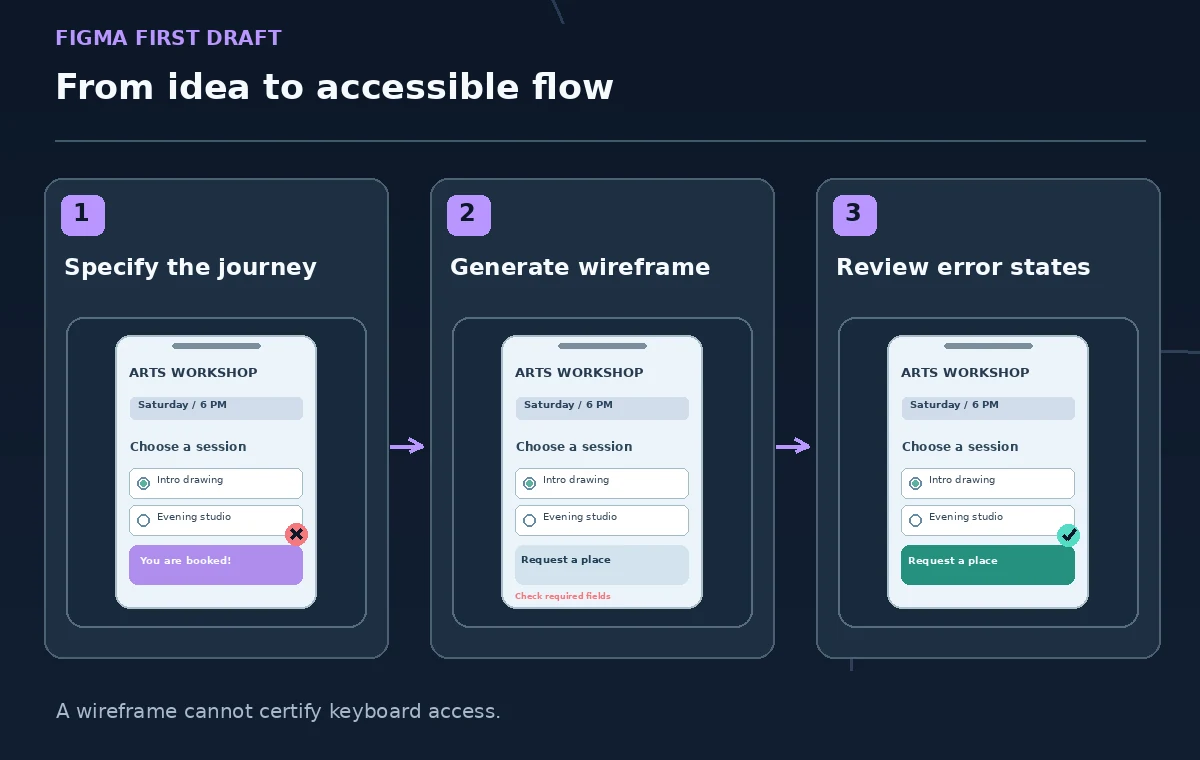
A useful prompt names the page type and constraints rather than asking for a generic modern signup. Ask for a mobile-first workshop registration page with a visible event date, two session choices, clearly associated field labels, plain error messages, a separate review state, and a button labeled Request a place. Specify that no payment step, unnecessary demographic fields, or success guarantee should appear. If you have brand colors, provide them as review guidance, not proof of accessibility. First Draft relies on design libraries suited to common app and website patterns, so keep the requested output within those patterns.
Compare alternatives without losing the approved brief
Generate a concept, then duplicate the frame before experimenting with a different layout. Figma supports iterative changes to content, theme, typography, and spacing while the First Draft controls remain open; once closed, continue editing the resulting Figma layers normally. Preserve a reference frame named for its purpose, not a claim that it passed testing. Compare which layout makes the session selector, help message, and privacy explanation easiest to find. Reject versions that add an attractive but misleading progress step or bury the request status. The purpose of branching is to identify tradeoffs, not to count AI-generated variants.
Check the reading and keyboard order separately
A Figma arrangement can look visually logical while leaving the actual implementation order undefined. Number the intended reading sequence on a review copy: page title, date, short instructions, session options, contact field, privacy note, submit control, and response message. Document how a keyboard user should reach every interactive element and where focus should move after an error. Do not claim a static wireframe has passed a screen-reader audit. Ask a developer to verify semantic labels, fieldsets, focus visibility, tab order, and error announcements in a functional build. These requirements belong in handoff notes even when the visual mockup looks polished.
Design the missing and invalid-input states
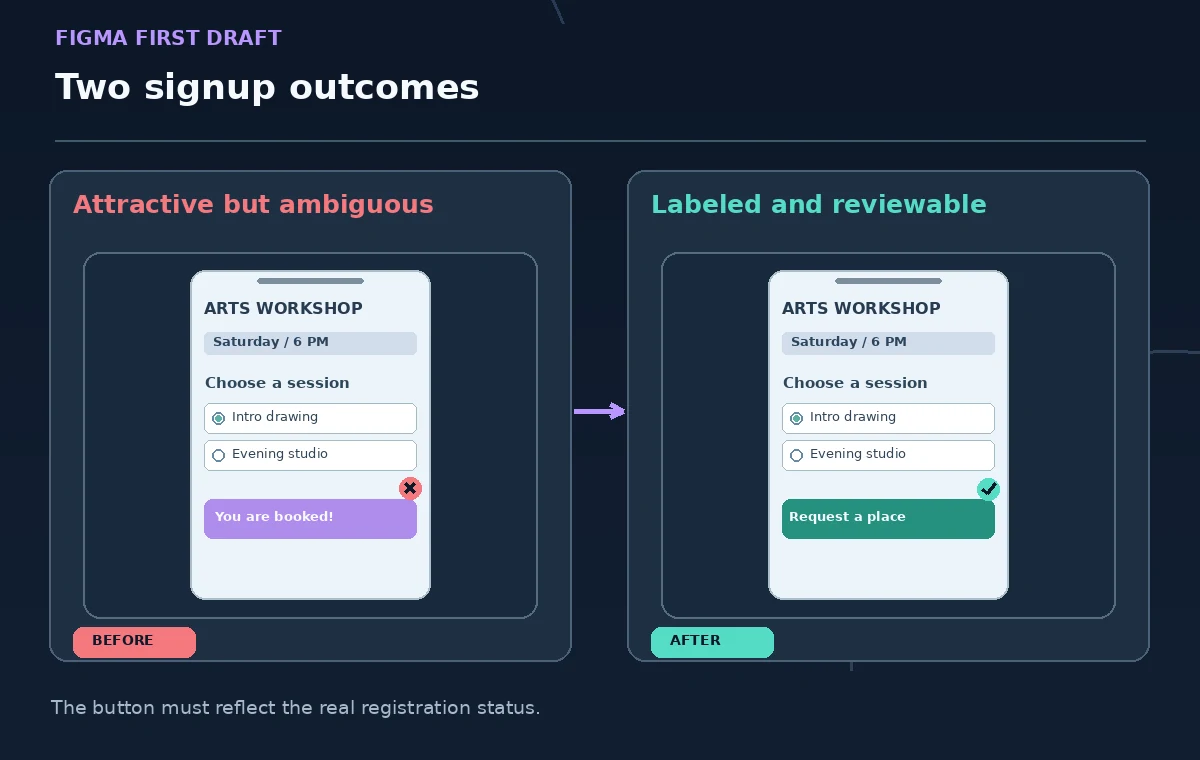
Draft an empty form, an invalid submission, a session-at-capacity message, and a request-received state. Avoid red-only errors: explain what is wrong in words and connect it to the relevant field. If the workshop is full, the interface should offer the approved waitlist or alternative rather than quietly accepting an impossible reservation. The AI may draw plausible warning icons, but only the center knows the actual registration rules. Review examples with fabricated names and addresses, and label the images as prototypes so nobody treats them as screenshots of a working signup system.
Preserve truthful copy and privacy expectations
Review each sentence against the source brief. Change You are registered to Your request was received unless staff genuinely confirms places immediately. Remove fields for birth date or home address when the event does not need them. Show how long contact details are needed and link to the real privacy statement if one exists. Avoid pasting real attendee information into an AI design prompt. Figma provides organization-level AI and content-training settings; check those settings with the administrator when the proposed wireframe includes confidential client language. The easiest error to miss is often a confident but unauthorized sentence.
Prepare a developer handoff instead of pretending it is code
Create annotations that specify required inputs, conditional behavior, validation messages, responsive breakpoints, and the distinction between a request and confirmation. Include what must happen on network failure and whether a person can correct an entry before submitting. Attach the authoritative copy and record which team member approves changes. An editable Figma design does not implement backend capacity checking, secure data collection, email delivery, or accessibility semantics. Engineers need acceptance criteria and real tests, not only a screenshot that resembles a finished product.

Review the prototype with someone who was not in the prompt
Ask a reviewer to locate the signup date, choose the evening slot, explain the submit button, and tell you what confirmation they expect. Record misunderstandings without coaching the reviewer toward a particular answer. Compare the observation against the brief and revise the wireframe; then ask a developer to verify the interactive prototype or built form with a keyboard and assistive technology. Save the reviewed version separately so later AI suggestions cannot silently replace it. The release decision belongs to the responsible team, not to First Draft or its visual polish.
How We Research
This guide was prepared by reading the named official documentation—Figma Help — Use First Draft with Figma AI and Figma Help — Manage AI settings and content training—and cross-checking the described feature, its workflow, platform or plan restrictions, and the point at which a person must review the result. The scenario, illustrations, example inputs, approvals, and sample outputs are hypothetical editorial teaching aids; we did not access a customer account, run a live product test, measure model accuracy, or verify an actual organizational policy. Screens, plan rules, and labels can change after this documentation review. Always confirm the currently available feature and the authoritative source documents before acting on any AI-generated wording.
Frequently Asked Questions
No. It creates editable Figma wireframes or designs, not a hosted form with validation, storage, or real capacity checking.
Figma began moving this functionality into an agent beta in May 2026. Entry points, plan access, and rollout status may differ.
Figma’s First Draft documentation says it cannot currently generate designs using a custom design system. Adapt its output manually.
No. Visual layout cannot establish focus order, semantic labels, error announcements, or behavior in a working browser.
No. Use fabricated data and review your Figma team’s AI and content-training settings before including confidential material.