
A community theater holds a video meeting to plan a dress rehearsal. The stage manager raises a lighting issue, a volunteer offers to check spare cables, and the director proposes a new timeline but does not approve it. ClickUp AI Notetaker may produce a useful meeting document, yet it could turn that discussion into a confident action list. This hypothetical guide focuses on choosing the right access scope, disclosing recording, verifying who accepted a task and preserving uncertainty. No actual meeting was recorded for this article.
Decide what the meeting may record and share
Before enabling any notetaker, explain to participants what will be recorded, whether a transcript or video will be retained and who can read the notes. Follow your organization’s consent policy and applicable recording rules. If someone is uncomfortable, use written minutes or a non-recorded alternative rather than treating attendance as permission. Remove sensitive cast health details, private contact information and unpublished scripts from the agenda unless there is a clear approved need to process them.
ClickUp documents Personal, Shared and Workspace notetaker types with different visibility. Personal notes are for an individual; Shared notes may go to attendees; Workspace notes can reach a broader audience. These choices are material for a volunteer group that includes external performers. Decide the audience before a bot joins the call. A document created in a broad-access space cannot be made private merely by removing a name from its title.
Confirm feature access and the meeting connection
An owner or administrator must activate the AI Notetaker ClickApp before the feature is used. ClickUp describes support for SyncUps and calendar meetings through services such as Zoom, Teams and Google Meet, with supported calendar connections. Plan and role restrictions apply, and some advanced sharing modes depend on the subscription. The right procedure is to check current workspace entitlements rather than promising the feature to every free account.
For a scheduled meeting, locate the calendar event and select Add AI Notetaker where available. Pick the intended note type and verify the join message and recording settings. For an ad hoc call, the product describes a way to send a notetaker by meeting link. Test access with a non-sensitive agenda first. Do not run two bots for the same meeting unless that duplication is deliberate, as it can create conflicting notes and consume usage.

Make decisions distinguishable from brainstorming
Give the agenda three explicit sections: decisions requested, proposals for later review and logistical updates. Ask the chair to say when a decision is formally accepted and name the person who agreed to follow up. A lighting suggestion is not automatically an order to buy equipment. Use concrete wording such as Alex will check cable inventory by Thursday after Alex confirms, rather than we should probably have Alex do it. Meeting language provides evidence that a summary alone may flatten.
A simple theater example is the difference between maybe move rehearsal to Friday and the director approved Friday after the cast confirms availability. The second sentence still contains a condition; the calendar must not be changed until the condition is resolved. The process illustration shows agenda, consent, note draft and human task approval as distinct stages. The arrows are editorial instructions, not a representation of how ClickUp autonomously assigns tasks.
Verify every proposed owner and deadline against the record
After the meeting, inspect the notes document and any available recording or transcript according to the chosen settings. Create a review table with action, exact supporting statement, proposed owner, deadline, acceptance and status. A task cannot be assigned just because a speaker mentioned another person’s name. Ask the proposed owner to accept it, and record the resulting agreement independently. When a deadline was not stated, leave it unassigned instead of generating an arbitrary next Tuesday.
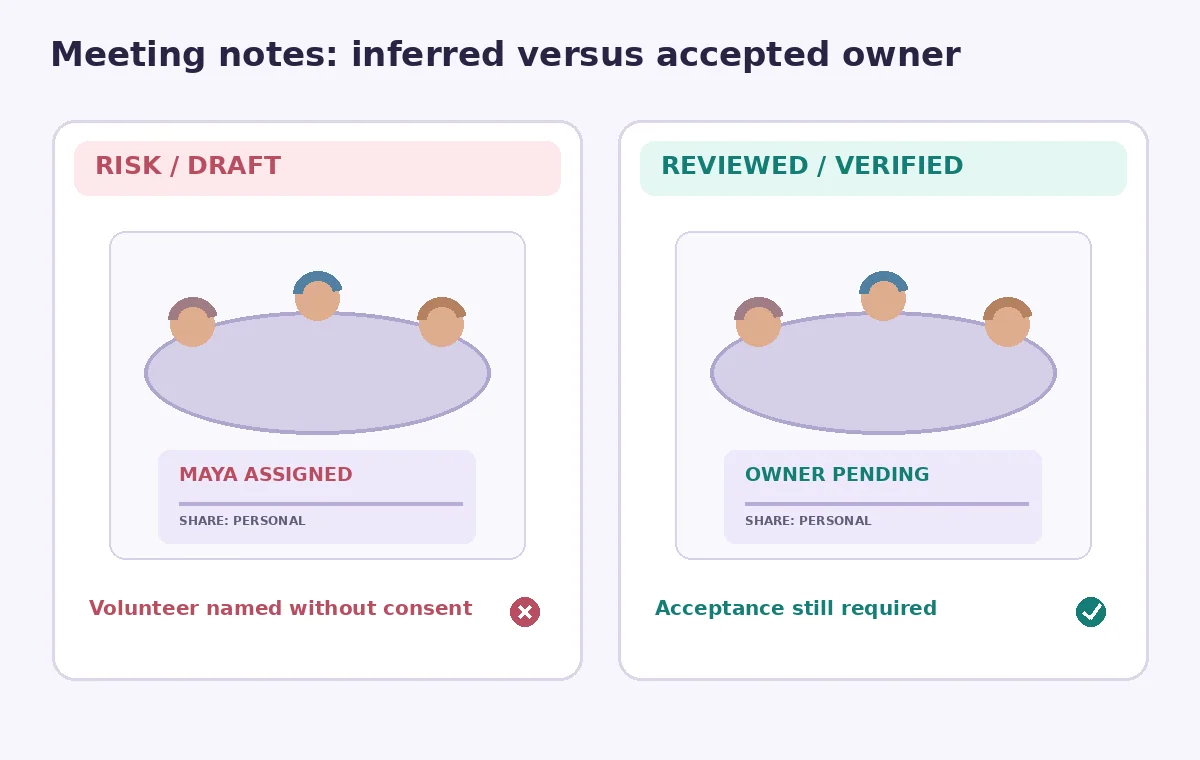
The comparison drawing shows an AI-style draft assigning props delivery to a volunteer who only offered to investigate transportation. The verified version marks owner pending until someone accepts. This is a fictional illustration, not a claim about ClickUp’s observed error rate. Keeping the two statuses separate makes follow-ups respectful and prevents the team from treating the meeting notes as a contract that attendees never approved.
Check privacy on the generated meeting document
Inspect who can access the AI-created Doc and any attached audio or transcript. An invited guest, an absent invitee and an entire workspace are different audiences. ClickUp notes that sharing behavior depends on the chosen notetaker type and how invitees are identified; do not assume every named attendee received the same material. Remove sensitive sidebar conversations from public follow-up summaries and avoid posting recording links into open volunteer channels.
The event may include a performer discussing a personal scheduling conflict. That explanation can be relevant to the director without belonging in a teamwide action list. Replace it with a neutral scheduling note in the public summary and keep any protected detail in the authorized system. If the organization has a deletion or retention policy, confirm it covers the recording, notes and exports rather than removing only the calendar entry.
Convert reviewed action items into accountable tasks
Only after the chair or relevant owner approves the minutes should the team create or update tasks. For each action, specify a concrete deliverable, a responsible person who accepted it, the due date if stated and an approval checkpoint. Example: inspect available cables and report missing counts is different from purchase replacement cables. The former may be delegated to a volunteer; the latter may need a budget owner. Never let an inferred summary silently authorize spending.
Link the approved task back to the final minutes or a clear decision record, not to an unreviewed AI paragraph. This gives anyone joining later enough context to understand why an assignment exists. Use a status for awaiting confirmation and a separate one for approved work. The distinction helps when the stage plan changes again, because the team can revise commitments without having to untangle what the recording software seemed to promise.
Handle misunderstandings and missing coverage
A notetaker can misunderstand crosstalk, quiet voices, theater jargon and contradictory suggestions. If the meeting contained a breakout-room discussion, do not assume it was captured: ClickUp says AI Notetaker is not supported in breakout rooms. Ask participants to bring relevant decisions into the main meeting or submit written updates afterward. A missing sentence in a summary is not evidence that an agreement never happened, and a confident action list is not evidence that it did.
Read uncertain passages against permitted recordings where available or ask participants for confirmation. Label disputed notes and avoid circulating a corrected version without a change record. If the meeting language was ambiguous, schedule a quick clarification rather than asking an AI assistant to guess the intended meaning. The aim is trustworthy coordination, not a transcript that looks complete even when the source audio was incomplete.
Publish the minutes only after sign-off
The approved follow-up should contain accepted decisions, assigned tasks, unresolved proposals and the next review date. Double-check that the rehearsal date, venue, access instructions and production budget match the latest authorized plan. Confirm the sharing audience one final time. Where a broad-notes bot was used, consider creating a shorter approved digest rather than forwarding the full document to every volunteer or contractor.
Archive the approved minutes with the chair’s sign-off and the task status snapshot. If a task later changes, update the task itself and point to a new approval rather than rewriting the historical record. The final figure highlights consent, owner acceptance and note access as three independent checks. It illustrates a responsible workflow without implying that this article measured or tested ClickUp’s transcription accuracy.

How We Research
For this guide, we reviewed named official product documentation: ClickUp, Use AI Notetaker to take notes and record meetings; ClickUp, AI Notetaker and Meetings Hub feature availability. We used these publisher sources to verify feature naming, menu locations, supported workflows, access constraints and stated limitations rather than treating marketing claims as performance measurements. This article presents a fictional editorial scenario with hypothetical names, numbers, pictures and comparison states. We did not use a production account, conduct controlled image or transcription tests, obtain real permission, or measure output accuracy. Current entitlements, menus, credit usage and generated results can change. Recheck the live documentation and verify all operational facts against the primary records before publishing or approving the work.
Frequently Asked Questions
No. A generated summary is a draft record; the chair and assigned people must confirm decisions and ownership.
It depends on the selected Personal, Shared or Workspace notetaker type and workspace permissions.
ClickUp currently documents that AI Notetaker is not supported in breakout rooms.
No universal entitlement is guaranteed. ClickUp documents plan, role and add-on restrictions; check your workspace.
Mark the item unconfirmed, seek the volunteer’s explicit acceptance and update the approved task and minutes with the correction.