
A small public library tracks damaged projector cables, loose chair fittings, and a door that sometimes sticks. Its maintenance coordinator wants to group requests into routine work, possible safety concerns, and needs more information. ClickUp’s AI Fields include a Categorize dropdown option, but a machine-generated category is not proof a repair happened. This hypothetical setup shows how to classify tickets while preserving unknowns, human ownership, and the ordinary task status field.
Define labels before adding AI
Choose a narrow label taxonomy that staff can use consistently. For a demonstration list, create categories such as Routine equipment, Safety review, and Needs details. Avoid labels like Resolved or Approved: those are decisions, not descriptive subjects. Decide which field is authoritative for maintenance state and leave it independent from any AI categorization field. A task saying ‘projector makes noise’ should not be treated as repaired just because it matches a familiar equipment class.
Agree on the escalation path outside AI. If a ticket describes an obstructed exit, exposed wiring, or a fall hazard, staff should use the library’s real safety process promptly rather than relying on a model-generated classification. Keep names, personal contact details, and patron records out of test examples. The illustrated ticket board is fictional and cannot establish how any real building is maintained.
Create a Categorize AI Field in ClickUp
ClickUp’s help center describes AI Fields within Long Text and Dropdown custom fields. Categorize is a Dropdown AI Field designed to classify tasks; AI Fields can be created from a List or Table view by using the AI controls or adding a field, then customizing its instructions. Name the field Suggested ticket category so it does not resemble an official approval. Select only the allowed labels and include a default human-review path for an unclear description.
The field is generated using task context such as name, description, comments, and task properties; this is useful, but it also means stray comments may influence classification. Supply plain-language instructions: use the ticket description to identify the equipment type, return Needs details if key facts are missing, and never infer that an item is fixed. Test with a fictional record containing contradictory details before enabling broader population.

Avoid mixing a category with status or priority
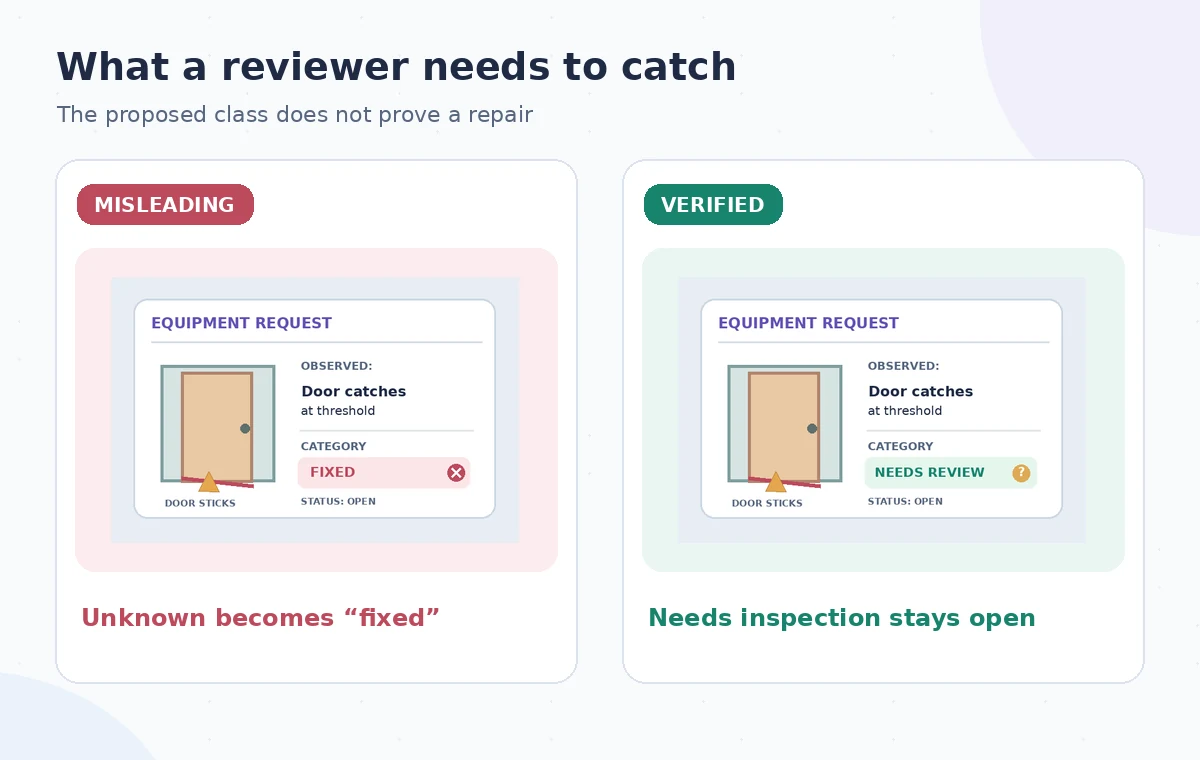
A generated category can help a coordinator route a task without deciding its urgency or completion. The separate status field should remain Open, In review, or Completed only when a responsible person makes that change. If a description says ‘door works after adjustment’ but no inspection is recorded, the AI must not close the task. A category like Routine equipment must not override an explicit safety concern buried in a comment.
For this example, take three sample records: a broken projector cable, a loose chair screw, and a door with uncertain clearance. The coordinator should inspect the third record because the description lacks enough information to determine whether it impedes an accessible route. Marking it Needs details is a useful result; confidently assigning it a low-risk category is not. An AI field is a suggestion surface, not a work-order sign-off.
Use the AI tool selection checklist
Generate a small test set and review surprises
ClickUp explains that fields can be generated individually or in bulk and regenerated after prompt changes. Start with a small list of invented tasks that includes duplicate phrasing, missing evidence, and a clear safety warning. Read the entire ticket alongside the AI result and record whether the label makes sense. Adjust the field instructions to distinguish incomplete descriptions from genuinely routine requests. Avoid measuring success on only the easy examples.
Do not assume bulk generation is harmless. The help article describes bulk generation of up to 200 AI Fields at once, and an organization can accidentally spread confident-looking guesses across a queue before review. Use a temporary test list if possible, confirm the plan and permissions, and instruct reviewers not to sort their workload solely by an unapproved category. Recheck after a field prompt is edited, because categories can change on regeneration.
Understand automation and credit consequences
ClickUp’s documentation notes that AI Fields consume AI Credits, with access varying by plan and user role. It also describes options such as filling new tasks automatically, updating fields after task changes, and populating existing tasks. Keep automatic filling off for production queues until reviewers understand what the labels mean. Inspect the permissions on the field and the Automations view before connecting generated values to downstream routing.
An especially risky arrangement would move a task to Completed when the AI category equals Routine equipment. Instead, an automation could notify a coordinator that a task needs review without changing its status. If a team later adds automatic triage, keep a reversible change log, a human override, and an audit of exceptions. An AI label can start a conversation; it cannot certify a repaired chair or a safe door.
Plan a safer multi-tool workflow
Audit individual tickets against source evidence
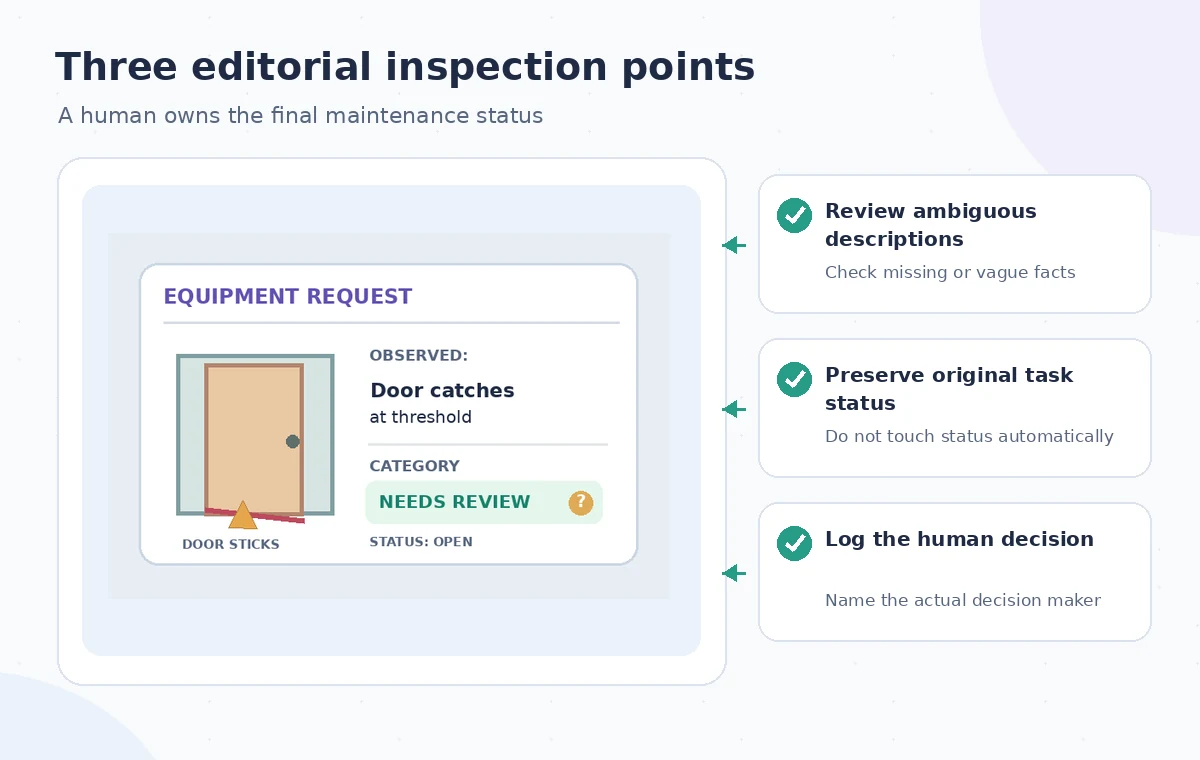
Open every selected task and compare the original wording, pictures, follow-up comments, assigned technician, and final human decision. Check whether the AI grouped multiple distinct problems under one category, ignored a conflicting note, or inferred a resolution from future-tense language. Record the reviewer, date, and actual maintenance outcome separately. Use the ordinary repair workflow for safety-critical tasks and ensure no tickets disappear from an ‘unclassified’ view.
A review checklist can be short: Does the label describe the issue? Is there enough information? Has the correct person accepted or escalated it? Does task status still reflect reality? Use the exported or live list view for final verification, not an illustration of a dashboard. The diagram in this article shows an illustrative difference between a misleading ‘fixed’ outcome and a properly open inspection item.
Retire labels that create unnecessary risk
After a pilot, count how many tickets required a different label and why. If ambiguous cases dominate, revise the intake form to ask for location, equipment identifier, and observed symptom instead of forcing an AI guess. If every ticket can be routed from a short checklist, a conventional Dropdown field may be simpler, cheaper, and easier to explain than generated categorization. Keep the manual path available to staff without AI access.
The documented field types and controls come from ClickUp’s own help pages; this guide does not claim that an actual library queue was processed. The images are educational illustrations, not ClickUp screenshots. In an operational setting, legal and workplace safety processes take precedence over a suggestion field, and account-level permissions and current credit use should be checked before deployment.
How We Research
We checked the named vendor documentation: ClickUp Help: What are AI Fields? and ClickUp Help: AI Fields feature availability and limits. We compared its stated user controls, availability warnings, workflow stages and limitations against the concrete scenario described here. We then developed original educational diagrams and a separate human-review procedure for the materials that need independent evidence. The scenario is hypothetical: we did not sign into a paid account, upload a real customer asset, operate the feature on the example, or measure output quality. The figures are schematic, not actual interface captures or recorded processing results. Product menus, permissions and plans can change; verify the current installed edition and applicable policies before relying on this method.
Frequently Asked Questions
Yes. ClickUp documents Categorize as a Dropdown AI Field intended to classify tasks using their context and customizable instructions.
AI Fields can be used in automations, but a generated label must not be treated as proof that work was completed. Keep status approval human-controlled.
ClickUp states that AI Fields consume AI Credits and that access and limits depend on the account plan and role.
Add an explicit Needs details label and a staff-review route rather than forcing a confident class.
No. Escalate actual safety and accessibility concerns through the organization’s designated inspection and sign-off procedures.