
An AI alt text generator can draft an image description quickly, but accuracy depends on what the image is doing on the page. The same photograph might be decorative on a landing page, informative in a cycling guide or a linked image acting as a navigation control. A vision model cannot reliably infer that purpose from the pixels alone, and it may invent an object or place name. This article provides a practical W3C-aligned decision tree, a human review method and examples of descriptions that help readers without duplicating nearby prose.
Start with the page purpose, not the AI output
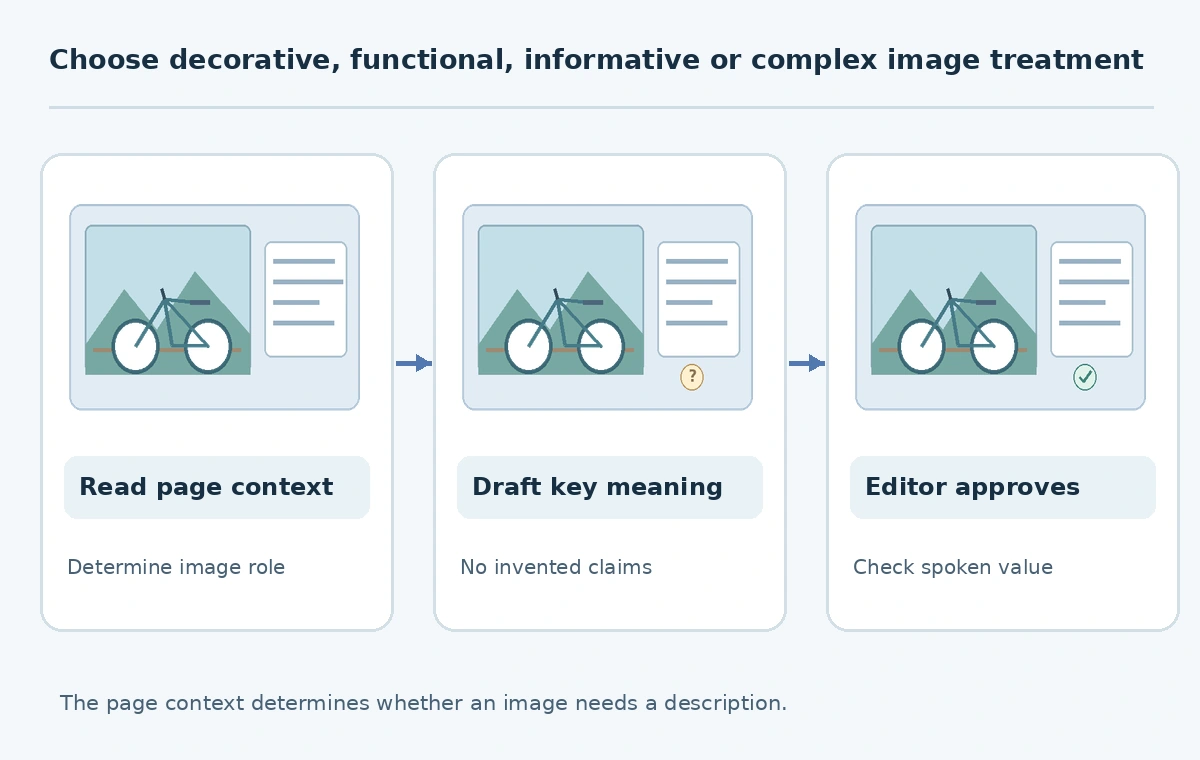
Before uploading an image to any description tool, read the surrounding paragraph, heading, caption and link. Ask what a person would miss if the picture were unavailable. That answer—not an object detector’s list—determines the text alternative. An image of a bicycle may illustrate a location, identify the type of bike being reviewed or simply decorate a banner. Each use calls for a different approach.
The W3C alt decision tree directs authors to distinguish images that convey meaning from those that are decorative, functional or complex. This is why a universal AI-generated sentence is not a substitute for editorial judgment. Give the model the intended role only when privacy and licensing permit sending the image to the service.
Use an empty alt attribute for truly decorative images
If a decorative flourish adds no information and nearby text already supplies the meaning, W3C recommends an empty alt value rather than a description of meaningless color or ornament. This is `alt=””`, not a missing alt attribute. Omitting alt altogether can cause some assistive technology to announce the filename, which is especially unhelpful when production images have machine-generated filenames.
The W3C decorative-image tutorial emphasizes that only the author knows the image’s role in context. Do not populate every empty field simply because an SEO tool displays a warning. For a redundant decorative shape next to a complete heading, another spoken sentence creates clutter rather than access.
Describe an informative photograph without inventing facts
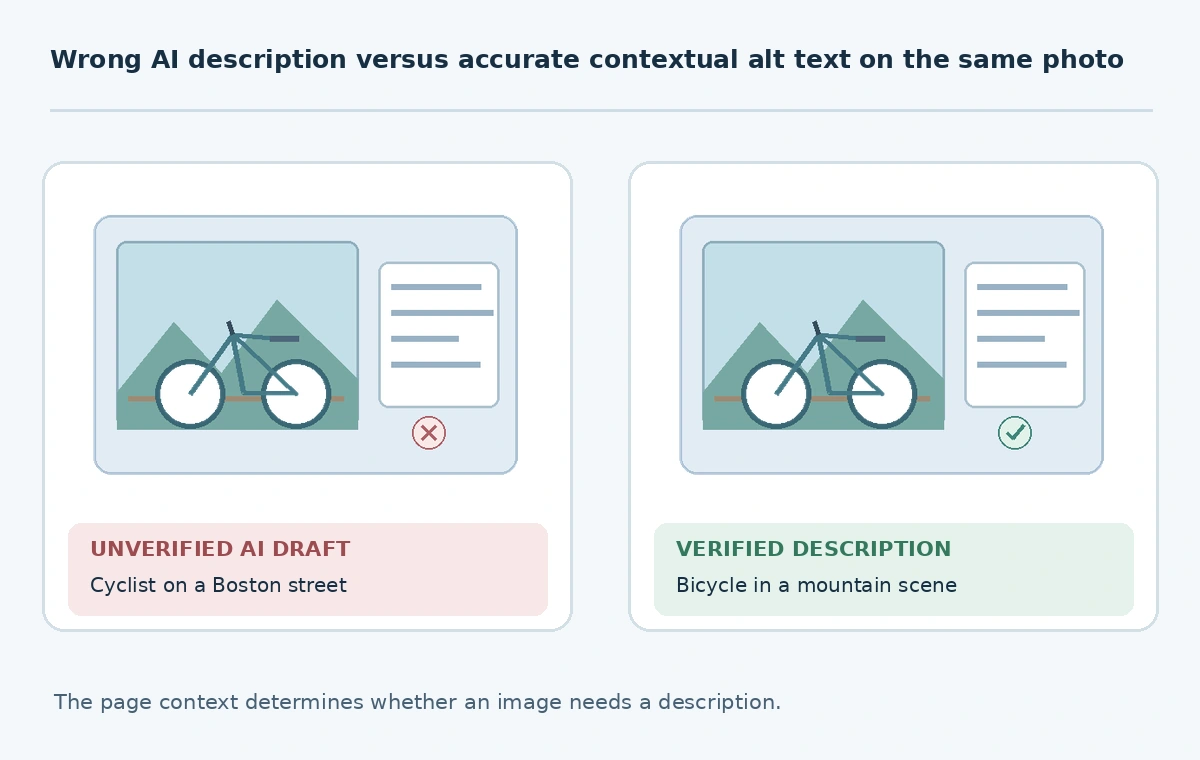
For an informative photograph, state the detail that advances the page’s message. If the article demonstrates reflective gear and the image shows a cyclist wearing a bright jacket at dusk, a useful draft might be “Cyclist wearing a reflective yellow jacket on a dim roadside.” Avoid guesses such as a specific city, rider identity or dangerous traffic situation unless independently established. AI models can produce confident but false location or object labels.
W3C’s informative image guidance calls for conveying the essential information the image represents. Check the actual picture at full size, including any tiny sign or clothing label. The reviewer should know the intended lesson, not merely repeat every background object. A concise sentence can be better than a long caption narrated twice.
Handle linked icons and buttons as functions
A magnifying-glass icon in a search button does not need the words “magnifying glass.” It needs the functional name “Search,” unless visible adjacent text already names the control adequately. Likewise, an image thumbnail acting as a link may need its destination described rather than a generic image inventory. Drafting alt from pixels alone regularly misses this functional role.
The W3C Images Tutorial describes functional image alternatives in terms of action or destination. Inspect the real interactive control, including its visible name and accessible label. Avoid duplicating multiple labels such that a screen reader repeats “Search Search Search.” Ask a tester to navigate the control without relying on its visible graphic.
Use surrounding content for diagrams and charts
A complex chart can contain trends, categories, units and caveats that will not fit meaningfully in a short alt attribute. W3C’s decision tree points authors toward placing the information elsewhere on the page. Provide a concise chart identifier in alt when appropriate and a nearby accessible data table or explanation describing the important relationships. Do not let an AI guess exact bar heights from an image when the source spreadsheet is available.
For an illustration of a three-step workflow, a short alternative may state the process and key transition; nearby article text can carry the full instructions. Ensure that the diagram’s real labels agree with the described steps. If the model invents an unsupported percentage or measurement, discard the claim and return to the source data.

Run a four-part review of every AI-generated draft
Review context: does the alt explain why this image is here? Review facts: can every named object, action and number be observed or verified? Review length: is the essential information concise enough to follow in a spoken interface? Review redundancy: is the same wording already provided immediately nearby? Add an editor sign-off field and a reason for intentional empty alt on decorative images.
A useful human-AI workflow is: classify role, obtain a draft if necessary, compare with pixels and page context, rewrite for meaning, and test with the page’s reading order. An accessibility checker can locate missing alt fields, but it cannot always decide whether the supplied words are truthful and useful. Human QA is part of the deliverable, not optional cleanup.
Protect sensitive images and document the decision
Before sending an image to a third-party vision service, confirm rights and privacy requirements. A staff badge, medical document or internal dashboard can expose personal or confidential information even when the requested output is only one sentence. If the organization cannot safely upload the picture, draft text locally from a trusted description and the page context rather than using a hosted generator.
Maintain a small accessibility log containing image URL, role, final alt treatment, reviewer and date. Revisit the entry when the same image is reused elsewhere because the role may change. The goal is a clear and reliable experience for readers using assistive technology—not filling every SEO field with plausible-looking text. The W3C tutorial remains the primary decision reference when unusual cases arise.
How We Research
We based the decision checklist on the W3C alt decision tree, decorative image guidance, informative image guidance, and full images tutorial, reviewed October 27, 2026. The bicycle example and AI error are illustrative, not the result of a tested commercial vision model.
Frequently Asked Questions
It can draft them, but a human must confirm page purpose, factual accuracy and redundancy.
No. Truly decorative images should usually use alt=”” according to W3C guidance.
Give the action or destination, such as “Search,” instead of naming the icon shape.
Often not. Provide the main information elsewhere as accessible page text or a data table.
Only when the image serves the same purpose; context can change the correct description.