
A clean cutout can make a catalog product look like a sticker. Photoroom AI Shadows offers presets and advanced shadow controls, but a shadow is useful only if its direction, spread and floor contact fit the rest of the image. This guide walks through a hypothetical skincare bottle photograph from source shot to store-ready export. It separates documented Photoroom options from editorial quality checks and gives a concrete approval grid for teams preparing many images without altering package claims.
Start with a trustworthy product source
Use a real, permitted photograph of the exact product version customers will receive. Save the original label, shape, color and closure details outside the AI editing workflow. A convincing shadow cannot fix a model that has distorted an ingredient statement or changed the package size. If the source comes from a vendor, confirm that the listing rights extend to editing and commercial reuse.
Choose the background and final marketplace crop before applying an effect. A bright white studio page needs a restrained gray contact shadow; a dramatic backlit promotional scene may justify longer geometry. Document whether the image is a factual catalog shot or a conceptual advertising composite, since the tolerance for material alteration differs. The purpose is to add spatial grounding, not to reinvent the product.
Understand the documented preset and advanced choices
Photoroom’s AI Shadows guide documents preset options including Soft, Hard and Floating. It also describes Advanced settings for direction, spread, darkness and product orientation on the web application. These names refer to editing controls, not measured real-world lighting. Availability can depend on platform and plan, so check your account rather than assuming every advanced control is present.
Begin with Soft for most straightforward ecommerce imagery and compare it with an unshadowed version. Floating is an intentional visual effect rather than the correct default for a grounded bottle. If your product actually hangs or hovers in the composition, choose that effect consciously and label the image as a creative graphic where appropriate.
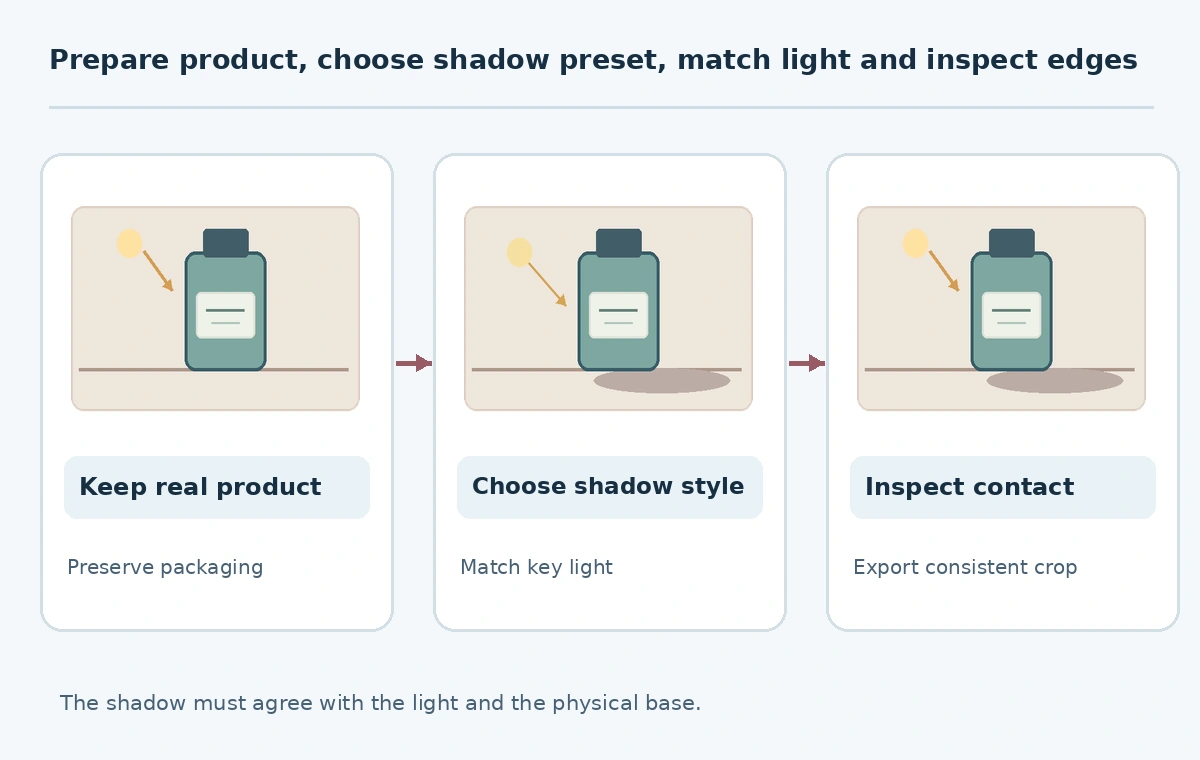
Read the light before moving a shadow slider
Locate the brightest side of the object, then determine where a real shadow would fall on a horizontal surface. If light comes from upper left, a grounded shadow usually extends away toward the right. Check whether the bottle visibly touches the table and whether a narrow dark contact patch exists directly under the base. Direction, length and softness should agree with one another.
Photoroom describes Advanced direction as a full-circle control and spread as the shadow length adjustment. These controls make experimentation possible but do not certify physical accuracy. Adjust one property at a time so the team knows what fixed a defect. A useful review note might say “shortened base shadow; direction now opposite the key light.” That is more actionable than “make it premium.”
Proof the product silhouette and label
Inspect the bottle at full resolution. Clean edges around translucent plastic, small handles and caps are easy to lose during background and shadow generation. Check for dark halos and shadows that seem glued to the sides of the product. Keep the brand mark, dosage or size label and safety text identical to the original photograph; shadow generation should not rewrite or obscure them.
Compare the same crop on white, light gray and the actual destination background. A soft gray shadow that looks correct on white may disappear on a gray storefront or make the package seem to float. Revisit the cutout or source lighting when the shadow cannot be made plausible. Do not attempt to repair an invented or contradictory product feature with increasingly elaborate shadow effects.
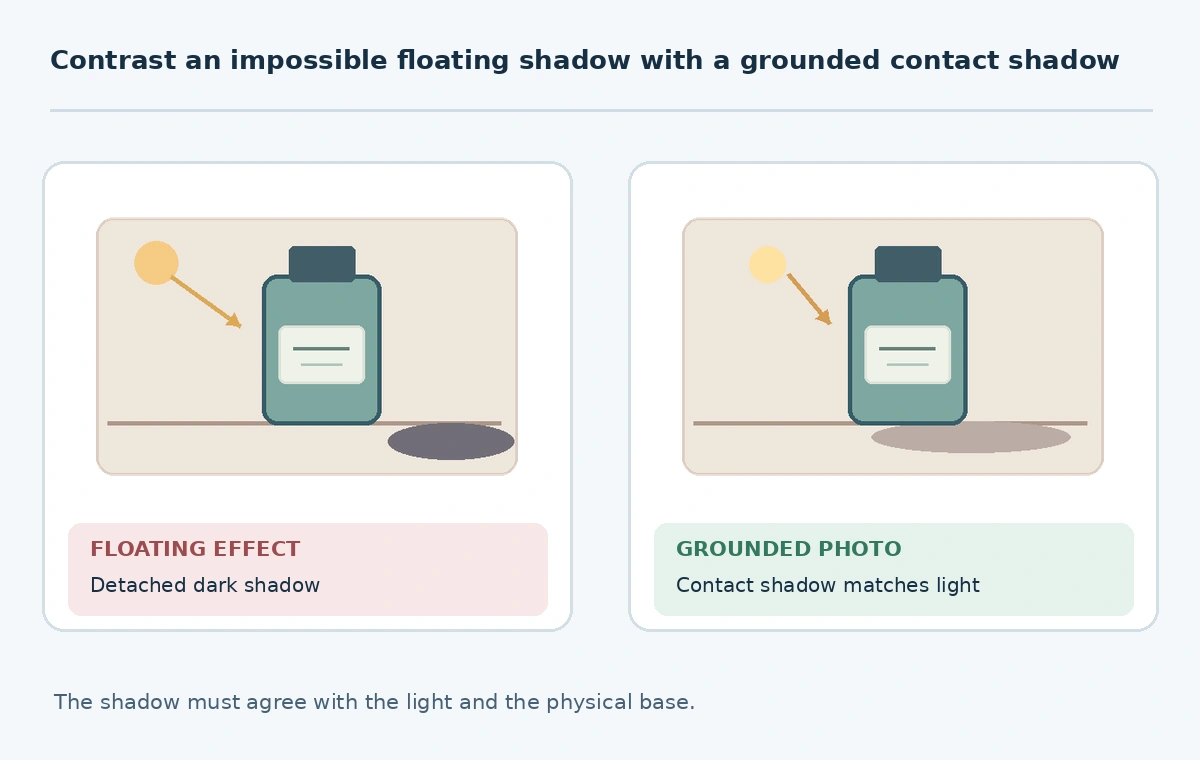
Decide when to process multiple images at once
Bulk editing can save time when a catalog has consistent camera angles and bottle shapes, but it also repeats mistakes at scale. The Photoroom batch workflow describes selecting a group of images, choosing AI Shadows and checking previews before applying changes. Its documented advanced options may be limited to particular paid plans. The team should verify the current entitlement before preparing a large run.
A safer process starts with a small representative sample: tall bottle, flat box, reflective jar and transparent package. Approve one setting only if the surface geometry and product identity remain believable for all four. Split the catalog into multiple groups when one preset clearly cannot fit every shape.

Understand credits without inventing an allowance
Photoroom’s feature explanation distinguishes preset shadow operations from Advanced settings that consume AI credits. It does not justify assigning a universal credit price to every subscription, country or workflow. Check the in-product balance and plan information, especially before rerunning the same batch with custom settings.
Treat rejected outputs as a production cost. In a simple ledger, record the number of images approved, rejected and rerun, plus the type of operation used. The decision is not merely whether the option is called free or premium; it is whether the team can produce consistent images at an acceptable review cost and maintain a documented original.
Release images through a four-gate approval card
Before export, require the product manager to sign off on four gates. Gate one: the label and package shape exactly match the source. Gate two: the base touches its shadow without a glowing seam. Gate three: the shadow direction and hardness fit the apparent light. Gate four: the final crop retains margins, readable type and a working original. Test at mobile-card size as well as full resolution.
Export only after checking the downloaded file, because previews can hide subtle edge and compression defects. Store the original plus the approved variation separately and record which shadow preset or advanced settings were used. Photoroom also documents a Shopify product workflow, but publishing from that integration still requires human responsibility for accurate product representation.
How We Research
We consulted Photoroom’s AI Shadows control guide, batch instructions and Shopify workflow on October 27, 2026. Illustrations depict a conceptual bottle, not real Photoroom screenshots; no shadow accuracy or batch speed test was run.
Frequently Asked Questions
No. Soft creates diffuse grounding; Floating intentionally makes the product appear suspended.
Photoroom documents AI credit use for advanced/custom options; consult your current plan.
Yes in supported batch workflows, but first test representative shapes and lighting conditions.
No. Reject any version that alters or obscures factual packaging information.
Check base contact, light direction, package edges and actual storefront crop at full and mobile sizes.