
A neighborhood art gallery is updating its brochure for visitors. The cover photograph shows a ramp approaching the entrance from the left and a short flight of stairs to the right. When the image is cropped for a narrow column, the relationship becomes harder to describe. Automatically generated alternative text may save drafting time, but inaccurate directions could be worse than a generic caption.
Adobe documents automatic and manual AI alt-text generation for placed images in InDesign, as well as an indicator when cropping or repositioning makes an existing description outdated. This workflow uses an imagined gallery image to show how a human editor can preserve meaningful details in an accessible export without assuming the AI has verified the building.
Describe what the picture can actually establish
Begin with the source photograph and the approved visitor-access information. List visible facts separately: a ramp on the left, stairs on the right, doorway in the center, and any signage that is genuinely readable. Keep a separate verified facilities notice for hours, wheelchair access, or alternate routes; these claims require current venue confirmation and cannot be inferred from pixels.
Decide why the photo is included. If it merely adds atmosphere, a short description or decorative treatment may be appropriate depending on the document’s reading context. If the image helps visitors recognize the entrance, left-right orientation matters. Do not replace an official accessibility map with alt text generated from a marketing photograph.

Locate the Alt Text controls and generation options
Adobe explains that placed images may receive an Alt Text badge and automatically generated description for eligible users. Editors can use Object Export Options to view, edit, or manually generate alternate text. A red indicator can flag a failure to generate, while an Outdated Alt Text symbol appears after changes to an image’s crop or position.
Check the current InDesign version and subscription entitlement before expecting automatic generation. Adobe also documents a preference to control auto-generation and optional AI-description tagging. Batch tools can find images missing descriptions, but a filled field is not proof of a good description. The user remains responsible for accuracy and the accessibility of the exported file.
Review the drafted description against the actual crop
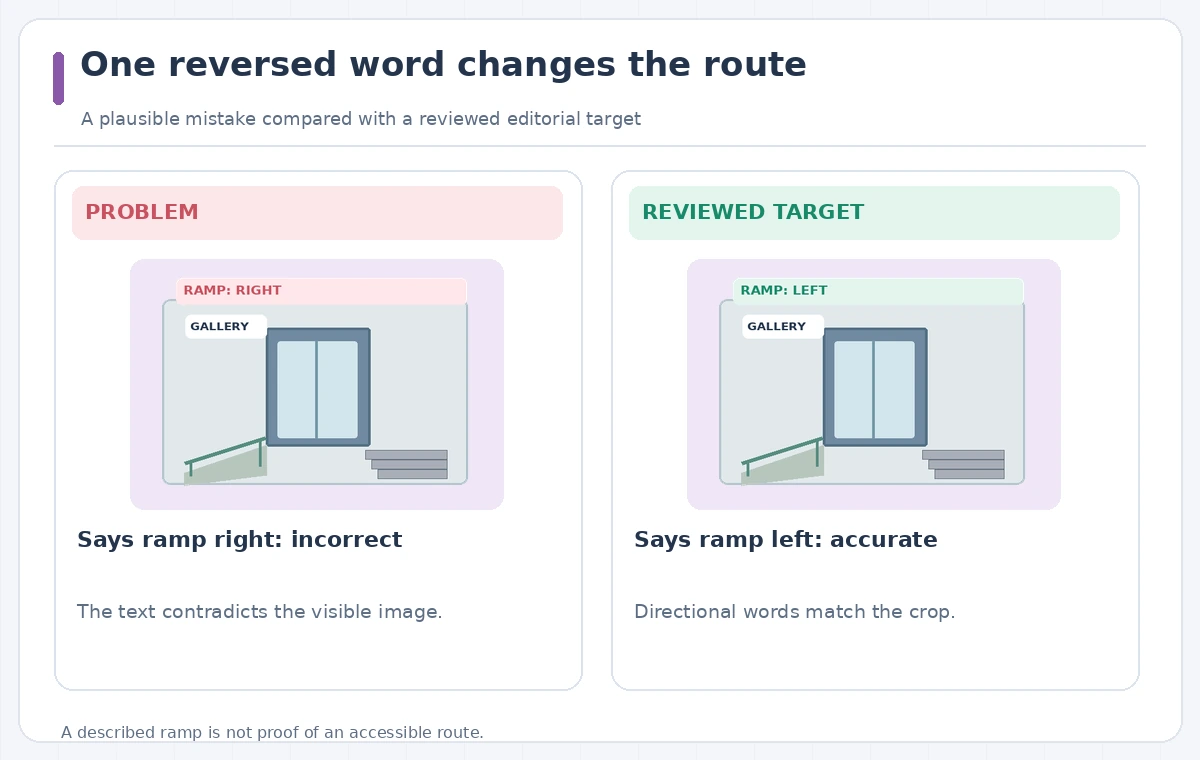
Read the proposed text while viewing the picture as it appears on the page, not merely the full-resolution master. A safe candidate could say, “Gallery entrance with a ramp approaching from the left and stairs on the right,” when those details are visible. Reject speculative phrases such as “fully wheelchair accessible” unless the venue has separately verified the complete path.
Our diagram compares a reversed ramp/stairs description with the accurate visual orientation. These examples are created for instruction, not measured InDesign output. If the photo is mirrored in the layout, update the description accordingly; if the crop removes the ramp entirely, the original left-side description may no longer be correct.
Use the stale-alt-text warning as a review trigger
Adobe states that repositioning or cropping an image can mark its alt text as outdated. When designers tighten the crop for a two-column brochure, revisit the wording instead of assuming the existing description remains valid. One version may show both entrances, while another depicts only the main doorway. Accessibility metadata must describe the rendered page.
Keep a record of the crop change and have the editor inspect images inside the final layout. Do not regenerate blindly if a carefully written custom description already captures the meaning. AI should help create a draft, but the judgment about what matters to a visitor belongs to someone who understands the brochure and its accessibility purpose.
Separate route claims from image descriptions
Place essential visitor guidance in normal, selectable body text as well as any appropriate map. The alt text for an entrance photo is not a substitute for directions about doorway width, lift access, temporary closures, or open hours. Have the gallery’s facilities contact validate those statements and provide a phone or email contact for current access questions.
Check that an AI draft does not describe people’s identities, disabilities, ownership, or intent merely from their appearance. Describe visible actions only if relevant to the brochure. For purely ornamental images, avoid redundant verbose text that makes screen-reader navigation cumbersome. Use a consistent editorial style across the brochure’s photo set.
Check export, reading order, and descriptive consistency
The image-level text is only one part of accessible publication. Export a tagged PDF or supported format with appropriate settings, then review document structure, heading order, reading order, links, and language. Use an accessibility checker and, where practical, a screen reader. A visually polished PDF may still place the ramp description far from the relevant text in the reading sequence.
Confirm that the description survives export and that no old alt text remains attached to an outdated crop. If the image is repeated at another size, inspect both instances: each may show different information. Keep source files and a reviewed export so the gallery can update details without reconstructing every design decision.
Run a final left-right and access audit
The reviewer should see the actual ramp at the left, stairs at the right, any visible sign correctly identified, and an alt-text field matching the present crop. Ask a second person to read the description without seeing the photo, then compare what they imagine with the rendered layout. That exercise can catch swapped directions even if automated checks report success.
If the accessible entrance changes due to construction, update the main visitor guidance immediately and treat any old brochure photograph as potentially misleading. Regenerate or rewrite alt text after adjusting the image. The goal is a description that helps users understand the content, not merely a field that passes a software requirement.

How We Research
We reviewed official developer documentation on November 4, 2026: Adobe Help — Generate Alt Text for images in InDesign; Adobe Help — What’s new in InDesign. We checked documented features, required permissions, access limitations, and the distinction between tool output and factual approval. The project example of gallery entrance photograph with a left-side ramp and right-side stairs is hypothetical; we did not sign in to a paid account, create an actual output, benchmark image fidelity, verify live venue or product records, or audit licensing fees. The graphics show constructed potential errors and desired review states, not captured application results. Reconfirm features, rights, and external facts in your own workflow before publication.
Frequently Asked Questions
Adobe documents automatic generation for eligible users, with preference controls; check current plan and version behavior.
InDesign can flag existing alt text as outdated after cropping or repositioning, prompting a fresh review.
No. The venue must confirm the actual route; a photo alone cannot establish the full access condition.
No. Reading order, structure, links, document language, and the final exported description also require checks.
No. It is a hypothetical failure designed to demonstrate a human review step.