
An editor who makes a short tidepool lesson may record several takes of the same demonstration. A script-to-timeline tool can speed up assembly, but it cannot decide whether the chosen take preserves a conservation warning. Imagine a presenter saying, ‘Do not touch the animals,’ before explaining how to observe a tidepool. If an otherwise fluent rough cut skips that line, viewers receive an incomplete lesson. DaVinci Resolve Studio’s AI IntelliScript is built to match spoken dialogue to a source script. Treat its timeline as an edit suggestion that needs verification, particularly where safety, consent, or environmental guidance is involved.
What IntelliScript actually matches
Blackmagic Design’s DaVinci Resolve 20 New Features Guide identifies IntelliScript as a Studio-only feature. It uses audio transcription and an original script to assemble a timeline from clips. The system can match reasonably similar spoken phrases, including some ad-libs, to script dialogue. It places one selected take on the primary track and can put alternative takes on additional tracks that are disabled by default. In current Resolve documentation, newer screenplay formats may also be supported, but the underlying principle remains a text-to-spoken-dialogue match, not an editorial judgment about what a lesson must include.
That distinction is essential. The vendor notes that the tool’s ‘best’ take is chosen on dialogue matching, not from good-take metadata or a human assessment of performance. An environmentally responsible warning could be absent from an actor’s most fluent take. A good-looking automatically assembled sequence is therefore not evidence that the instruction was delivered or properly framed. A review of script, raw recordings, and downstream cut must remain part of production.
Prepare one authoritative script and clean takes
Create an approved dialogue script that contains the entire tidepool lesson, including the no-touch warning. For a simple baseline compatible with Resolve 20, save it as plain text. Keep wording for spoken dialogue clear; a stage direction such as ‘camera pans left’ is not a substitute for the presenter actually stating the warning. Name the source file with a version/date and record which subject-matter reviewer approved it. If a later revision changes the environmental guidance, update the script before automated assembly.
Organize all takes with clear clip IDs, scene labels, and source timecodes. Retain the original recordings even if the tool selects only one take. If an instructor ad-libbed an important clarification, transcribe it as a note instead of silently assuming IntelliScript will preserve it because it is contextually related. The word ‘not’ is particularly vulnerable when two takes differ only by that one short word. Flag any take that misstates the conservation rule so it cannot be used merely because the remaining phrasing matches.

Create a timeline from transcribed audio
The documented Resolve 20 workflow begins by selecting relevant Media Pool clips and choosing AI Tools > Audio Transcription > Transcribe. Once transcription finishes, select those clips again and use AI Tools > Create New Timeline Using IntelliScript. Resolve asks for the script file and assembles an initial timeline. Some format choices and menu placement vary by release, so confirm the actual version instead of copying a screenshot from an unrelated build. Start with a small group of approved takes when validating the process.
The result is a timeline organization, not a final edit. Blackmagic describes the main take on one track and alternatives on additional disabled tracks. Keep this first assembly untouched as a baseline and make an editable duplicate for changes. For every line in the approved script, locate the selected source moment; particularly for ‘Do not touch the animals,’ play the audio rather than relying on the transcription text alone. The visual process diagram shows separate script, transcript, and human decision stages.
Use the AI tool selection checklist
Find a missing rule before polishing pacing
Compare the approved line order with the auto-assembled sequence. If the no-touch sentence was left out, determine whether it was absent from all recordings, present in a different take, or present but not matched by transcription. Those are different problems. If the line exists in a licensed, approved alternative take, restore it with ordinary editing tools and review continuity. If no usable recording exists, request a pickup rather than manufacturing an AI voice or implying the warning was said.
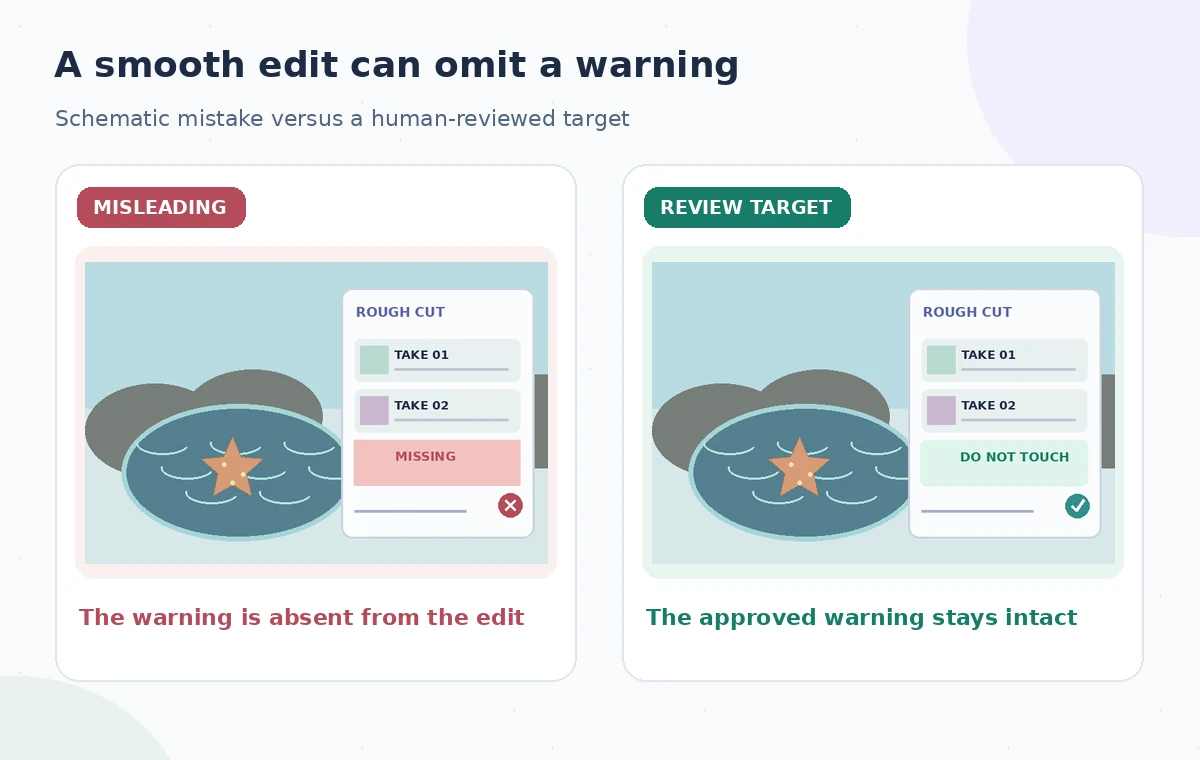
Review shot changes and reaction footage as well. An on-screen animal being handled just as the narrator says ‘do not touch’ creates a conflicting message even with technically correct audio. A source script governs what was intended; the resulting timeline must still be judged for visual evidence and viewer interpretation. The comparison figure deliberately shows a rough cut missing its warning beside a manually reviewed cut that includes the warning and a neutral, observation-only shot.
Inspect alternative tracks and ad-libs
Alternative takes are useful when one presenter speaks more naturally or a camera angle better demonstrates safe observation. However, the phrase most similar to the script may not be the only relevant part of a take. Play several seconds around each selected line to catch a preceding caveat, changed reference, or off-script instruction. Check that a sentence moved from another take does not refer to an object no longer on screen or to a camera direction cut away during assembly.
Do not infer a ranking of recording quality from the tool’s first-track placement. Resolve’s guide is explicit about what its automatic take matching evaluates. Make an editorial decision sheet noting the take selected for each safety-bearing section and why. If a production involves volunteers or minors, verify that the raw recordings and final excerpts follow the project’s release and privacy rules before sharing the edit for review. IntelliScript does not grant permission to reuse footage.
Plan a safer multi-tool workflow
Use a conservation-first acceptance checklist
Ask the educator to sign off on the exact wording of the no-touch rule. Confirm that it is heard, appears at the correct stage of the demonstration, and is supported by the image. Verify species names or place names against approved materials; automatic speech matching cannot authenticate those facts. Use regular sound editing to prevent music or surf noise from obscuring the warning. For captions, compare any separately generated transcript against the final audio after timeline rearrangement, not the earlier rough cut.
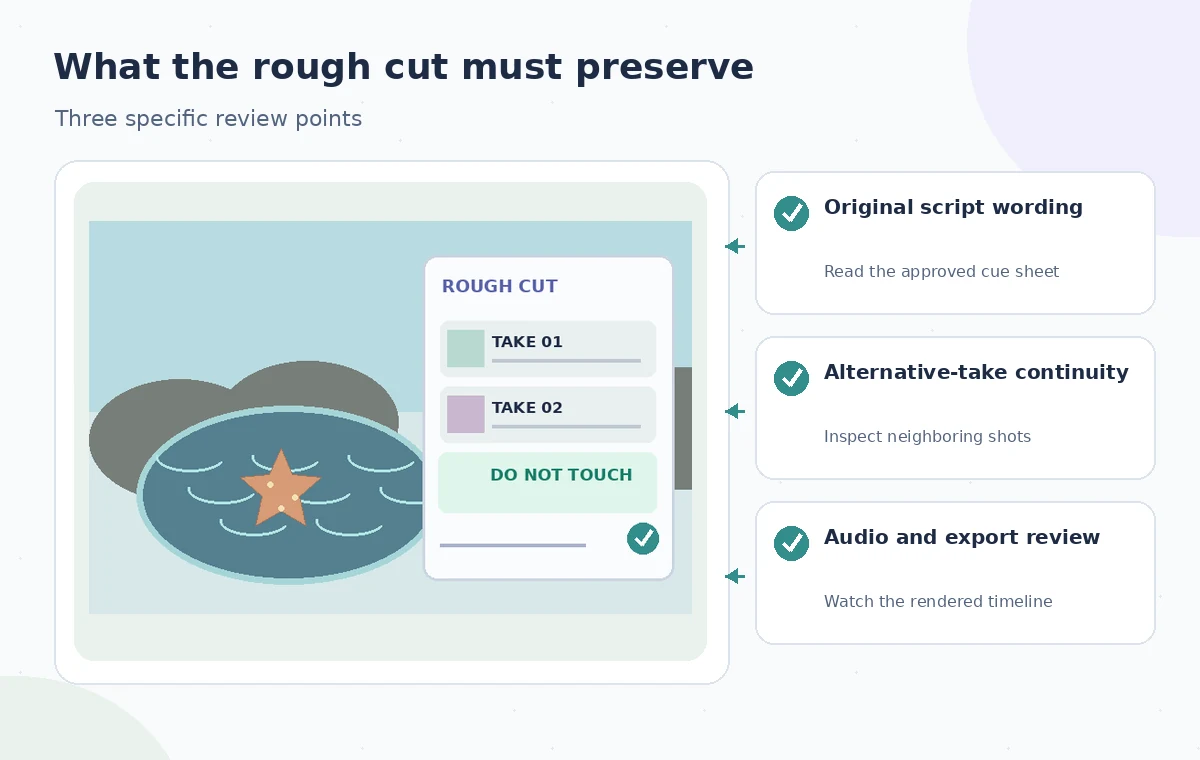
Then watch an export at normal speed from beginning to end. Check transitions, lip sync, missing phrases, and whether the lesson accidentally turns observation into instruction to handle an animal. Review on the likely playback device, since an outdoor field video can be hard to hear on a phone. The third diagram points to script fidelity, take continuity, and audio/export checks. It is a conceptual QA illustration, not a genuine Resolve project or measured model comparison.
Limit automation when the evidence is weak
If the script was improvised rather than approved, IntelliScript may be the wrong starting point. The tool is most useful when production has reliable text that captures the intended dialogue. Very noisy audio, strong overlap, accents, or a non-dialogue montage can also reduce the usefulness of a script match. In those situations, start with a human logging pass and manually select the most accurate sequence. Never label a generated rough cut ‘approved’ because the computer completed it without errors.
For this article we reviewed the vendor’s Studio feature description and its scripted timeline steps; we did not process actual wildlife recordings or claim an accuracy score. The situation and illustrations are educational examples. The broader editorial principle is to use matching to locate candidate footage while requiring a qualified person to validate every important action, refusal, or exception. Make the tool reduce searching time, not take responsibility for what viewers are told.
How We Research
We checked the named vendor documentation: Blackmagic Design: DaVinci Resolve 20 New Features Guide and Blackmagic Design: DaVinci Resolve What’s New and Blackmagic Design: Support Center. We compared its stated user controls, availability warnings, workflow stages and limitations against the concrete scenario described here. We then developed original educational diagrams and a separate human-review procedure for the materials that need independent evidence. The scenario is hypothetical: we did not sign into a paid account, upload a real customer asset, operate the feature on the example, or measure output quality. The figures are schematic, not actual interface captures or recorded processing results. Product menus, permissions and plans can change; verify the current installed edition and applicable policies before relying on this method.
Frequently Asked Questions
Blackmagic Design documents AI IntelliScript as a DaVinci Resolve Studio feature; check the current edition and supported versions.
The documented take selection is based on matching spoken dialogue to the script, not on judging framing, exposure, or good-take metadata.
Blackmagic says it can match some contextually similar dialogue, but the editor must still confirm meaning and completeness.
The Resolve 20 guide describes alternate takes on additional, initially disabled timeline tracks. Inspect these when the selected take omits context.
Obtain a new authorized recording or revise the lesson; do not generate or imply that the speaker delivered words that were never captured.