
A community garden’s wayfinding screen may say ‘Water refill — Station 04′ in English. Translating the words is useful, but translating or changing ’04’ could send visitors to the wrong area. Figma AI’s text translation can help a designer preview another language in a layout, yet it cannot certify route accuracy. A localized interface needs two different kinds of review: a fluent human checks the meaning, and a site owner checks the physical directions. This hypothetical example shows how to use the tool while protecting station identifiers, arrow direction, and accessible-route notes.
Know the scope of Figma AI Translate
Figma’s official guide groups Translate text with Rewrite and Shorten text. In Figma Design, FigJam, Figma Slides, and Figma Sites, an editor selects a text layer and chooses Actions > Translate to, then selects a target language. Figma Buzz uses an inline AI tools menu. The help page documents access restrictions by plan and product, so an option missing from an account is not proof that it was removed universally. Confirm edit rights, the eligible plan, and the actual app before designing a team workflow around it.
The purpose of the feature is to preview localized text in a design, not to replace a professional translation process or import a verified geographic database. The tool can transform text you select, but a route icon or map illustration may not be part of that text layer. Station numbers, building codes, accessible entry labels, and emergency addresses require controlled data, not free translation. Protect those values as approved source facts.
Create a verified source-of-truth sheet
Before editing the wayfinding component, make a small table: displayed label, canonical station ID, location description, permitted arrow direction, and approval owner. For the imagined interface, ‘Water refill’ is translatable language while ‘Station 04’ is a fixed identifier. Also document whether the number is spoken in the visitor’s language or appears only as a printed code. A translation of the noun should never silently reassign the physical station number.
Keep a separate reference image showing the actual route, accessible approach, and where the station marker appears on site. If the route is currently closed, do not let the design team infer a detour from a translated UI string. Contact the facilities owner. Duplicate the approved English frame and save an untouched reference state. A component comparison becomes much more reliable when the original wording, map orientation, and destination ID remain visible alongside the localized proposal.

Translate only the text that should change
Select the intended language-bearing text layer, use Actions > Translate to, and choose the target language. Do not multi-select unrelated IDs or numerical labels merely to save clicks. A simple component might have separate layers for ‘Water refill,’ ‘Station 04,’ and an arrow. Translate the first layer; preserve the numeric identifier. When words and IDs are combined in a single text layer, plan an explicit post-translation check or split the layer before translation if the component system permits it.
After translation, compare both versions letter by letter for protected tokens: ’04,’ room codes, street numbers, opening hours, and accessibility symbols. The generated text is a candidate, not an approved label. Avoid automatic bulk replacement across every screen until the pattern has passed review in one representative component. The process diagram depicts a pinned route ID, a translated noun, and a final bilingual check to make the boundary between data and language visible.
Use the AI tool selection checklist
Verify meaning with a qualified language reviewer
Give the translated strings to a speaker familiar with local directions and public wayfinding, along with their real-world context. ‘Refill’ can mean a drinking-water point or an instruction to replenish a supply; those meanings are not interchangeable. Ask the reviewer whether an ordinary visitor would understand where to go and what service they will find. Preserve proper nouns, local names, and legally required terms according to the site’s style guide rather than applying a literal dictionary rule.
Have the reviewer check negative or conditional directions as well: ‘Use the north path only when open’ should not become ‘Use the north path.’ If the site communicates wheelchair access, verify that the wording accurately describes the approved accessible route and does not invent a ramp, elevator, or step-free entrance. For any safety-critical direction, obtain source confirmation from the responsible facilities team. Translation is not authorization to promise a service or an accessible path.
Fix overflowing text without changing route facts
Different languages often require different lengths. In the localized Figma frame, check line breaks, clipping, icon spacing, button width, and the alignment of the station number. Do not shrink text until it becomes unreadable just to preserve a fixed box. Consider a responsive component variant, two-line label, or a tested shorter synonym. If shortening changes the intended location or accessibility meaning, reject that variant and revise the layout instead.
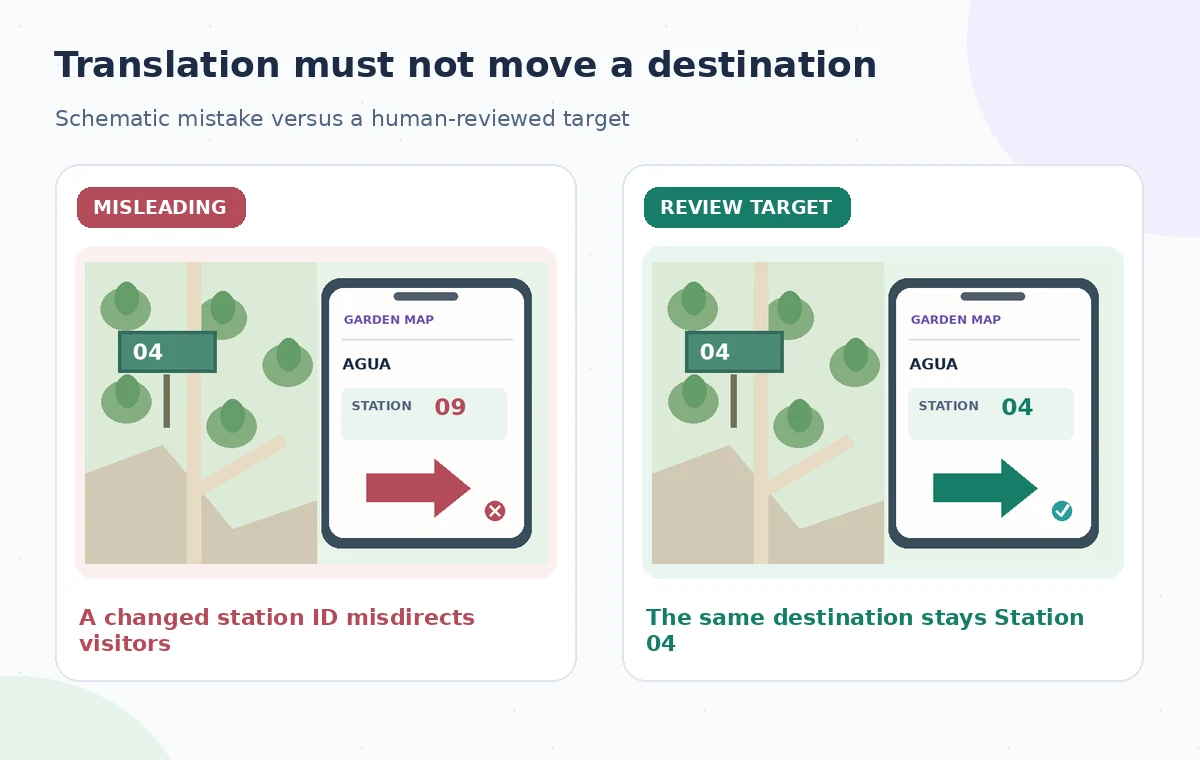
Preview the frame at a phone’s practical viewing size. Ensure that the arrow remains visibly associated with the water station, not a nearby compost sign. Test high zoom, dynamic type assumptions if relevant, and high-contrast settings. The comparison diagram shows a misleading variant in which ‘Station 09’ appears beside the translated word, versus a reviewed frame retaining ‘Station 04.’ It represents an invented editorial error, not evidence that Figma itself changed a number.
Plan a safer multi-tool workflow
Review the complete navigation journey
Ask someone unfamiliar with the garden to follow the localized path through the screens: entry map, station selection, route directions, and arrival confirmation. Check whether each screen uses the same station ID and destination name. A perfect translation on one isolated artboard can still conflict with other interface states. If visitors can search by number, test that the search result still points to the same location in each language. Record any ambiguity as a design defect, not a user error.
Prepare a bilingual release checklist with sign-offs from translation, design, and facilities. Include screenshots of each approved state, a copy of the controlled data table, and the date the route was checked. Export and inspect the final prototype or handoff assets to catch fonts that lost accented characters or arrows that shifted with right-to-left text. The third diagram highlights identifiers, text fit, and an end-to-end route test as independent approval points.

Treat the feature as a preview tool
If the app lacks the eligible AI controls, manual localization with a verified translator is still possible. Do not present Figma AI translation as an automatic multilingual accessibility solution. It cannot validate a real garden’s operating hours, path status, accessibility guarantees, or on-site marker inventory. Even fluent translations need visual QA and stakeholder acceptance. Keep original frames so later changes can be traced to approved design decisions.
This guide is grounded in Figma’s published action names and access rules; no live Figma project or translation quality benchmark was run for the fictional example. The pictures are original diagrams, not screenshots or vendor output. The risk illustration intentionally shows a bad station number to teach what to catch, not to imply the feature always makes that error. The most important outcome is that every language version continues to direct visitors to the same verified place.
How We Research
We checked the named vendor documentation: Figma Help: Rewrite, translate, and shorten text with AI and Figma Help: AI feature access overview. We compared its stated user controls, availability warnings, workflow stages and limitations against the concrete scenario described here. We then developed original educational diagrams and a separate human-review procedure for the materials that need independent evidence. The scenario is hypothetical: we did not sign into a paid account, upload a real customer asset, operate the feature on the example, or measure output quality. The figures are schematic, not actual interface captures or recorded processing results. Product menus, permissions and plans can change; verify the current installed edition and applicable policies before relying on this method.
Frequently Asked Questions
Select an editable text layer, open Actions, and choose Translate to, then the target language. Access depends on the product and plan.
No. It translates selected text; icons, route geometry, numbers, and real-world directions require separate verification.
Treat IDs such as Station 04 as controlled data. Verify the local labeling convention, and do not let the translation change the destination.
Revise the component layout or use a human-approved shorter phrase. Avoid shrinking text below a readable size or dropping essential meaning.
No. Have a qualified speaker verify meaning and a site owner validate the physical route and accessibility claims.