
A training producer records two camera angles and several takes of a chef explaining a simple kitchen technique. The team already has an approved script but cannot assume that automated alignment will choose the best performance or preserve the meaning of every line. DaVinci Resolve 21 IntelliScript can match the script to transcribed source clips to assemble a starting timeline. The value is a script-coverage sheet and editorial review workflow, not a claim that AI selects a final cut. The chef and timeline drawings here are original illustrations rather than software screenshots.
Prepare one canonical script with editorial line IDs
Start with an approved script containing a short opening, one technique explanation, and a closing instruction. Assign line identifiers in a separate spreadsheet, even if the editor imports only script text. Distinguish spoken words from stage directions, and verify any health or food-safety claims independently of the editing tool. Save the actual performer’s consent and distinguish filmed examples from staged recreations. When the presenter ad-libs, keep the transcript of what was said; never rewrite spoken evidence to force a false match to the script. This prep creates a concrete review unit: planned line, accepted take, alternate take, and any missing or changed meaning.
Understand what changed in DaVinci Resolve 21
Blackmagic’s April 2026 DaVinci Resolve 21 announcement explains that IntelliScript supports Final Draft and plain text screenplay formats, matching script text with transcribed audio to create a cut. This is an update to a feature introduced in Resolve 20 and does not mean the app invents unrecorded dialogue. Blackmagic’s current feature overview presents AI-assisted editorial capabilities alongside conventional tools. Confirm whether IntelliScript is licensed in the installed Studio edition before promising delivery. Do not confuse it with AI IntelliSearch, a separate feature intended for finding people or content in a media library.
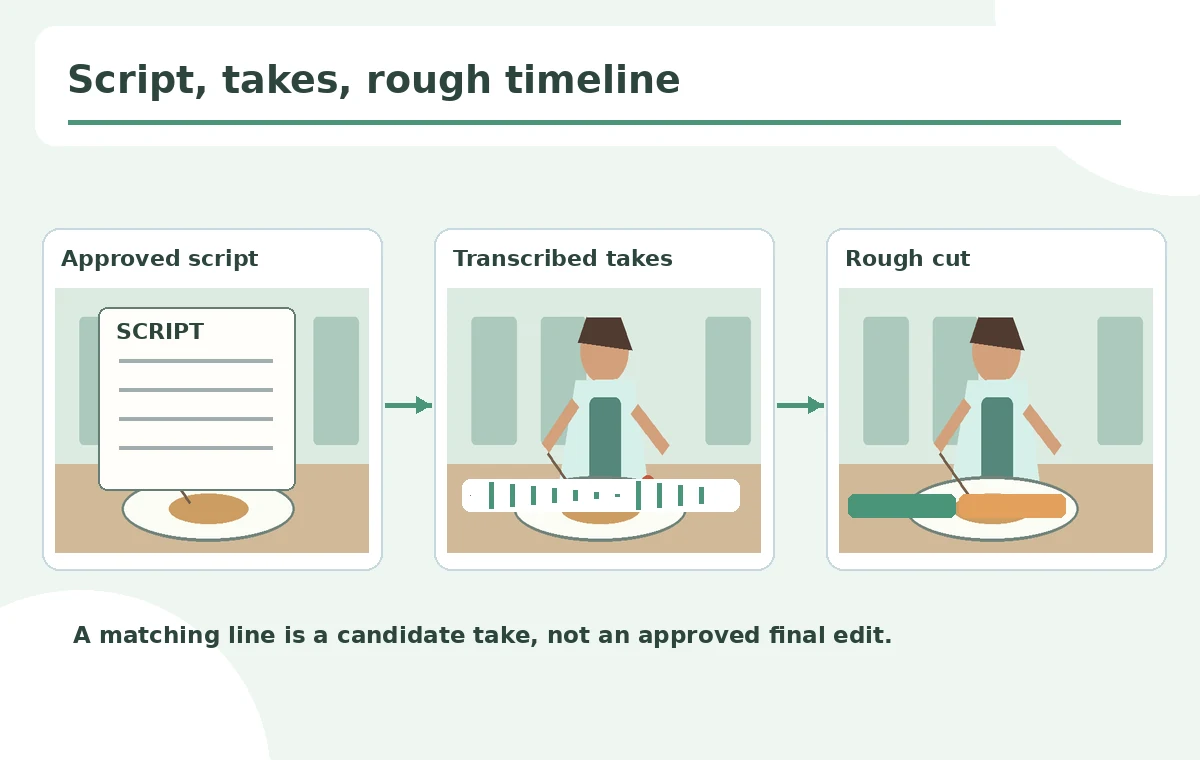
Transcribe the source takes before automatic assembly
Organize video by scene, angle and take. Transcribe the relevant source footage and inspect proper nouns, timing and unusual technical vocabulary. If the chef says “simmer” but automatic transcription produces “summer,” correct the written review record before treating a match as trustworthy. Keep a source timecode map alongside the approved script and make note of sections with noisy speech or multiple people talking. The stronger the source inventory, the easier it is to identify a wrong cut or duplicate line. Never delete alternate original takes because a first-pass automated timeline did not select them.
Match script sections to candidate source clips
Use IntelliScript to build an initial sequence from the script and transcribed clips under the controls offered by the installed version. For our example, the approved line “reduce the heat” may be recorded in two takes; both must remain available for editorial judgment. A conceptual timeline should show the main cut and optional alternate track, not a fabricated Resolve interface or model confidence. Mark missing lines as unresolved, rather than filling them with generic B-roll while silently changing the argument. A spoken phrase can match semantically even when an actor paraphrases, so evaluate fidelity to meaning rather than exact word-for-word alignment alone.

Inspect continuity, alternate takes and sentence boundaries
Play every automated splice with the previous and following seconds. Look for doubled words, breathing discontinuities, sudden changes in hand position or a recipe action appearing out of order. Switch between camera angles only when the action remains coherent. Use a three-column take matrix: line objective, currently chosen take, alternate or retake reason. Sometimes a less technically clean take conveys the correct warning more clearly and should be used. Do not infer that “best” means objectively highest quality just because a tool placed the clip on the primary track. An editor, director, and subject expert should resolve ambiguous wording.
Separate dialogue assembly from factual review
IntelliScript helps find a plausible arrangement of clips; it does not verify that the script is accurate, that kitchen demonstrations are safe, or that visual cutaways reflect the spoken instruction. Assign factual verification to a subject expert. If a statement must be corrected, record a genuine replacement take or clearly label a narrator’s pickup instead of manipulating audio to make the chef say something else. Track any alternate take selection in the edit decision list. Do not remove vital cautions merely to shorten the cut. The checklist accompanying this article shows line coverage and continuity review, not benchmarks or measured AI editing accuracy.

Export a reversible project with reviewer decisions
Deliver the approved script, original source clips, corrected transcripts, first IntelliScript sequence, edited final sequence, alternate-take notes and a list of statements awaiting verification. Keep sequence versions named by date and approval status. Editors should be able to return to source timecodes and reconstruct the rough cut when a reviewer changes a line. Confirm export, sound levels and accessibility captions separately from script matching. When handing off to another editor, make the difference between an AI-assisted assembly and the human-approved final cut explicit. The useful result is reproducible editorial judgment, not an unsupported claim of hands-free postproduction.
How We Research
We reviewed Blackmagic Design’s DaVinci Resolve 21 launch documentation and its official current feature overview on October 28, 2026, checking the updated script-import capability. No Resolve timeline was generated or performance measured. The chef, script cards and timelines are editorial examples; installed-version and Studio license availability require a local check.
Frequently Asked Questions
No. It assembles a rough cut by matching script text with transcribed recorded clips.
Blackmagic documents Final Draft and plain-text script support.
No. Compare alternates for meaning, gesture and performance continuity.
No. Subject-matter fact checking remains separate.
Source media, approved script, transcripts, sequence versions and take decisions.