
A community workshop hosts English- and Spanish-speaking volunteers for a discussion about event logistics and equipment storage. The presenters want everyone to understand where the meeting point is and who can answer questions. Microsoft Teams Interpreter can translate spoken conversation in real time, but live interpretation can miss a name, number or specialized word. For any safety-critical instruction, a qualified human interpreter and official written guidance may be necessary. This example shows how to prepare a bilingual session, check meaning aloud and document decisions without assuming that an AI voice provides certified interpretation.
Choose which statements require human confirmation
Separate ordinary discussion from time-sensitive instructions and commitments. Define a short list of exact phrases—meeting location, authorized contact person, session end time and any formal instructions—that participants must be able to repeat or see in their preferred language. Put the approved source in a shared, accessible handout. Do not use a live AI translation as the only channel for emergency procedures, medical advice or decisions with legal consequences. If the session depends on specialized technical language, arrange professional interpretation or a qualified bilingual facilitator as the primary method. The purpose of AI interpretation here is supporting inclusion, not certifying that every word is preserved.
Check licensing, identity and meeting settings
Microsoft’s support documentation says the Interpreter agent is part of eligible Microsoft Copilot licensing. It notes that interpretation availability and monthly included hours are constrained, and that external participants need supported verified accounts and licenses; anonymous guests cannot necessarily use the agent. Confirm with the Teams administrator which capabilities are enabled for the organizer and participants. Microsoft describes real-time speech-to-speech translation in meetings and calls, but do not assume every meeting configuration supports it. Perform a dry run with a small, authorized internal group and a neutral script. Confirm that captions or other accessibility options remain usable for anyone who cannot or prefers not to use the interpreted audio.

Tell participants what the generated voice represents
Teams Interpreter can use a default automated voice or voice simulation, depending on administrator policy and participant settings. A simulated voice can make the translation sound like the original speaker, which may be engaging but can also conceal the fact that the words are machine interpreted. Say at the opening that the meeting uses AI-generated interpretation and that speakers can request clarification. Let participants review their voice option rather than assuming everyone wishes to sound personally simulated. Microsoft says samples used for this real-time simulation are not stored as voiceprints; that statement does not remove the need to follow your organization’s meeting recording and privacy rules.
Build in pauses for proper nouns and critical numbers
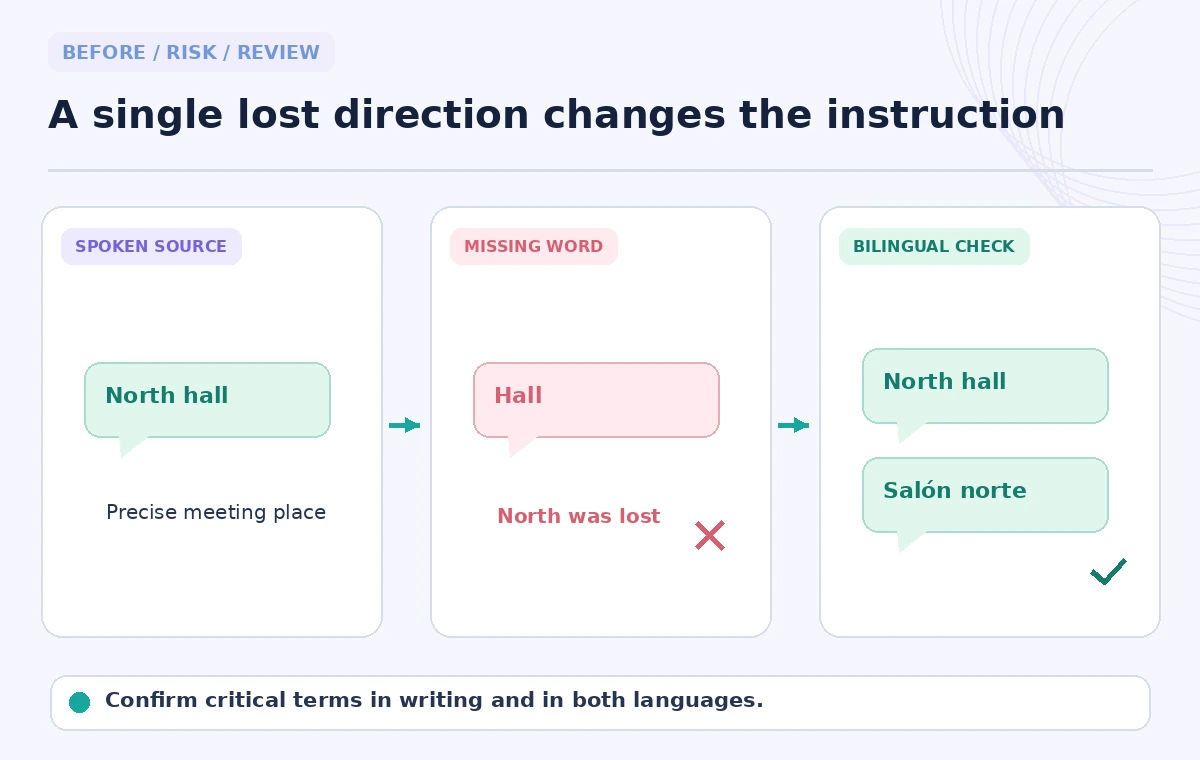
For a hypothetical statement such as “check in at the north hall at nine,” show the location in writing and ask a bilingual facilitator to confirm the phrasing. Speak in short complete sentences, avoid cross-talk and pause after names, addresses and quantities. Microsoft’s help warns that names and technical terms can be inaccurate. The comparison graphic illustrates how a translated phrase might omit “north,” which changes where volunteers go. It is not a recorded Teams transcription or evidence of a measured error rate. If either language version feels wrong, stop and clarify the original statement directly rather than repeating the same ambiguous wording faster.
Use a two-channel confirmation method
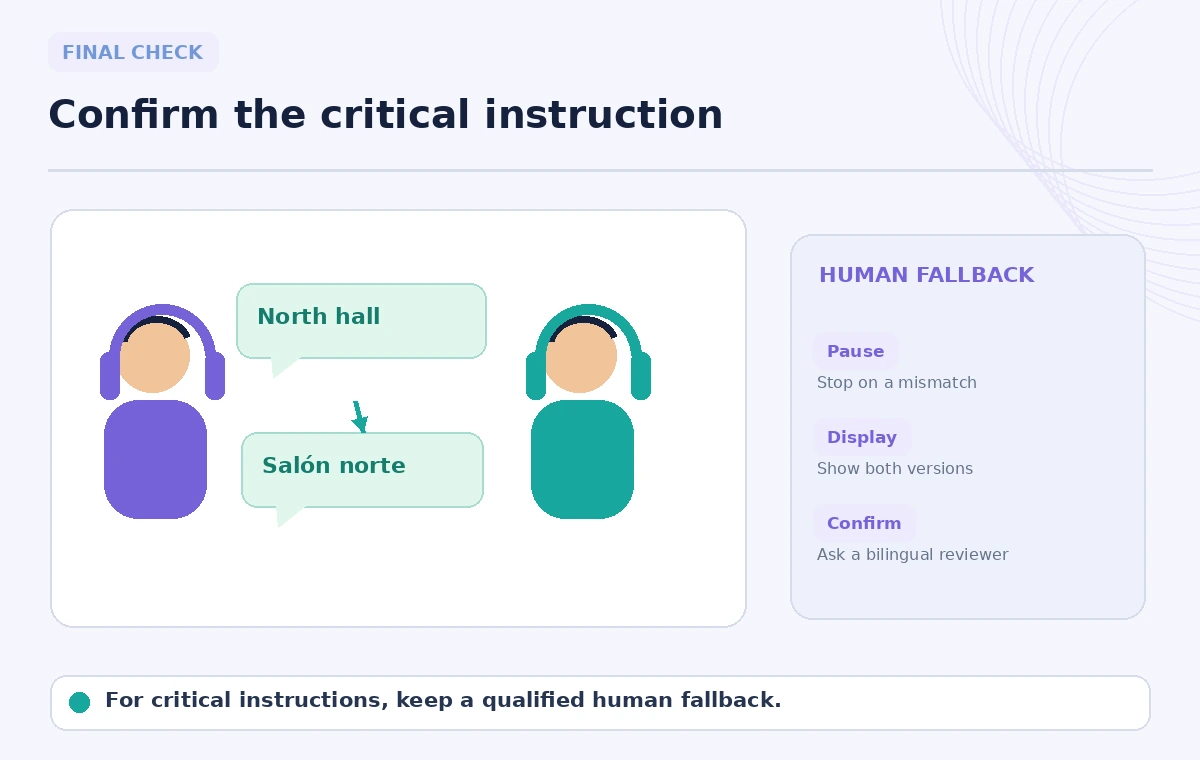
After a major instruction, display a short written line in both languages that a qualified reviewer has approved. Ask attendees whether the translation matches the intended action; if they report a mismatch, restate it and revise the displayed line. For key decisions, a human facilitator should read back the assignment and deadline. Treat spoken interpretation as a temporary accessibility aid and the signed-off bilingual handout as the permanent reference for commitments. Do not assume the AI translated recap can settle a dispute about what a participant consented to. Record the decision only when the participants have had a real chance to confirm it in the language they understand.
Respect voice preferences and meeting privacy
In the meeting controls, users can open Language and speech and choose Interpreter settings where supported. Voice simulation availability depends on policy, and a default automated voice may be used instead. Explain whether the session is recorded and who can access any transcript; do not imply that no meeting content is processed just because Teams says it does not store voice samples for voice simulation. Microsoft’s description involves real-time cloud processing of speech and generated translation. Avoid reading sensitive personnel details aloud in a group merely because the interpreted audio makes discussion convenient. Use separate confidential channels for personal issues.
Create a fallback when live interpretation fails
Before the workshop starts, appoint a bilingual contact or arrange a professional service that can take over if a crucial instruction is unclear. Keep a short bilingual slide with the contact point, agenda and ways to ask a question. If the interpreter stops working or a participant cannot join with the required license, do not simply continue while leaving that person unable to follow. Switch to the agreed fallback: slower moderated discussion, written confirmed text, a human interpreter or a rescheduled segment. The goal is equal participation, not proving that the technology can operate without support.
Close with verified decisions in both languages
At the end, summarize assignments, locations and follow-up owners on screen and invite participants to correct any mistranslated or misunderstood item. Send the final bilingual version only after a qualified reviewer checks it against the original decisions. Where important details remain unresolved, mark them pending rather than letting a smooth AI paraphrase stand in for consent. Review the accessibility feedback after the event, including which terms caused trouble and whether the voice preferences were clear. A successful multilingual meeting is one where people can check and act on the same instructions, not merely hear a voice in their own language.
How We Research
We reviewed Microsoft’s Interpreter in Microsoft Teams meetings and calls and multilingual speech recognition documentation for licenses, voice options, known limitations and supported meeting features. The workshop, two-language samples and visual comparisons are hypothetical. We did not join a live interpreted Teams session or certify translation accuracy.
Frequently Asked Questions
No. It depends on licensing, organizer settings and participant identity. Anonymous guests may not qualify for the agent.
Voice simulation is an optional, policy-dependent feature; participants may also use an automated voice.
No. Provide approved written instructions and qualified human confirmation for critical statements.
Microsoft states that voice samples or biometric data used for real-time voice simulation are not stored.
Pause the discussion, show the correct name in writing and ask a qualified bilingual facilitator to confirm it.