
An expert finishes a forty-minute webinar explaining how a small business should prepare its first customer survey. The recording contains useful advice, repeated ‘ums,’ and a few phrases like ‘you know’ that connect one thought to the next. Deleting every detected filler might make the talk feel hurried or even change the speaker’s meaning. Descript offers transcript-based filler word editing, but it does not replace an editor’s ear. This hypothetical workflow shows how to produce a more watchable webinar while leaving the expert’s deliberate pauses, examples, and emphasis intact. The diagrams illustrate decisions, not output from a recording we actually processed.
Define the editorial promise before cutting
Write down why the webinar is being edited: shorten distracting hesitation, not create words the expert never said. Keep the original recording and a versioned working copy. Log the opening promise, three instructional examples, the audience question and the closing offer, because those are moments where rhythm and accuracy matter more than speed. A filler that occurs inside an important clarification may be worth keeping. Tell the speaker or client what degree of cleanup is authorized; an edited interview or presentation should not turn an uncertain answer into a more confident claim. If there are slides, note which words must stay aligned with each slide transition.
Import, transcribe and fix substantive words first
Import the authorized webinar media into a Descript project, then review the automatic transcript against the source. Before removing filler words, correct names, product terminology, numbers and survey examples. Descript’s help documentation distinguishes correcting a transcript from deleting media: a correction fixes the recognized text without intentionally cutting the corresponding audio. That distinction matters when a customer name is transcribed incorrectly. Mark any unclear passage for a human decision rather than replacing it with plausible but unverified words. Also identify where two people speak at once, since transcript timing around overlap may make an apparently simple deletion sound abrupt.

Find filler candidates but do not bulk-delete blindly
Open the filler words feature described in Descript’s help center and inspect its detected examples. Typical candidates include ‘um,’ ‘uh,’ and longer phrases that can also be meaningful in context. Play each candidate with a little speech before and after it; the question is whether removing this particular phrase improves comprehension. A thoughtful ‘well’ at the start of a difficult answer may signal a genuine qualification. An ‘um’ repeated three times while switching slides may be disposable. Group decisions by conversational purpose, not just by the spelling of the word. When Descript offers a preview or action choices, verify them against the installed version rather than assuming a screenshot remains current.
Choose delete, gap or transcript-only changes deliberately
Descript documents several filler-word actions, including deleting both the word and media, replacing deleted speech with a gap, and removing text from the transcript while leaving audio. Those options solve different problems. For an audio-only lecture, a small edit may sound natural when the two neighboring syllables join. For a webinar with a face on camera, the same edit can cause a visible jump. A gap can preserve the time needed for a slide to appear, but silence may sound unnatural if the room tone vanishes. Transcript-only correction is appropriate when the audio should remain untouched. Decide case by case and keep a way to restore discarded material.
Inspect waveform joins and the speaker on camera
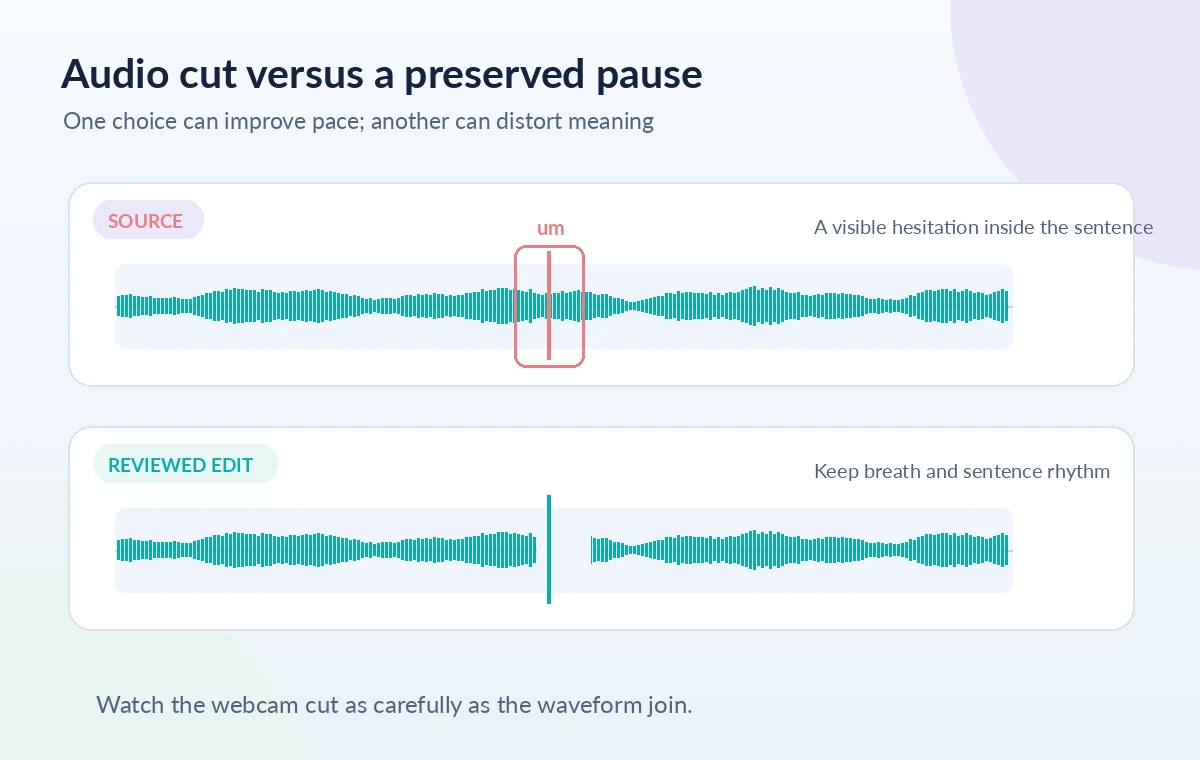
After each representative removal, listen from a full sentence before the edit to a full sentence after it. Check whether the consonant at the boundary is clipped, whether a breath becomes strangely short, and whether background noise changes suddenly. If the webcam is visible, watch the speaker’s mouth and hands at the same moment. Descript announced an ‘Avoid harsh cuts’ option in its filler-word action; that check addresses potential audio joins but cannot guarantee visually invisible edits. A static presentation slide can hide a jump better than a tight face shot. Treat timeline markers in the illustration as teaching shapes, not measured edit locations.
Keep intentional hesitation where meaning depends on it
The difference between hesitation and a meaningful pause is editorial, not a setting. When an expert says, ‘We think—um—we should ask permission first,’ removing the hesitation may be fine, but shortening the surrounding pause could make the recommendation sound automatic rather than considered. Preserve a caveat before a financial or legal example. A client testimonial may require a stricter standard because editing the speaker’s delivery can alter its impression. Listen to laughter, breath and turn-taking as parts of communication. If a guest begins speaking during a filler, leave enough overlap to keep the exchange honest instead of making the voices seem sequential.
Review slides, captions and timing as a connected system
A webinar is more than its voice track. Scrub each edit alongside titles, diagrams, cursor movements and any on-screen annotations. A spoken step such as ‘click the blue button’ must still coincide with the pointer reaching that button. Recheck captions after edits, because the final spoken timeline may no longer line up with caption segments exported from the original. Fix caption text to match what is audibly spoken, not the wording you wish the speaker had used. Run the video at normal speed once with captions visible, then inspect difficult terms and each edit boundary separately. Do not judge the edit only from the transcript panel.

Finish with a full-length integrity pass
Play the opening minute, every key teaching sequence, the audience Q&A and the closing in order, then spot-check the remaining transitions. Verify that examples, cautions and speaker attributions still match the original. Compare the edited and raw version at roughly matched listening level; louder playback can disguise a pacing problem. Export only the format the client requests and retain a reversible project plus an untouched source. Check the current workspace’s plan, AI credit usage and export options before committing work. This workflow offers a decision process, not a promise of a particular reduction in runtime or a tested audio improvement.
How We Research
We compared Descript’s current filler-word help, its transcript-correction guidance, and the company’s feature announcement about mitigating harsh audio joins. The distinction between audio deletion, text correction and video jump cuts shaped the checklist. We did not import a webinar, run the feature, hear an output, or inspect a paid plan; every transcript strip and edit marker in the images is illustrative. Feature names and allowances should be checked in the current workspace. Official documentation reviewed: Descript Help: Filler words; Descript Help: Correct your transcript; Descript changelog: Avoid harsh cuts. Recheck the live docs before proceeding because interfaces, availability and model support can change.
Frequently Asked Questions
No. Correcting a transcription error updates the recognized text. Deleting a filler from the media is a separate editing action that can change sound and timing.
No. Preserve hesitation that signals a qualification, turn-taking or emphasis. Evaluate the surrounding sentence rather than treating every detected token as clutter.
Descript describes analysis that may skip audio deletions with jarring joins. It does not guarantee clean video cuts or correct an editorial change of meaning.
Some Descript actions allow gap replacement or transcript-only changes. Listen and watch the result because a silent gap or persistent audio may not suit the scene.
Check all high-stakes statements, caption synchronization, camera jumps, room-tone continuity and the opening and closing against the unedited original.