Disclosure: LabFin is reader-supported. If you sign up for a tool through links on this page, we may earn a commission at no extra cost to you. Commissions vary between providers and our ratings do not — here’s our full disclosure.
To use Claude for long documents well, you need three things: the right upload method, a clear sequence of questions, and checks against the source. Claude can read whole reports, contracts and books in one chat, but the way you ask decides how reliable the answers are.
This guide, moreover, covers Claude’s file limits, when to use a Project, prompts that work, and how to check what Claude tells you. Our Claude review covers its plans, and our Claude pricing guide lists what each includes.
How to Use Claude for Long Documents: The Short Answer
First, upload the document to a chat, or to a Project if you will return to it. Then ask Claude for a map of the document before asking detailed questions.
Next, ask for quotes with page or section numbers, and check those against the original. Finally, start a new chat when a conversation gets long, with a short summary of what matters.
Claude’s File Limits
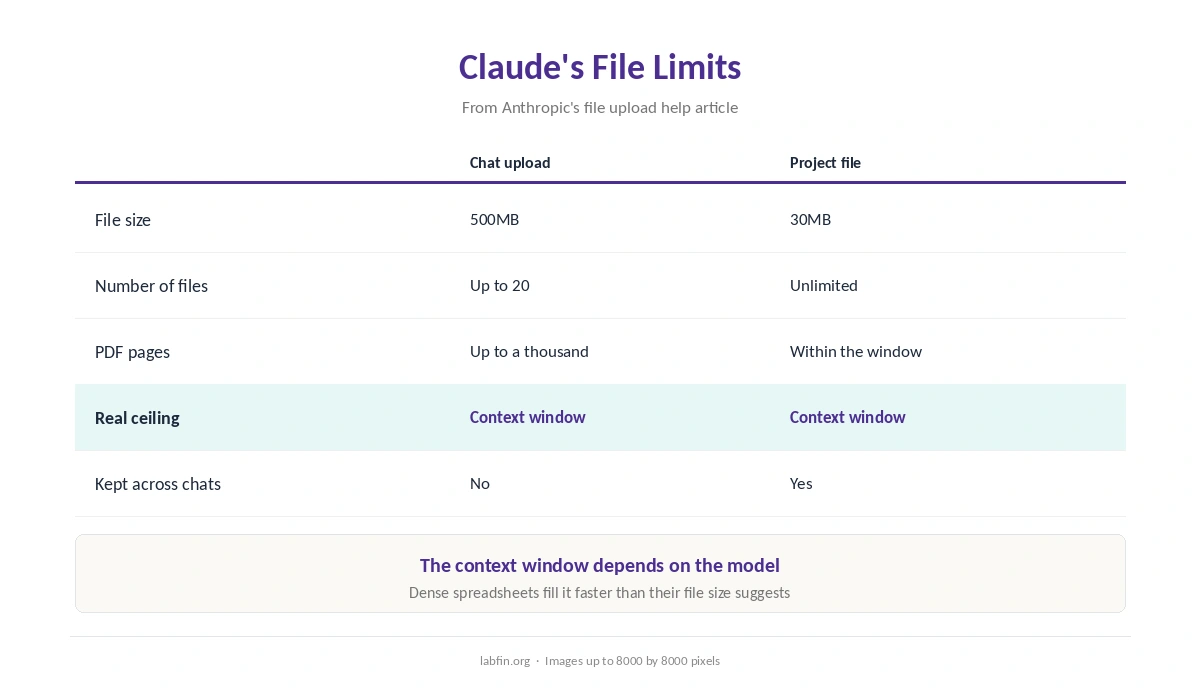
Anthropic’s help center lists two sets of limits. In a chat, you can upload up to 20 files of up to 500MB each, and PDFs can run to a thousand pages.
In a Project, however, each file can be up to 30MB, and you can add any number of files, as long as their text fits within Claude’s context window. That window depends on the model. A dense spreadsheet, therefore, can hit it before its file size suggests.
Chat or Project?
When you use Claude for long documents only once, a chat is enough, such as for summarizing a single report. Use a Project, by contrast, for documents you will query repeatedly, such as a contract set, a book manuscript or a policy library.
Project files and instructions carry into every chat in that Project. You do not, therefore, upload them again. Our guide to Claude for writing also uses Projects for style guides.
Step 1: Ask for a Map First
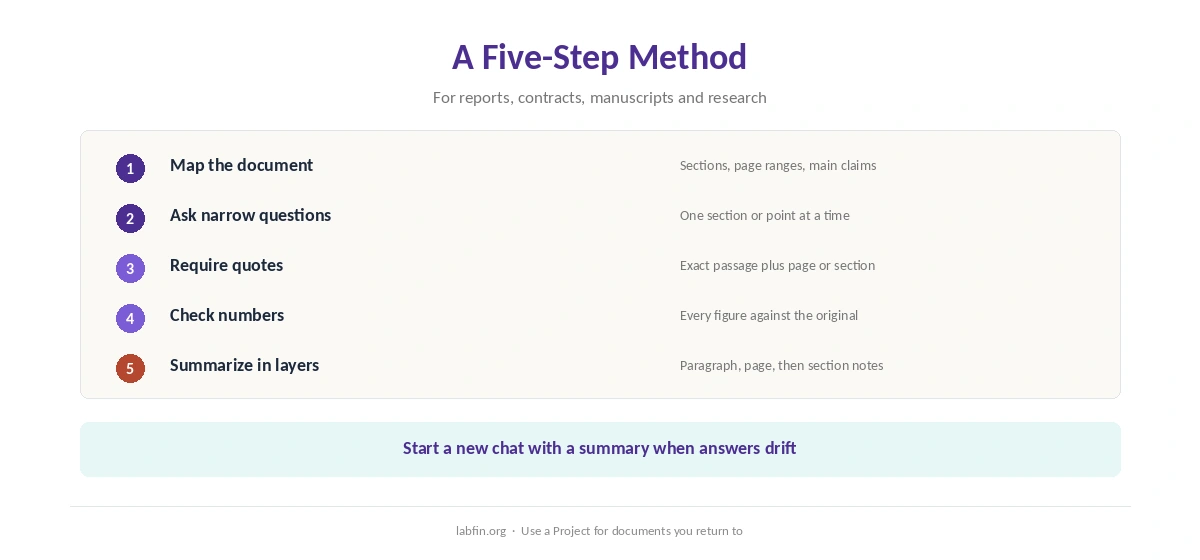
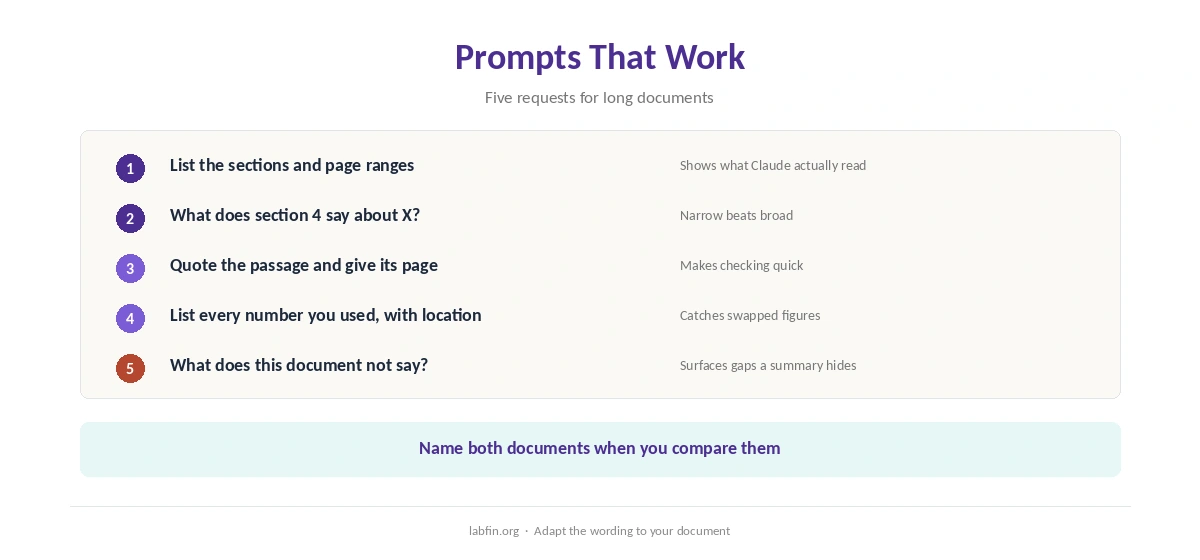
Before detailed questions, ask Claude to outline the document’s structure: sections, page ranges and main claims. As a result, you see what it read, and you can spot missing parts early.
If the map skips a section, for example an appendix, point Claude to it directly. Scanned pages without text, moreover, may need a text version first.
Step 2: Ask Specific Questions
Narrow questions get more reliable answers than broad ones. Ask, for example, what section 4 says about termination, rather than what the contract says.
For comparisons, also name both documents and the point to compare. Our guide to writing better prompts covers phrasing.
Step 3: Ask for Quotes and Locations
Ask Claude to quote the exact passage and give its page or section for every key claim. Then open the original and confirm the quote matches.
This catches errors such as merged findings, swapped numbers and dropped caveats, as our guide to why AI gets facts wrong explains.
Step 4: Check Numbers and Tables
Tables, footnotes and figures are where misreadings cluster. Ask Claude to list every number it used, with its location, and check each one.
For large spreadsheets, however, ask Claude to analyze the file with code rather than read it as text. Our list of the best AI for summarization compares other tools.
Step 5: Summarize in Layers
Ask for a one-paragraph summary, then a one-page version, then section-by-section notes. Layered summaries keep the main points and the detail apart, so you can see what each level drops.
For decisions, moreover, ask Claude what the document does not say, which surfaces gaps a summary hides.
When Chats Get Too Long
Very long conversations slow down and lose earlier details, and long documents use your allowance faster. Claude’s usage, for example, runs on a five-hour session limit plus a weekly cap, as our guide to Claude usage limits explains.
So start a new chat with a short summary when answers drift, or keep the document in a Project. Our guide to AI tools not working covers other fixes.
Privacy for Sensitive Documents
Claude’s personal plans train on chats unless you turn off Help improve Claude in settings. Incognito chats, moreover, are not used for training, Anthropic’s privacy center says.
For client or confidential material, therefore, check that setting first, or use Claude Team, which skips training by default. Our guide to which AI tools train on your data compares tools. Our guide on how to train AI on your own content covers the details.
When Another Tool Fits Better
If you want answers strictly from your own sources with linked citations, Google’s free Gemini Notebook is built for that, as our NotebookLM review explains.
For academic papers you have not collected yet, Elicit searches and extracts across thousands of studies, as our Elicit review covers. Claude, by contrast, suits reading, drafting and revising.
How We Research
This guide on how to use Claude for long documents takes limits from Anthropic’s file upload help article and privacy details from its privacy center, read on October 2, 2026.
We run no tests of our own. Our about page explains how we research, and our guide to Claude for research covers its Research feature.
How to Use Claude for Long Documents FAQ
In a chat, files up to 500MB and PDFs up to a thousand pages, but the text must also fit Claude’s context window, which depends on the model.
Up to 20 per chat. Projects accept any number of files up to 30MB each, if their text fits the context window.
A chat for one-off tasks; a Project for documents you will query repeatedly.
Ask for a map first, ask narrow questions, require quotes with locations, and check numbers against the original.
Personal plans do unless you turn off Help improve Claude. Incognito chats and Team plans are not used for training by default.
The Verdict
Claude handles long documents well when you guide it: map first, ask narrow questions, and demand quotes with locations. Projects, moreover, save re-uploading for documents you use often.
Still, check every number and quote that matters, and turn off training for sensitive files. That is how to use Claude for long documents without surprises.