
A short street interview includes a bus passing behind the microphone just as a guest lowers their voice. Premiere’s Enhance Speech may help make dialogue clearer, but reducing traffic noise must not erase meaningful consonants or the human dynamics of the conversation. The cleanest-sounding preview is not necessarily the most accurate. This fictional street recording illustrates a cautious workflow: isolate the voice clip, apply Enhance Speech through Essential Sound, compare Mix Amount settings, and listen to transitions in context. The waveforms and timelines below are explanatory drawings rather than actual output or measured noise reduction.
Identify the voice that must survive the cleanup
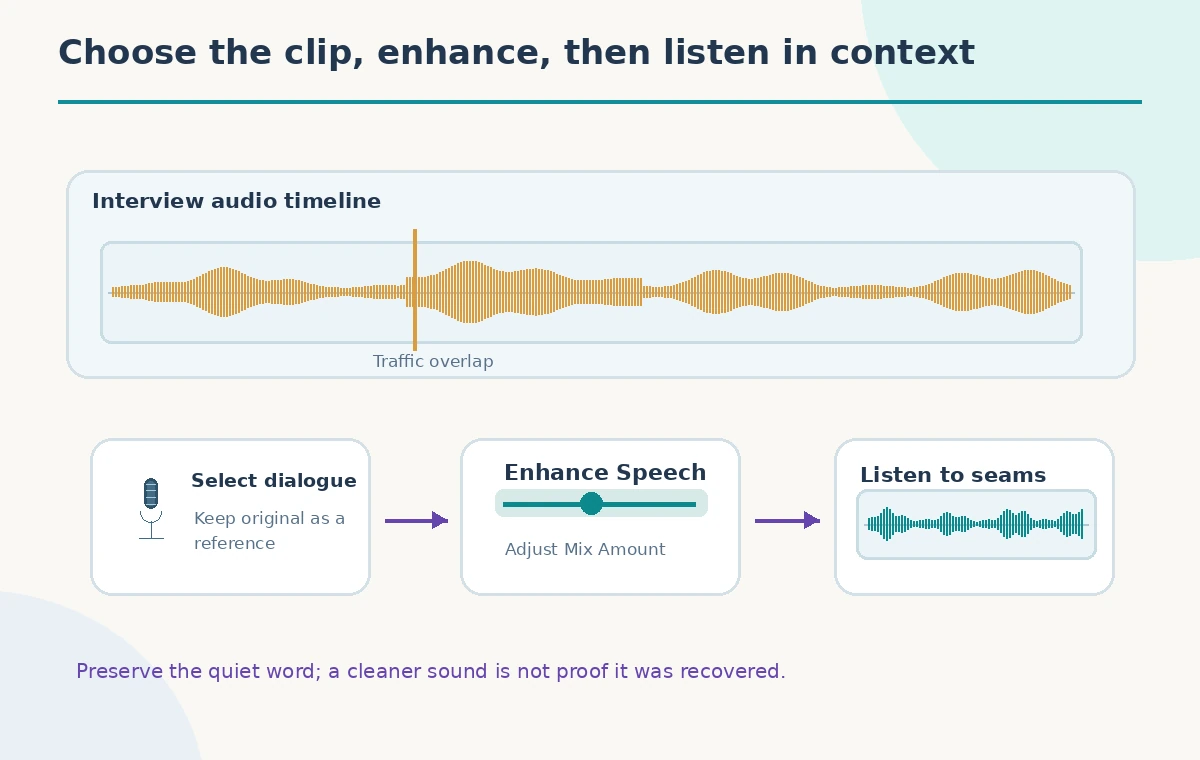
Before changing the track, locate the guest’s quiet answer, the passing bus, and any interviewer interjections. Mark the first and last word of each spoken phrase so that later comparisons use the same boundaries. A guest saying ‘not yet’ quietly can lose the initial consonant or the word ‘not’ under aggressive restoration, which would change the meaning. Keep the untouched camera or recorder audio available for reference, even if you plan to export only the edited timeline. The relevant goal is intelligible speech with faithful wording and timing, not a perfectly flat waveform. No microphone or recording method is assumed in this teaching example.
Work on the dialogue clip in Essential Sound
Select the relevant dialogue clip on the Premiere timeline, open the Essential Sound panel, and choose Enhance to analyze it. Adobe documents the Enhance Speech control and the Mix Amount slider for balancing processed and original audio. Let the analysis finish before judging the result. If the interview contains several speakers or environments, do not assume one setting will fit every clip. Work in short, identifiable sections and retain an unprocessed reference on an alternate track or in a duplicate sequence. A generated visualization is useful for planning, but only playback of the actual edited recording can tell you whether the guest remains understandable.
Use Mix Amount as a review control, not a score
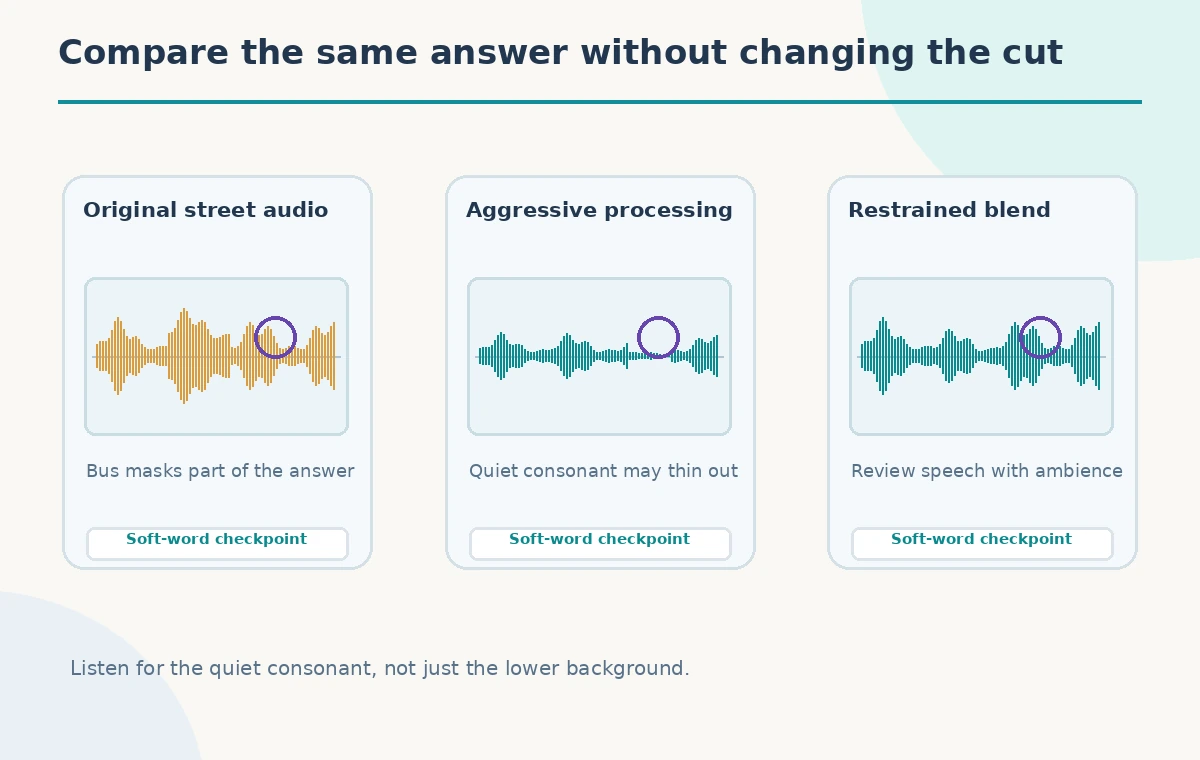
After processing, move Mix Amount conservatively and listen to the same sentence at several settings. More processing is not inherently more trustworthy; a strong setting may give the voice an unnatural, watery texture or suppress a soft syllable. Compare a modest blend with the original at approximately matched listening levels so a louder version does not win automatically. Adobe provides a mixing control, not a guarantee that every noise source can be separated cleanly. The conceptual slider in the illustration has no claimed numeric optimum. Your best setting depends on the source clip and the editorial obligation to preserve the actual words.
Check words that overlap with moving traffic
Traffic is hard because its frequency content changes rapidly: a low rumble may turn into a sharp brake hiss or a horn while the speaker is still talking. Mark the overlap and listen to it first. A restoration that removes a broad band of sound may also soften the consonants that make a name, date, or denial intelligible. Play the original and enhanced versions back to back without changing the edit cut. If the word remains unclear, do not guess it from context or generate replacement dialogue. Consider subtitles labeled as uncertain, a follow-up clarification, or retaining more original audio instead of inventing certainty.
Preserve pauses and believable background continuity
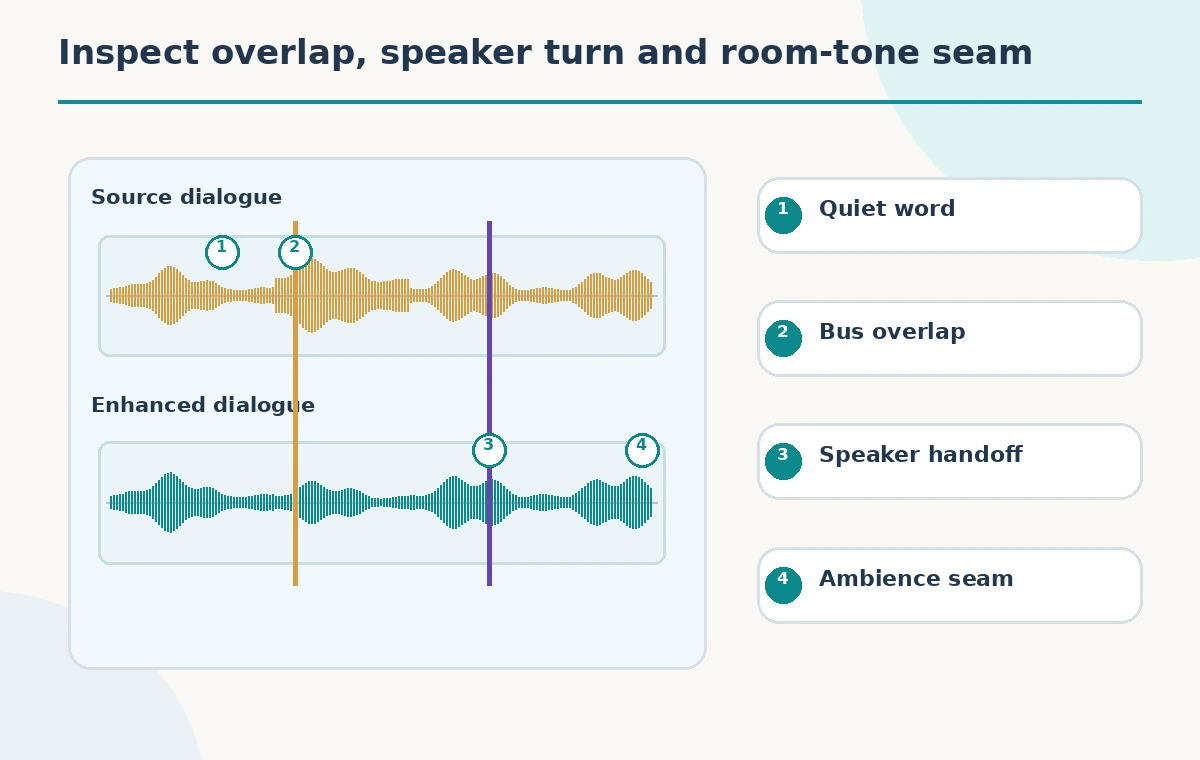
Silence can sound suspicious when an interview is recorded in a busy street. If Enhance Speech reduces the ambience during voiced sections but surrounding clips still contain loud traffic, listeners may hear pumping or a sudden vacuum. Review before and after each processed region, not just in the middle of an answer. You may need a consistently managed ambience bed from legitimate source audio, gentle crossfades, or less enhancement. Do not patch in unrelated traffic as though it were authentic scene evidence. The diagram shows where continuity checks happen and does not imply that Premiere automatically restores every transition without human editing.
Compare speaker turns without hiding unevenness
Interviewer and guest often stand at different distances from the microphone. The interviewer may remain clear while the guest fades under a passing vehicle. Apply processing and level adjustments only where necessary; a uniform setting can overprocess the clear speaker while failing to recover the quiet one. Keep turn boundaries visible on the timeline and replay interruptions, laughter, and breath sounds in full context. A brief overlap can be more important than a long clean sentence because it establishes who agreed or objected. Avoid claiming measured loudness or intelligibility changes unless you actually used appropriate measurement and documented the conditions.
Listen on two ordinary playback systems
Check the revised dialogue through headphones and a simple speaker or laptop, at moderate listening levels. Artifacts sometimes appear more obvious on a small speaker, especially if the enhancement emphasizes midrange while removing natural low-frequency body. Focus on sibilants, final consonants, the quietest answer, and whether the street still feels like the same place. Do not declare the enhancement successful based only on a smooth-looking waveform. The pictured comparison is schematic: it shows potential differences between heavy processing and a restrained blend, not the spectral signature of a real recording processed by Premiere.
Export with an editorially honest account of edits
Preserve the original recording and the project settings. Export a review copy, then check the exported file at clip boundaries and on the devices the audience will use. Keep an internal note of which sections were enhanced and which ambiguities remain. If this is news or documentary material, do not disguise the use of replacement words or misrepresent edits that alter the sequence of events. Enhance Speech is an aid to clarity, not a mechanism for certifying that a damaged statement was reconstructed correctly. When a critical word cannot be heard, escalate that uncertainty to the editor instead of treating an AI-generated-sounding syllable as source evidence.
How We Research
We consulted Adobe’s Premiere Enhance Speech instructions for the Essential Sound Enhance control and Mix Amount, and Adobe’s Essential Sound documentation for the dialogue editing context. We did not process a street recording, measure noise or loudness, or verify any alleged listening outcome. The buses, speaker turns, and waveforms are illustrative.
Frequently Asked Questions
No. Its outcome depends on the recording, and overlapping speech may be affected.
No. Compare multiple blends while protecting soft consonants and a natural voice.
Do not assume so. Preserve uncertainty instead of inventing missing language.
Abrupt ambience changes and pumping can be more apparent at boundaries than inside a sentence.
No. The drawn waveform and mix settings are educational schematics, not test evidence.