
A violin instructor records a short bowing lesson in a rehearsal room. A boom microphone briefly enters the top of the frame while the bow travels upward. Removing the microphone could make the lesson easier to watch, but a careless mask may also erase the tip of the bow, turning a demonstration of technique into a misleading animation. The object the editor intends to remove and the motion the student needs to see are close together.
Adobe documents Generative Remove in Premiere (beta), with cloud processing, generative credits, and tight duration and format limits as of November 4, 2026. The scenes and diagrams here are fictional, not generated footage or results of an actual Premiere session. This is a review-first workflow for a beta tool whose output must be inspected before it is used for instruction.
Check the beta limits before editing
According to Adobe’s November 4, 2026 help page, Premiere Generative Remove (beta) supports clips up to 10 seconds, 480p through 1080p, up to 30 fps, and MP4 or MOV in H.264/HEVC. It does not support HDR or 10-bit material and requires an internet connection because removal is processed in the cloud.
Adobe currently documents generative credit usage at 40 credits per second. These terms are time-sensitive beta details, not a promise about future pricing or capability. Confirm the current page and project settings before planning an edit; if the actual lesson exceeds a supported limit, use a different method or leave the source clip unchanged.
Identify the instructional content that must survive
Before masking anything, watch the raw lesson and mark the critical motion: the visible hand, bow tip, angle of the bow at the string, and the moment the instructor explains the gesture. Preserve a duplicate of the original camera file. Its timing and framing are the reference for whether the edited demonstration remains truthful.
Write down the only allowed change: remove the visible boom mic and any directly associated shadow or reflection without altering violin geometry, instructor hands, or bow trajectory. A cosmetic cleanup is not permission to invent missing frames or fix playing technique. If the microphone overlaps the moving bow, flag those frames for manual review rather than assuming the fill will reconstruct them correctly.
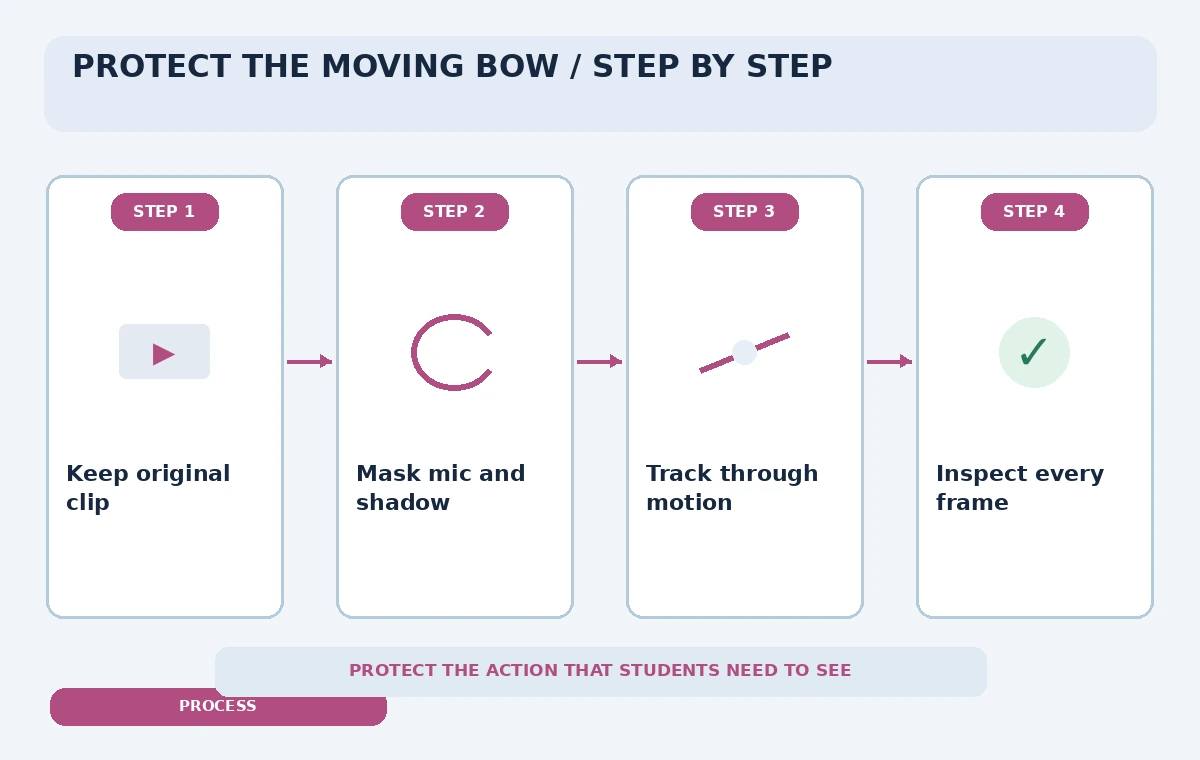
Create a mask that follows the unwanted object
Adobe instructs editors to create a mask with Object Mask or shape-mask tools, track it through the clip, and inspect the tracking before selecting Remove. Scrub frame by frame near the bow crossing. Include the microphone body and its actual shadow or reflection where necessary, but avoid expanding the mask over the useful motion.
Object Mask can identify subjects automatically, yet a selection that looks correct in one frame may drift as the boom moves. Use a lasso or rectangle to guide selection when appropriate, and adjust the track if it follows the bow instead of the microphone. Mask-tracking is an assistance feature, not an independent correctness check.
Review processing cost and save a reversible version
Once tracking is reviewed, Adobe says selecting Remove presents the generative credit cost before processing. Confirm the expense and cloud treatment of footage with the project owner. Do not upload sensitive rehearsal footage, identifiable students, or copyrighted material without appropriate rights and permissions. Generated media is saved under the project’s configured scratch-disk location.
Use a distinct working sequence so the original clip is easy to recover. Adobe describes the AI badge options to generate again or revert to the original. Record which clip and frames received the treatment. A reversible edit is especially important when a student later questions whether the tutorial accurately shows a particular bow movement.
Compare the broken edit with a conservative result
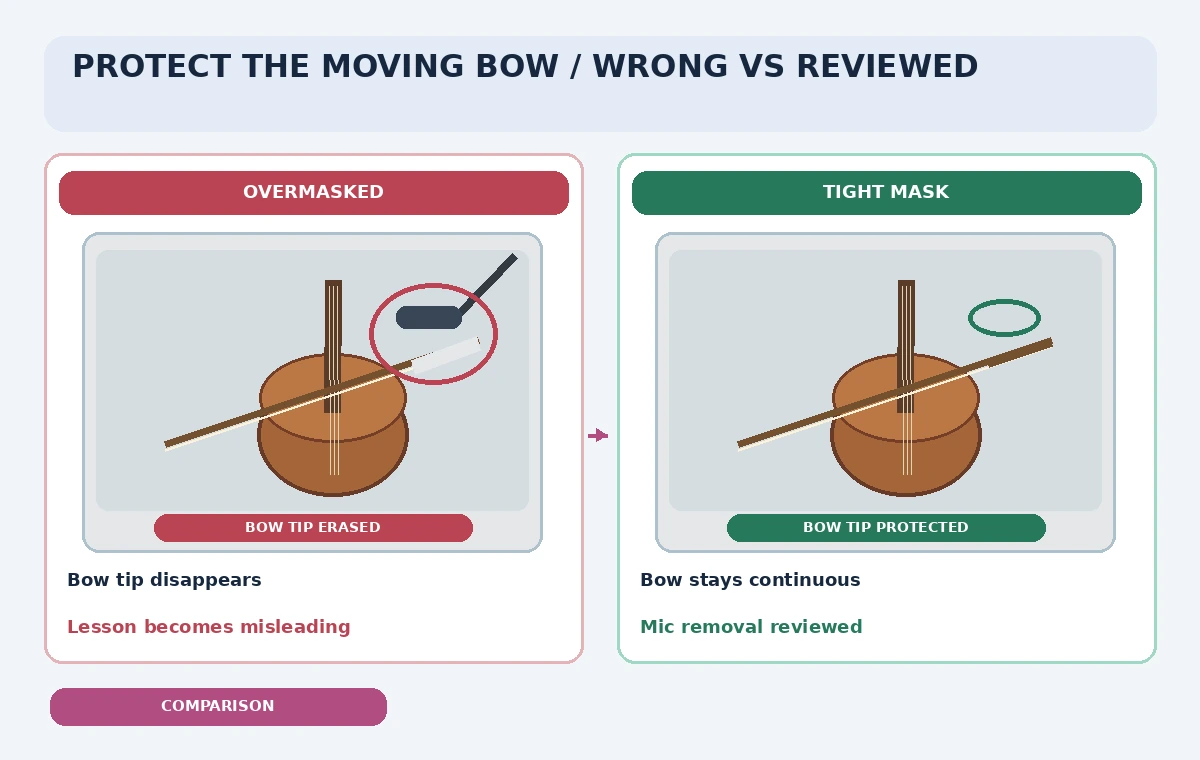
The comparison drawing shows an overbroad mask that removes the bow tip along with the microphone, versus a tight conceptual mask that preserves the bow. This is explanatory artwork, not measured output. For a real comparison, watch the original and the generated version side by side at normal speed and then inspect the crossing frame at full resolution.
Look for the exact bow path, the number of visible fingers, straightness of the strings, texture jumps in the ceiling, and newly invented highlights. A seamless background is not success if the action has changed. If the fill guesses the wrong bow shape or duplicates a hand, reject it even if the microphone is completely gone.
Keep a continuous edit across the affected motion
Adobe recommends including the entire unwanted object in its mask, accounting for shadows and reflections, and avoiding a removal split across several separate generations because the fills can differ. In the fictional ten-second teaching clip, one continuous short treatment is preferable when the effect is suitable; do not stretch this advice into a guarantee of perfect temporal consistency.
Inspect first and last frames where the object is visible and the frames immediately afterward. Verify there is no flicker or sudden edge appearance at the start or end of the generated region. Repeating the same generation without refining the mask may cost credits and still produce the same category of error.
Distinguish editorial cleanup from evidence
The lesson should be represented as edited footage, not as an untouched record of what the camera saw. If the video is used for movement analysis, competition judging, or a training assessment, an AI-generated reconstruction may be unsuitable. The organization must decide whether ordinary visual cleanup is acceptable for that use case.
The release checklist should include the purpose of the clip, consent and permissions, version of the effect, edit location, and a link to the unmodified original. Keep any disclosure concise and factual. There is no need to decorate the final video with a production-debug banner, but avoid claims that the displayed frames are unaltered documentation.
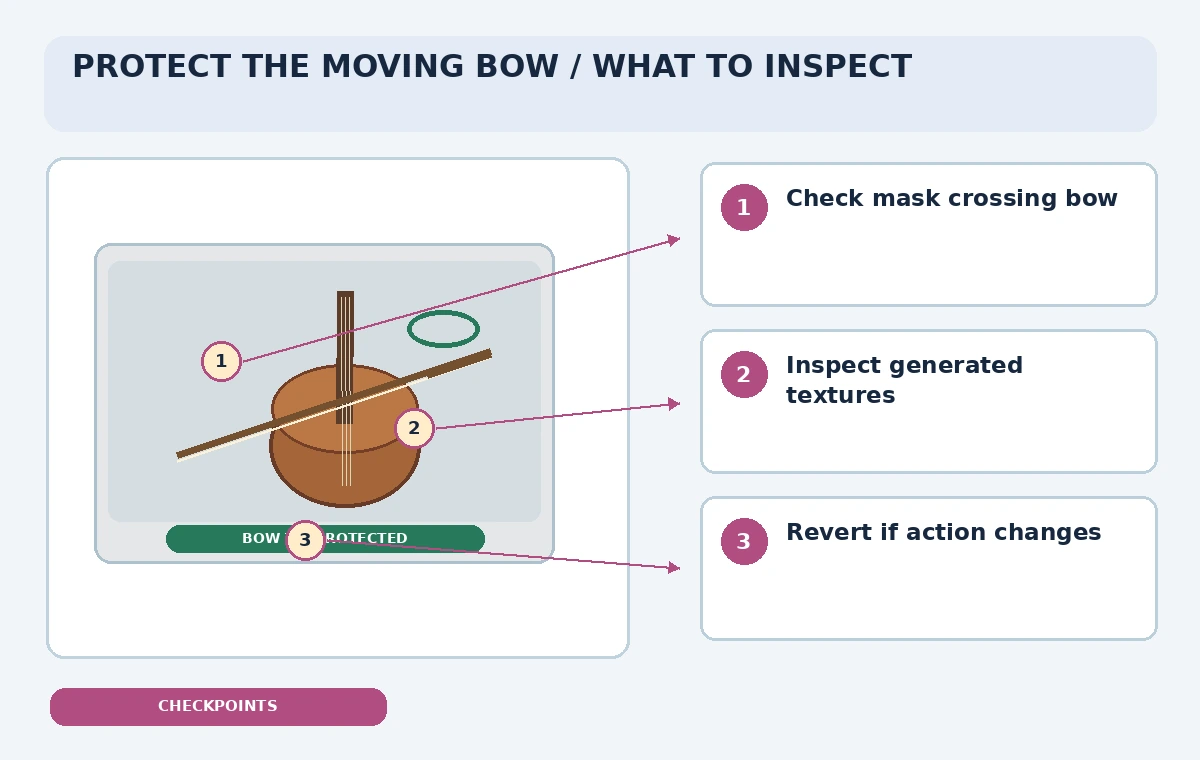
Approve only after full-length visual and audio review
Review the full edited clip on a normal screen, not only a zoomed crop of the removed microphone. Check audio synchronization, whether the instructor’s words still align with the bow movement, and whether export settings preserve the lesson’s intended frame rate. The inspection graphic directs reviewers to the mask edge, the bow crossing, and the transition to untouched frames.
If the moving bow becomes ambiguous, revert to the original or choose a conventional crop that leaves the lesson truthful. Beta features and credit rules can change quickly, so the official Adobe help page should be rechecked for each production. The goal is a clear training video whose necessary motion has not been synthesized into a false explanation.
How We Research
For this November 5, 2026 documentation review, we consulted the following named official references: Adobe Premiere: Generative Remove (Beta); Adobe Premiere: Object Mask; Adobe Premiere: Release Notes. We compared currently documented capabilities and access limits with the safeguards required by a narrow fictional work scenario. We did not use a paid account, run the API, inspect live code, process a real inventory, repair a product photo, or generate footage. Every illustration is an original conceptual drawing rather than a vendor screenshot or measured output. Features, plan eligibility, generative credit terms, policies, and interface labels may change; recheck the vendor sources and obtain human approval before applying the workflow to real records.
Frequently Asked Questions
Adobe currently documents the feature in Premiere (beta), not as a universal capability in every installed release.
No. Adobe says an internet connection is required and footage is processed in the cloud.
As documented on November 4, 2026, up to 10 seconds; check for updates before production.
Adobe documents Revert to Original from the AI badge options.
No. This is a hypothetical workflow with conceptual comparison illustrations.