
A cooking-class editor needs to locate a short oven-timer beep in several hours of recorded demonstrations. The clip may also contain a microwave tone and a quiet participant asking a question. Adobe Premiere now documents AI-powered audio search using sound descriptions, but a search match is a candidate, not proof that the correct appliance or moment was recorded. This fictional walkthrough shows how to locate the candidate, listen in context, keep the actual timeline event intact, and avoid using an unrelated beep to imply a safety warning occurred.
Define the exact sound and its editorial purpose
Write a brief search target before opening the panel: a two-part timer chirp after the instructor says “check the bake,” not an oven alarm or microwave button press. Note the rough camera, shoot day, and recipe segment if known. The objective is to recover an existing sound from recorded footage, not to manufacture evidence of an alarm. Save a copy of the edit timeline for comparison.
If the audio will be used for a safety demonstration, the exact source matters. A fire alarm, equipment warning and kitchen timer can sound similar at low volume while conveying very different information. The editor must listen to the surrounding dialogue and verify the device shown on screen before labeling a cue.
Use the documented Audio search in Premiere
Adobe’s August 2026 guidance describes opening Premiere’s Search panel with the upper-right magnifying glass, entering a sound description, and selecting Audio from the search-type dropdown. Audio media intelligence surfaces candidate clips across the project. Search in English with descriptions such as “short two-tone kitchen timer chirp” and “oven timer beeping”; do not assume the model understands appliance identity from sound alone.
If the Audio filter is unavailable, check Premiere version, analysis status, local project setup and official feature support. The broader media intelligence system searches visuals, text and metadata, but audio search is a distinct search path. Keep source media in its original project location and do not shuffle files merely to improve a model match.
Compare candidates by listening, not by keyword rank
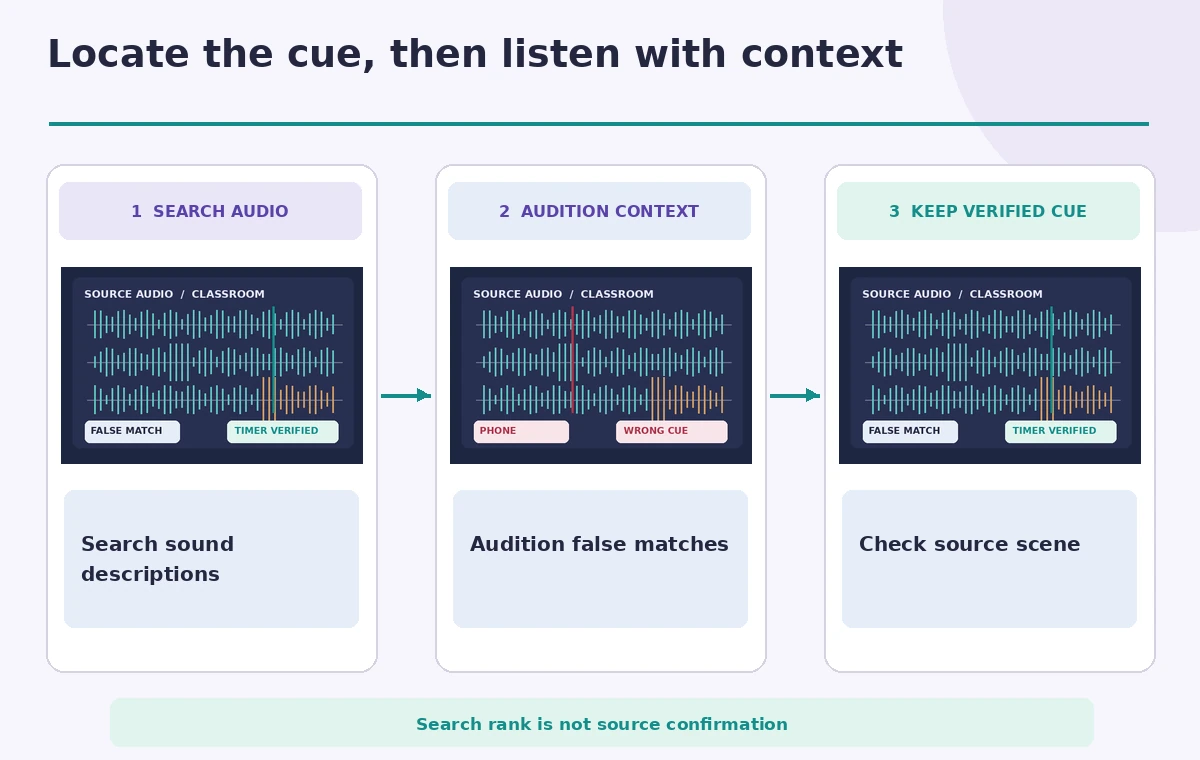
Open the highest-ranked candidate with handles on both sides and listen at normal speed. Does the chirp happen just after the instructor’s instruction? Is it an actual recorded sound rather than a sound effect in an earlier montage? Check the waveform but do not treat similar peak patterns as proof that two recordings contain the same appliance.
A plausible false match in this example is the microwave control button recorded during a previous exercise. A second is a participant’s phone notification. The comparison illustration shows three schematic audio snippets with different contexts; no frequency plot or recognition accuracy is presented as a measured experiment.
Verify the cue against video and transcript context
When a candidate looks promising, open its source clip and compare the surrounding shot, dialogue, device state and scene continuity. If the oven is visibly closed and the instructor reacts to a timer, the cue is more plausible than a beep during an unrelated kitchen cleanup. Search can accelerate locating clips, but the content’s provenance depends on source footage and human verification.
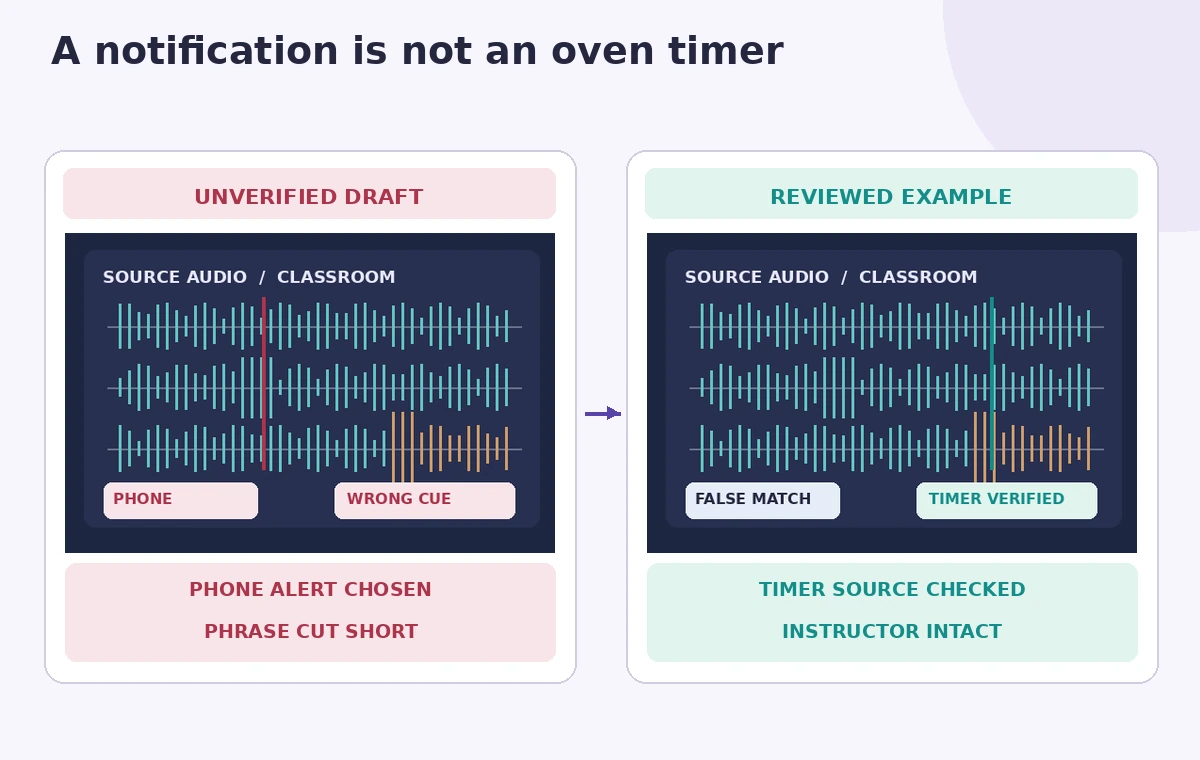
If a participant says “that was my phone,” do not crop the sentence to make the beep seem like a warning. Keep a short slate note in the editing log: source clip name, approximate in/out region, and why the sound was selected. Avoid claiming that a media search engine can independently certify the device.
Choose a minimally misleading edit
If the timer cue is already in the recorded moment, adjust level gently so viewers can hear it without masking the instructor. Do not stretch the sound into a repeating alarm or insert a beep into a shot where none occurred if the video is presented as an authentic demonstration. For stylized educational edits, any separately added sound should be clearly treated as an effect.
Review on headphones and ordinary speakers, because a soft chirp can disappear on a phone while boosted high frequencies can become harsh. Keep the first and last syllable of the instructor’s line intact. Do not run an excessive enhancement chain that reshapes background speech into a mechanical noise.
Keep search, transcription, and rights separate
Adobe describes its on-device media intelligence analysis and search approach, but this does not remove the need to review rights for the source media. A sound recorded by the team may be appropriate for the project; a licensed library sound requires its own permitted-use check. Do not treat finding audio in a project as proof that it can be used in a new campaign.
If the clip includes recognizable people, review the production consent and any publication restrictions. A transcribed mention of a timer, a visual shot of a timer, and the audible timer chirp are distinct evidence channels. Search results can align them for review but cannot replace this editorial distinction.
Check failure cases and alternate search terms
Audio analysis may surface a metal spoon clink or an unrelated digital notification as a match. Try a more detailed phrase, narrow candidate media where possible, then manually scan a known timeline section. If no verified candidate exists, leave the scene without a fabricated timer cue or label a deliberately added demonstration effect.
Keep an audit trail of rejected clips so another editor does not later mistake the highest-ranked result for verified evidence. A source with heavy background noise might need an ordinary timeline listen instead of relying on search. This is a workflow for review, not a claim about model hit rates.
Run a three-point editorial playback check
Before export, check the cue onset, its connection to the visible device, and the words immediately before and after it. Compare the accepted clip with the project master audio at normal playback and monitor whether any learner instructions were masked. Include a teammate familiar with the workshop if the cue could imply a safety-critical event.
The final illustration marks the timer chirp, the microwave false positive, and the intact instructor phrase. The successful outcome is a discoverable, honestly edited sound moment, not merely a cleaner waveform.

How We Research
For this article we reviewed named official product documentation: Adobe Premiere Help, Search audio using media intelligence; Adobe Premiere Help, Media intelligence and Search panel FAQ. We checked the documented interface, eligibility, action limitations, model behavior, and available recovery options as of November 2026. The article uses a hypothetical editorial scenario with invented records and illustrative artwork rather than a real login, paid tool run, user dataset, listening test, performance benchmark, or measured image restoration. We did not verify access to any individual subscription. Our review method was to map each proposed result to a primary record, identify decisions requiring a qualified human, and avoid promising AI accuracy not demonstrated by the vendor documentation. Before applying this method in production, verify the current release, permissions, source integrity, and organization data-handling rules.
Frequently Asked Questions
Adobe documents audio media intelligence searches using descriptive terms in Premiere’s Search panel.
No. Listen with source handles and verify device and context against the original footage.
No. A sound match is not proof of printed text or appliance identity.
Only if production rights and relevant licenses allow reuse.
Not when viewers would interpret it as genuine documentary evidence. Separate stylized effects from real audio.