
A furniture-restoration documentary needs a close-up of a wooden drawer that squeaks before repair. The editor has two hours of workshop footage and several takes with similar benches. Adding a squeak from another drawer may make the sequence more dramatic, but it would wrongly suggest that the sound was captured in the featured repair. The right job is to locate and verify the original take.
Adobe’s 2026 Premiere documentation describes searching for sounds by natural-language description through media intelligence in the Search panel. That is different from older visual-only search capabilities and from searching words in a speech transcript. This guide shows a safe editorial method using a fictional workbench recording, without claiming to have analyzed actual audio files.
Define the sound and the shot as separate evidence
Make a shot log that identifies the drawer, the restoration stage, and the camera take before searching for sound. The target is a short high-pitched wooden squeak while the drawer is pulled outward, not merely any creaking sound in the workshop. List nearby distractors: an opening door, an old hinge, a chair, and the same drawer after a different adjustment. Those alternatives matter because an AI match can sound plausible while representing the wrong event.
Decide whether the film is documentary evidence or a stylized reenactment. If accuracy about the actual before-and-after condition is part of the story, retain the original production audio and label any reconstruction. Write down the intended edit boundary: locate the genuine sound and keep it synced to the real drawer motion; do not manufacture proof of a repair effect.
Let Premiere index the eligible media
Adobe instructs editors to open the Search panel, describe the sound, and filter results to Audio. Depending on your installed Premiere version and the media analysis configuration, analysis may run after import. Check progress and availability before treating an empty search as proof that the sound was not recorded. Older projects and cached media may have different indexing histories.
Keep original filenames, camera roll metadata, and field audio linked to each take. Renaming every clip “workshop-final” destroys a useful audit trail. The source log can note the take ID and a rough time range without pretending those markers were generated by AI. Backup your project and recordings before making any synchronized edits or unlinking tracks.
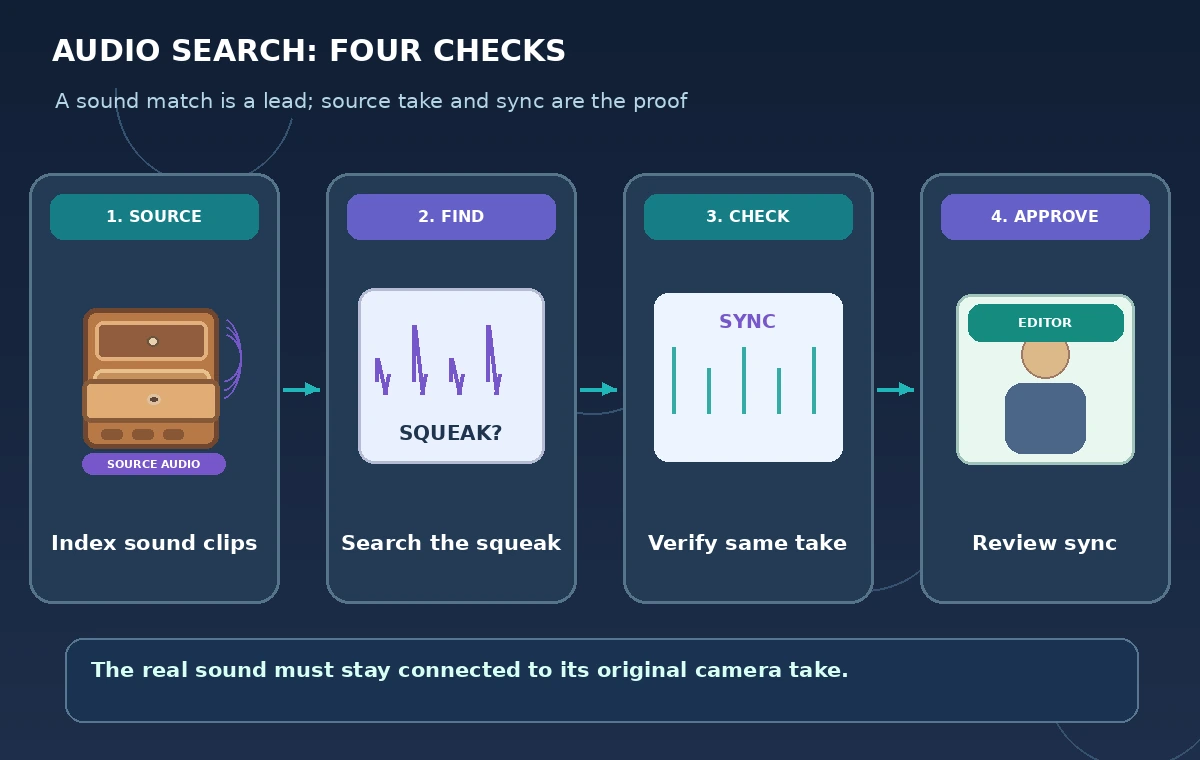
Search with descriptions that discriminate the sound
Try a precise prompt such as “short wooden drawer squeak as it slides open,” then compare alternatives such as “dry scraping wood on wood” or “brief high-pitched creak.” Adobe describes natural-language audio queries rather than a guaranteed exact acoustic identifier. Search results should be treated as candidate clips; they do not confirm the object, the camera angle, or the sequence in which the sound occurred.
Review Audio results individually and audition their context. The first match may be a squeaking chair near the workbench. A more specific query may reduce irrelevant results, but the matching process remains semantic. Avoid writing that Premiere recognizes a particular museum object or authenticates the sound source; those are separate tasks requiring field notes and editorial review.
Link the sound to the correct visible action
When a likely clip appears, open the source around the hit and watch the complete drawer movement. Does the squeak begin at the moment the drawer binds? Can the track be traced to that same camera take, or does the editor hear room noise from a different recording? Preserve source timecode and note the camera roll before moving anything to the working sequence.
Listen through the seconds before and after the match. A cut that isolates only the squeak can hide evidence that it came from a chair movement. Keep enough surrounding ambience to demonstrate continuity. When the microphone track is separate, use the production slate, clap, waveform alignment, and original filenames to confirm sync, rather than relying on an AI search result to identify the recording.
Compare genuine source audio with misleading substitution
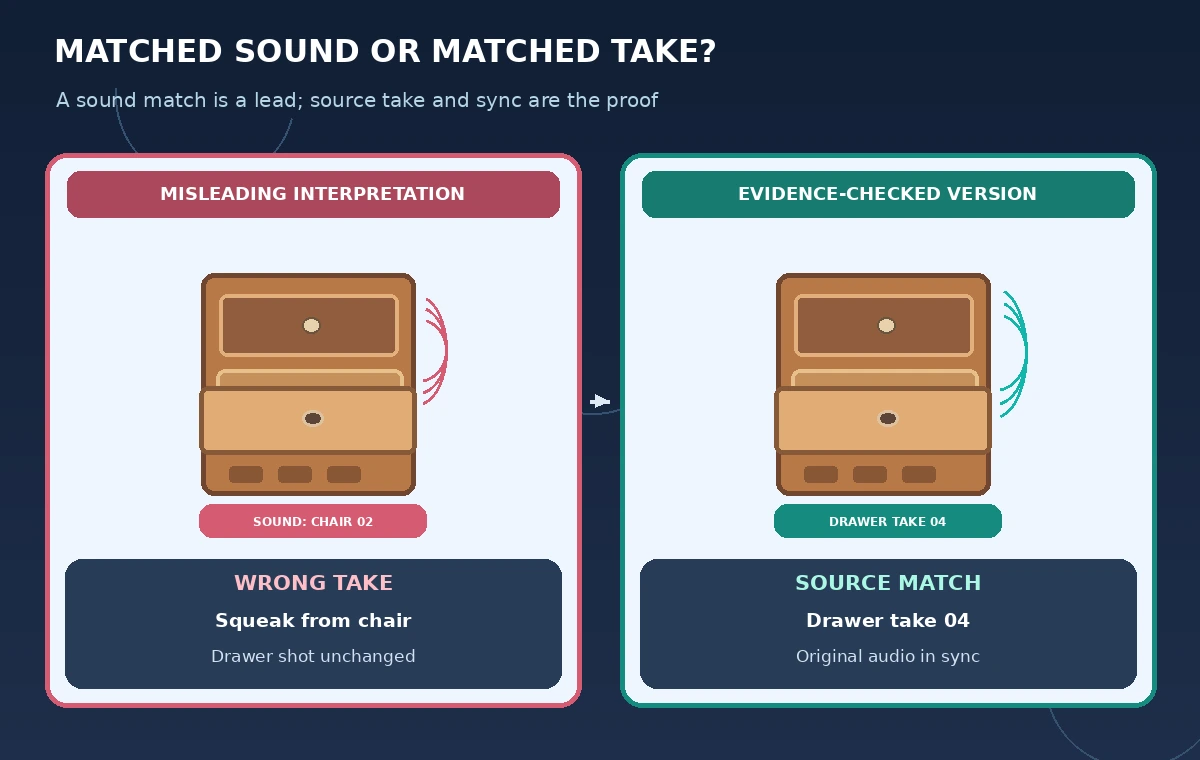
The two-panel illustration shows the common failure: a convincing-looking squeak pasted under the wrong shot versus a timeline that links the actual drawer take to its synchronized production audio. These are schematic teaching states, not actual Premiere screenshots or audio measurements. The key distinction is provenance: both versions might sound realistic, but only one preserves what the crew documented.
A matching waveform shape or sound description alone cannot prove which object produced it. Use the video frames and take notes together. If the sound occurred off-camera, say so in the edit notes. When the footage is silent or unusable, consider a clearly labeled reconstruction rather than claiming that an added sound is an unaltered record of the workshop.
Understand what media intelligence can and cannot verify
Adobe’s media intelligence FAQ explains that some visual search functions do not identify specific people or read literal text in frames. The audio sound-search capability likewise should not be presented as an identity or provenance verifier. It can help find a kind of sound; it does not establish that a specific object was responsible. Do not confuse speech transcript matches with non-speech sound search.
The documentation describes local processing for media intelligence and notes that feature behavior can depend on app version and analysis settings. Check current product help for the installed release. If audio search is unavailable, use manual waveform inspection, markers, and the field log. The editorial objective is still achievable without forcing every project through a new AI feature.
Perform a before-and-after playback review
Play the unedited production shot and the proposed sequence at normal speed. Does the edited sound coincide with the original drawer movement, or has a time shift made the squeak start before the drawer moves? Check for abrupt ambience changes, a clipped tail, extra creaks, or a supposed “after” repair still containing the old squeak. Do not use loudness differences as evidence that the mechanical problem was fixed.
Ask a second editor to find the raw source given only the take reference and timecode. If they cannot reproduce the selection, the handoff notes are insufficient. Save the raw comparison for future review, but avoid presenting it as a scientific acoustic test. The documentary claim is about what was recorded, not a measurement of repair quality.
Keep a provenance note with the final export
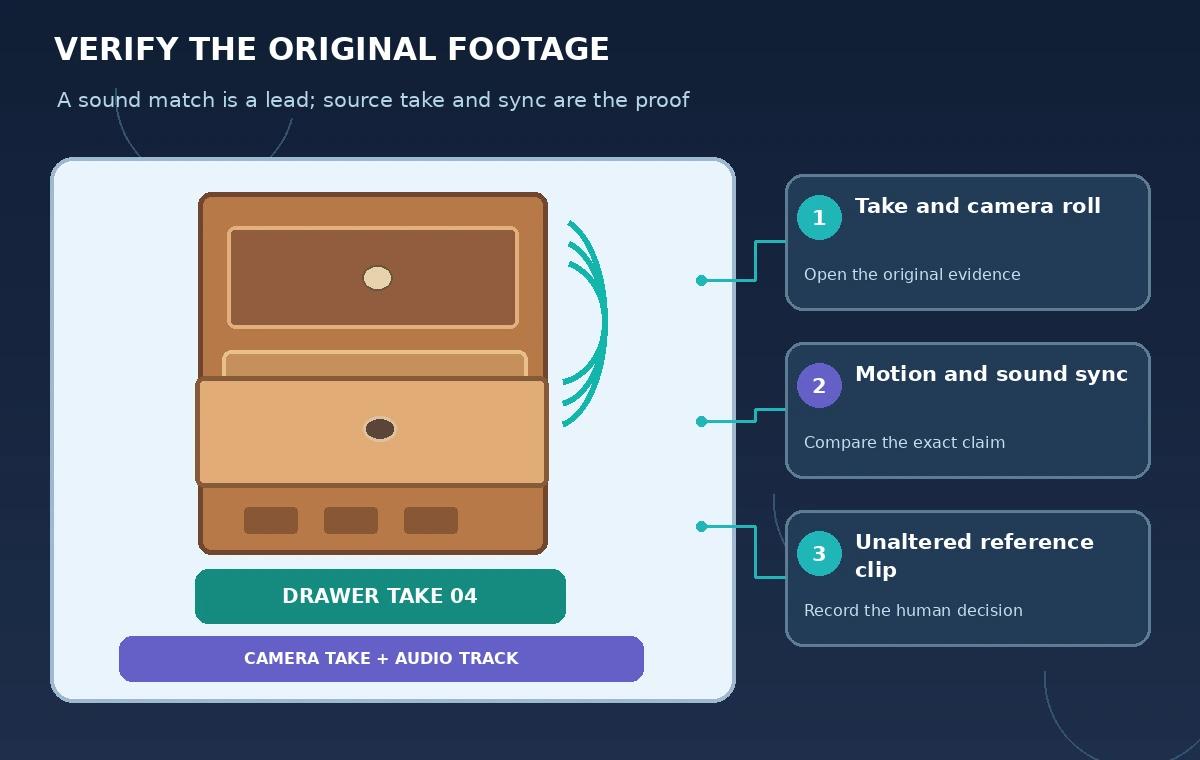
The finished timeline should have a marker or note recording the take ID, original sound track, whether any cleanup was applied, and who approved the usage. If the film includes Foley for artistic reasons, describe it plainly. A viewer need not see internal edit logs, but the production team should be able to explain why a sound was placed under a particular image.
For this article we read Adobe’s official 2026 audio-search guidance and its media intelligence FAQ. We did not open Premiere, import sound clips, time an indexing run, or listen to real workshop audio. All objects, waveforms, timestamps, and comparisons are fictional diagrams. Search is the starting point for finding candidate moments; source verification makes the clip editorially defensible.
How We Research
For the November 5, 2026 documentation review, we consulted these named official sources: Adobe Premiere: Search audio using media intelligence; Adobe Premiere: Media intelligence FAQ. We compared their stated feature capabilities and eligibility limits with the workflow described above. We did not run the named service or test real customer records; all cases, outputs, and diagrams are hypothetical. Check current product documentation, plan access, and organization policies before use.
Frequently Asked Questions
Adobe documents an Audio search mode in media intelligence for describing sounds, subject to the supported version and setup.
No. Inspect the original video, associated audio, field notes, and take ID to verify the source.
Only with appropriate editorial context and disclosure. Do not present substituted audio as an unaltered record of the featured action.
No. Adobe documents different search categories for visual, audio, transcript/text, and metadata matches.
No. The waveform drawings and footage references are hypothetical teaching illustrations.