
A ceramics studio has a verified photograph of one handmade mug and wants several visual directions for a seasonal product catalog. Photoshop Generate Similar can offer variations on previously generated content, but a polished backdrop is unacceptable if the mug gains a new handle, different glaze, or invented maker’s mark. This is a conceptual Photoshop workflow based on Adobe documentation, not a report of actual generated variations or a measured product-photography test.
Define what must remain identical
Treat the ceramic cup as a real product with fixed attributes: handle profile, rim thickness, glaze markings, base, and any visible maker’s stamp. List them before asking for a different background. If the photo is used for ecommerce, the product’s actual shape and color cannot be described as creative suggestions. Distinguish a permissible change in wall tone or table surface from an impermissible change to the merchandise. Preserve the untouched source file and keep a copy of the studio’s color reference. A new aesthetic is not a new item in inventory.
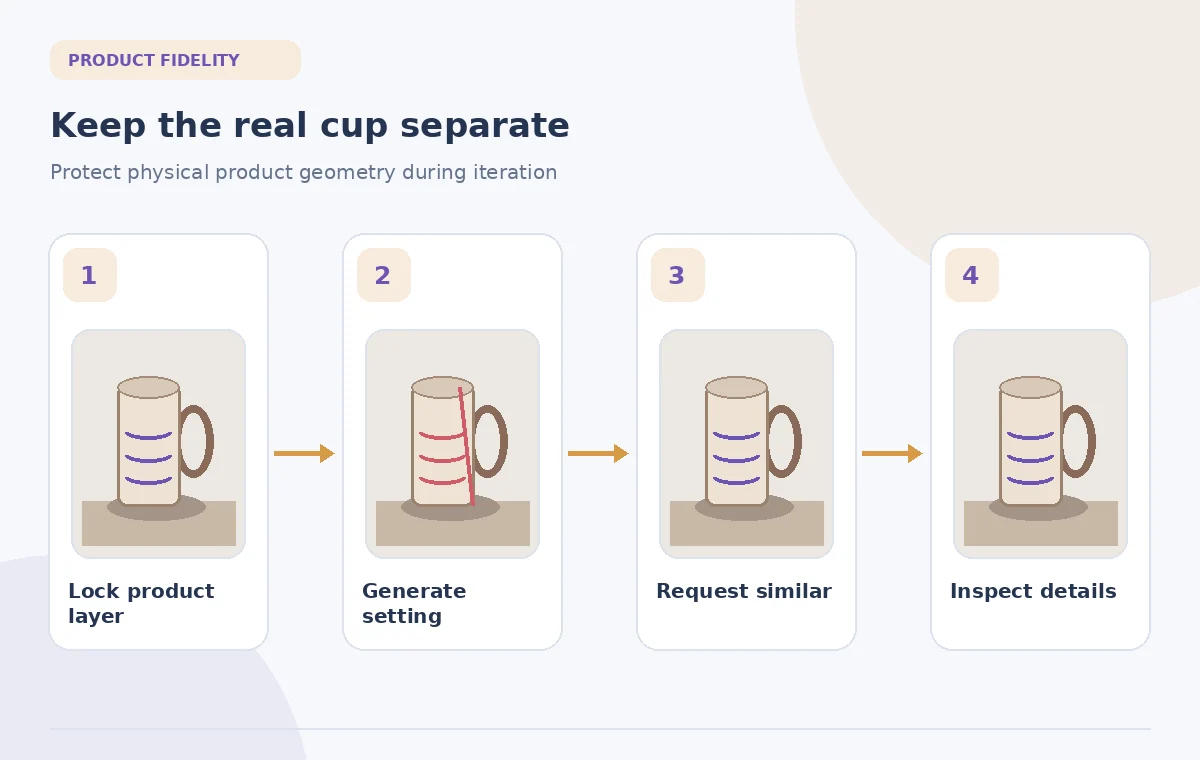
For a sample catalog, the mug can move from a plain backdrop to a quiet studio scene, but the illustrated handle and glaze must retain their original geometry.
Understand the Generate Similar step
Adobe documents Generate Similar as a way to get new variations from an existing generated result, with support in workflows such as Generative Fill, Generative Expand, Generate Background, and Generate Image. The Photoshop desktop workflow accesses it from the preferred variation’s menu in the Variations area of the Properties panel. It is not simply a filter applied to an entire photograph without a generative starting point. Availability, models, and credits depend on the current Adobe plan and feature rollout. Read the current help article before assuming controls shown in an old version.
Keep the created layer and the original image separate. If the intended edit affects only scenery, isolate or mask the background instead of regenerating the product itself.
Build a non-destructive starting composition
Open the authorized product photograph and create a working copy. Mark the mug edge, handle opening, and contact shadow as protected regions. Use the appropriate generative background or selection workflow to propose a backdrop. Once an acceptable generated variation exists, use Generate Similar to explore nearby alternatives. Do not assume the system will always hold the product edge perfectly: inspect the pixel boundary after every generation, especially through the handle gap and at the base. A generated floor may be attractive while leaking color into the real glaze.
Save each candidate with a neutral label such as warm-table-01 rather than a claim like improved-conversion, which has not been demonstrated.
Compare variations against the same product source
Arrange three samples beside the untouched cup photo, not just beside one another. Compare the handle angle, rim shape, dark highlights, and maker’s stamp at high zoom. The product should not be sharper in one version because the generative result invented surface texture. Check whether colored light in the backdrop is causing unacceptable hue shifts in the glaze. A preview at thumbnail size can conceal these errors, which become obvious when a buyer zooms in. Keep the decision about fidelity separate from the design team’s preference for a warmer or cooler setting.
The educational comparison drawing shows a cup with an incorrectly altered glaze as the middle state. It is fictional and not a claimed Photoshop output.
Check physically plausible contact and lighting
A cup needs a believable point of contact with the table. Look for a shadow that falls in the same general direction as the source lighting, a stable ellipse at the base, and a surface that does not bend around the object unnaturally. Avoid treating an attractive but floating product as an accurate retail picture. If the background contains another identifiable object, verify that it does not imply included accessories or packaging that the customer will not receive. A scene can be decorative without telling a false product story.
Pay attention to the empty area inside the handle: it should show the actual background cleanly rather than blurred duplicate glaze or leftover studio paper.

Respect labeling and customer expectations
Keep price, SKU, dimensions, and color names in editable catalog text rather than asking a generative model to paint them onto the mug. If the product bears a physical printed mark, preserve the mark from the real photograph. Do not invent a certification logo or a guarantee of dishwasher safety. A staged image should be labeled appropriately when marketplace or editorial standards require disclosure, particularly if the surrounding room was not photographed. The viewer should not mistake a hypothetical lifestyle scene for documentation of a real installation or retail location.
Use a separate, verified product information sheet to approve text. Generate Similar can produce visual alternatives but cannot certify manufacturing details.
Choose a consistent series rather than one hero
For a collection of handmade cups, establish a small visual rulebook: camera angle, margin, backdrop family, shadow softness, and crop. Repeat those choices across the catalog while keeping the individual products visibly different. Avoid forcing every piece into an identical generated shape, since handmade variations may be precisely what customers value. Review both the hero image and the product-detail crop. If a chosen backdrop works for one mug but hides the dark edge of another, change the scene instead of modifying the product.
The studio should approve a batch visually as a set, with each original still available for quick identity checks during later listing updates.
Perform a product-accuracy release check
Compare the selected candidate with the source at full resolution, then inspect the exported web image in the actual storefront template. Confirm the handle, glaze, rim, maker’s mark, and shadow. Make sure listing copy says exactly what is included and that no generated props suggest extra merchandise. Archive the original photo, the working PSD, approved export, and reviewer decision together. If the product geometry is uncertain, publish the authentic plain-background photo. Successful iteration means a clearer catalog presentation with the merchandise still truthful.
The image annotations focus on handle outline, glaze identity, and grounded shadow. They demonstrate what to inspect, not proof of an Adobe model’s measured reliability.

How We Research
We reviewed the named official product documentation, including Adobe Photoshop Help: Get new variations of generated content; Adobe Photoshop Help: Generative AI features overview. We used those sources to verify the feature entry point, stated capabilities and limitations, and important access caveats. The use case, source documents, example objects, and all original diagrams are hypothetical; we did not operate a live account, measure model performance, or claim real-world permission. We recommend separate source-of-truth review, independent quality checking, and approval by the person responsible for the content. Current menus, plans, and restrictions may change after this review.
Frequently Asked Questions
It produces variations from a generated result within supported Photoshop generative workflows; preserve and compare the original photo separately.
No. Check the handle, rim, glaze, stamp, and edges at full resolution against the real product.
Do not rely on generated text for product identifiers or certified instructions. Use verified editable copy.
An implausible contact shadow can make a genuine product appear composited or floating and misrepresent the scene.
Reject that variation or repair the selection non-destructively; do not alter the product to accommodate the backdrop.