
An animal shelter is photographing donated pet pads and harnesses for a supply-drive post. The original picture has a distracting storeroom wall, while the product packaging contains the exact size and quantity that donors need to recognize. Photoshop Generate Background can stage the supplies against a cleaner invented scene. The editorial task is to change the environment while preserving factual package copy, dimensions, and contact shadows. The depicted labels are imaginary learning examples; the article does not claim a live Photoshop generation or a tested level of image fidelity.
Record product facts before creative editing
Capture an untouched file showing the package front, actual color, corners, size, and any printed safety information. Write a quick fact sheet from the donor inventory: for example, a fictional pack of 20 medium pads and one blue harness. A clean poster background cannot compensate for inaccurate product information. Ask the shelter whether the purpose is to request exactly that model or to show generic examples of useful supplies. In the first case, preserving packaging matters more than a polished lifestyle setting. Keep the original image available for comparison rather than only a flattened edited output.
Choose the correct Generate Background workflow
Adobe’s current desktop instructions begin with an open image. Use Remove background from the Contextual Task Bar, then choose Generate background, enter an optional prompt, and select Generate. The variations appear in the Properties panel. Adobe also documents importing an existing background or applying a color fill instead of generating one. The interface may change and the editor must be on a compatible Photoshop version. Generative functions may consume credits depending on the model and subscription. Confirm access and the relevant account terms before beginning; do not assume unlimited generations simply because an earlier plan allowed them.

Create a background prompt that excludes new facts
Describe a neutral tabletop, subdued warm window light, and an empty wall. Avoid adding unrelated animals, extra donations, certificates, or official seals that would imply the shelter received items it never obtained. If the assignment is for a supply wishlist, a fictional studio-like setting is more defensible than a fake photograph of a crowded donation warehouse. The prompt should guide mood and surface, not the exact contents of the foreground package. Text-to-image models can still make unwanted foreground changes. A written ‘do not alter the label’ instruction is not proof that every letter will remain intact.
Keep generated variations as review candidates
Generate a small number of alternatives, then save or name the chosen candidate so it can be compared to the original. Adobe notes that Generate Background works with subject lighting, shadows, and perspective, but that is a product description rather than a guarantee for an individual photo. Reject any version that hides a strap, increases the count of boxes, shifts a printed size, or changes the identity of the supplies. Note the prompt, Photoshop version, and model if useful for internal reproducibility. Do not claim a scene was photographed in a real shelter room when it was synthesized.
Compare every meaningful label and edge
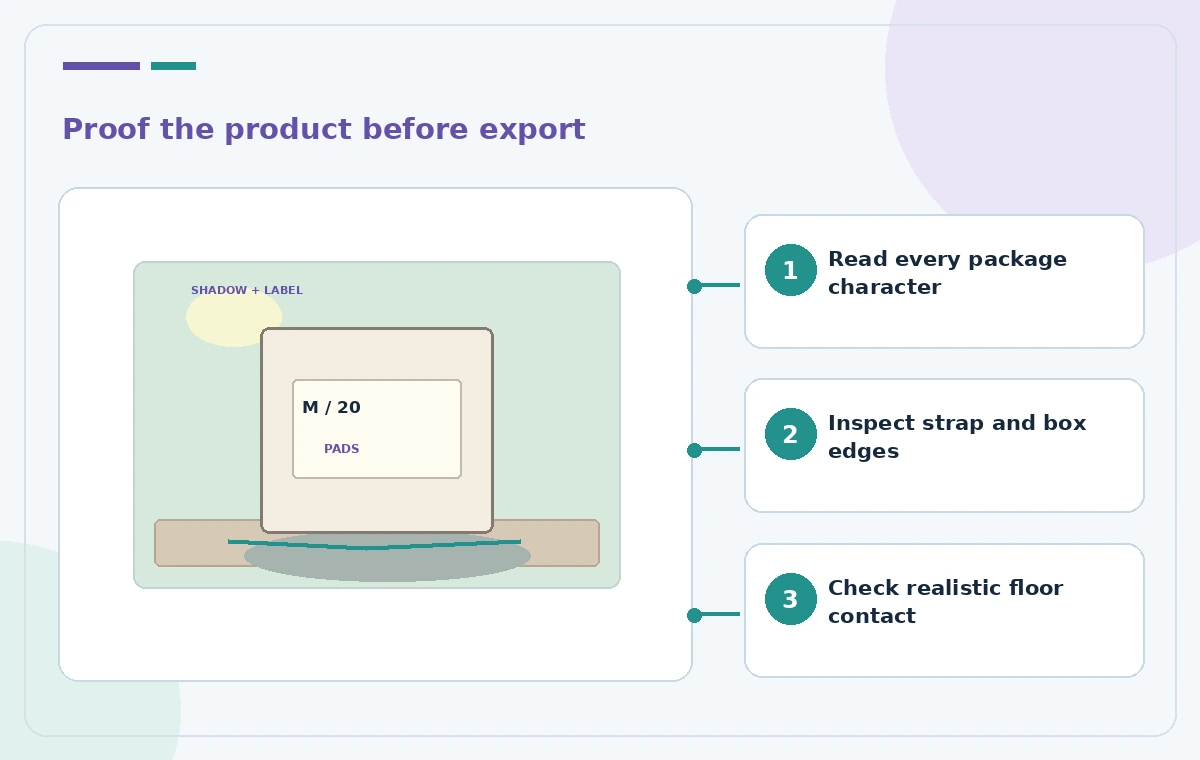
Place the original and the generated version side by side at enough magnification to read the packaging. In the illustrative failure frame, ‘Size M / 20 pads’ becomes ‘XL / 30’; that result must be rejected because it changes what a prospective donor would buy. Watch for subtler issues: missing punctuation, an altered manufacturer mark, a swapped color, or a rounded corner that no longer resembles the genuine package. Check harness buckles and thin straps against the original. If any critical detail is unreliable, use a simple solid backdrop, compositing, or a new photograph instead of repeatedly prompting for photorealism.

Check shadows and perspective without inventing a location
A carton should appear to touch its supporting surface. Look for a contact shadow under the lowest edge, plausible light direction, and a horizon that does not cut through the subject. Generated backgrounds can exaggerate perspective or create floating-looking objects even when the main label survives. Inspect the result at both poster size and actual export dimensions. A weak contact shadow can be corrected through conventional layer techniques or by changing the background to a less demanding flat color. Treat the generated environment as illustrative and follow the organization’s disclosure policy; do not imply it documents storage conditions or inventory quantities.
Protect legibility when adding donation instructions
Add the shelter’s real collection address, opening hours, and accepted donation types as editable, reviewed text layers outside the generated subject. Do not place essential logistics in the AI background itself, where lettering may be garbled. Check contrast, font size, and whether the product label remains distinct from the call to action. If a printed poster is planned, proof at physical size and test the QR code with a device. The final image should help readers identify the item, not distract them with a dramatic synthetic room. Obtain the nonprofit’s approval for logos and calls to action separately from image retouching.
Export without losing source and review history
Keep the layered document and original photo in the shelter’s approved asset folder. Export a web-appropriate image with sensible dimensions and alt text that describes the product and its illustrative backdrop. Review the file again after color conversion, resizing, or cropping because small label text can become unreadable. Avoid storing the sole source of truth in a flattened JPEG. Record the approver, the intended platform, and whether it is a conceptual illustration. Accessibility descriptions should tell readers what is shown without asserting that the scene took place at a real donation site.
Decide when a real reshoot is the better option
If repeated candidates distort the package or cause unacceptable edge artifacts, stop generating and reshoot against a plain wall or use color fill. In product-factual material, restraint is a feature, not a compromise. An alternate background can be useful for design consistency, but it cannot authenticate the product, manufacturer, donation quantity, or location. This hypothetical guide did not run a Photoshop model, spend generative credits, or measure correction rates. The proper final gate is a human comparison with the actual inventory and the original photograph, followed by editorial approval.
How We Research
We reviewed these named official developer resources: Adobe Help — Replace backgrounds with Generate Background; Adobe Help — Generative AI features in Photoshop; Adobe Help — Creative Cloud generative AI features. We checked the documented feature entry points, eligible platforms, administrator or licensing controls, and known sharing or source limitations against the tutorial steps. Editorial examples were designed as hypothetical failure-mode checks, not reports of hands-on testing. We did not have a live account, source files from a museum or nonprofit, user interviews, access to private records, or measured model outputs. Every illustration is original explanatory artwork rather than a vendor screenshot or measured before/after result. Features and entitlements can change. A responsible editor should confirm current product documentation, applicable organizational policy, and the original evidence before putting the workflow into consequential use.
Frequently Asked Questions
Adobe documents Remove background in the desktop Contextual Task Bar followed by Generate background. Check the current version and tool visibility.
Adobe lists the feature among generative tools and credit usage depends on current subscription and model rules. Check your account before generating.
No. Inspect against the source image and inventory record; reject any version that alters package size, quantity, brand, or safety copy.
Review contact shadows, light direction, and perspective. Switch to a plain background or conventional compositing if natural integration is unreliable.
Not as documentation of a real location. Describe synthetic settings appropriately and follow the shelter’s advertising and asset policies.