
A new studio backdrop can help a small store reuse one genuine product photograph for several placements. Photoshop Generate Background is built for replacing a photo background, but the resulting scene is not proof that the product was photographed there. This guide follows a fictional blue ceramic mug with a distinctive curved handle and a small unprinted label. The practical goal is to preserve the actual mug geometry while evaluating a warm kitchen backdrop and a neutral studio backdrop. The diagrams are conceptual examples, not Photoshop screenshots or outputs of a real image-generation test.
Start from an authentic original and define protected details
Select a sharp, permission-cleared photograph of the item that customers will actually receive. For the mug, protect the rim ellipse, handle opening, base width, glaze color and any real printed marks. Keep the source file unchanged and log its photographer, license and date. Write a simple preserve list before generating: no redesign of the handle, no added logo, no change to capacity impression, and no replacement of the product itself. Unlike a fantasy scene, a product listing must not invent features. This protects against a frequent workflow mistake: approving the image because the background looks polished while a subtle change to the object makes the merchandise less truthful.
Use the documented Generate Background sequence
Adobe’s Generate Background help page instructs users to open the image, choose Remove Background in the Contextual Task Bar, then choose Generate Background and write a description or leave the prompt empty. The same flow supports importing a different background or choosing a color fill. Variations appear in the Properties panel, where the prompt can be revised. That description is more precise than treating this tool as a generic whole-image prompt editor. Confirm the product layer is active and the masking result preserves edges before selecting a generated variant. Photoshop may change its model and entitlement details, so verify the current interface.
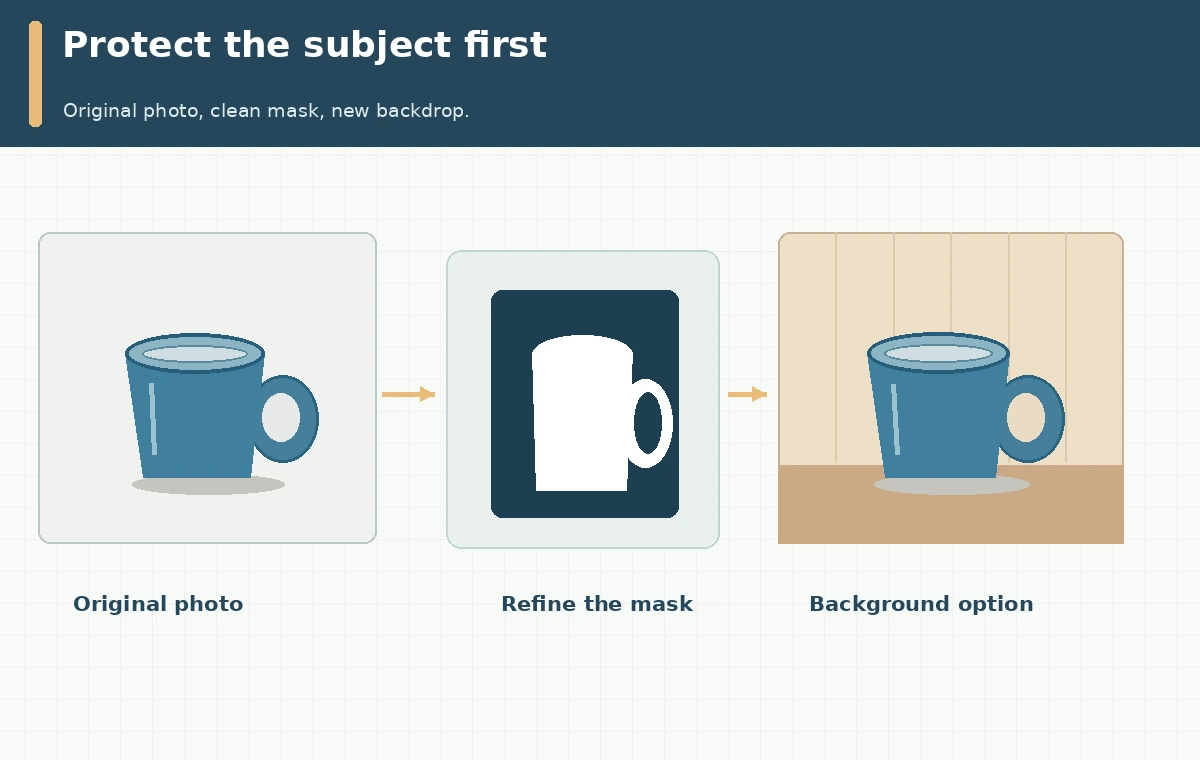
Inspect the extracted subject mask before any AI scene
Adobe’s Remove Background guide explains that the quick action creates a transparent background or masked layer and recommends manual mask refinement if the result is imperfect. For a mug, zoom in on the inside edge of the handle, transparent gaps, curved rim and small reflections. Halos around the mug can make even a good generated backdrop look pasted on. Restore missing handle pixels from the source instead of inventing an altered handle shape. Save the mask separately so you can compare it with later composites. A clean mask is a prerequisite to credible lighting, but not proof the final shadow or perspective is correct.
Generate two backgrounds with the same product cutout
Try a neutral tabletop studio scene and a kitchen shelf, keeping the exact same mug extraction for both. Write prompts about surroundings and lighting rather than instructions to change the product. For example, describe a warm tiled kitchen wall with soft side light and ample negative space; avoid asking for a new ceramic mug. Compare candidates using a simple table: product unchanged, light direction plausible, support plane clear, no unwanted objects touching the mug and enough room for safe text. These are editorial checks rather than claims about the model’s acceptance rate. A background that appears attractive but inserts a second handle reflection should be rejected.
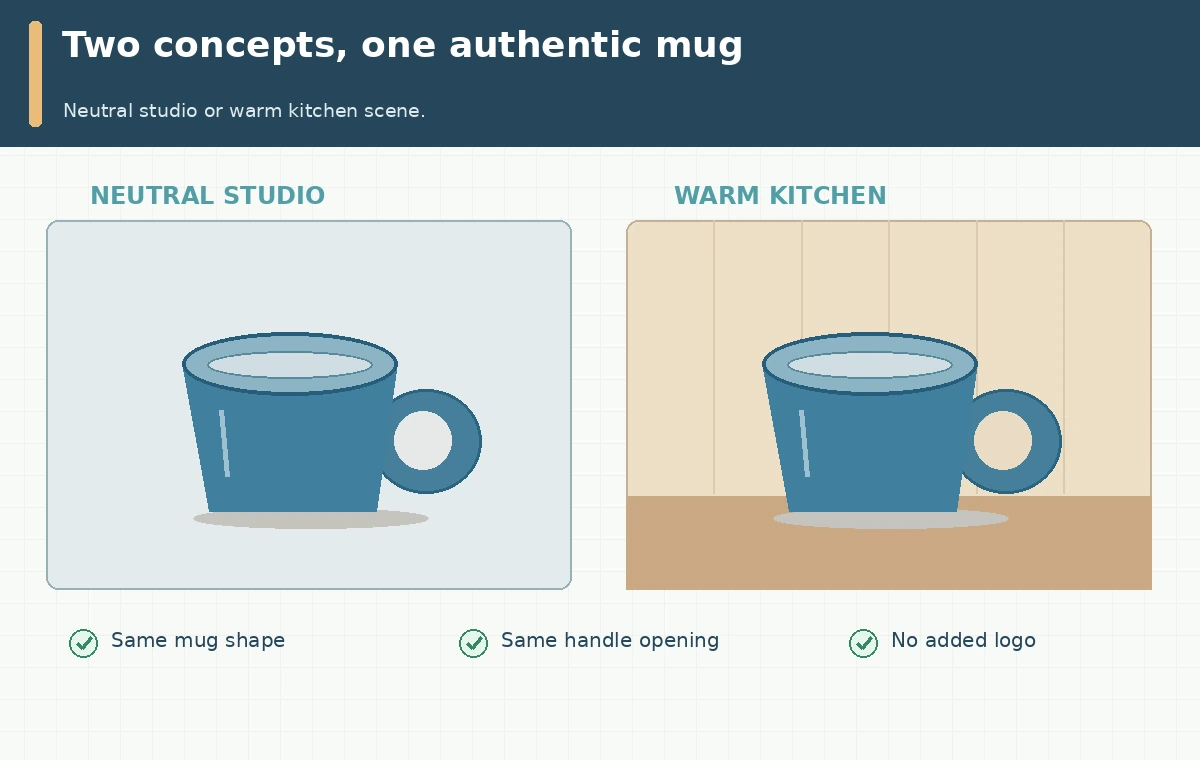
Check contact shadow, perspective and material logic
Locate the mug’s contact with the surface. The shadow should start at the foot, not float several pixels away, and its direction should agree with the backdrop. Compare highlight direction on the authentic mug to the supposed window or lamp in the new scene; large contradictions can mislead viewers. Review horizon and shelf angle, and verify the mug does not appear to tilt or change scale between variants. The color of the ceramic must remain accurate, particularly for products where shade is a purchase criterion. If matching lighting requires excessive recoloring of the object, select a simpler neutral scene instead of sacrificing truthfulness for drama.
Keep listing accuracy and design disclosure in view
Even a beautiful scene must not imply that accessories, gift boxes, food, plants or extra items are included with the sale. Remove or crop props that are not part of the offer when confusion is likely. Do not add false certification badges, material marks or text to the mug. Show accurate standalone product photos alongside lifestyle composites according to the sales channel’s requirements. If a platform or jurisdiction requires a label for generated imagery, follow its current rules. Save the genuine packshot so customer support can resolve disagreements about color, packaging and shape. A generated background is a design convenience, not a substitute for a truthful product specification.

Export and approve a repeatable ecommerce asset
Deliver the source photograph, preserved product mask, layered working file, chosen composite, and a small review note explaining what changed. Export a cropped copy at the actual store placement size, check image compression and view at phone scale. Record the person who approved the object accuracy and the date of the final export. For a campaign, use the same authentic mug layer across variants to make seasonal art more consistent. If shadows or masks do not pass inspection, fall back to a clean solid background. The goal is a reliable product image that can be revised without losing traceability to a real photographed object.
How We Research
On October 28, 2026 we reviewed Adobe’s Generate Background documentation and background removal guidance. They support the Photoshop steps and mask-refinement advice. The blue mug, studio and kitchen examples are conceptual editorial illustrations; we have not generated or measured actual Photoshop outputs. Commerce-platform policy, object licensing and current feature availability must be verified for a real listing.
Frequently Asked Questions
Do not assume so. Keep the original photo, refine the mask and compare critical details visually.
Adobe documents an Import Background option and a solid color fill alongside text generation.
The rim, handle opening, base contact, shadow and authentic glaze color.
It is a composite. Do not misrepresent the setting or included accessories.
Use the unaltered product cutout on an accurate neutral background.