
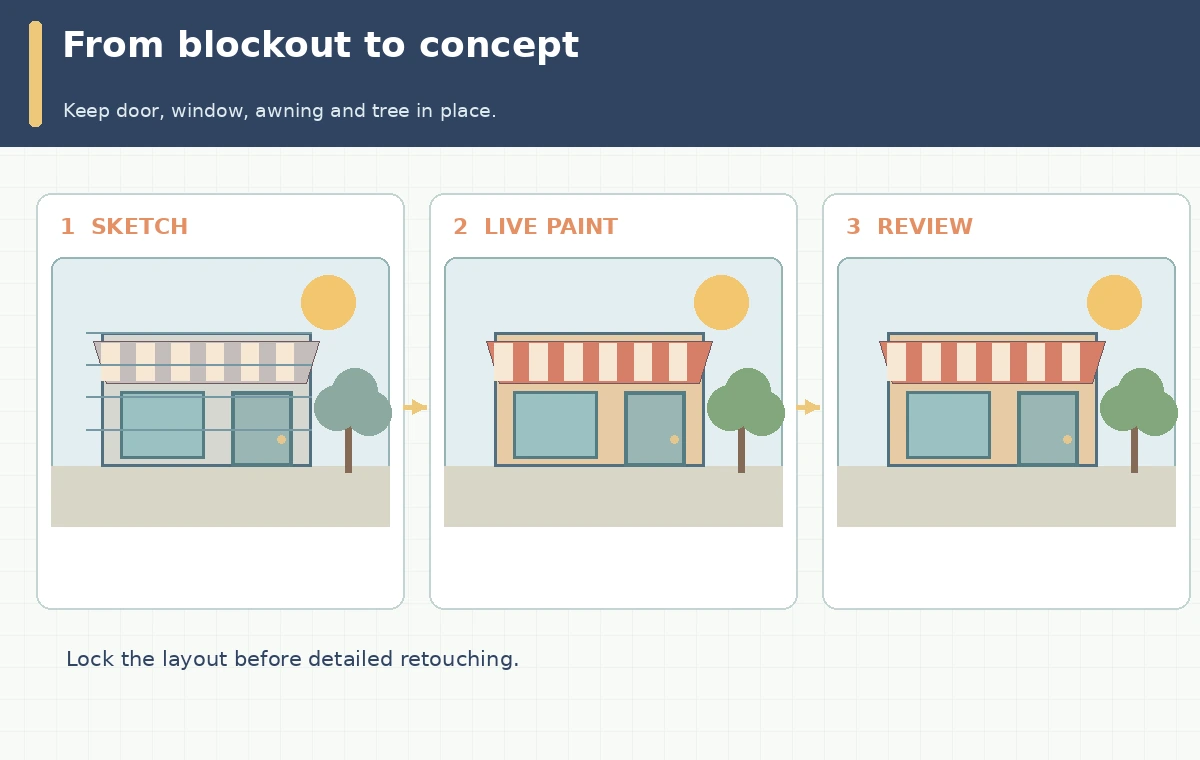
Krea Realtime Edit is meant for live visual exploration: sketch a large shape and watch the generated interpretation update as you paint. That is useful for a creative direction meeting but can also make it easy to mistake a persuasive preview for finished artwork. This guide uses a fictional neighborhood cafe facade to define a measurable goal: preserve the storefront opening, awning, door and tree while trying two lighting moods. The accompanying visuals are explanatory illustrations rather than reconstructed Krea interface screenshots or results of a test.
Understand what the realtime canvas does and does not promise
The official Krea explanation says every brushstroke can feed the realtime model, and that Realtime Edit supports canvas painting, webcam input and screen sharing. It describes a continuous update rather than a separate Generate button for every iteration. That is a workflow description, not a promise of identical output from the same strokes, accurate signage, or trustworthy scene geometry. Confirm the workspace features and usage terms for your account before starting. For an architectural or commercial job, live visuals are proposals. Actual measurements, signage permissions and building safety facts must come from plans, photography and human review rather than an image synthesis model.
Write a one-page composition brief before painting
For the sample cafe, specify the immutable geometry: one large left window, a central entry door, a striped awning and a small tree on the right. List optional mood attributes separately, such as warm afternoon sunlight and overcast blue light. Pick a horizontal canvas that can later support a slide or web banner. Use the same basic prompt for each scene version so visual comparison concentrates on lighting rather than changes in subject. Sketch with a few large color masses first; resist adding tiny text, faces or product details early. Save the original brief and a crude wireframe independently of any generated image so a team member can recover the actual design constraints.
Block the scene using silhouettes and negative space
Use a dark rectangle for the storefront, a lighter window, one tall door shape and a green area for foliage. Establish a baseline for the sidewalk and keep the path to the entry visible. Because the model interprets context, small strokes may unexpectedly change neighboring features. Treat live rendering as a response to your layout, not a precision drawing layer. If the awning keeps shifting from the door, repaint a clearer awning silhouette or simplify the prompt instead of chasing every artifact. A concept drawing should reveal whether the composition works at a glance: can the viewer tell where the entrance is, and does the tree compete with the main sign area?
Compare mood variants without confusing them with tests
Create two labeled design proposals from the same silhouette: warm afternoon and rainy evening. The visual differences should be obvious in sky temperature, shadow direction and reflection treatment, while the doorway and window remain in the same place. Maintain a small decision sheet with columns for geometry preserved, readable focal point, unintended details and approval notes. These are qualitative editorial criteria, not invented model-accuracy measurements. Do not present one example as a controlled speed benchmark; Krea calls the workflow realtime, but latency is affected by device, connection and workload. If the scene claims to depict an existing cafe, compare it to real site photography before publishing.

Use webcam and screen inputs only with permission
Krea’s product article also documents webcam and screen streaming. A live feed can expose people, desktop notifications, account information or proprietary designs. Ask for consent from anyone appearing in a capture and close confidential windows first. For the sample scene, a hand-drawn canvas is enough; there is no need to broadcast a customer brief or live video call. When using screen share, select an isolated app window and check the content being transmitted. The product’s description of an input feature is not evidence of what is stored or who has access to it. Consult current account privacy terms and organization policy before using sensitive material.
Turn a plausible preview into a documented handoff
After selecting a useful concept, record the visual brief, saved source sketch, selected scene image, crop guidance and list of factual corrections. Rebuild event wording and logos in an editable design application rather than expecting an image generator to spell them accurately. Review the door, window and awning at full size; hunt for impossible frames, duplicated trim, missing sidewalks and shadows that contradict the intended light. If the final artwork will be printed, check the actual exported pixel dimensions and the print vendor’s requirements. Retain the rejected variants only where they explain a design decision; avoid dumping a folder of unreviewed AI outputs on the client.

Choose the right stopping point for each kind of project
Realtime sketching earns its place during ideation when the team needs to explore overall form quickly. It is a poor substitute for measured architectural drafting, photo documentation, text typesetting or license review. Use a stop rule: once the storefront layout is approved, freeze the underlying geometry and move to a conventional editor for labels, retouching and exact-size export. For a fictional illustration, stylistic reinterpretation may be welcome; for a real storefront advertisement, preserve the identity of the location and flag generated alterations. The practical win is a faster creative conversation with a clear boundary between visualization and verified production art.
How We Research
Our source review on October 28, 2026 used Krea’s Realtime Edit article (updated August 2026) to confirm live brush updates, streaming features and the concept workflow. We did not operate a live workspace or measure model latency. The cafe illustration, geometry checklist and review sheet are original editorial examples. Before processing client material, verify the account’s current model choices, sharing controls, licenses and data terms.
Frequently Asked Questions
Krea describes continuous response to brushstrokes rather than a repeated Generate-button cycle.
No measurement accuracy should be assumed from a generated concept; use verified plans for dimensions.
Krea describes both inputs, but permission and private-content review remain your responsibility.
Not automatically. Check the export dimensions, artifacts and print specifications first.
Keep an unchanged reference sketch, constrain the composition with simple forms and review each major structure.