
An arts center receives routine maintenance digests, invoice notifications and urgent reports about failed exit lights. Its operations team wants Outlook to organize predictable messages without hiding an actual safety incident. Microsoft documents creating, viewing, updating and deleting standard Inbox rules through Microsoft 365 Copilot using natural language, with a confirmation step before changes. The same documentation explains that rules apply to future incoming mail, not older messages. This article uses a fictional mailbox to design a narrow rule, compare a dangerous catch-all action with a safer alternative, and specify a review process. No mailbox was accessed or configured for this example.
Separate routine email from incident reporting
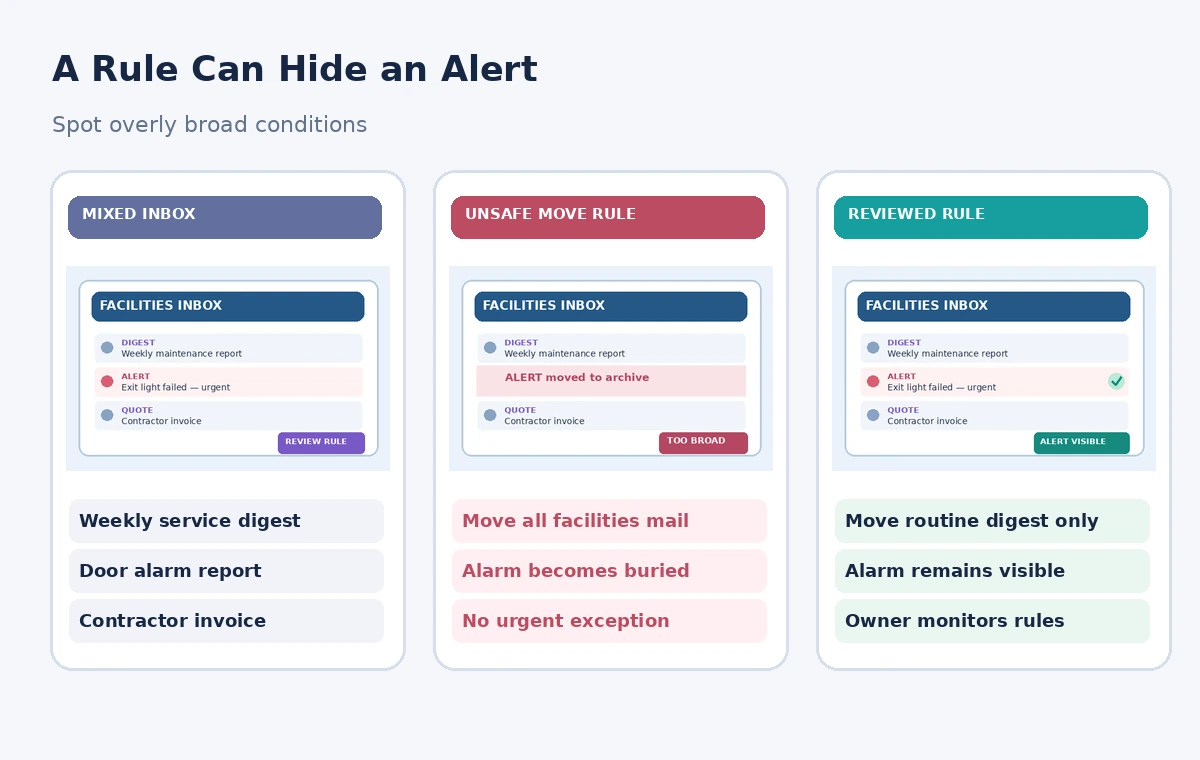
Begin by collecting a few synthetic examples of the message categories the team expects: a weekly equipment digest, a contractor quote, a door alarm and an evacuation route obstruction report. Identify which messages have an established emergency route outside ordinary email. A sorting rule should not become the only alerting or escalation system. Label the rules owner, the human reviewer and the folder where routine digests can safely land. Do not treat every sender with the word ‘facilities’ in its address as low priority; the same shared inbox may send both newsletters and critical notices. Safe automation begins with these distinctions, not with a broad prompt.
Inventory existing Outlook rules first
Ask Copilot to display the current Inbox rules and read each condition, action and enabled state. Microsoft documents this as a read-only operation, so it is a sensible first step before requesting changes. A mailbox may already contain an older rule moving similar mail to Archive, a conflicting subject filter or an obsolete folder. Duplicate rules can make a later test confusing, and existing deletion actions merit special scrutiny. Record a baseline list and verify it against Outlook’s native Rules settings when possible. If the mailbox is administered centrally, include the responsible IT or compliance reviewer rather than silently rewriting another person’s workflow.
Write a narrow natural-language request
Describe exactly which future emails should be reorganized. A cautious prompt might request a rule that categorizes messages from an identified weekly digest sender containing a distinctive routine subject, rather than moving every message from a shared facilities address. Ask for a visible label, and leave emergency terms and unrecognized messages in the Inbox for a person to inspect. Avoid automatic deletion as an initial experiment. A rule is a deterministic filter applied after it is created; Copilot’s language understanding helps draft it but does not provide judgment about the urgency of every message. The difference matters when an alarm subject line changes unexpectedly.

Read Copilot’s confirmation before accepting
Microsoft says Copilot displays a proposed rule summary showing the condition, action and future-only scope, and asks for confirmation before creating it. Read that summary as if it were a production change request. Verify the exact sender, matching criteria, destination folder, and whether a category or folder will be created. If Copilot proposes a broad ‘move to archive’ action when you asked for a color category, revise the request instead of confirming. The fictional red middle state in our diagram shows a potential configuration error, not a claim that Copilot routinely generates that rule. Keep a screenshot or written record of the reviewed configuration in an internal change log.
Avoid unintended new folders and categories
The vendor explains that Copilot may offer to create a missing folder or category together with the requested rule, still subject to a single confirmation. Choose an existing, clearly named destination where practical; a new category with a similar name can fragment reporting. Confirm that the destination is visible to the mailbox owner and conforms to retention rules. For a shared mailbox, ask the administrator who actually receives category changes and notifications. Never rely on the color alone to signal safety urgency. All important incident reports should have a documented procedure that survives missed messages, mobile-notification settings and vacations.
Test using future synthetic messages
Because Copilot-generated rules are ordinary Inbox rules that apply only to future incoming messages, a historical mailbox search cannot prove the new rule works. Send authorized, clearly labeled test messages after creation, ideally from a controlled test account or in a nonproduction mailbox. Check a routine digest, an invoice and a simulated urgent alert with similar sender branding. Confirm where each appears and whether any other existing rule acts first. Never send a realistic fake emergency alert to operational staff without an agreed exercise plan. Document expected and observed destinations separately if a real pilot is conducted; this article reports no live test outcomes.
Audit visibility on mobile and shared mailboxes
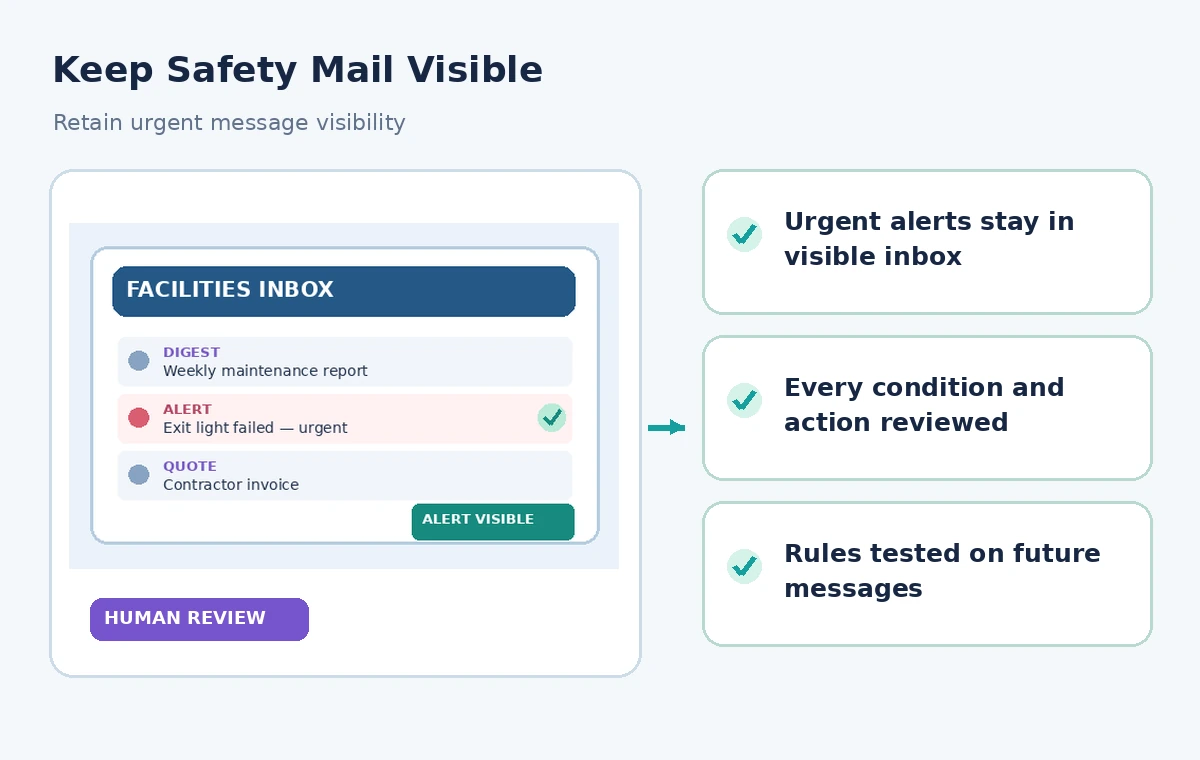
A rule that behaves correctly on the desktop can still cause confusion if the operations lead relies on phone notifications. Review Outlook web, desktop and mobile behavior for the people expected to monitor the Inbox. Microsoft notes that rule creation and management are available in Copilot on mobile, while the native Rules settings link is not available there. Use desktop or web when the full settings page is needed. Make sure delegated mailbox responsibilities and backup coverage remain documented. The critical control is a visible human escalation route for incident messages, not a promise that automation will never miss an unfamiliar subject line.
Update or disable without losing the audit trail
Microsoft documents asking Copilot to update, disable or delete an existing rule, with confirmation for actions that change it. If a contractor changes its sender address or a recurring digest begins carrying urgent incident notes, stop the affected rule first. Record why it was disabled, who made the decision and which messages should be checked manually. A later replacement rule should be tested as a fresh change. Deletion is not always the safest immediate choice because it can erase the current configuration from a reviewer’s view. An explicit enabled or disabled status plus a revision note supports the next person’s audit.
Monitor for drift and plan an exception path
Schedule a recurring review of routine-sender patterns and high-priority messages that reached unexpected folders. Examine whether new contractors or shared service systems have changed their subject lines. The facilities coordinator should keep a short list of messages that must never depend solely on Inbox rules, including evacuation warnings and active hazards. Add manual escalation channels for these cases, then ensure staff know where to report a missed alert. Treat any AI-written prompt as a request to configure standard email rules, not as an autonomous safety agent. The final deliverable is a documented, reversible mailbox filter owned by accountable people.
How We Research
Our research used the following named official vendor documentation: Microsoft — Create and manage Outlook rules with Copilot; Microsoft — Manage email messages by using rules. We checked the existence and intended purpose of each named feature, documented availability or configuration requirements, and explicit limitations. The workflows were then written around a fictional example that exposes common editorial risks, not around an account we operated. No hands-on product benchmark, real output file, recorded participant, measured accuracy score or legal/compliance review is claimed. All diagrams are independently drawn explanatory illustrations; they are not screenshots. A real project must verify live settings, permissions, source documents, relevant policy and human approval before release.
Frequently Asked Questions
No. Microsoft says these standard Inbox rules apply only to future incoming emails.
Microsoft documents a confirmation summary before rule creation, updates and deletion.
Yes. Viewing Inbox rules is documented as a read-only operation.
The Copilot rules workflow is supported on mobile, but Microsoft says its native Rules settings link is unavailable there.
Not as a default. Keep a visible manual incident channel, narrow your rules and test exception cases before activation.