
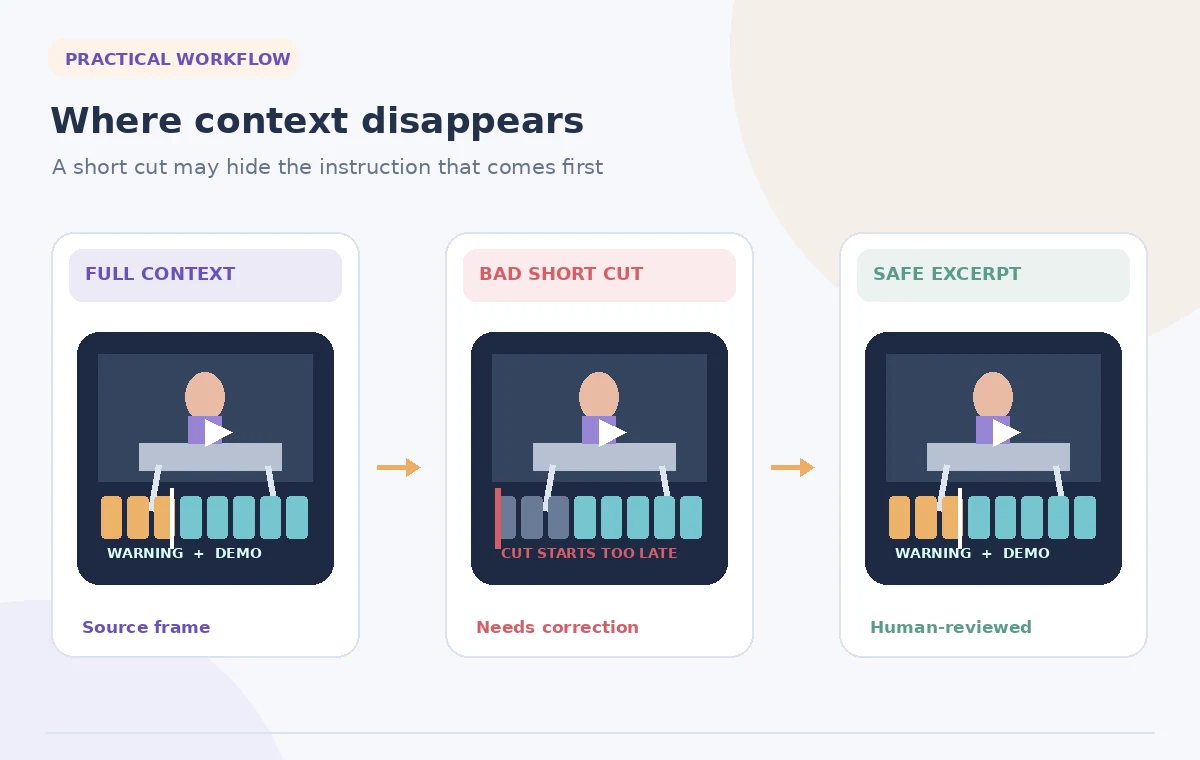
A community workshop recording runs for nearly an hour. Its organizers want a short social clip showing how a volunteer safely sets up a demonstration table, but the crucial warning appears just before the visible action. OpusClip ClipAnything can search footage using visual and audio cues; the editorial risk is creating a smooth-looking excerpt that skips the caution that made the action safe. The illustrative timeline below is not a live product result.
Define the clip by meaning, not excitement
Write a one-sentence purpose for the excerpt: show a complete setup sequence together with the instructor’s caution. This is different from asking for the most dramatic or attention-grabbing moment. Mark the desired learning outcome and the warning that must accompany it. If the end product cannot fit both within the proposed duration, choose a longer clip rather than removing essential context.
Use an original, permission-cleared recording. Check whether participants consented to a public excerpt, especially if the footage includes children, attendees asking questions, or recognizable visitors. Decide whether background music and visual materials are cleared for redistribution. A clipping model can find scenes but does not grant permission to publish them.
Find the action with a specific prompt
OpusClip describes ClipAnything as prompt-based multimodal clipping that can analyze visuals, audio, and sentiment, including content with little dialogue. In the documented Custom Mode, upload the source, select a genre, enter a scene prompt, and request clips. Interfaces and available models may change; confirm that ClipAnything is enabled for the account before relying on the steps.
A useful prompt names the action and the required lead-in: ‘Find the demonstration of the table setup, starting with the instructor explaining the safety warning and ending after the check is complete.’ Do not rely on a single keyword such as ‘table.’ It can capture a visually similar moment that is not the authorized demonstration. Search the source timeline if results are incomplete.

Create a source-anchored shot log
Before accepting a candidate, write down the corresponding source timecode, start frame, end frame, speaker, and one sentence explaining what is shown. Keep the log outside the clipper so a reviewer can compare the rendered short to the unedited recording. The sample timecode in the artwork is hypothetical and should not be interpreted as a measurement of an actual upload.
If the tool assembles multiple moments, record each source range separately. Automatic highlights can rearrange actions into a sequence that looks plausible while changing their chronology. For procedural footage, preserve causal order: warning, preparation, demonstration, and check. Reject a reel that shows the final safe outcome before its prerequisites.
Audit the cut before the first movement
Play the selected clip beginning several seconds before its first visible action. Does the warning make sense without prior discussion? Are any qualifiers removed by trimming the sentence? Look closely at the cut between the verbal instruction and the first hand movement. A clip can be factually accurate frame by frame while misleading about the procedure as a whole.
Keep enough room tone to avoid a clipped first syllable and inspect the audio transition. If the warning is too long for the social format, write a new approved explanatory caption or link to the full training, but do not invent a substitute caution. The original speaker’s exact words should remain accurately represented if the clip uses their voice.
Review captions and visual framing
OpusClip describes automatic captioning and aspect-ratio reframing. Those features are convenient but need independent QA. Review dates, object names, negations, and technical verbs against the audio. A caption that drops ‘do not’ reverses a warning. If captions are burned in, verify they do not cover the instructor’s hands or the label on the demonstration apparatus.
Test a vertical crop through the entire action. A reframe that follows the speaker’s face may leave the object or safety sign off-screen. Pause at the moment a hand points to a crucial part. If both hands and instruction text cannot fit in the frame, choose a more suitable crop or create a two-part edit with an approved inset rather than silently omitting the evidence.
Resist automated emphasis that alters meaning
The marketing language around automatic highlights emphasizes attention and engagement, but training footage should be evaluated by instructional completeness. Avoid AI-added hooks that misstate a hazard, exaggerate an outcome, or promise a speed the instructor never demonstrated. Do not present model confidence or a virality score as evidence that the excerpt is educationally sound.
If the selected short opens with a successful final shot, the audience may miss a necessary safety step. Reorder only when the organization explicitly approves the pedagogical structure and the result is clearly introduced as an edited summary. A public caption should not imply the excerpt is the unedited original when material has been reordered.
Build a Reviewable AI Workflow
Keep approval linked to the source
Send a reviewer both the proposed short and its original timeline ranges. Ask them to confirm the warning, action, names, and permissions instead of simply rating whether the video looks good. Record requested changes as timestamped comments. Preserve the full source recording in its approved storage location rather than replacing it with the short export.
A practical release packet includes the final video, source range map, caption transcript, aspect ratio, audio status, and publication permission. Before export, verify there is no accidental attendee name in an overlay or a private email visible on a screen. An automated clip is a candidate edit, not a policy-approved finished training resource.
Use a small, repeatable release checklist
Watch the render on a phone with sound on and again with sound off. In both cases, a viewer should encounter the same critical caution before copying the movement. Inspect the thumbnail because a still frame can imply an unsafe technique even when the video later corrects it. Review the written post description and any auto-generated hashtags for unapproved claims.
If the short cannot convey the complete instruction within its size or duration, treat it as a teaser and direct viewers to the full approved workshop video. This is an editorial boundary, not a failure of AI scene finding. The diagrams show a hypothetical bad trim and a context-preserving alternative rather than measured results from OpusClip.

How We Research
We checked the official product materials for the named feature, including OpusClip: ClipAnything; OpusClip: Product FAQ. We compared the documented entry points, scope, availability limits, and changeable interface behavior with the risks in this specific use case. The article uses hypothetical source records and original instructional drawings; we did not run this scenario in a live account, claim measured performance, or receive real-world permissions. Product features and plan entitlements may change after review. Our proposed checks are editorial controls, not vendor guarantees, and release decisions must be made by the authorized humans who own the content.
Frequently Asked Questions
OpusClip describes visual and audio analysis for content with little dialogue. Still inspect whether the selected action is the right instructional moment.
No. Describe the lead-in explicitly and compare every candidate against the source recording. Edit the boundaries yourself if necessary.
Not safely. Review procedural accuracy, permissions, caption text, chronology, and crop before anyone relies on a short excerpt.
No. Engagement predictions are not a substitute for a subject-matter expert checking whether the instruction remains complete.
Use a longer format or make an explicitly labeled teaser pointing to the full approved lesson. Do not delete the prerequisite warning.