
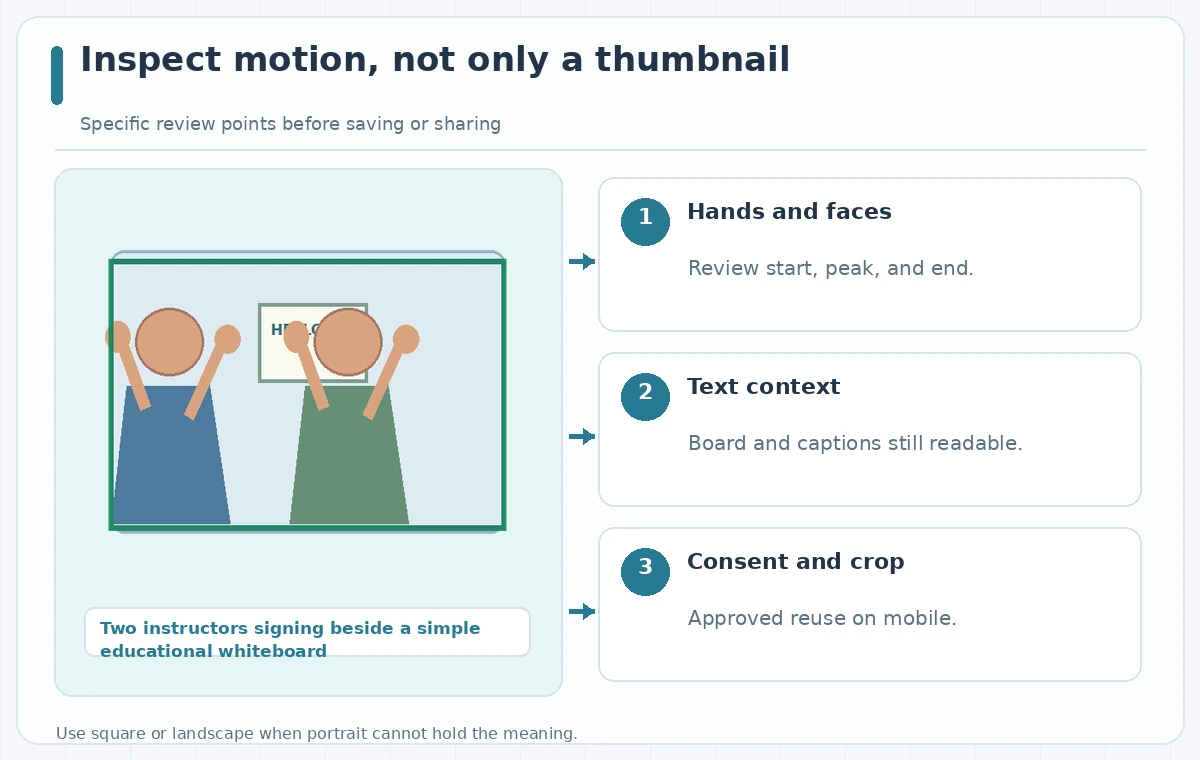
A workshop video shows two instructors demonstrating a signed greeting, with a small whiteboard identifying the activity. The original is wide enough to show both people and their hand movements. A vertical crop may keep the speaking instructor’s face beautifully centered while cutting the other instructor’s hands out of view—the exact information the lesson was supposed to preserve.
OpusClip markets AI Reframe for automatic subject tracking and layout changes across common aspect ratios, with manual adjustments available in its editor. That is an editing aid, not an accessibility audit. This hypothetical example treats the entire signing area as protected content and compares a plausible center-focused crop against a reviewed framing choice.
Decide what the viewer needs to see
Before importing the recording, watch the full-width clip at normal speed and identify the teaching moments. Mark which instructor signs during each segment, whether both demonstrate together, and when the whiteboard supplies essential context. Do not assume faces are always the subject; a useful sign-language crop may need more horizontal space around hands than a conventional talking-head video.
Write down any on-screen warning or instructional label that must remain visible. If the board text is needed to understand the lesson, provide it separately as accessible captions or normal text as well. The vertical video should not rely solely on a small, cropped sign that a phone viewer cannot read.

Choose a layout that can hold two instructors
OpusClip says AI Reframe can transform clips into portrait, square, or landscape output and can track moving subjects. The editor offers clip layout settings and segment-level layout changes. Start from a clean authorized recording and select a target format deliberately; do not let a platform preset decide which instructor matters.
For simultaneous signing, test a wider framing, split arrangement, or carefully scaled composition before accepting a tight center crop. A vertical 9:16 frame may simply be too narrow to include full signing space for both people at once. In that case, a letterboxed or square presentation is preferable to a deceptively polished clip missing gestures.
Inspect auto-tracking over the whole gesture
Generate or preview a reframed segment and inspect not just the opening frame but the beginning, peak, and end of each gesture. AI subject tracking may shift toward the active face while a second signer demonstrates. Review high hands, lowered hands, crossed arms, and movement near the crop border. A single centered thumbnail cannot confirm gesture visibility.
The comparison illustration shows a tall crop that cuts off one instructor’s hand; the reviewed version includes both active signing areas. These are hypothetical drawings rather than screenshots of a real OpusClip export. Use them as a reminder to inspect the source frame in parallel with the output, preferably on a phone-sized preview.
Use manual layout controls at the critical moments
OpusClip documents changing clip layout in the editor and adjusting individual timeline scenes. At moments when both people sign, change from a single-person layout to a two-person composition if the editor supports a suitable arrangement. Do not assume the same setting should apply throughout the clip; some segments may safely feature one person while others require both.
If the software follows the wrong person, use the manual framing controls rather than simply regenerating until a thumbnail looks balanced. Check transitions between layouts: an abrupt jump can separate a gesture’s first movement from its meaning. It is better to hold a stable, slightly smaller view than to chase each signer with rapid virtual camera moves.

Keep captions and visual information intact
Proofread all captions against the original spoken transcript, and confirm that no automated crop hides embedded text. A two-presenter lesson may use captions, signing, and a visible whiteboard for different purposes; preserving one does not automatically preserve the others. If a label moves offscreen, add a clearly typeset replacement that accurately reflects the original teaching material.
Check for brand or platform overlays near the edge of the frame, where they can collide with signing hands. Reserve safe space and preview in the intended app interface. Captions should remain readable without covering the people’s expressions or handshapes. When possible, ask an experienced signer or accessibility reviewer whether the reframed lesson remains understandable.
Compare versions instead of relying on an engagement score
Export a short candidate and evaluate it beside the untouched wide master. Make a scene-by-scene list: both hands visible, both faces if relevant, whiteboard readable, captions verified, and no interrupted gesture. This review is more relevant to the lesson’s success than a predicted virality or engagement score from an automated platform.
Watch the candidate with sound muted and also with a screen-reader or caption-centered review where applicable. If an essential sign disappears in silence, the crop failed the instructional task even if dialogue is audible. Do not publish a clip labeled as a complete demonstration when it only shows part of the movement.
Publish only the accessible crop
Keep a copy of the source recording, approved captions, manually adjusted layout, and reviewer notes. For an educational organization, preserve a link to the full-width lesson as a fallback where mobile screens cannot show every person simultaneously. Confirm consent for reusing the instructors’ likenesses in new platforms and contexts.
If the gesture cannot be preserved in a narrow frame, choose square or landscape output. AI reframing is optional; the meaning of the demonstration is not. This article illustrates review principles rather than reporting a measured OpusClip success rate or a live accessibility evaluation.
How We Research
We reviewed official product documentation on November 4, 2026: OpusClip — AI Reframe; OpusClip Help — Adjust Layout. We compared the supported workflow, permissions, constraints, and ways an editor can separately verify the output. The scenario of two instructors signing beside a simple educational whiteboard is fictional. We did not log into a subscription, run a live tool experiment, measure visual or audio accuracy, establish image rights, or verify any real venue, performer, or object record. The diagrams are original explanatory illustrations of possible problems and desired checks—not application screenshots or measured software results. Recheck feature availability, account terms, and source facts before publication.
Frequently Asked Questions
Yes. Its AI Reframe tools support portrait, square, and landscape layouts, subject to editing and plan limitations.
Not necessarily. Inspect every gesture and use manual framing or a wider layout when both signing areas are needed.
OpusClip documents changing the layout of selected scenes in its editor.
No. Check spoken text, visible signs, and any board information independently.
No. It is a conceptual comparison designed to illustrate a possible crop mistake.