
A museum is training volunteers to scan delicate ticket stubs on a flatbed scanner. One staff member records a screen-and-camera walkthrough showing how to handle the paper, place a support sheet and save an archival master. The video skips scanner calibration because a technician handled it before filming. An automatically generated standard operating procedure must not present that skipped step as if the volunteer saw it demonstrated or has permission to perform it.
Loom documents AI workflows that turn a video transcript into a text document, including SOP and step-by-step templates, with screenshots that can be pulled from the recording. The feature is tied to Loom AI access; transcript support and video eligibility matter. This guide presents a hypothetical museum process and illustrated diagrams, not a document produced by an active Loom workspace.
Decide which actions belong in the volunteer procedure
Define a narrow scope before recording: receive the approved item, place a nonabrasive support sheet, position the stub, preview the scan, name the file and store the source safely. Identify tasks reserved for a technician such as calibration, repairs or maintenance.
Add a cover note stating who is qualified to perform which operations. The video should demonstrate actions visibly and narrate their purpose; a spoken aside such as “our scanner is already set up” is not permission for an AI to infer undocumented setup actions. Keep the museum’s approved handling and preservation policy next to the recording as a separate source.
Record a clean demonstration with explicit transitions
Capture the entire intended volunteer workflow in chronological order, including the hands at the scanner and the save dialog when practical. Announce each transition: “Next, preview the image,” rather than assuming the tool will interpret every cursor movement correctly. Avoid including personal records, collection access credentials or visitors’ information on-screen.
When a scan demonstrates a sensitive accession number, use a consented training prop or a redacted sample. Good source audio and visible actions reduce the chance that the transcript misses a small but important handling rule. Make a simple timestamp index while the demonstration is fresh.
Generate an SOP using the documented workflow
Atlassian’s Loom help describes selecting an AI workflow template for a completed video and choosing SOP or step-by-step documentation. The generated text can be edited inside Loom and copied out; Loom also incorporates relevant screenshots automatically, which an editor can delete.
Verify that the current workspace has the AI Suite capability and the recording has a usable transcript. Ineligible or unsupported-language recordings may not generate the intended output. A text draft derived from a transcript is not an independent witness to what happened; it is a structured retelling that needs comparison with the source timeline.
Spot false or missing steps in the generated draft
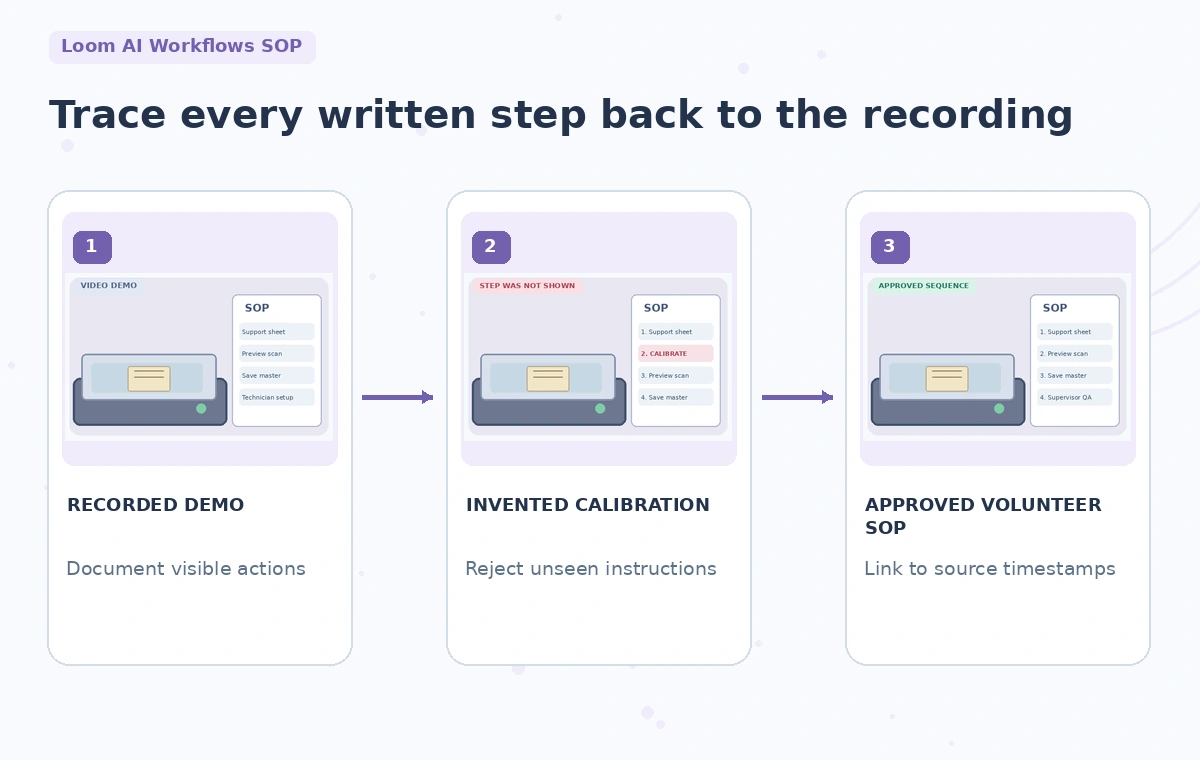
Compare each SOP step with the matching moment in the recording. A hypothetical error adds “Calibrate the scanner before every ticket” between positioning the support sheet and previewing the image. If calibration was never shown and the policy assigns it to staff technicians, remove that instruction.
Mark a placeholder such as “Technician confirms calibration under separate approved procedure” only when the real policy supports it. Conversely, if the model skips the rule to use a support sheet, restore it from the original approved method. The process diagram illustrates a bad inserted step and a verified sequence, not a real Loom result.

Verify screenshots against the exact described action
Loom can insert screen captures near relevant steps, but a frame of an open Save dialog does not prove that the item was stored in the right archival directory. Review each screenshot and caption together. If the selected frame displays a visitor name, remove it before sharing the SOP.
Check whether the image reflects a software version the team still uses. Cropped screenshots can conceal a checkbox that changes format or compression; use the original recording to confirm anything that is not legible. A useful screenshot shows what a volunteer should recognize, not merely a decorative image of a button.
Clarify ownership, exceptions and stop conditions
An SOP should identify who verifies safe handling, who reviews the scan, and whom volunteers contact when the document is fragile or damaged. Separate ordinary steps from exceptions, and write a stop condition for an item that cannot lie flat without stress.
The AI may supply polished prose that sounds mandatory even when the demonstrator mentioned an optional choice; retain exact policy language for required actions. If a software setting or retention policy is not documented, leave it for the supervisor rather than inventing a default. Human approval is especially important where a volunteer action could affect a unique original.
Do a side-by-side demonstration test
Ask a different trained volunteer to follow the draft while a supervisor observes. Every numbered step must point to a source timestamp or an explicitly approved museum policy. Note wrong folder names, missing image-quality checks, and unclear ways to return the original stub to storage. The diagram’s inspection points show a sheet, scan preview, saved master and sign-off gate, each tied to a real action rather than a fabricated calibration screen. Do not interpret a smooth practice session as proof that the procedure is universally safe; confirm local collection and equipment conditions before wider use.

Version the approved SOP and keep the source recording
Export the edited SOP to the museum’s controlled documentation store, showing owner, approval date, scanner model or software version, and review cycle. Retain a link to the source video, the generated draft, screenshots removed for privacy, and any technician-only procedures referenced by name.
When hardware settings change, review the SOP rather than silently regenerating it from the old recording. An effective Loom AI workflow saves transcription and formatting time while keeping authority with the people who know the collection, the equipment and the actual recorded sequence.
How We Research
This guide was prepared on November 4, 2026 from official vendor documentation: Atlassian Loom Support: Use AI workflows; Atlassian Loom Support: Loom AI features; Atlassian Loom Support: Make videos eligible for AI-editing features. We reviewed documented controls, availability caveats, workflow boundaries and the ways the described task could mislead readers. We did not log into an account, test a real output, interview actual participants, or measure feature performance. Each diagram is purpose-made explanatory artwork; risky candidates are fictional teaching examples, not evidence of a particular vendor failure. Interface labels, quotas, subscriptions and permissions can change. Before acting, recheck the current documentation and seek approval from the people responsible for any factual content, rights or sensitive source material.
Frequently Asked Questions
Yes. Atlassian documents an SOP template under Loom AI workflows, alongside other document formats.
Atlassian says relevant screenshots may be added from the video; an editor must check and can remove them.
It may produce unsupported prose; any undocumented step must be deleted or approved from an independent authoritative procedure.
Yes. Loom AI depends on product access and a supported video transcript. Check the current account and eligibility documentation.
No. They are hypothetical workflow illustrations showing what a museum supervisor should verify.