
A local seed library has an original pencil sketch for a volunteer badge: three oval leaves around a curved seed pod. The drawing is not a plant-identification chart, but the exact arrangement carries the project’s visual identity. Adobe Illustrator Concept to Vector can turn a raster sketch into editable artwork, with generative interpretation along the way. That freedom is a problem if the tool adds a fourth leaf or quietly changes the pod’s shape. This guide focuses on preserving a small approved design while making it usable at different sizes.
Adobe’s current help page describes Concept to Vector as converting selected raster images or eligible unexpanded Image Trace objects into editable vector artwork. A prompt may refine or reimagine the image, and an omitted prompt can still lead to a cleaned or stylized result. Neither route promises one-to-one tracing. The editorial question is whether the final vectors retain the source’s element count, recognizable silhouette, and authorized visual meaning.
Set a source-fidelity brief before generating
Scan the original three-leaf drawing at a clear resolution, then archive that raster file with the contributor’s permission and the date of approval. Note exactly what must remain: three oval leaves, one curled seed pod, and an open space between the top leaf and the stem. These are meaningful constraints, not mere preferences. A generator that creates a prettier but four-leaf plant has changed the identity of the badge even if the new picture looks more polished.
Use a simple review sheet that pairs each required element with a thumbnail crop of the original. Decide which imperfections may change, such as uneven pencil pressure, and which may not, such as leaf count or the clockwise turn of the pod. The workflow is easier when the authorized sketch contains no private names or contact information, and when the team distinguishes a fictional graphic from any real scientific representation.
Open the sketch using the documented Illustrator workflow
Adobe’s official documentation directs users to select a raster image and access Concept to Vector through the Contextual Task Bar, Properties panel, Object > Generative, or the relevant panel and menu locations. A still-unexpanded Image Trace object may also be eligible; according to Adobe, that path uses its original raster image rather than the visible traced result. Save the working document before generation so the source image remains available for direct visual comparison.
Choose a draft that can be edited as vector artwork rather than treating an enhanced raster preview as proof of editable paths. Check which output and reference options appear in the installed Illustrator version. Feature controls may change and generative credits can apply, so do not promise every configuration offers the same model or settings. The output is an interpretation that requires inspection, not an automatic restoration of every pencil mark.

Prompt for restraint rather than extra decoration
A focused prompt for the volunteer emblem might read, “Refine this original botanical pencil sketch into flat editable vector shapes; keep exactly three leaves and one curved seed pod; preserve the open center and do not add lettering.” Use the original image as the visual authority and the prompt as a request. Adobe’s help explains that prompts can deliberately add or remove design elements; the lack of additional text does not make the process a literal vector trace.
Generate a small set of options only if your license and project budget permit, and compare each at the same size. Watch for duplicated stems, extra leaves hidden behind a larger one, and altered negative space. Reject those changes rather than trying to rationalize them as harmless style. If exact tracing is required, Illustrator’s conventional Image Trace and direct Pen-tool editing may be more controlled starting points than generative redesign.
Count leaves and inspect the negative space
Put the original drawing beside the vector candidate and count the leaf silhouettes without zooming past the whole composition. There should be three, not four. Then inspect the curved pod and open central gap. Extra leaf tips, merged contours, and shifted stem attachments can be difficult to see when the artwork is shrunk onto a badge mockup. Evaluate at both intended badge size and magnified detail.
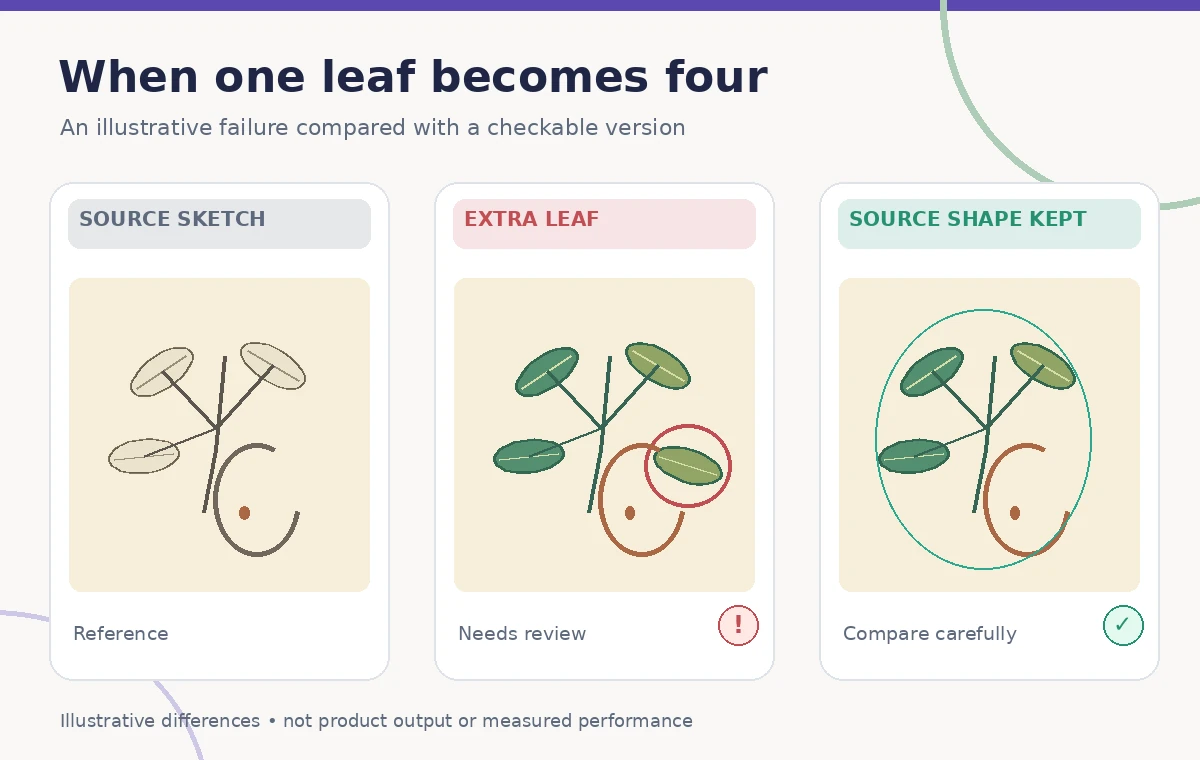
The article’s comparison graphic deliberately shows a source with three leaves, an incorrect version with an added fourth leaf, and a faithful schematic. These are original teaching drawings, not screenshots or test output from Illustrator. They demonstrate why “looks botanical” is an insufficient acceptance test. Any approved version must be compared to the actual authorized scan by a person familiar with the badge design.
Check paths, layers, and editability in the generated result
The main benefit of vectorizing this sketch is that the badge maker can adjust fills, edges, and scale without relying on a blurred bitmap. Select the resulting artwork and inspect whether the relevant leaves and pod can be edited as expected. Review grouped elements, stray points, accidental holes, and overlapping fills. A visually smooth preview can still contain overly complex or fragmented paths that cause trouble in vinyl cutting or small printed badges.
Keep a copy of the original raster on a separate locked layer for reference. When correcting the generated artwork, label the human-edited version clearly and record significant shape changes. Do not claim that a tidy path structure means the original artist actually drew the newly generated details. The vector deliverable is a derived asset and should remain traceable to the original contributor’s approved motif.
Treat lettering as a separate, verifiable component
The library badge may later need an event date or collection name next to the emblem. Add that text with normal editable type after the illustration is approved; avoid asking Concept to Vector to invent organizational wording. Adobe documents a Live Editable Text option in some current builds, with limitations for English and non-stylized text. This is an available workflow control, not a guarantee that every word in a stylized source will be transcribed correctly.
Proofread any type independently against the authorized wording and inspect its legibility at final size. For accessibility, test the badge against light and dark backgrounds rather than relying on color alone to communicate membership or role. Since the central motif has a small seed pod, maintain enough contrast and edge thickness that the curve does not disappear when the asset is reduced for a lanyard.
Prepare a realistic badge-size and print proof
Place the generated vector into the actual badge layout and test at the proposed physical dimensions. Check every leaf tip and the gap beside the curved pod. Different materials change how shapes reproduce: a small sticker can obscure narrow negative spaces, while a cut vinyl badge may struggle with tiny isolated details. If the outline changes after you simplify paths for manufacturing, compare the revised proof with the original again.
Export a vector deliverable in the format requested by the printer and include a raster proof for human comparison. Keep colors, margins, and clear space documented. Ask a workshop coordinator to sign off on the result rather than assuming the software’s output is production-ready. A correctly preserved element count with poor line weight still needs adjustment before it becomes an accessible, durable badge.

Know when to stop using generative conversion
If repeated results keep adding leaves, distorting the central gap, or overcomplicating paths, stop generating and reconstruct the small approved motif manually. Three leaves and one pod are simple enough that direct vector drawing may offer greater certainty and lower review costs. Illustrator Concept to Vector is useful for exploring a sketch, not for proving a particular botanical shape or certifying the author’s intent.
The handoff should include the scan, the selected vector variation, the final human-edited file, permission notes, and the reviewed badge proof. State any uncertainty openly. The diagrams on this page are conceptual visual guidance and do not claim the author ran Illustrator or measured how well a model retained the original drawing. The release check is an accountable visual decision by a human reviewer.
How We Research
Our source review used Adobe’s Concept to Vector instructions to confirm raster input, selection methods, optional prompts, and the difference between generating editable vectors and exact tracing. We also checked the Illustrator generative AI overview to distinguish this feature from Text to Pattern and other vector tools. Sources were checked November 3, 2026. No actual Illustrator generation or proofing was performed. The three-leaf drawings are original hypothetical examples. Fidelity of a commissioned badge must be approved against the artist’s authorized sketch and a genuine vector export.
Frequently Asked Questions
Adobe documents using raster images and certain unexpanded Image Trace objects. The generated result is a new interpretation from the underlying image, not a certified pixel-for-pixel trace.
Yes. Adobe says prompts can further add or remove elements. That is why a fixed three-leaf source requires explicit element counting during review.
No. Adobe explains that an unprompted sketch can be refined and an image can be stylized; neither approach guarantees the exact original shapes remain unchanged.
Inspect the actual generated vector objects, paths, groups, and any leftover raster parts in Illustrator rather than judging only from a flattened preview.
No. They are original instructional illustrations of a three-leaf motif, an extra-leaf error, and human review checkpoints, not software screenshots.