
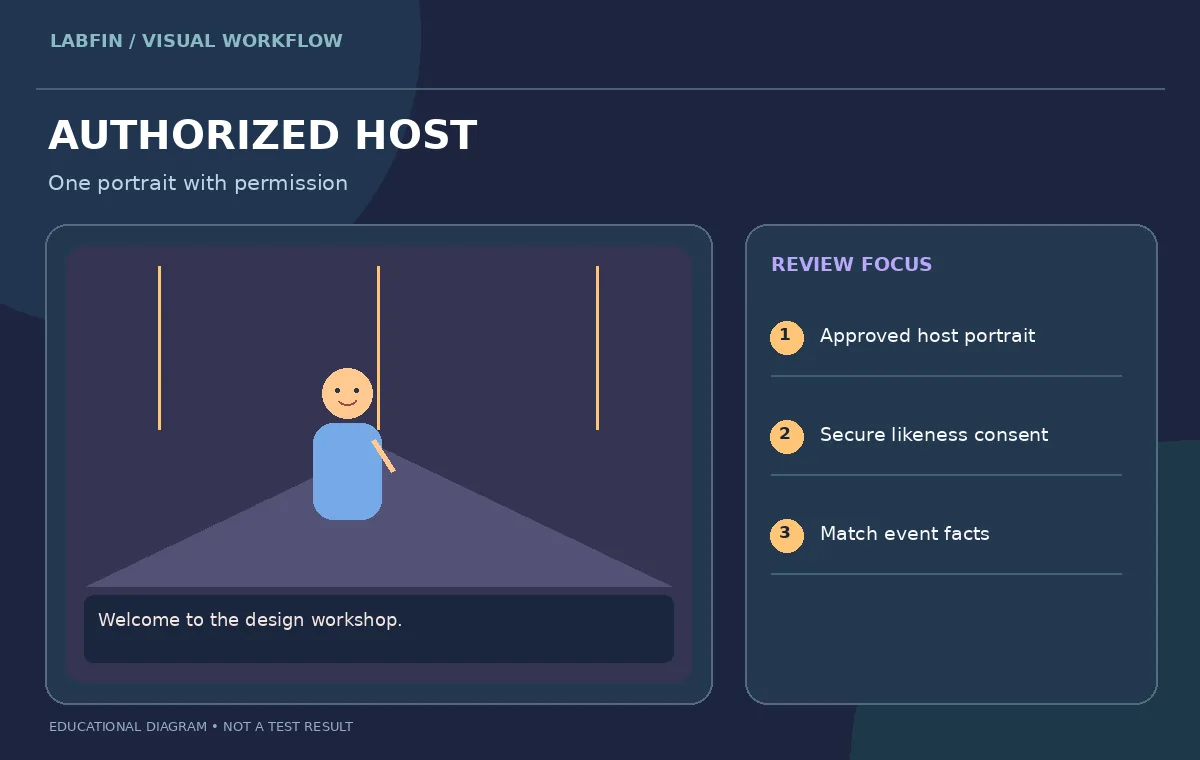
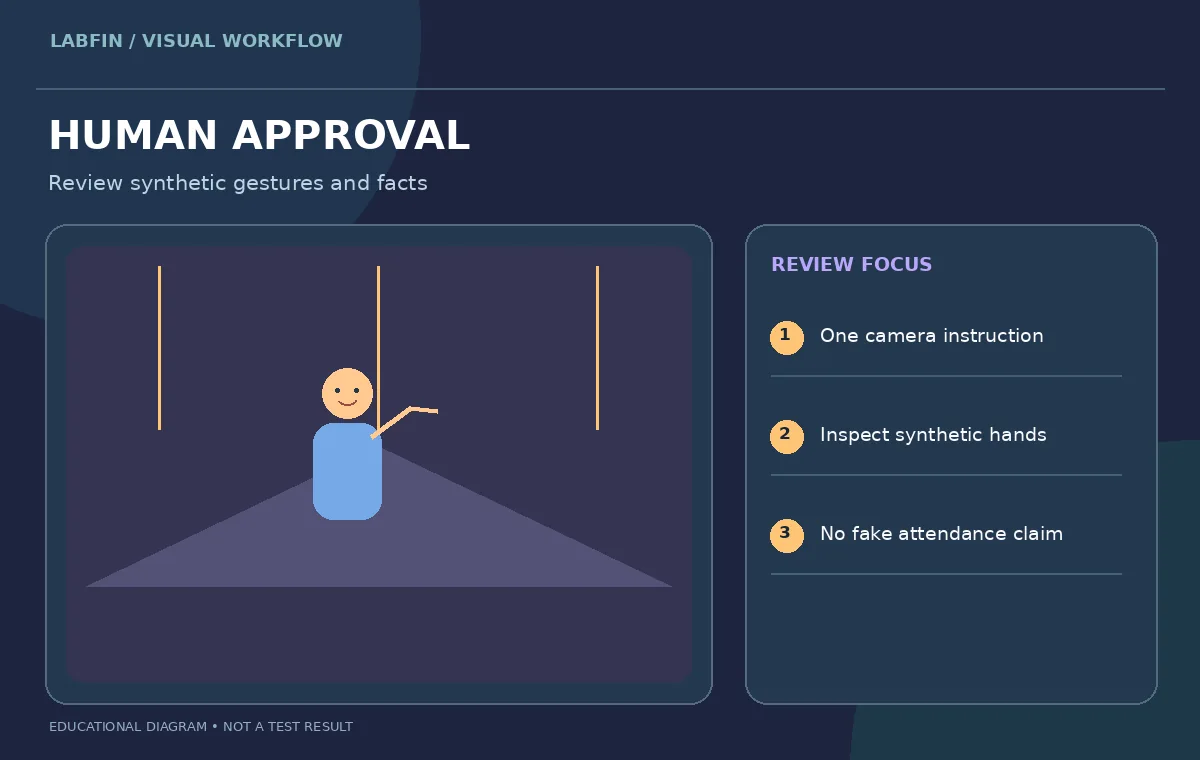
A nonprofit event team has one authorized host portrait and a script inviting viewers to a local design workshop. They want a direct-to-camera welcome and a more dynamic teaser, but those are different video tasks. HeyGen Single Scene offers Presenter Mode for speaking delivery and Cinematic Mode for a short directed scene. The aim is not to test which engine looks “most human” without evidence; it is to assign each mode the job it was designed for and inspect the resulting communication. The split-screen character and event stage shown here are original conceptual graphics, not screenshots or claims of production results.
Write the two creative briefs as different outcomes
For the presenter version, draft a short script stating the date, venue and registration action without rushing. For the cinematic teaser, write a visual brief describing the host walking toward a stage banner, looking to camera and gesturing toward the title area. A teaser does not need to repeat the full spoken instructions, and a talking presenter should not bury the registration link beneath elaborate camera movements. Separate the factual event information from style directions. Keep the approved final date and a source record outside the prompt so a generated video cannot quietly change key details. Create a simple approval sheet for each deliverable.
Choose or create a photo avatar with permission
HeyGen’s Photo Avatars guide explains uploading an image to the Avatars area and using the validated avatar in Studio. Use a portrait the team owns or is authorized to animate; an organizer’s public social photo is not automatically permission to make it speak. Prefer even light, an unobstructed face and consistent costume. Document whether the likeness depicts a real host, a synthetic model or an illustrated character. If a recognizable person’s voice is involved, obtain permission for the audio and script. The visual lesson begins with a consent card, because a clean render alone cannot justify a synthetic performance.
Use Presenter Mode when words must be correct
The official Single Scene guide says Presenter Mode can use a script or uploaded audio, offers voice selection, avatar engines, optional Custom Motion prompting and landscape or portrait orientation. Its focus is natural speech and direct presentation. Paste only the approved event message, then preview names and numbers in the generated narration. A gesture cue can ask the host to welcome attendees, but must not point to a nonexistent clickable object. Preserve the script and subtitles so the team can compare the delivered words against the approved text without guessing from lip movements.
Use Cinematic Mode for a distinct short visual shot
HeyGen’s documentation describes Cinematic Mode as a movement-focused scene with prompting for action, camera behavior and performance. It lists shorter maximum duration than Presenter Mode and supports reference-driven direction. Use it for a brief stage reveal or a hand gesture near the workshop backdrop rather than for a long policy explanation. Specify one scene, one subject and one camera movement, with enough negative space for official title text to be added in editing. If the avatar walks out of frame, rework the shot plan instead of trying to salvage illegible signage with more generated text. This reduces variation and makes review straightforward.
Evaluate lip sync, gestures and background separately
Inspect the presenter at three types of moments: consonants with visible mouth closure, a pause before an important date and any animated hand gesture. For the cinematic teaser, inspect hands, stage geometry and the stability of a badge or logo. A face that seems fluent at normal playback can still develop a distracting glitch at a scene cut. Do not claim that the synthetic host said something live or attended an event unless that is true. A human reviewer should flag visual inaccuracies, unsupported gestures and any generated lettering that changes or invents venue information. The diagram’s review boxes are checks to perform, not completed test scores.

Keep screen text and voice from competing
Design the event date and registration address as ordinary editable overlays in the finishing editor, not as letters embedded in an AI-generated stage sign. Place that overlay in a calm section of the frame and test readability on a phone. In Presenter Mode, let the voice finish each important line before the visual call to action disappears. In Cinematic Mode, use motion to attract attention but provide a stable final card for the precise information. A person who watches without sound should still know what the event is and how to find details. A person listening without looking should hear the same facts.
Review access limits and render costs before choosing
Mode and avatar engine access can vary by plan and may change. HeyGen’s product documentation provides engine descriptions and limits, but that is not a guarantee that every account can select each combination. Confirm the options actually visible in the producer’s workspace, including duration, language and credit behavior, before approving a large batch. The purpose of this workflow is one presenter scene plus one short teaser, not an unlimited generation contest. Keep the approved portrait, source script and version record for each exported file. If a mode is missing, change the production plan rather than presenting a workaround as documented functionality.
Release two versions with clear synthetic-media labeling
Show both versions to the host or their authorized representative and one event organizer. Confirm that the voice, appearance, venue name and registration destination are approved; inspect each final file with and without captions. Label synthetic representation as required by the distribution context and do not mislead viewers about attendance or actual speech. Keep the original likeness permissions, recorded script, synthetic outputs and approval timestamps. Publish the presenter cut where accurate information matters and use the cinematic teaser only where a creative visual will not replace essential details. The deliverable is two distinct, reviewed communications, not an unsupported claim about model quality.
How We Research
This HeyGen Single Scene workflow is an editorial demonstration built from the following primary sources: HeyGen Single Scene official guide; HeyGen Photo Avatars guide. The described scenario is An event organizer needs a clear 20-second host welcome plus a separate visual teaser, with a licensed photo avatar. Our visual diagrams are independently drawn conceptual teaching aids, not product screenshots, vendor outputs, controlled benchmarks or evidence of hands-on software testing. We cross-checked described menu behavior and important limitations against the linked guidance, then defined a human review plan for factual accuracy, consent, accessibility and release quality. We did not upload private production media, purchase a plan or generate a claimed performance score. Readers should verify their software version and account eligibility and compare their own outputs against untouched originals before releasing anything.
Frequently Asked Questions
It is intended for direct spoken delivery using a script or audio and a selected avatar.
Short directed avatar shots with action, performance and camera movement.
Yes. HeyGen’s Single Scene documentation describes using an existing Photo Avatar.
No. Verify the spoken script, captions and all factual overlays before publishing.
Yes. Obtain valid likeness and voice permissions for any recognizable person and retain approvals.