
A garden club wants to remove a plastic bag from a plot photograph. A conversational AI edit must not add vegetables or change the scene into a misleading harvest claim. This guide treats every example as a hypothetical editorial exercise, with human review of the underlying facts and a saved original before changes.
Separate cleanup from changing what happened
A fictional community garden posts a photograph of volunteers tending raised beds. A bright plastic bag on the edge is distracting, and the editor wants to remove it while keeping the rest of the scene intact. That limited objective is different from generating extra tomatoes or turning bare soil into mature crops. Agree on the permitted change in writing and keep the original image. If the photo accompanies a donation appeal or progress report, preserving the number of plants and the condition of the plot is especially important because a generated abundance could misrepresent the project.
Check whether Ask to Edit is available to you
Google’s help explains that conversational editing is available through the Google Photos app on eligible Android devices and that availability varies by region and account. It requires a personal Google Account, age and feature-eligibility conditions, with relevant Gemini settings enabled; Workspace and school accounts have restrictions. Look for Ask within the mobile editor rather than assuming an older Reimagine button still appears in the same place. If the option is missing, do not tell volunteers to install arbitrary third-party editor apps as a workaround. Use a conventional crop or manual edit instead.
Write a constrained, factual edit request
Open the garden photo, choose its editing interface and describe the desired change specifically: remove the plastic bag at the lower-right edge, preserve every plant, tool, bed, sign and person, and keep the existing light. Google’s examples include removing distractions by describing edits in text or voice. A prompt can communicate intent, but it does not lock pixels and cannot guarantee perfect object preservation. Avoid vague requests such as ‘make the harvest look impressive’, which permit a much larger semantic change. If there are children or identifiable volunteers in the frame, review the photograph’s sharing permissions and consent separately.

Inspect the full picture after generation
When a result appears, compare it with the saved source rather than simply accepting the small preview. Zoom into the region where the bag was removed and check the border of the bed for repeated wood grain or missing shadows. Then scan the entire picture for new vegetables, altered clothing, duplicated tools or modified signs. Google cautions that experimental Ask Photos features can produce unexpected or inaccurate results. If a result changes an important object outside the requested area, reject it and use a narrower instruction or a non-generative approach. Do not describe an AI edit as a measured success without testing it.
Compare what viewers will infer
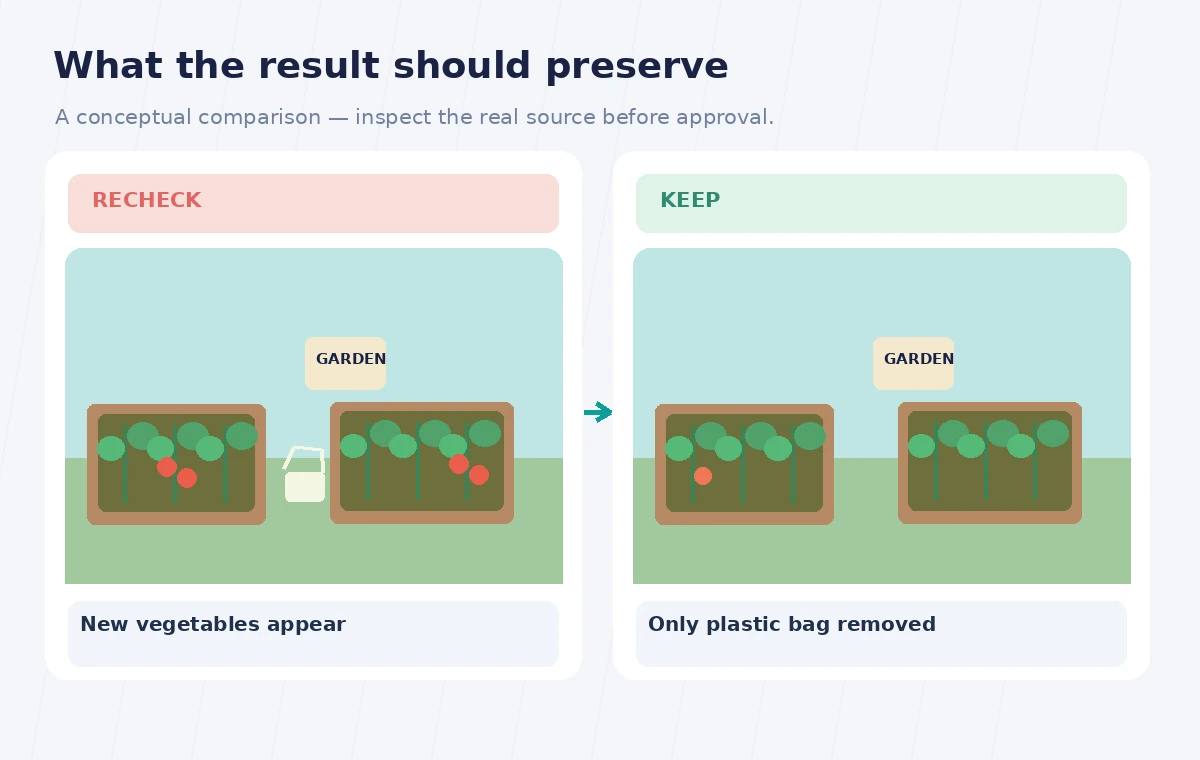
The example diagram contrasts a misleading image with an additional row of bright produce and a cleaner image in which only the distracting bag is gone. It is an educational comparison, not an actual exported edit from Google Photos. A viewer may reasonably read the presence of vegetables as proof of a successful season, so this difference is material rather than decorative. Count prominent crops, tools and raised beds in the original and edited frames, and ask whether the caption would remain truthful in both. If the answer is no, do not use the modified picture as evidence of results.
Respect eligibility and generated-image information
Google’s help describes AI-related image information and region-specific eligibility for Ask Photos. Check whether metadata or the service’s available AI indicators communicate that edits were AI-assisted, but do not assume every downstream platform preserves that information. Maintain a disclosure note in the content-management record, and add visible context when a modification could affect how the public interprets the image. Avoid claiming that a feature is globally available or that every Google Photos account exposes identical controls. Use the current help page as a checkpoint before writing organization-wide training materials.
Review the final social crop and caption
A mobile vertical crop can unintentionally eliminate the very area you checked, or isolate a modified corner so that it looks like a different garden bed. Export the approved version and view it in the actual social-post aspect ratio. Ensure the caption does not say ‘our harvest today’ if the source depicts only preparation work. If volunteers need an accessible description, describe what the approved image shows, not what a generative model intended. If the garden is requesting funding, retain an untouched documentation photo in the project archive even when using a polished image for a general event announcement.
Build a lightweight review record
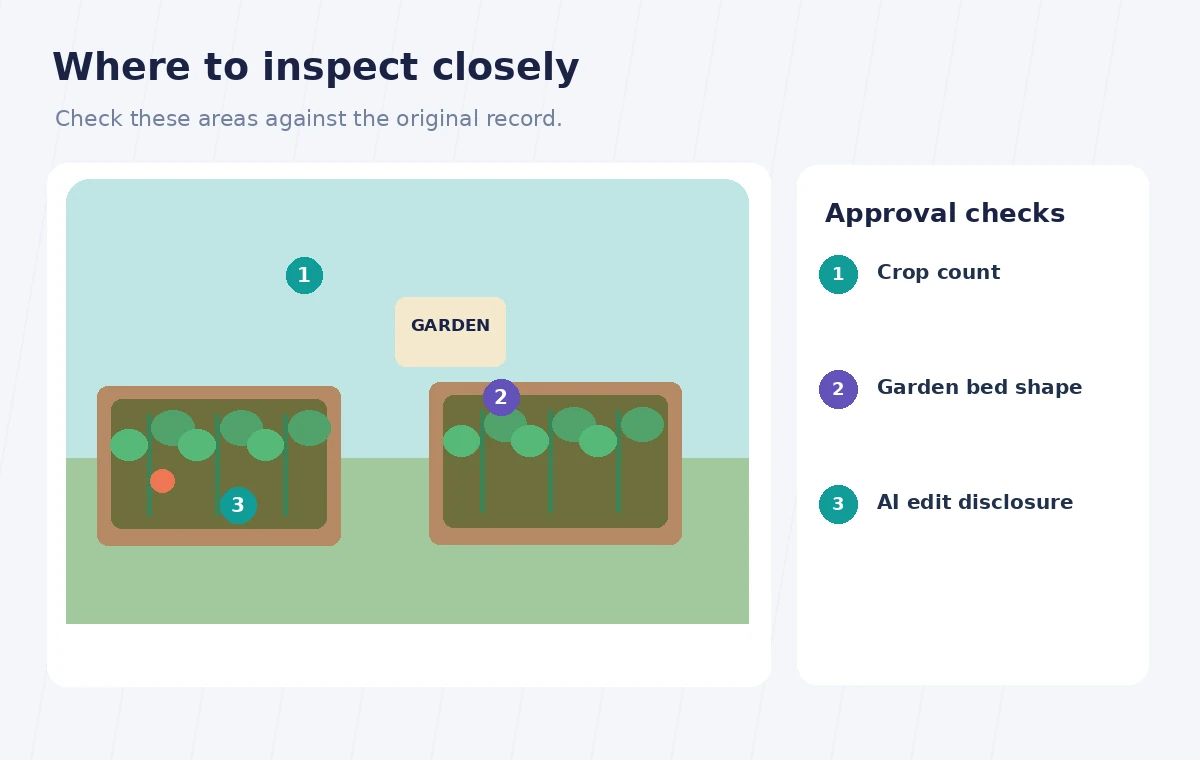
The final approval note should list the original file name, the allowed removal, the editor’s prompt, the exact exported version, and whether any material object changed. Ask a second reviewer to check bed boundaries, produce count and a representative face or sign if visible. These are suggested checks for the fictional project, not results of hands-on experimentation with a particular phone. If the edit changes what the image claims, publish the original or describe the result plainly as an illustration. Generative photo cleanup can improve presentation while preserving trust only when the organization controls both the pixels and the surrounding story.
How We Research
We reviewed the official Edit your photos on Android and Use Ask Photos to search, edit and get assistance documentation on November 1, 2026. We checked the stated feature controls, prerequisites, limitations and practical failure cases against the sequence above. Availability and plan terms can change, so readers should consult the live help before using the tool. The organization, names, records, photos, numerical examples and diagrams are fictional. We did not run a live account test, upload a real person’s materials, or measure model accuracy. Suggested comparisons are editorial verification procedures, not claimed empirical results.
Frequently Asked Questions
No. Google documents a regional rollout and account requirements, so the feature may not appear for every user.
Yes, you can describe a limited edit, but review the entire output because the model may alter other details.
No. Generated or transformed elements are not evidence of an actual harvest or other real-world result.
Google describes eligibility restrictions for conversational editing; check the current help and account type.
Yes. Preserve the original and compare it with the approved edit, especially when the image illustrates program outcomes.