
A school garden club has a genuine photograph from a volunteer planting day. The club wants a playful illustration for next month’s invitation, but it must not suggest that a harvest already happened or that volunteers posed for a scene they never visited. Google’s Reimagine capability was introduced as a prompt-guided image-editing option; the current Photos editor and access conditions can vary by device, region, account, and rollout. This article separates conceptual artwork from authentic event records and uses a reversible editorial process rather than assuming the feature will be visible to every reader.
Choose the right use for synthetic edits
Decide whether the output will be a fictional campaign illustration or a record of the planting day. If the image documents volunteers, crop growth, or school facilities, do not add objects that could be mistaken for actual facts. A new pumpkin patch, completed greenhouse, or large harvest box would change the story. Keep those ideas for clearly illustrative design work instead of a factual gallery.
Review permission for any identifiable people in the photo, including minors. A visually attractive AI edit is not a substitute for school consent policies. Where individuals have not approved promotional use, crop or choose a different base image rather than relying on a generator to alter faces. Preserve the unmodified source for archiving and comparison.
Check current interface and eligibility first
Google’s support pages warn that generative editing access varies by region and account, and the Photos interface has changed across versions. Reimagine originally appeared in Magic Editor, but instructions should not promise a permanent icon in one location. Check the current Edit screen, the available AI editing actions, and any Ask Photos integration that your account actually offers. Google also documents personal-account and age requirements for certain Gemini-powered photo tools.
If the feature is absent, do not bypass account or regional controls. Use an ordinary crop, brightness adjustment, or independently drawn promotional artwork. The tutorial’s core editorial method works even without generative editing. Keep a record of the product version and device when documenting a workflow for a distributed club.

Protect the original planting-day photograph
Save the original photo or an exported unedited copy before experimenting. Record its capture date, source, photographer permission, and any restrictions on showing children or private school areas. Verify what the photograph actually shows: the number of beds, crop varieties visible, and any signage. These details are context that a promotional composite should not silently rewrite.
In the illustrative scenario, the club wants a whimsical sky and hand-drawn border behind a real seed tray. A sensible selection isolates background areas while keeping the tray and identifying labels intact. If an interface does not support sufficiently constrained selection, switch to a conventional layered design tool. Avoid a prompt like ‘make the garden look more productive,’ which could invent plants or outcomes.
Prompt only for nonfactual decoration
For a design-only output, describe visual style and location of decorative elements rather than demanding false real-world objects. An example prompt might request a soft watercolor texture in an empty background corner while preserving every existing person, plant label, and seed tray. Inspect the results with the original side by side. Generated patterns can spill into physical objects or cause tiny text to change even if the user intended to edit only the wall.
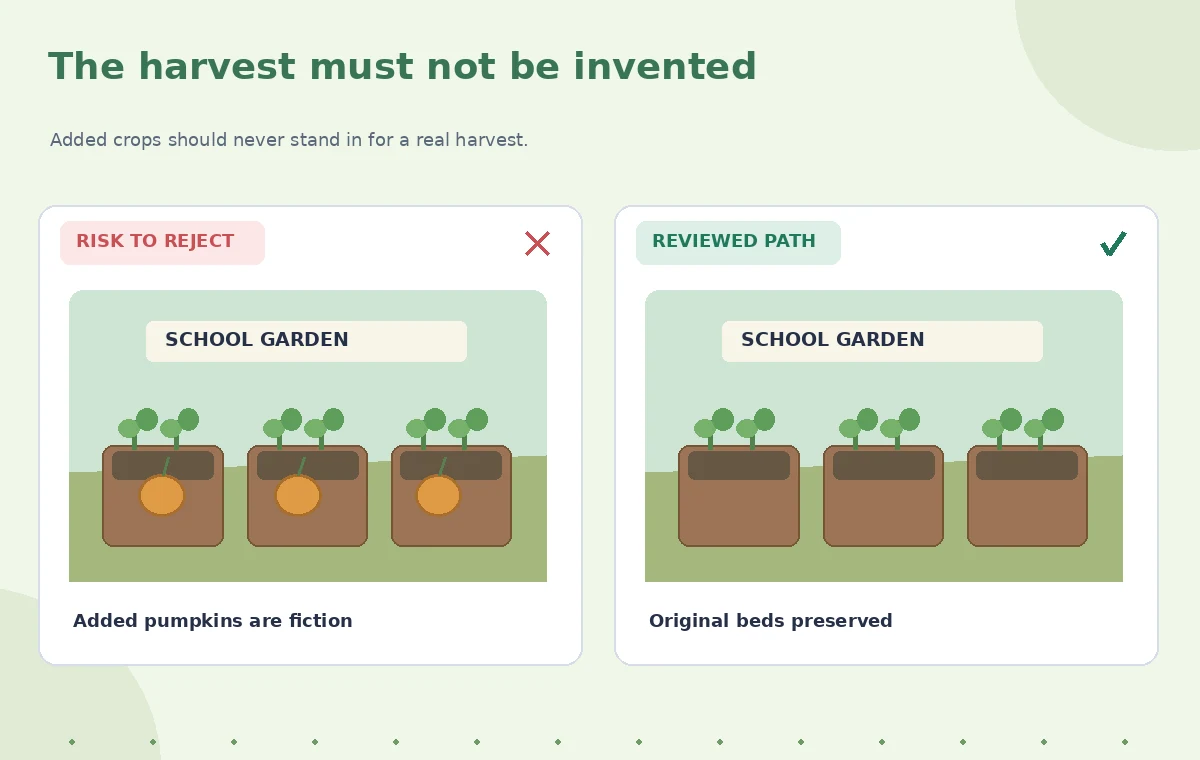
Do not treat a prompt as a reliable mask boundary. Check every visible crop, badge, tool, and person after generation. If the output invents food that was not harvested, reject it. The comparison diagram in this article depicts an invented harvest basket in the problematic version and an unchanged source garden in the reviewed one. It is a warning example, not a measured Reimagine result.
Audit the background and subject edges
Look closely at transitions around plant leaves, glasses, hands, twine, and thin garden stakes. A generative edit may introduce doubled edges or strange shadows that are not obvious at a thumbnail size. Examine any school name or event poster visible in the background; such text can drift into meaningless or misleading characters. Use the untouched image as the reference whenever a fine detail is uncertain.
A synthetic object may also change the apparent season or time of day. If weather or crop stage matters to the audience, retain the real scene. If the organization only wants a bright invitation background, consider using an original illustration next to the photo rather than altering the photo itself. Clear separation makes later attribution and corrections much easier.
Use a clear label for the edited version
A caption such as ‘illustrative artwork based on a garden photo’ can help distinguish designed material from documentary photography. Never label a generated garden full of vegetables as the result of a real event. Avoid implying that a depicted building improvement was completed if it was merely envisioned. Keep official dates, joining instructions, and location details in independently editable type outside the generated pixels.
For a school newsletter, a simple two-panel layout can show an actual planting-day photo next to a clearly labeled promotional illustration. That makes the design creative without making the historical image less trustworthy. Make sure the caption remains legible on a mobile screen and stays attached when the file is shared by staff.
Combine AI Tools with Human Review
Plan for privacy and future correction
A photo of a school event can contain faces, uniforms, building details, or location metadata. Read the applicable product privacy settings and institutional policy before uploading or editing. Do not use an AI service for images that the school has not authorized it to process. A parent or volunteer’s permission to take a photo may not cover all downstream generative uses.
Preserve a list of the approved source, what was changed, where the illustration may be published, and who reviewed it. If someone asks to remove an image later, the editor should know both the original and the generated variants that need attention. Keep access permissions appropriate for staff working on the project.
Approve the final artwork against the source
Have a reviewer compare the final output with the original at full resolution, paying attention to people, signage, planted crops, and background alterations. Confirm that the output has no invented harvest claims, that any synthetic scene is labeled, and that the club’s actual event information is correct. If the generated artwork confuses the message, return to an unedited photo plus separate graphic accents.
The diagrams are instructional drawings, not Google Photos screenshots or recorded model outputs. We did not confirm that Reimagine is available in a particular subscriber account or country. The verifiable takeaway is an approval framework that keeps consent, factual accuracy, and provenance ahead of spectacle, regardless of which version of the editing interface a reader sees.

How We Research
We reviewed primary documentation for the current feature scope and implementation: Google Photos Help: Edit your photos; Google Pixel Help: Gemini and AI tools; Google Store: Pixel Reimagine overview. The article analyzes a hypothetical, editor-led scenario against those sources and highlights failure points that can be independently checked. We did not use a paid product account, run a controlled accuracy study, or claim measurements from actual source footage, calls, photographs, or translations. The included diagrams are conceptual instructional artwork rather than screenshots or empirically measured before-and-after results. Product capabilities, pricing, languages, availability, and user interface labels can change; confirm current product and account documentation before deploying the workflow.
Frequently Asked Questions
Google changes interfaces and restricts some AI editing tools by device, region, account, and rollout. Check current official guidance.
Not if the result is presented as evidence of an actual harvest. Use a clearly identified illustration instead.
Yes. Preserve an unedited source and record the changes before exporting new promotional versions.
No. Follow the school or organization’s consent and photo-use rules independently of any editing feature.
Yes. Cropping, exposure adjustment, or separate illustrated graphics often avoid misleading generative changes.