Using Gemini to write inside Google Docs is different from asking an AI chatbot to produce an entire article. The document is already your working surface, with real collaborators, comments and sources. That makes targeted revisions and traceable changes more valuable than a one-shot draft. The best workflow keeps a human editor in control of the structure and every factual claim.
Google currently documents Gemini features for drafting, refining text, referencing other approved files and accepting or rejecting suggestions in Docs. These capabilities require an eligible Workspace or Google AI plan and may vary by account, language and rollout. This guide focuses on editing an actual document rather than comparing Gemini’s prose taste with another model.
Prepare a source pack before the first prompt
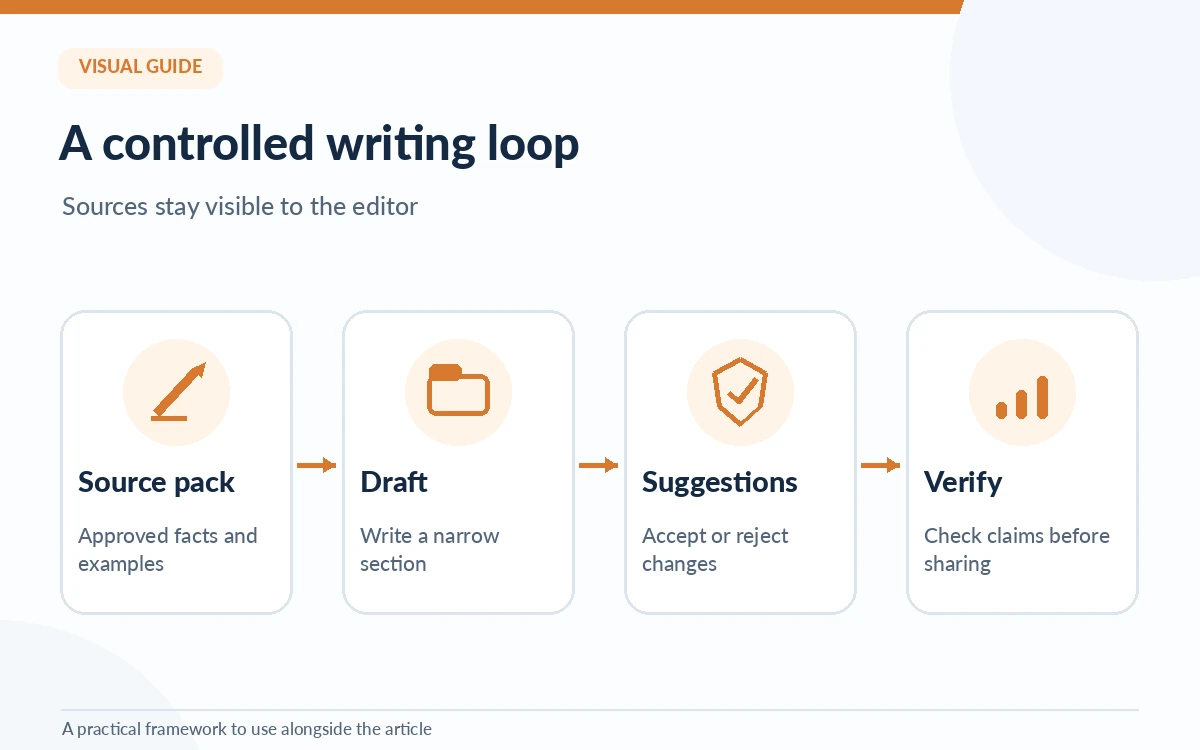
Start with a working outline, target audience, approved source files and a list of claims that need confirmation. Mark which information is fixed, such as product names or policy language, and which text may be rewritten, such as transitions and tone. If you have an established brand voice, include a short sample written by your team.
For an internal launch announcement, useful inputs might be a current release note, one approved customer FAQ and a positioning memo. Do not paste in private messages merely because they are easy to access. Remove personal data and make sure you have permission to use each document with an AI assistant.
Use Gemini for the smallest useful drafting task
Inside an eligible Google Doc, ask Gemini to propose an outline or rewrite a specific section rather than generating the whole piece without constraints. A grounded instruction looks like: “Turn the verified release bullets into a 180-word summary for existing customers; retain every supported date and list anything that is unclear.”
If the writing assistant inserts new claims, isolate them before accepting the edit. A natural-sounding paragraph can introduce a guarantee, comparison or implied feature that none of your sources provide. Keep source notes beside draft text until the review is finished.
Reference files instead of relying on vague memory
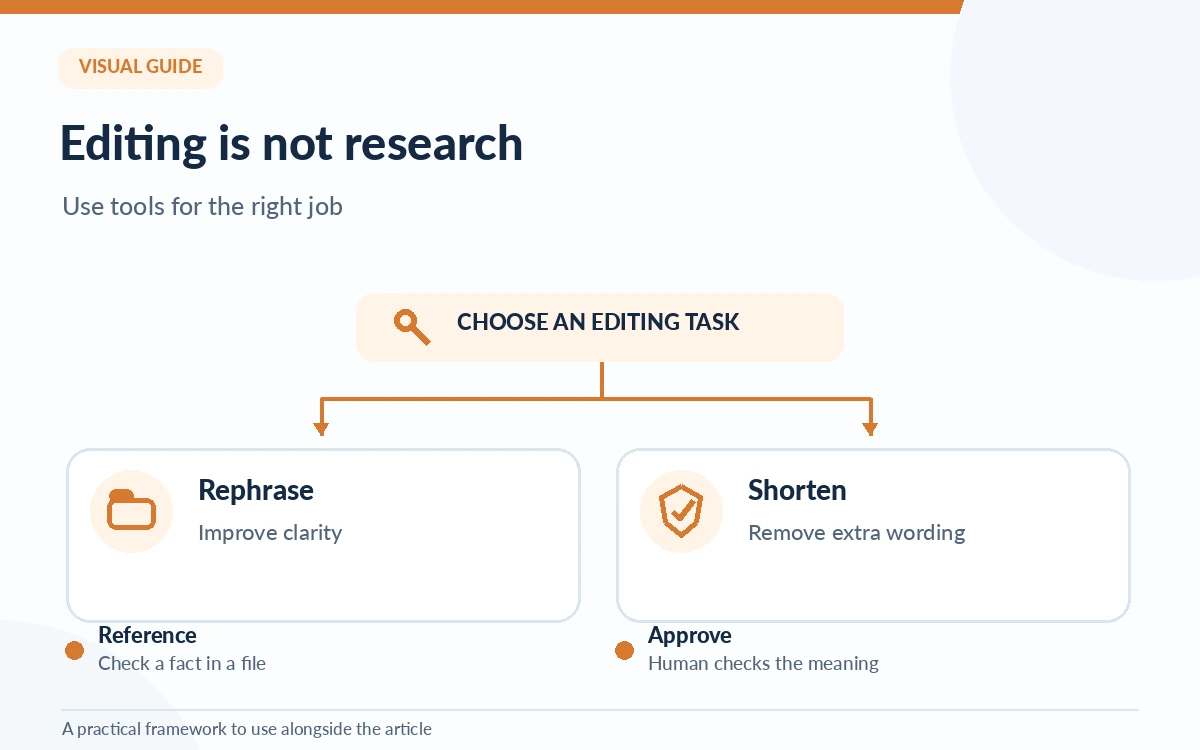
Google’s documentation describes adding files as sources from Drive or other supported locations and selecting files with an @ reference in some interfaces. Treat source selection as part of the editorial brief: name the exact document and the claim it should support. Check whether a connected service is actually enabled in your organization.
Give preference to versioned references such as “Customer policy, revised October 2026,” not a folder of conflicting drafts. If multiple documents disagree, ask Gemini to identify the conflicting passages; do not let the tool silently merge them into a synthetic policy. Human owners must resolve the underlying discrepancy.
Understand Gemini for Google WorkspaceReview changes one suggestion at a time
Google Docs can present inline suggestions that an editor accepts or rejects. Use that opportunity to separate clarity improvements from material changes. A shorter sentence may be harmless; a shorter disclaimer can alter the legal meaning. Compare edits against the original, especially for dates, product capabilities and customer promises.
If a suggested paragraph changes the argument, ask for a more constrained revision: “Improve the transition only; do not introduce any new facts or change the quoted statement.” For collaborative teams, leave an editor note explaining why a substantive claim was kept or removed. Editing speed matters less than clarity about what changed.
Use rewrite controls for tone, not evidence
Google describes refinements such as rephrasing, shortening, elaborating, bulletizing and tone changes. These are helpful when a paragraph already has correct evidence but misses the intended format. They are not substitute research tools. A polished passage can still have unsupported statements.
For a high-stakes FAQ, complete the facts first. Then ask for a version suitable for beginners, compare it with the original and verify that caveats survived. If an automated shortening removes a condition or exception, reject that change and write the simpler wording manually.
Run a two-pass verification before publishing
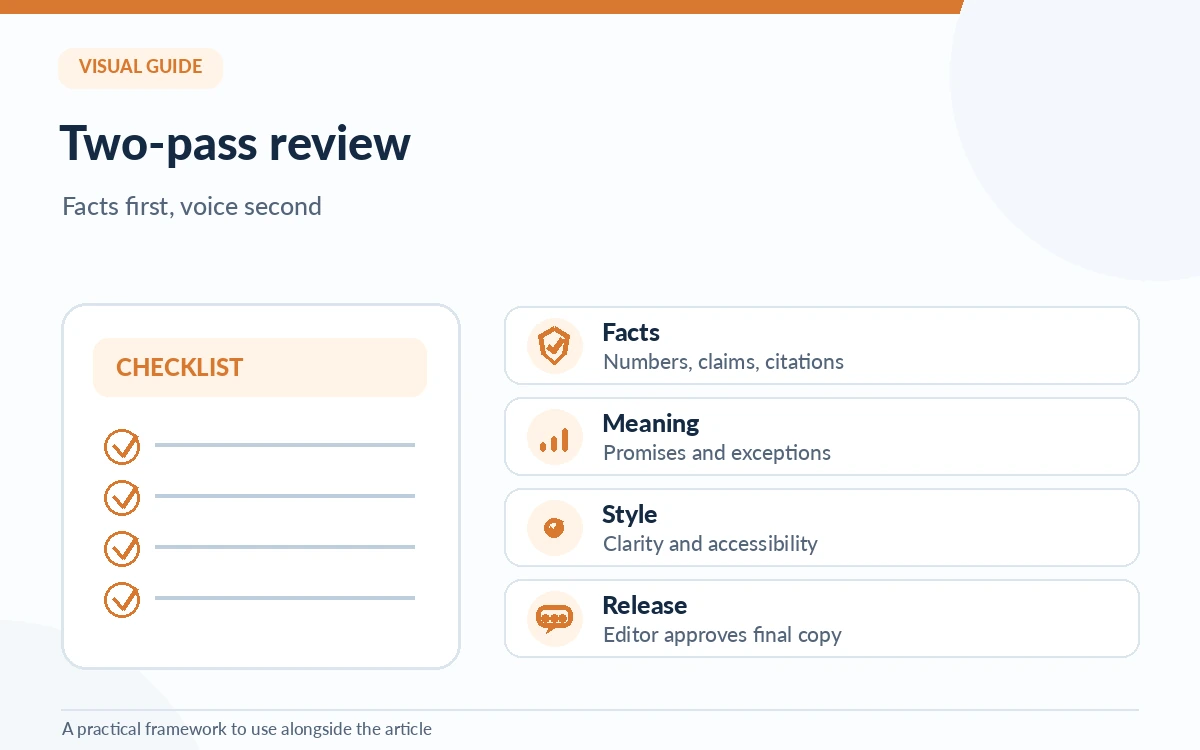
Pass one is factual: inspect each figure, quotation, product feature and implication against its approved source. Pass two is editorial: check that the headline matches the body, paragraphs are ordered for readers, language is clear, and any calls to action accurately describe their destination. Do not conflate a grammar pass with a fact check.
Keep a short evidence ledger with three columns: claim, source and reviewer decision. For externally published content, confirm you have permission to quote and reuse source material. If a critical claim cannot be corroborated, weaken or remove it instead of using the model’s confidence as evidence.
Compare ChatGPT and Gemini for writingCreate a reusable workflow without generic AI prose
Write a compact prompt recipe that specifies audience, allowed source pack, format and prohibited assumptions. Keep examples of accepted edits to teach the team what good output looks like, but let writers adjust the voice. Most content benefits from a specific point of view and clear reporting, not a pile of standardized AI phrasing.
After publication, record recurring corrections and fix the source pack or template that caused them. The real benefit of Gemini in Docs is editorial assistance within an existing review process. It does not remove the need for research, judgment, permissions or final accountability.
How We Research
We reviewed Google’s Write & edit with Gemini in Docs help page, including source references and accept/reject actions, and the Gemini Apps research documentation on October 26, 2026. The two-pass review and claim ledger are our editorial suggestions; no hands-on feature availability test was conducted for individual Workspace subscriptions.
Frequently Asked Questions
No. Google says Docs writing features require an eligible Google Workspace or Google AI plan, and availability can vary by account, supported language and rollout. Check the current feature notice in your account.
Google documents referencing supported files and Drive locations in Docs. Whether a particular file is available depends on connection, permissions and account settings; selecting it does not independently verify the facts it contains.
Not automatically. Review substantive changes individually, especially sentences involving dates, legal language, customer guarantees or numerical facts. A fluent revision can alter the original meaning.
Provide a short approved style reference, constrain the task to the intended audience and compare revisions with human-written samples. Human editors should retain control over promises, evidence and tone.
This is a product workflow inside Google Docs: sourcing, drafting, accepting suggestions and checking claims. It does not rank language models or claim one model writes better than another.