When ChatGPT stops loading, refuses a sign-in or hangs midway through a response, repeating the same action usually tells you very little. Different symptoms point to different causes: an account sign-in problem is not the same as an outage, a browser extension conflict or an unstable network connection. The fastest useful approach is to identify the failure before changing anything.
This guide separates five common failure patterns and starts with reversible checks. It is intended for people using the official ChatGPT website or mobile app, not for debugging a custom API integration. Menu names and service incidents change; use OpenAI’s current help pages and status dashboard as the source of truth.
Check for a service incident before fixing your device
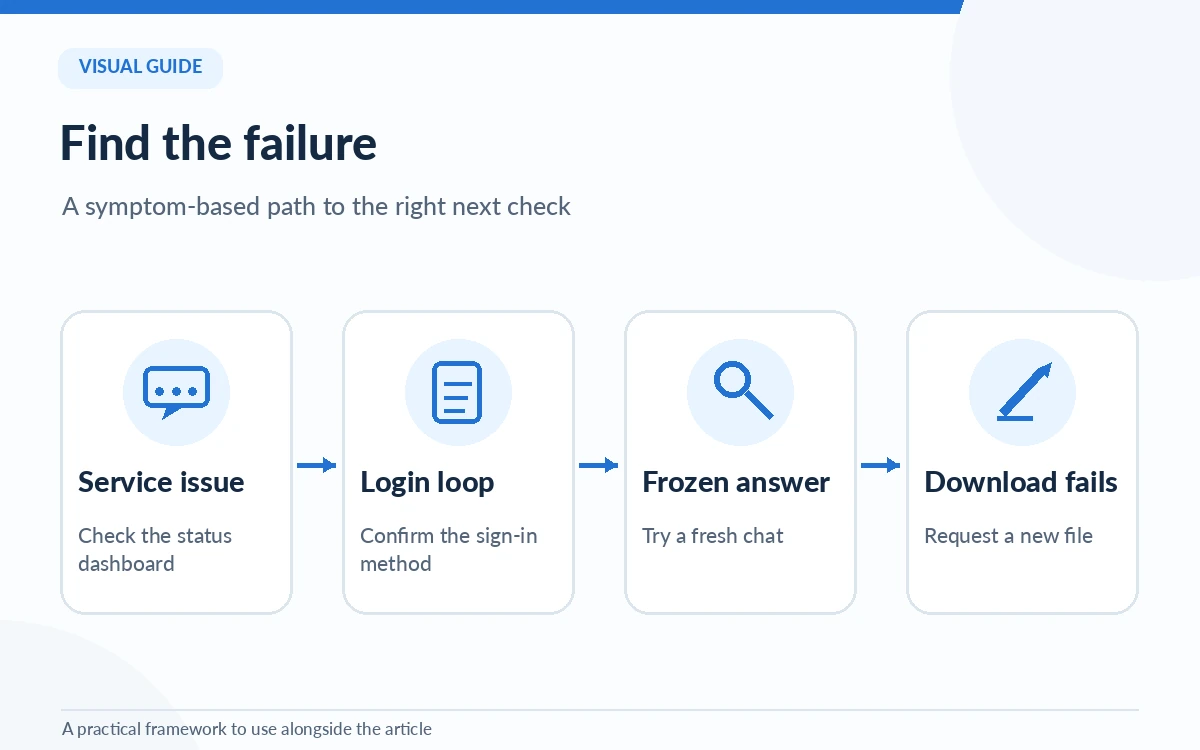
Open the official OpenAI status dashboard and look for active incidents affecting ChatGPT. A healthy status page does not prove that every user or region is unaffected, but a reported incident is a strong reason not to dismantle a working browser setup. Write down when the failure began and which feature is affected: web chat, mobile app, login, voice, downloads or a particular model.
Try one simple request from a fresh chat. If the application works on another device or connection, the problem may be local. If several devices fail in the same way and the status page reports issues, preserve your draft elsewhere and avoid repeated sign-in attempts or purchases as a supposed fix.
Match the error message to its most likely cause
“Something went wrong” is a broad message; it may reflect a temporary service fault or a browser/network problem. “Network error” or a WebSocket connection error more strongly suggests connectivity interference. A blank page or endless spinner can point to local site data, extensions or an unstable session. None of these messages alone proves that your account has been suspended.
Use a small decision tree: if the failure occurs before authentication, follow the login path; if it occurs after a prompt, follow the response path; if files alone fail, inspect the download path. This keeps troubleshooting focused and reduces the risk of erasing useful sessions unnecessarily.
Fix login loops without changing the wrong account
First confirm the sign-in method you originally used: email/password, Google, Microsoft or Apple. Choosing a different method can make a valid account look inaccessible. Apple’s Hide My Email option may also use a private relay address. If you are still signed in on another device, check the account email before signing out there.
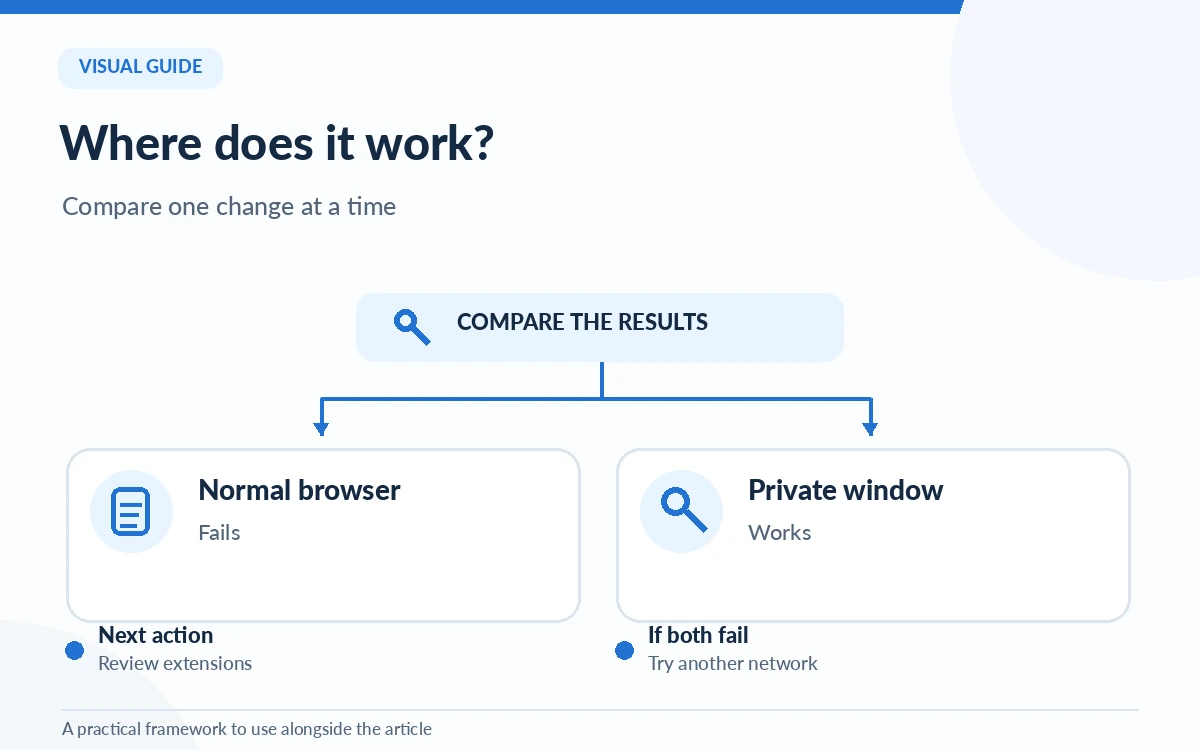
For a repeated verification page, try a private browsing window, allow cookies and JavaScript, and temporarily pause a blocking extension. Try a different browser or network if permitted. On a managed work device, ask your administrator before altering VPN, proxy or security settings. Do not provide password or one-time codes to an unofficial troubleshooting site.
See fixes for common AI tool errorsRecover from frozen replies and repeated generation errors
If ChatGPT remains on a generating indicator, try stopping the generation and asking again in a new chat with a shorter prompt. A long conversation may be harder to recover than a clean one. Refresh the website or restart the app, then test without browser add-ons. Copy irreplaceable text before clearing any browser data.
When a prompt works in a clean browser profile but fails in your usual one, restore extensions one at a time to find the conflict. When it works on mobile data but not office Wi-Fi, investigate network filtering rather than blaming the model. These are diagnostic comparisons, not guaranteed cures.
Handle downloads and attachments as separate failures
A failed generated-file link is not automatically a broken conversation. Generated files may expire, and a link can stop working even though the answer text remains visible. Request a fresh file if possible, avoid relying on a temporary attachment as your only copy and check whether the browser is blocking downloads.
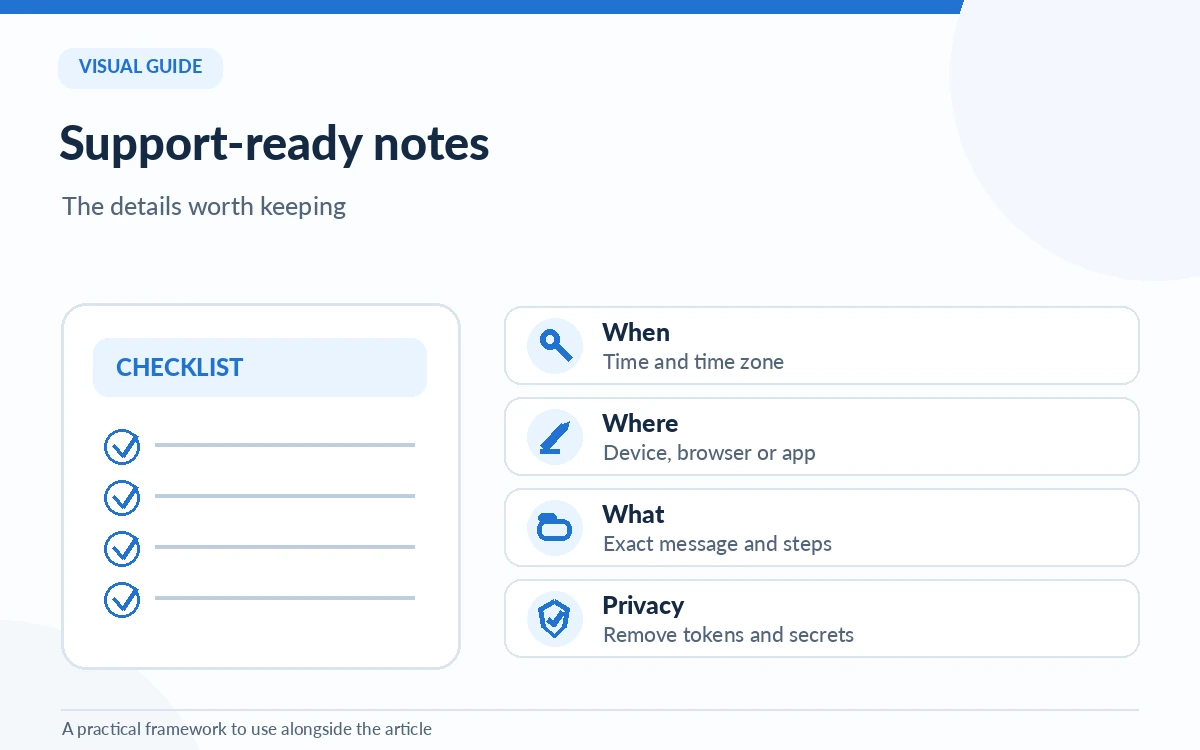
If upload or download problems persist, note the file type, approximate size, device, application and exact error. OpenAI documents product-specific size limits and temporary link behavior; do not assume that a limit described for one tool applies to every attachment type or plan.
Escalate with evidence while protecting your privacy
If the same problem persists across browsers, devices and connections after you have checked service status, use OpenAI’s official support channel. Include the local time and time zone, exact wording of the error, browser or app version, steps to reproduce, and whether the issue appears in a new chat. Attach a sanitized screenshot when that helps.
Support may request diagnostic network information such as a HAR recording for stubborn website issues. Those files can contain sensitive headers, URLs and tokens: follow the official collection and sanitization instructions and submit them only through an authentic support channel. Never paste credentials into a public forum to “prove” a login failure.
Review ChatGPT plans and limitsKnow when a workaround is safer than repeated retries
When an incident is active, draft in a local document, save sources and come back after the service recovers. For an urgent deliverable, consider another approved workflow rather than cycling through new sessions indefinitely. If only a particular tool or model is failing, a simpler text-only request can help distinguish a feature problem from a general outage.
Return to the original task only after one clean test succeeds. If the workaround involves another AI provider, review its data-handling settings before sharing confidential material. The desired outcome is not to make every error disappear instantly; it is to restore work without losing data or weakening account security.
How We Research
We cross-checked the current OpenAI troubleshooting guide, the official sign-in guidance and the service status page on October 26, 2026. The steps are diagnostic procedures synthesized from these primary sources, not results from hands-on tests of every browser, outage or account type. No universal fix or current outage status is promised.
Frequently Asked Questions
No. It is a generic error that can indicate a local issue or temporary service trouble. Check the official status page, then compare a private window, another browser or connection before drawing a conclusion.
A device-specific extension, cookie/session problem, network filter or browser configuration could be involved. Test a clean browser profile and a different connection without sharing passwords or removing workplace security tools.
No. Start with reversible checks such as a private window and extension isolation. If you later clear site data, save unsent work and understand that you may need to sign in again.
A generated file can expire. Ask for a fresh export where possible and keep an independent saved copy of important deliverables. File issues do not by themselves indicate an account suspension.
Contact official support when the problem is reproducible across reasonable clean-device or clean-network checks, especially for persistent authentication failures. Provide sanitized details and timestamps, not secrets.