
A community event team has an untidy Drive folder containing approved venue maps, draft run sheets, old sponsor logos, and a shortcut to a shared safety plan. Gemini can suggest file moves, but a plausible folder name does not tell you whether the linked item is the approved version or who needs access to it. This guide uses an invented cleanup task to show how to request AI organization without breaking collaboration. It preserves the source folder as an inventory, examines each proposed destination, and treats a human folder owner as the final decision-maker.
Define an approved folder map and naming convention
Write the desired destinations on paper before accepting any move. For an event, useful folders might be Current approved, Working drafts, Vendor inputs, and Archive. Define what makes a file approved: a named owner, date, and documented sign-off, not simply a promising title. Put version dates in filenames where possible and record whether a file is a Google Doc, a PDF, an image, or a shortcut. Do not infer that the newest modified timestamp is the authoritative version; an old source file may have been reopened without being reapproved. The map should reflect how colleagues actually retrieve materials during the event.
Check eligibility and ownership before organizing
Google’s Drive Help says ‘Suggest file moves’ works in Drive on the web in English and needs Editor access to eligible files. Supported examples include Google Docs, Sheets, Slides, Office documents, PDFs, images, and videos with transcripts; shortcuts can also be organized. If the action is not present, do not assume it is a bug or force a move through unrelated automation. Check plan eligibility, interface language, editing rights, and whether the folder has files the feature can address. Ask the shared-drive owner before changing a shared structure, because a file move can surprise colleagues who rely on familiar paths.
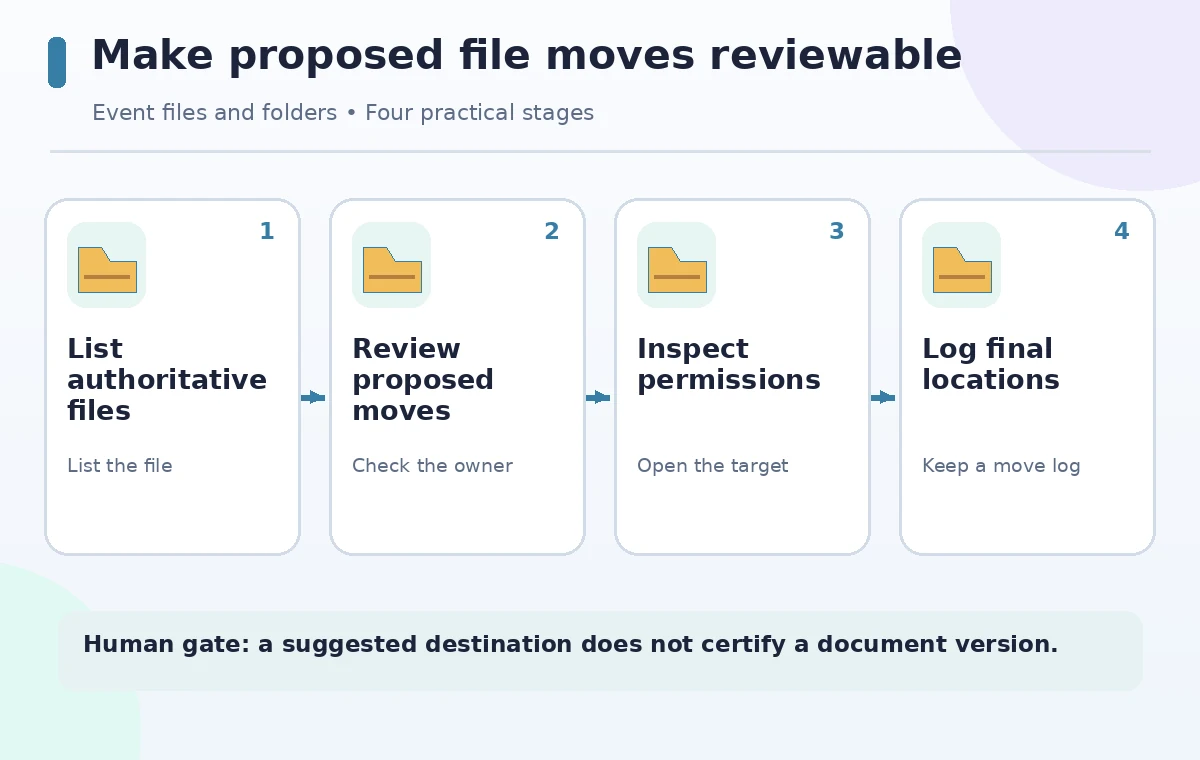
Make a source inventory before clicking suggestions
Export or manually record a short table of file name, type, owner, location, version label, approved status, and current share context. For the illustration, imagine ‘Map approved.pdf,’ ‘Map approved old.pdf,’ ‘Schedule draft.docx,’ and ‘Safety plan shortcut.’ Those names are invented examples, not results returned from Drive. Flag files whose authority is uncertain and leave them in place pending an owner decision. Preserve a clear original location for every item; otherwise a tidy result is difficult to reverse. For sensitive records, avoid copying content into external tools just to create the inventory.
Inspect proposed file moves one by one
Gemini uses content and organizing patterns to suggest moves into existing or new folders. Evaluate suggestions as proposed destinations, not verified metadata. Does the AI place a vendor draft beside the final approved run sheet because both mention the same date? Does a shortcut point to a shared document whose original location should remain unchanged? Consider whether a new folder duplicates an existing one with a slightly different name. If you cannot identify the approval state from the file itself, leave the proposal pending. Keep a quick record of rejected suggestions and why the owner rejected them so future organization does not repeat the mistake.
Compare content similarity with document authority
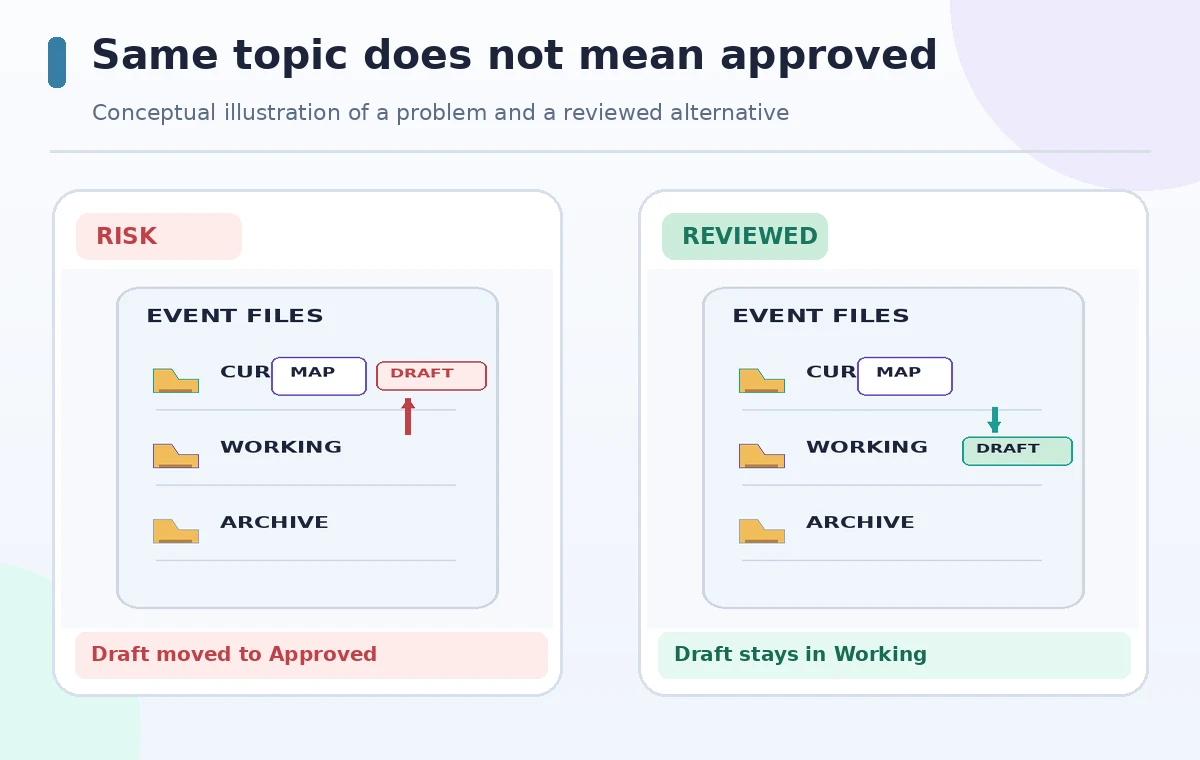
The comparison diagram shows an intentionally wrong placement: a draft site map enters the ‘Current approved’ folder because its topic matches. The safer result keeps the draft in Working drafts while the signed approved map remains in Current approved. This is a conceptual example, not a screenshot or measured classifier error. Content overlap does not prove authority. Check the document footer, project owner, or approval register, and use file history if needed. A filename containing FINAL can still be outdated. Where both versions are useful, make their relationship obvious without deleting the older copy during the same cleanup session.
Protect shortcuts, links, and team access
A shortcut is not the same object as its target. Before moving one, confirm what the shortcut points to and whether its intended audience still needs it in the current folder. Moving a document into a restricted folder may change how teammates discover it, even where existing direct permissions continue to work. Test access from the perspective of a legitimate collaborator rather than assuming that the organizer’s permissions represent everybody. Document known shared links in the event runbook. If link reliability is critical on event day, prefer an approved change window with a rollback plan over a fast bulk cleanup.
Audit the proposed end state with real retrieval tasks
Give two fictional retrieval prompts to an independent reviewer: ‘Find the signed parking map for this Saturday’ and ‘Locate the unapproved draft sent by the vendor.’ The first should resolve to the current signed artifact; the second should stay explicitly labeled a draft. Use actual Drive search and open the file rather than treating a folder preview as proof. Check duplicate files, shortcut targets, broken naming patterns, and items stranded outside the approved structure. An attractive hierarchy that hides a safety plan is worse than the messy one it replaced. Track unresolved versions separately instead of letting AI guess.

Finalize only reviewed moves and record rollback information
Approve small groups of moves after the folder owner checks the destination and sharing implications. Maintain a move log with old location, new location, approver, and date. Do not delete archives as a side effect of organization. If a mistake is found, use the logged old path and item identity to restore the expected location, then tell affected teammates. Schedule a short post-cleanup review during a normal workday rather than moving critical material minutes before an event. A successfully organized folder is one where the right person finds the right version, not one where the AI has moved the most files.
How We Research
We checked the official Google Drive Help guide to Gemini file-move suggestions for interface language, Editor permission, eligible file types, and suggested destinations. We also consulted Gemini search and retrieval guidance to distinguish finding files from approving versions. All folder names, move examples, and visuals are fictional; no real shared Drive was modified or audited. Confirm feature eligibility and your organization’s sharing policy in the actual workspace.
Frequently Asked Questions
No. Content and patterns can support suggestions, but approval authority should be verified with the file owner and source records.
Google lists shortcuts among items the feature can organize; inspect the target and intended discoverability before moving one.
Google currently describes the feature for Drive on the web in English; do not assume the same menu exists in mobile apps.
Google lists Editor access among requirements, and shared-folder permissions may restrict which files you can reorganize.
Keep archives until the owner confirms retention rules; organization and deletion are separate decisions with different risks.