A community venue has two versions of its visitor guide in Google Drive: a working draft that proposes a new entrance route and a signed-off guide that still directs visitors through the front lobby. A hurried summary could blur the distinction. Gemini in Google Drive can compare material across selected files and provide citations, but it cannot decide which document your organization has formally approved. The useful task is therefore narrower than ‘write the guide’: identify disagreements, open the underlying passages, and prepare a question list for the venue coordinator. All documents and decisions in this example are hypothetical.
Name the decision before asking for a summary
Define one question: which arrival instructions should appear in the next visitor handout? Write down the current approved version, the pending draft, the intended event date, and who can authorize a change. Without that inventory, a polished AI answer may appear authoritative even when it is quoting a proposal. Put the files in a small review set with recognizable names such as ‘Visitor Guide — approved’ and ‘Access Route — proposed’. File names are navigation aids, not proof of approval; check document content, signatures, and the actual change-control process. Start with the human decision you need rather than requesting an unrestricted synthesis.
Limit Ask Gemini to the intended source files
Google’s current Drive help describes a full-screen Ask Gemini research workspace that can open from a selected file or folder. Add only the two guide versions and a written approval record if one exists. Review the ‘Your sources’ area before sending the prompt. Suggested files are not automatically active sources, but a broad search setting can expand the material the assistant considers. If the team also keeps guidance in Gmail or Chat, decide explicitly whether that context is relevant. This scope check matters: a message proposing a route is different from an authorized update, even when both mention the same entrance.
Ask for differences, not a merged answer
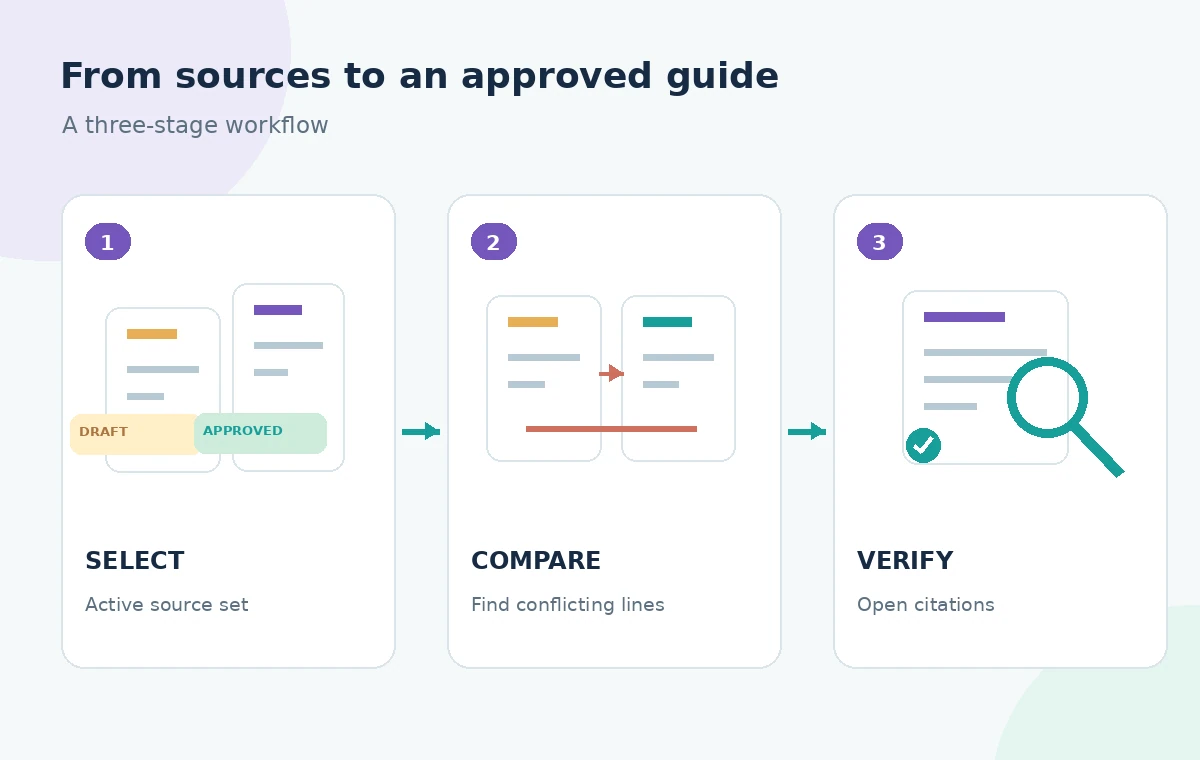
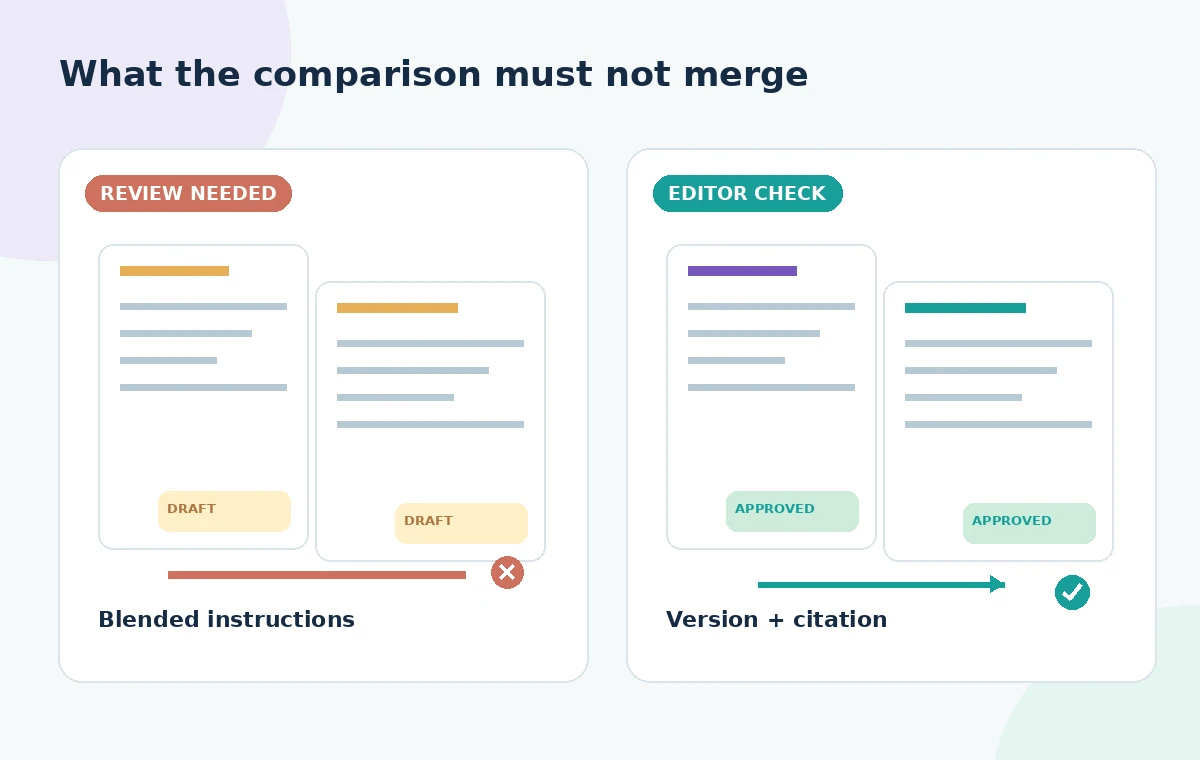
Use a structured prompt such as: ‘Compare entrance, elevator, and check-in instructions in these sources. For each difference, quote the file title, describe the conflict, and label approval status unknown unless the document explicitly shows it.’ Avoid ‘Give me the latest policy,’ because ‘latest’ may describe the newest draft rather than the newest approved document. Request a short conflicts table with columns for draft wording, approved wording, citation, and reviewer action. Treat any generated table as a worksheet for investigation; Gemini may summarize or omit qualifying language and must not become a policy database by itself.
Open every citation that affects visitor safety
Google documents inline citations in Ask Gemini: the reviewer can inspect a citation and open the original file. Follow each one for instructions about accessible entrances, elevators, emergency exits, assistance, and time restrictions. Read the surrounding paragraph, not only the highlighted phrase. Confirm that the cited passage comes from the expected version and that its wording is still relevant to the event. If a claim has no usable citation, mark it unverified instead of searching for a plausible justification. This is particularly important when a draft suggests ‘all visitors’ but an approved document contains exceptions for deliveries or mobility access.
Separate proposed improvements from authorized rules
Build a small decision ledger: one row for front-lobby entry, another for the step-free route, and a third for staff assistance. For each row, note the source version, evidence for approval, the pending question, and the name of the human owner. A proposed entrance can be a good idea without being valid visitor guidance today. If there are competing instructions, leave the external handout unchanged until a designated person resolves the conflict. Gemini can help identify the disagreement; it cannot substitute for site inspection, facilities approval, or a signed change request.
Check whether the scope changes during follow-up
A follow-up question may carry over sources and the conversation’s earlier framing. Before asking Gemini to draft visitor-friendly language, look again at the active source list and the search toggles. Google’s Help documentation explains that broader Workspace and web searching can be enabled separately; it is not always appropriate for an internal policy comparison. If you need a public accessibility standard as background, treat it as background and not evidence that your building follows that standard. Keep approved internal instructions, staff notes, and public guidance visibly separate in your notes.
Write the visitor guide from verified lines
Once the coordinator confirms the route, draft the handout with a direct opening instruction and a short fallback for visitors who need assistance. Use the confirmed document as the basis, not the AI’s paraphrase of an earlier version. Check proper names, door labels, staff desk location, and event dates character by character. An accessible handout should avoid vague phrases such as ‘the usual entrance’ when a first-time visitor cannot know which entrance that means. Have the person responsible for visitor operations approve the final copy in the organization’s normal system.
Protect sensitive files and permissions
Do not add confidential floor plans, medical information about visitors, or private staff contacts merely to make the model’s answer more complete. Check your Workspace organization’s AI access policies and who may view the Drive sources. Access to Gemini requires an eligible plan, and settings can vary. Citations do not change the underlying permissions on a Drive document. When sharing findings, send a minimal summary or approved guide rather than a broad source bundle if recipients do not need internal discussions. Preserve the review trail without widening access unnecessarily.
Publish only after a two-person change check
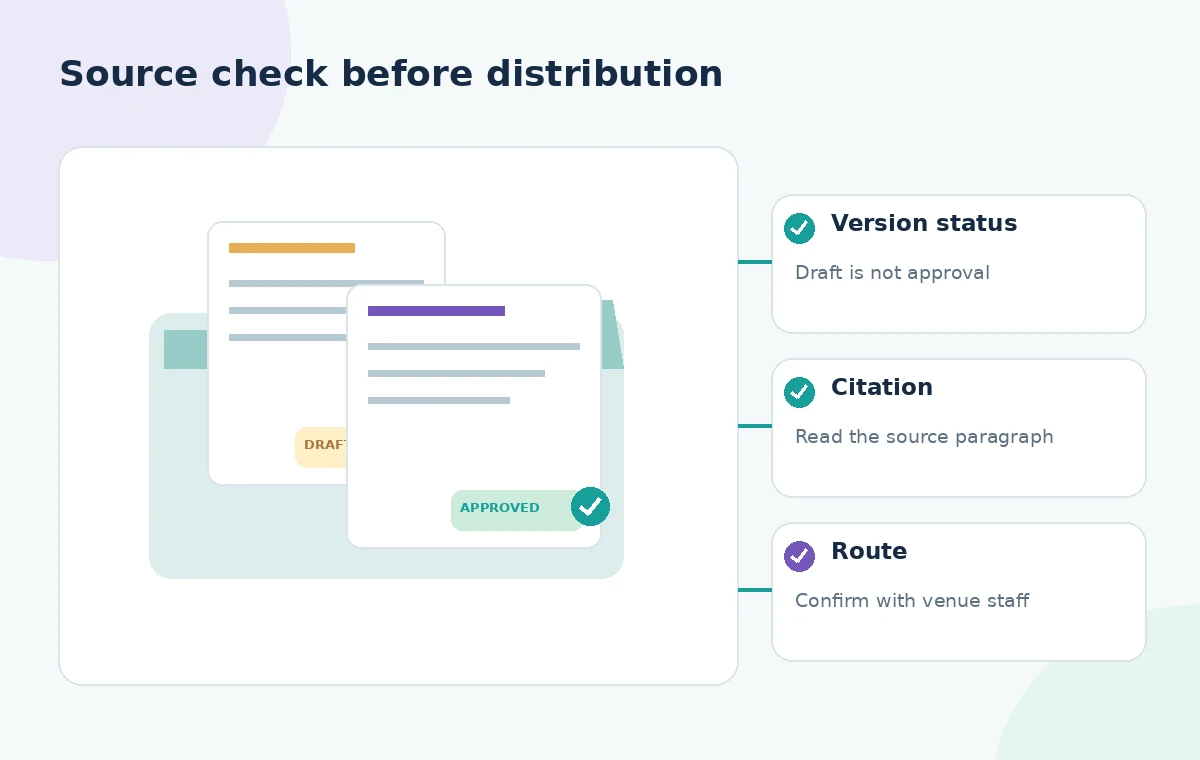
Use a final review with two roles: the policy owner confirms what is approved, and an editor confirms that the public guide reflects it. Compare every changed instruction against the approved source, test links and map directions, and check the step-free route with appropriate staff. Archive the superseded guide so an accidental resend does not look current. This workflow does not claim Gemini performed a real comparison or verified the hypothetical venue. It illustrates how a source-aware assistant can speed up review while leaving approval, accessibility, and publication to accountable people.
How We Research
To prepare this guide, we reviewed the official product documentation: Google Drive: research and analysis with Gemini and Google Drive: get started with Gemini. We compared the explicitly documented feature entry points, supported tasks, limitations and configuration requirements with the decisions in the hypothetical scenario. We did not access a customer account, upload any of the described documents, run prompts, obtain actual generated outputs or measure performance. The visuals are custom instructional diagrams, not software screenshots or evidence of live tests. Any scenario-specific people, approvals, files, vendor availability and outcomes are illustrative. Check the current documentation, account entitlements and your organization’s policies before acting on the workflow.
Frequently Asked Questions
Google describes comparing versions and insights across selected Drive sources. You still need to open citations and confirm which version has approval.
No. Modification time is not a formal approval record. Confirm the owner, date, and status in the organization’s own workflow.
Yes. The Drive research workspace supports selected sources. Review the active source list and wider-search settings before each important answer.
Citations identify source passages; they do not prove a proposal was authorized or that the building route works in practice.
Log the exact conflict, keep public copy unchanged, and ask the designated policy owner to confirm the appropriate wording before release.