
A volunteer coordinator wants one collection of check-in instructions, shift maps and approved safety guides. Dropbox Dash Stacks can collect files, links and app resources in sections, but a convenient share action can also change who can open some Dropbox content. In particular, sharing a Stack by directly adding someone’s email may grant access to included Dropbox files, while sharing by link preserves existing file permissions. That distinction is central to this hypothetical workflow. The pictured folders and names are fictional and do not represent an actual account or permissions test.
Inventory the content before creating a Stack
Sort onboarding materials into three groups: safe to share widely, internal staff only and restricted personal records. A schedule template, public entrance map and signed-off emergency contact procedure may belong in the first group; individual volunteer phone numbers, personal accommodations and background-check records do not. Record each file’s current owner, location, version and intended audience in a simple inventory. Resolve obvious duplicates before adding anything to a Stack. An AI-enhanced workspace cannot turn an outdated map into a current instruction, and it cannot decide whether a sensitive record belongs in a volunteer collection. Have the privacy owner approve the information categories, especially where outside volunteers may use personal email accounts.
Create the Stack and use functional sections
Dropbox describes Stacks on dash.ai and its supported desktop and browser experiences. From Stacks create a collection with a clear name such as ‘Volunteer Day-One Guide.’ Add sections for Arrival, Shift Tasks, Safety and Contacts. Put one canonical link in each section instead of uploading five copies of the same policy. Use a short description that names the responsible coordinator and last editorial review date. Dash can accept files, folders and browser links, but different resources may be governed by different upstream permissions. For a new volunteer, make the route through the collection simple: arrival time, site entrance, shift role, help channel and emergency escalation should be obvious without search.

Decide between direct invites and link sharing deliberately
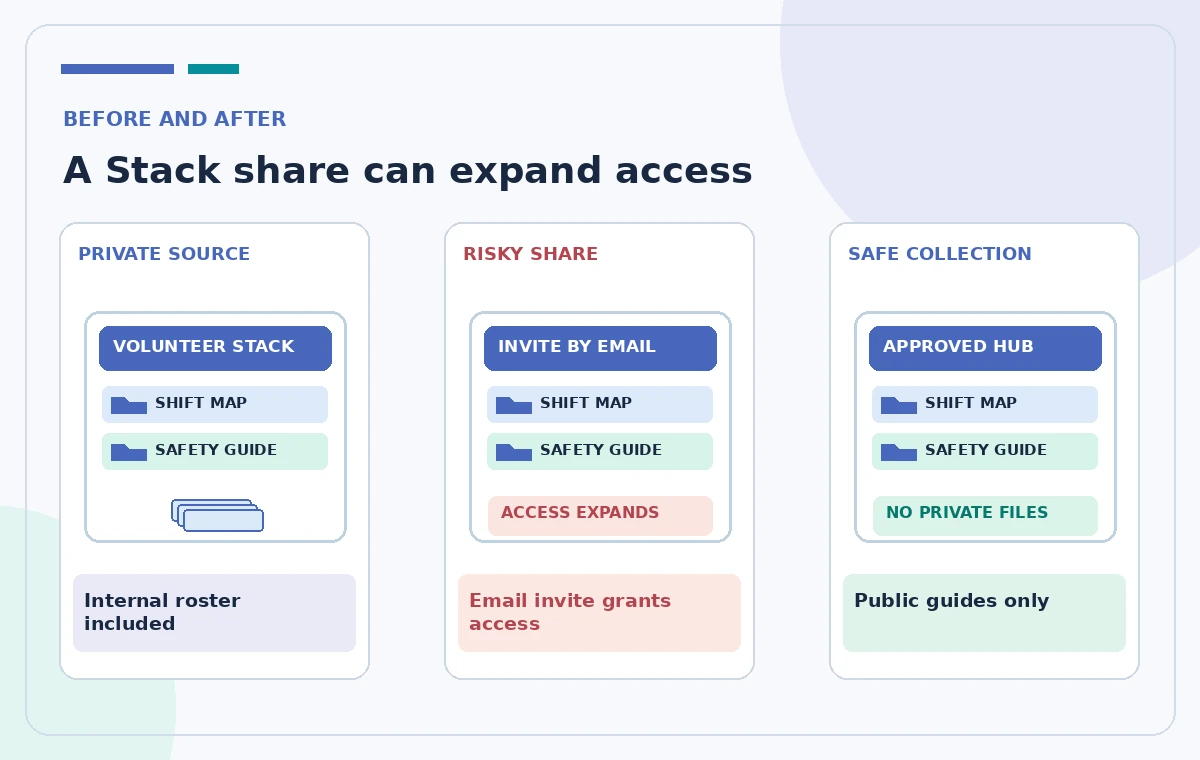
Dropbox’s sharing documentation makes a consequential distinction. Adding someone to a Stack by name or email automatically grants that person access to Dropbox files or folders in that Stack, including Dropbox content added later. Sharing a Stack with a link retains the existing Dropbox file and folder permissions. These are not interchangeable controls. For a mixed-content volunteer hub, do not send a direct invitation until every Dropbox resource has been reviewed for the intended audience. A copied Stack link may be easier to circulate, but viewers can still encounter items they are not authorized to open. Treat permissions as a design decision, not a troubleshooting detail after rollout.
Build the hub around approved sources only
Use the official site map, current orientation sheet and approved incident-reporting channel. Link to the maintained source rather than a downloaded file with no update path. Label a superseded PDF ‘archive — do not use,’ or remove it from the active Stack. If a section mixes an old and new policy, readers may choose the wrong one even if permissions are correct. Add a simple ‘last reviewed’ line to the section description and name the human owner of each procedure. Do not upload real residents’ addresses to create an example. Internal meeting notes, draft staff evaluations and private contact lists should live in a separate controlled workspace, not a public onboarding collection.
Compare a dangerous share with a safer version
Consider a fictional Stack containing public check-in guidance and a private roster. A coordinator might directly invite a volunteer by email, believing the Stack is merely a page of links. That action can grant Dropbox file access, making the roster newly visible. The safer design removes the roster, keeps approved sources only and chooses a sharing method after checking each item. A schematic comparison can illustrate this risk without implying any actual account breach or successful penetration test. In the real product, verify access from an appropriate authorized test account or ask an administrator to review the effective permissions. Avoid using a coworker’s identity or confidential file as a test object.
Test the path a new volunteer will actually follow
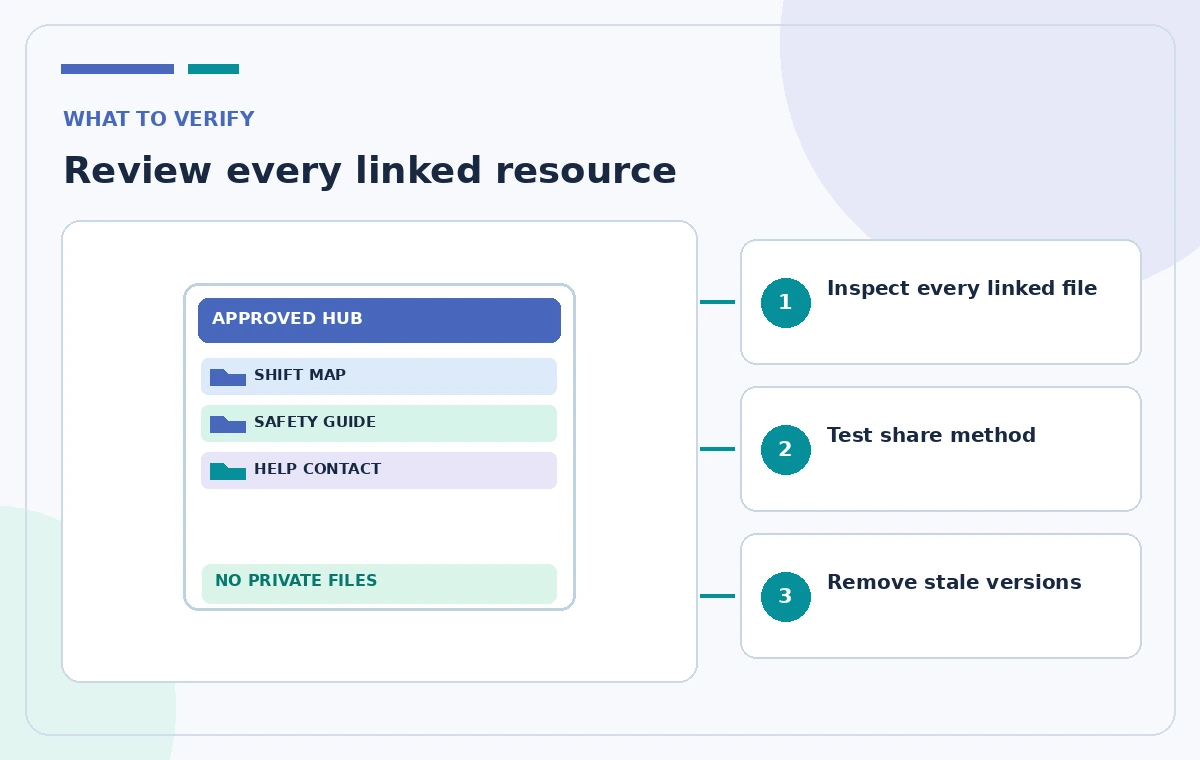
Open the collection from the perspective of a properly provisioned volunteer account, not the coordinator’s account with broad access. Check the first page, the order of sections, mobile readability and whether any link asks for unexpected credentials. Verify that a person can find the check-in location, a contact for questions and the current safety guide. A permission-denied message can be legitimate; it should not be ‘fixed’ by opening the original folder to everyone. Instead provide an approved accessible version of that document. Record only the permission behavior you actually observe, and leave any account-specific outcome unknown unless someone performs this controlled test.
Plan for changes after the Stack is shared
Because newly added Dropbox items can inherit exposure consequences when a Stack has been shared directly with people, adding another file is a separate access-review event. Put a small publish checklist before every update: source approved, audience checked, file version current and direct-invite consequences understood. If a volunteer leaves the program, review Stack membership and underlying file permissions according to the site’s offboarding practice. Avoid assuming removal of one Stack item automatically revokes access granted earlier to a Dropbox file. An administrator may need to inspect both the collection and file-level shares. Keep the update owner visible so ‘anyone can edit’ never means ‘no one is accountable.’
Evaluate the experience without relying on AI summaries
Ask a staff reviewer to locate the latest shift map and report an imagined lost-badge situation using the Stack. The reviewer should be able to distinguish ‘arrive at the north gate’ from an archived route no longer in use. Open the actual linked map and policy; do not judge completeness from a Dash-generated preview or another assistant’s summary. Review documents for plain-language instructions and text alternatives for visual maps. Note any required accessibility modifications and route them to the policy owner. The objective is a coherent navigation experience, not a promise that AI will verify every link or independently detect permission leaks.
Release the Stack with a permission change log
Publish only after the owner has signed off on audience, content and updates. Record who can view the Stack, how it was shared and which sensitive items were intentionally excluded. Schedule a review at the next volunteer intake or when emergency instructions change. Put a contact email or help channel in the introduction so people can report broken links safely. If privacy settings are unclear, hold the release rather than guessing. Dropbox Dash Stacks are best treated as curated navigation surfaces over original resources; they do not excuse weak access controls on the files behind them. The collection is useful when each document remains authoritative, discoverable and appropriately shared.
How We Research
We reviewed the following official developer or help resources for this article: Dropbox Help — How to use Stacks with Dropbox Dash; Dropbox Help — How to share Stacks with Dropbox Dash. Our editorial method was to compare the documented function, prerequisites, sharing and licensing constraints, and the failure modes that could change a real decision. We wrote an illustrative workflow and an independent human-verification checklist rather than claiming a test of any particular account. We did not receive private user data, simulate real approvals, interview actual participants, verify a real print job or measure AI accuracy. The four accompanying pictures are original conceptual diagrams, not screenshots or measured outputs from these services. Features, prices and access may change; confirm current product details in your account and obtain the relevant policy, privacy or production owner’s sign-off before consequential use.
Frequently Asked Questions
Dropbox says direct addition by email can grant access to Dropbox files in the Stack, including later additions. A Stack link preserves the underlying Dropbox file permissions. Review every item before choosing.
Yes. Dropbox documents files, folders, app resources and browser links inside Stacks, with sections to keep different onboarding topics organized.
Do not assume it will. Check access at the file and folder levels and ask an admin to verify any permission changes granted earlier.
Yes, with carefully curated content and the correct permissions. Verify with an authorized test account and never use sensitive real records for a mock test.
The coordinator must confirm current versions and policy authority. A tidy Stack can still contain an obsolete or unofficial link if no one maintains its inventory.