A volunteer training team cannot find the final safety checklist. One copy lives in a shared folder, another appears in a conversation, and an older PDF was circulated before the coordinator added a new inspection step. Dropbox Dash can search connected content and help summarize files that a user can access. The trap is assuming the highest-ranked result is the approved version. This guide treats Dash as a discovery aid: search narrowly, inspect the real file and its owner, and confirm which checklist is in force before giving instructions to volunteers. The files, people, and screen concepts in the illustrations are fictional.
List the evidence that defines the final checklist
Before searching, record the checklist’s official title, owning team, expected review date, and any version-control convention. Write down which safety requirements matter to the training session and who can approve a change. An old PDF may have the right title and most of the right steps, so title matching alone will not be enough. If an organization has a canonical knowledge base or signed document repository, that source should govern approval. The objective is to locate a candidate and establish its provenance, not to ask an AI to reconstruct safety procedures from scattered snippets.
Understand what Dash is actually searching
Dropbox’s help explains that Dash searches content from connected apps and can answer questions about files a user can access. The available results depend on which integrations and accounts are connected, plus organizational permissions. It cannot search a workspace that the account has not connected. Confirm the relevant app connectors before assuming a missing document does not exist. Dash also distinguishes external web searching from connected-content search in its chat controls; web results should not be treated as evidence for your organization’s internal safety procedure. Check the actual scope at each search step.
Start with distinctive terms and known ownership
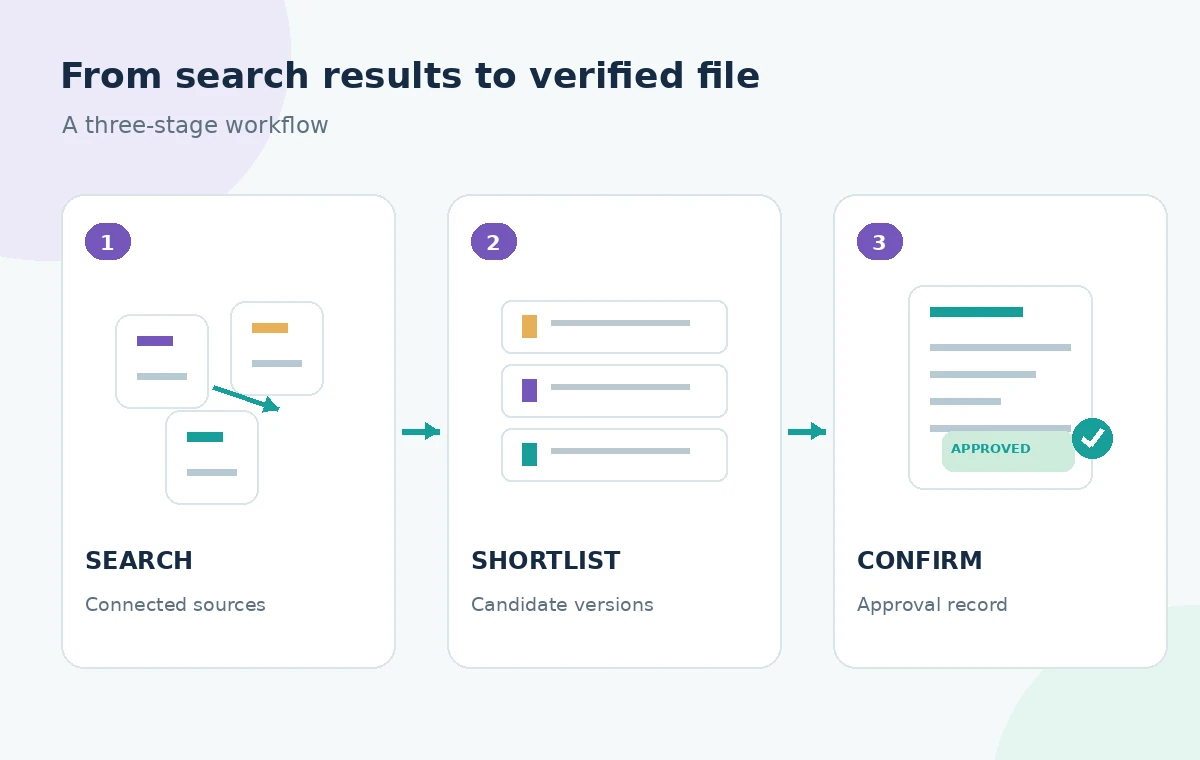
Try the formal checklist name combined with a specific activity, such as ‘event setup inspection’. Then narrow by the owning team or connected app if results are broad. Search for an exact uncommon phrase from the latest revision, but remember that OCR, indexing, and file formats can make some text harder to find. Open several plausible results rather than trusting the first match. Write a simple candidates list with title, storage location, apparent date, and owner. Do not publish a link or copy instructions until you have inspected what each result contains.
Attach relevant sources before asking a question
Dash’s documentation describes attaching supported files or folders and asking questions about them. If you use a summarization workflow, attach the candidate checklist and any explicit approval memo rather than an entire unrelated workspace. Ask: ‘Which of these sources states the revised equipment inspection step, and what is its file title?’ A model-generated answer is a lead, not a compliance decision. Do not confuse generated prose with a source quote. Review the actual document, especially warnings, required equipment, and exceptions that may disappear from a shortened answer.
Do not merge the draft and approved paths
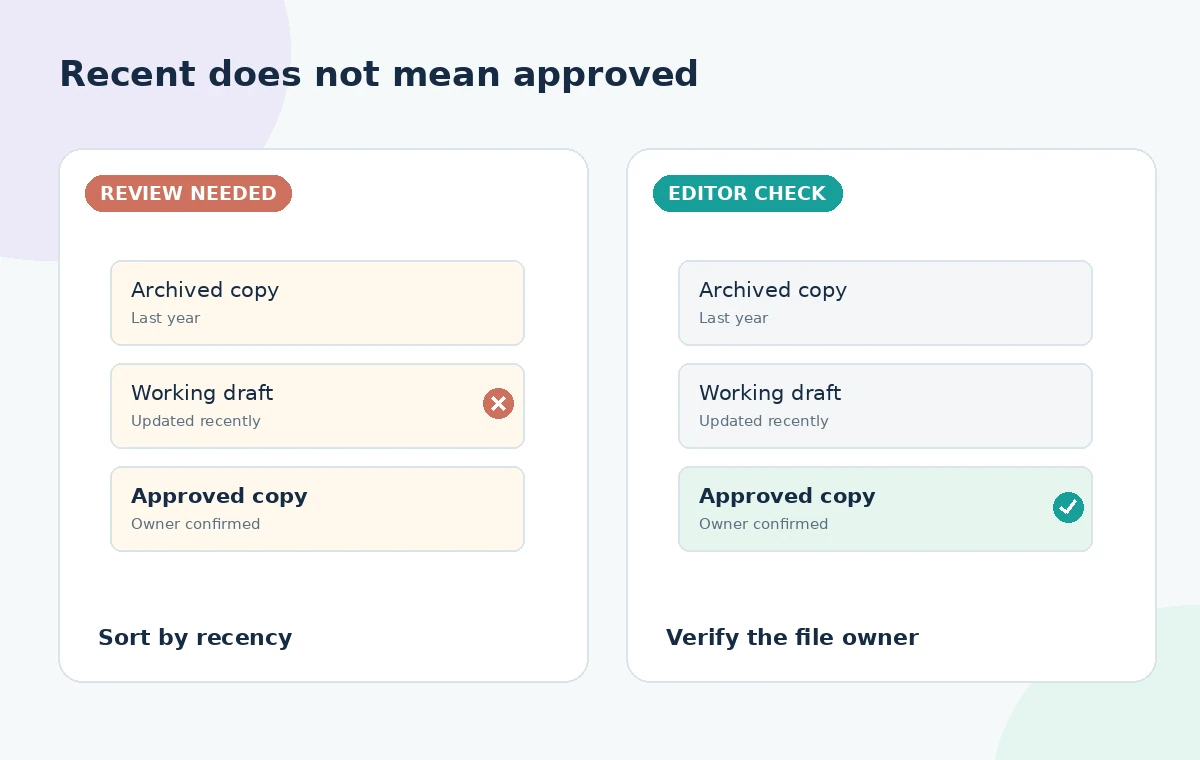
The comparison illustration shows three search candidates: an archived PDF, a working draft, and the coordinator-approved checklist. A plausible AI synthesis might combine the newest proposed step with an older approved schedule. Instead, keep each candidate in its own row and mark its status only when supported by a document record or owner confirmation. ‘Modified yesterday’ is not identical to ‘approved yesterday.’ If a draft contains a safer procedure, flag it for formal review rather than quietly inserting it into volunteer training. The distinction prevents an assistant’s tidy summary from becoming an undocumented policy change.
Verify every instruction in the original file
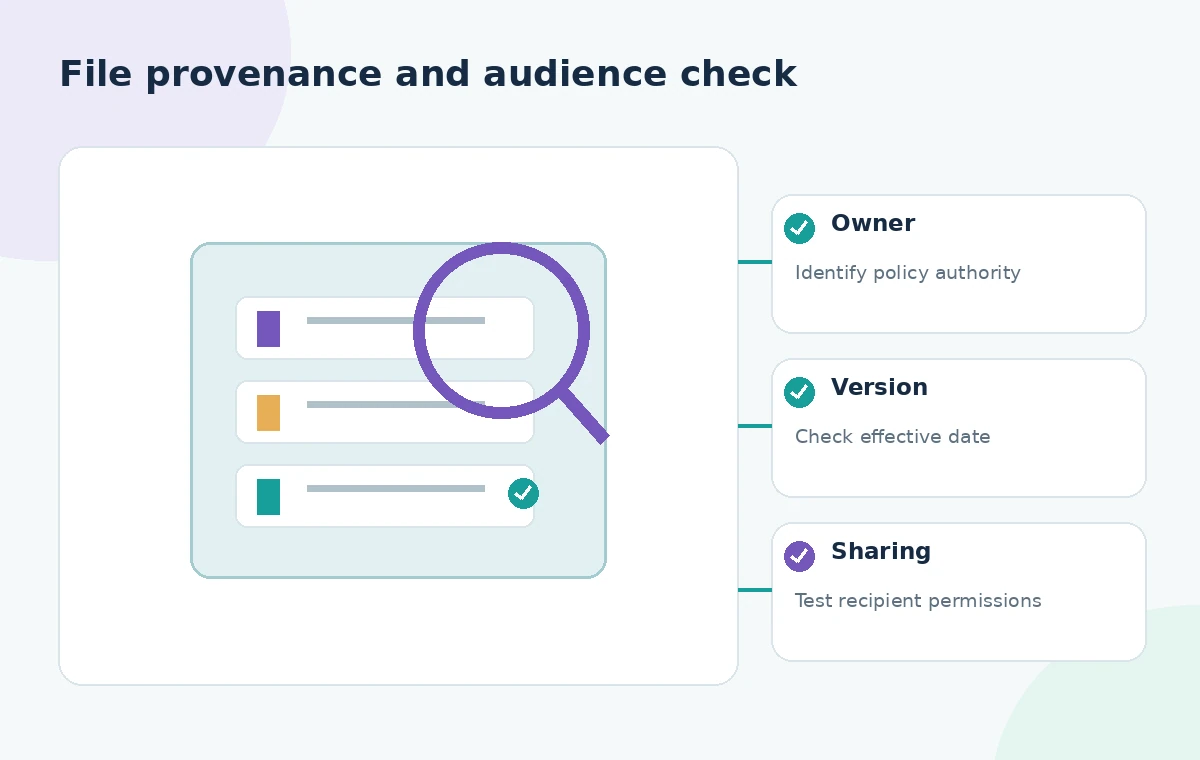
Open the selected checklist and read each safety-critical step, including who performs it, when it applies, and what to do if the check fails. Confirm that the approved document matches the event location and training date. Inspect links to attachments and appendices; a checklist with an obsolete inspection form may still be incomplete. If a suggested answer has no accessible file behind it, exclude it from the training materials. Keep a record of the source file path and approval contact so future editors can retrace the selection without repeating the entire search exercise.
Account for integration and platform limits
Dropbox documents that app connection capabilities vary and administrators may need to enable certain integrations. Its deployment guidance also notes that AI summarization is not supported for local files in the described setup. Do not assume every device, local directory, or personal login exposes the same Dash functionality. Some search and AI features differ across desktop, web, and mobile surfaces and may change over time. Check product help and your own account before writing a procedure that promises a specific connector, result type, or workflow. A missing result is not evidence that the underlying source was deleted.
Keep safety procedures and permissions intact
Even if Dash can access a document, the training audience may not have permission to open it. Share an approved, least-privilege distribution copy instead of granting broad access to an internal folder. Avoid attaching personal incident reports or sensitive employee records for convenience. Any summary that mentions safety incidents should be carefully scoped and reviewed. The required steps in a safety checklist are not an area for creative paraphrase; quote or accurately transcribe authorized instructions when distributing them, and make sure the authorized policy owner has reviewed the adaptation.
Package one verified training reference
When the coordinator confirms the canonical checklist, record its identifier and effective date in a training cover note. Ask a second reviewer to compare the training copy with the approved source, including order, exceptions, and emergency escalation language. Test that links work for the intended volunteers and that the document is usable without Dash access. Archive or label old copies through the organization’s existing process, without silently deleting records. The workflow demonstrates a verification method rather than claiming a live Dropbox account, actual search rankings, or a successful safety inspection.
How We Research
To prepare this guide, we reviewed the official product documentation: Dropbox: search and explore content with Dash and Dropbox: deployment limitations for teams. We compared the explicitly documented feature entry points, supported tasks, limitations and configuration requirements with the decisions in the hypothetical scenario. We did not access a customer account, upload any of the described documents, run prompts, obtain actual generated outputs or measure performance. The visuals are custom instructional diagrams, not software screenshots or evidence of live tests. Any scenario-specific people, approvals, files, vendor availability and outcomes are illustrative. Check the current documentation, account entitlements and your organization’s policies before acting on the workflow.
Frequently Asked Questions
Yes. Dropbox documents searching connected apps, subject to integration support, account access, and administrator configuration.
No. Ranking is not an approval signal. Check the document owner, effective date, and authoritative repository.
Dropbox documents questions and summaries for supported content. Inspect the original document before using any safety-critical information.
A connector, account permission, indexing support, app type, or search scope may limit the visible results.
No. Provide a reviewed and appropriately permissioned training copy that works without the assistant or a special search tool.