
A presenter can explain a software procedure clearly while repeatedly glancing below the camera at a script. Descript’s Eye Contact effect offers a way to redirect the apparent gaze, but a training video still needs believable eye movement and purposeful looks toward a demonstration. A correction that forces the presenter to stare forward during a real object demonstration can feel less trustworthy than the original. In this illustrated lesson, a fictional instructor records a short safety orientation beside a desk. The workflow below focuses on selective review and truthful presentation, not on claiming any unobserved render quality.
Choose a shot the effect can reasonably interpret
The cleanest starting shot has one person facing the camera with both eyes clearly visible. Descript’s own guidance says Eye Contact works best for a single visible speaker and may skip areas when the face turns away or the eyes leave the frame. A strong reflection on glasses, a hand in front of the eyes, or a very small face creates additional uncertainty. Review the source video before processing and mark segments where the instructor naturally looks at an object on the desk. Those purposeful glances may belong in the story and should not be treated as mistakes.
Position the camera and notes for future recordings
Although the correction is available during editing, source quality still matters. Place a script or teleprompter close to the lens, use soft frontal light, and keep the face reasonably centered. This reduces the size of the gaze change the effect must suggest. If a presenter moves sharply between the laptop and an object, record a separate close-up of the object when possible. Those shots can preserve the lesson’s meaning better than forcing eye contact throughout. The point is to reduce unnecessary correction and maintain continuity, not to promise a studio result from a difficult handheld clip.
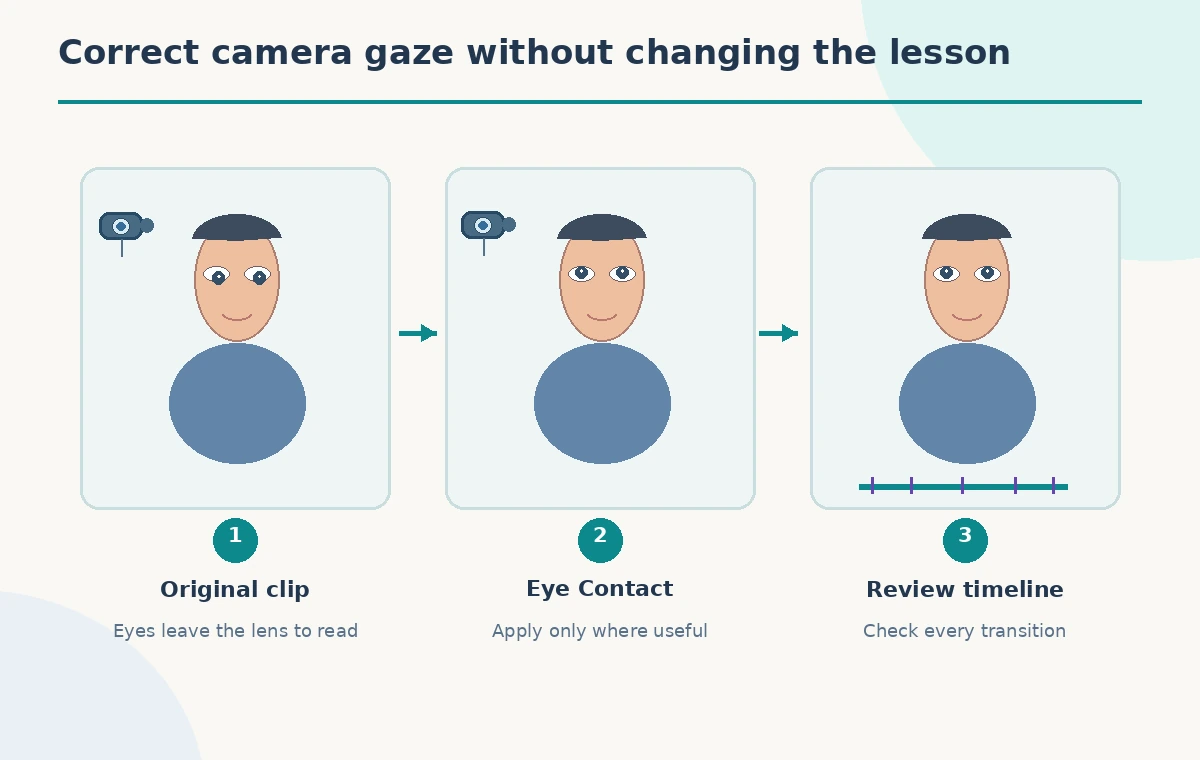
Import the video and locate the Eye Contact effect
In a Descript project, import or record the training segment and select the video layer. Descript’s documentation describes turning on Eye Contact and previewing the effect, while older change notes place it in the video effects controls. Interface labels can change, so use the current product guidance instead of treating this article as a frozen screenshot tutorial. Keep the unaltered version accessible and note any sections with occlusions or fast turns. Do not remove natural pauses or alter spoken safety instructions simply because the gaze edit changes the way the instructor appears.
Review the start and end of each corrected passage
A common editorial risk is not the middle of a sentence but the transition into or out of a corrected span. Scrub across the point where the instructor looks down to read, raises the chin, and then looks at the camera. Watch the eyes at normal playback speed and frame by frame where needed. If the gaze seems to jump abruptly while the head remains still, keep the original moment or hide the seam with an appropriate instructional cutaway. The viewer should follow the lesson, not notice the eyes behaving independently of the face.

Protect intentional looks toward a demonstration
When a presenter points to a warning label or handles a piece of equipment, the eyes should usually follow that action. An effect that pulls attention back to the viewer at the wrong moment can undermine comprehension. Separate the video into speech-to-camera stretches and practical demonstration stretches, then evaluate Eye Contact where it serves the former. Descript describes the effect as reversible, so turn it off for sections that do not benefit. In the diagrams, the corrected stare is an example of what to reject; it is not presented as a measured Descript failure.
Inspect blinks, glasses, and expression changes
Look at several representative moments: a blink, a sideways glance, a smile, and a head turn. Blinks should not disappear into a fixed stare; eye direction should remain plausible inside glasses frames. Bright reflections can conceal pupils and complicate review. Playback at full resolution when possible, because tiny preview windows can hide misaligned irises. If eyes look unnatural, favor the original footage and improve the next recording setup rather than layering further appearance effects. Avoid implying the presenter said, saw, or attended to something they did not actually see during the recording.
Check the cutaways and captions against the lesson
Eye Contact concerns visual direction, not the factual accuracy of the training. Verify that any on-screen demonstration remains synchronized with speech and that captions correctly reproduce warnings and names. Do not remove a moment where the presenter looks at a specific hazard if that glance helps locate it. A clear cutaway may communicate the procedure more effectively than a face-focused effect. Watch the entire exported sequence rather than comparing only two attractive still frames. The recommended check includes sound, visual continuity, and task accuracy as separate questions.
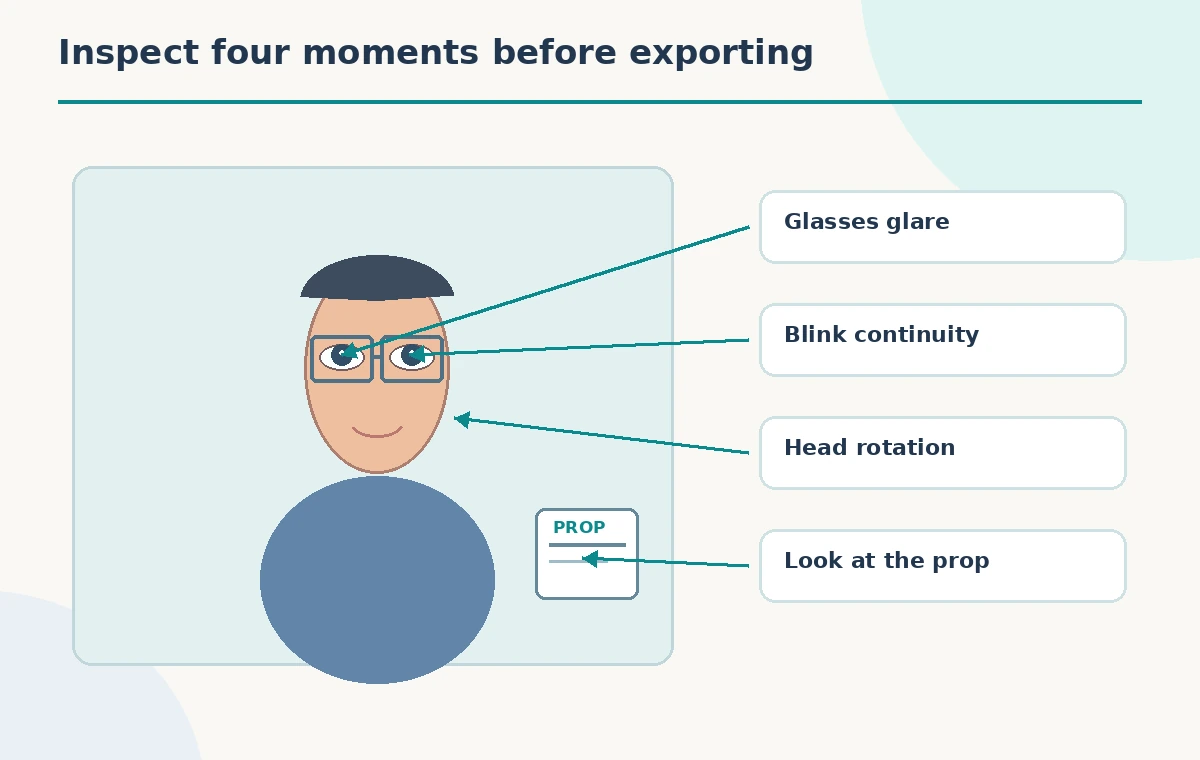
Export a version that remains credible
Compare short original and corrected segments with the same crop, brightness, and timing. Ask whether viewers can follow the procedure and whether gaze changes seem natural, especially around gestures. Record any sections deliberately left uncorrected so another editor understands the choice. Respect the presenter’s consent and any policy about altering their appearance. We have not uploaded, processed, or exported a video in Descript for this example; its scenes are conceptual visual aids. The goal is to improve communication without creating a false impression of constant direct engagement.
How We Research
We reviewed Descript’s Eye Contact feature guide for its single-person recommendation, reversible effect, face visibility and skip conditions, plus its official release notes for the effects workflow. This is a fictional safety-training scenario. We did not record a presenter, run the effect, time processing, or claim the illustrated faces are real generated frames. The inspection points represent editing practices, not verified test outcomes.
Frequently Asked Questions
Descript recommends one person with both eyes clearly visible; a multi-person shot is not its intended case.
Yes. Descript describes the effect as non-destructive and reversible; preserve purposeful off-camera looks.
Large turns or hidden eyes can make a plausible correction difficult, so Descript may leave that section unchanged.
No. Reading notes and demonstrating objects create different visual intentions. Correct only distracting gaze changes.
No. They are conceptual drawings to show what a viewer should inspect.