
A friendly illustrated owl can point toward an onboarding tip, nod, and speak without a traditional frame-by-frame animation workflow. Runway Act-Two transfers a driving performance video onto a character reference, but how hands and body motion are handled depends on whether the character input is an image or a video. This tutorial uses an entirely invented owl mascot and an imagined consenting performer, with no real likeness or output. It focuses on clean inputs, gesture checks, and the difference between movement transfer and rights to publish the result.
Start with rights and a single-character brief
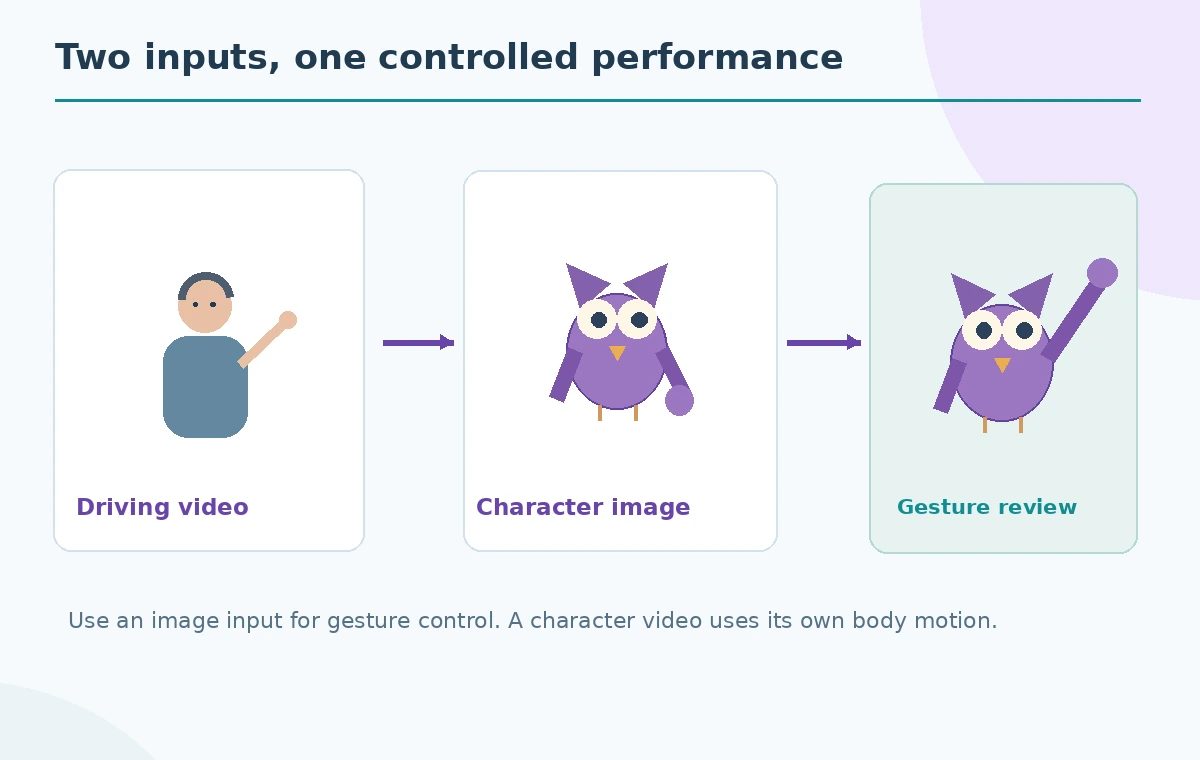
Before recording anything, decide who owns the owl drawing, who performs the reference, and where the clip will appear. Obtain permission for any real performer’s recording and voice, and follow the platform’s current trust and safety rules. Do not use a celebrity, colleague or customer likeness without suitable authorization. Write a tiny storyboard: the owl raises one wing toward a welcome sign, pauses, and ends facing the viewer. One clear move is easier to inspect than a sequence of frantic gestures. The diagram labels a fictional performer separately from the mascot because the performance video and character illustration are different inputs.
Draw a mascot whose pose can be read
Create a clean image of a single owl from roughly the waist up, with clear eyes, beak and both wing tips visible. Avoid a crowded background that makes the wing boundary hard to follow. Make the starting wing pose similar to the reference performer where possible. Runway’s guide recommends single characters, visible facial features and hands at the start for gesture control. A stylized wing does not have a human hand’s joints, so interpret movement for the character’s design rather than expecting literal anatomical transfer. Export the reference at a suitable aspect ratio and preserve the source artwork.
Record one controlled driving performance
Use a well-lit, uninterrupted shot of one performer from the waist up or closer, with the face visible. Start with hands in frame and demonstrate the intended cue slowly: lift the right hand toward the side, return to neutral, then give a small nod. Keep the spoken line short and audible if dialogue is part of the sequence. Runway lists clean lighting, defined expressions, no cuts, and natural gesture motion among its input recommendations. Avoid speaking over music or waving arms rapidly; those conditions make it harder to judge what the model should preserve. No video was recorded for this guide.
Use an image reference when gestures matter
In Runway’s Act-Two app, supply the performance video and the owl character image. The vendor documents gesture control for character image inputs, not for character video inputs; character video instead contributes its own body and camera motion. Enable the gesture setting for the image-based workflow if you want the wing motion to follow the performer’s arm. Review any available facial expressiveness setting conservatively, rather than maximizing it automatically. Interface positions and credits can change, so check the current app before committing to a generation. The storyboard is an editorial plan, not a guarantee that the render will follow it exactly.

Map the three intended beats on a timeline
Before evaluating a candidate, write an explicit shot sequence: at the opening the wing rests, in the middle it points to the welcome sign, and at the end it lowers. Compare those beats against the driving performance instead of grading the result only for general charm. If the owl points with the wrong wing, swaps sides, or creates an extra joint, the output did not meet the job even if the expression is cute. A short timeline with separate performer and owl tracks makes mismatches easy to explain to a reviewer. Avoid invented frame-accuracy percentages or claims of one-click reliability.
Inspect face, wing tips and background continuity
Scrub the generated candidate through the transition into and out of the gesture. Check beak movement against the audible syllables, eye direction, the distance between wing tips, and whether the body unexpectedly changes size. Runway notes that character image input can add environmental motion automatically, so check whether that distracts from the instructional cue. If the scene includes a printed label, make sure the wording stays legible and does not mutate during motion. Pause at the gesture apex and at the return to neutral; many motion errors are visible at these extremes rather than in the first frame.
Iterate one variable and record why
If a gesture fails, change one input property at a time. A clearer reference pose, slower performance, better face lighting or an adjusted gesture setting is easier to evaluate than several simultaneous changes. Keep the revised driving clip and owl reference organized so the reviewer can identify which one a candidate came from. Runway’s official guide describes both gesture and facial expressiveness settings, but it does not promise the same result for every character style. Do not treat a generated clip as measured proof of feature accuracy; use it as a creative proposal awaiting approval.

Export a clearly labeled mascot clip
Before publishing, check captions, consent, audio, platform rules, the ownership of the illustrated mascot, and any terms relevant to generated media. Review the clip on the actual screen size where it will play; a small mobile view can make a pointer gesture ambiguous. For a training opener, provide a static fallback image and transcript if animation obscures a vital instruction. Maintain a version with the original drawing and authorized driving performance. Nothing in this article certifies commercial usage rights or represents a real person as having consented; these are requirements for the user to verify.
How We Research
We reviewed Runway’s Act-Two performance capture guide for input types, gesture availability, facial controls and recording best practices, plus its current Apps overview for how to find the workflow. The owl, performer silhouettes and frame sequence are original teaching drawings; there was no Act-Two session, licensed actor, generation or test of lip sync. Rights and consent must be checked independently for a real project.
Frequently Asked Questions
Runway documents gesture control for character image inputs; character video inputs retain their own body motion instead.
No, but the character should have clearly defined limb shapes and a readable starting pose, and the transferred motion still needs review.
Use only performance recordings and voices you are authorized to use and comply with applicable platform rules and laws.
No. Check pose, wing consistency, lip sync, eye direction and background continuity before accepting a candidate.
No. It is original instructional art showing intended positions and inspection points, not generated footage.